
When you plug your Dell XPS 13 into an external monitor and get nothing but a black screen, it's usually a quick settings or driver fix. Let's get that second screen working.
A browser based screen test cycles solid colors and gradients across the whole screen, which helps you confirm whether the panel itself shows the fault.
Start with the Windows + P Shortcut
This is the fastest thing to try. Press the Windows + P keys together on your XPS 13. A menu will pop up on the right side of your screen. Make sure it's not set to PC screen only, as that disables the external output. Choose Duplicate or Extend instead.
Sometimes Windows gets stuck on the wrong setting. I'd cycle through all the options once to force a fresh signal handshake with the monitor.
Check Your Cable and Ports
Unplug the cable from both your laptop and the monitor, then firmly reconnect it. If you're using a USB-C hub or adapter, unplug that too and reconnect it. A loose connection is a very common culprit.
Try a different cable if you have one. Cables can fail internally without any visible damage. Also, double-check that your monitor is powered on and set to the correct input source, like HDMI 1 or DisplayPort 2.
Run a Quick Restart
With the monitor still connected, restart your XPS 13. This forces the graphics system to reinitialize and can often pick up a display it missed before. It's a simple step, but it resolves a lot of transient glitches.
Update Your Graphics Drivers
Outdated or corrupted display drivers are a prime suspect. The easiest way to handle this on a Dell is to open Dell SupportAssist. Let it scan your system and install any recommended driver updates, especially for Intel or NVIDIA graphics.
You can also do it manually. Right-click the Start button, select Device Manager, and expand Display adapters. Right-click your graphics driver and choose Update driver > Search automatically for drivers.
Use Windows Display Settings
Go to Settings > System > Display. Click the Detect button. If Windows sees your monitor, it will appear as a second screen. You can then arrange it and adjust the resolution.
If the monitor is detected but shows a weird resolution, try setting it to a common one like 1920x1080. Some 4K monitors can have handshake issues at their native resolution without the right driver.
Try a Different Port on Your XPS 13
The XPS 13 typically uses USB-C/Thunderbolt ports for video output. If one port isn't working, try the other. If you're using the HDMI port on a docking station, try connecting the monitor directly to the laptop with a USB-C to HDMI adapter instead.
This helps figure out if the problem is with a specific port, the dock, or a system-wide setting. Thunderbolt dock connectivity can be finicky, especially after a Windows update.
Disable and Re-enable the Display Adapter
This is like a targeted refresh for your graphics hardware. Go back to Device Manager under Display adapters. Right-click your Intel Iris Xe or NVIDIA GPU and select Disable device.
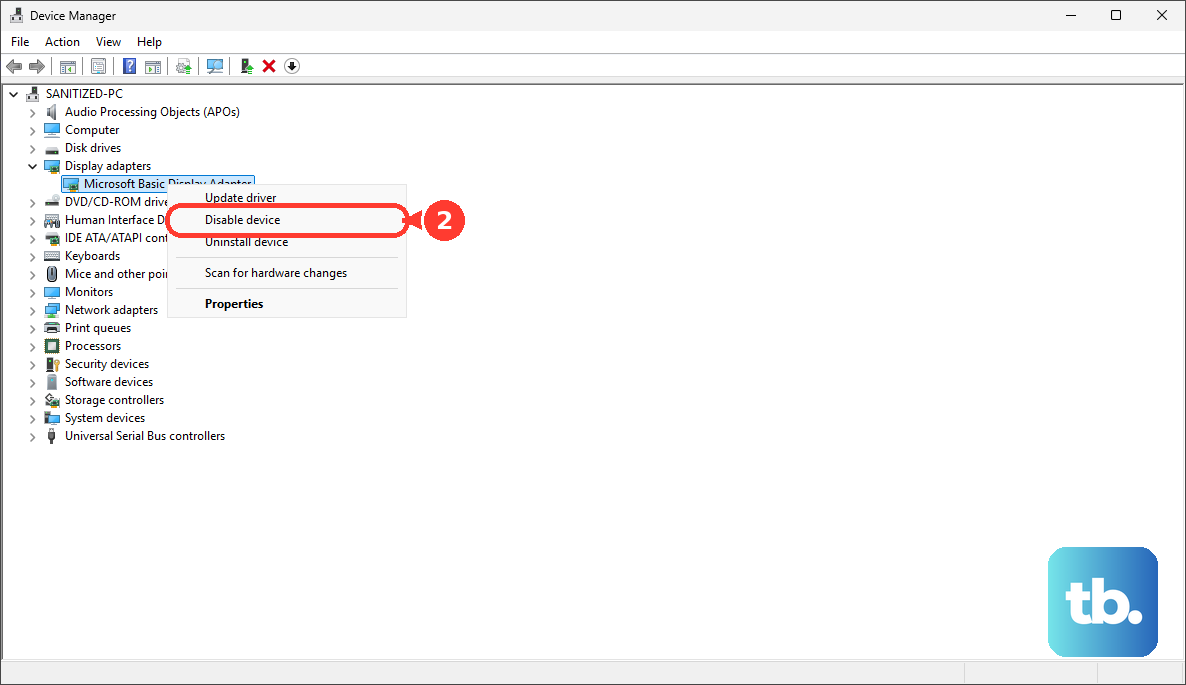
Your screen will flicker. Wait about 10 seconds, then right-click it again and choose Enable device. This resets the driver and can clear up output issues.
Check for Windows Updates
Head to Settings > Windows Update and click Check for updates. Install any available updates. Microsoft and Dell often release fixes that improve display compatibility and stability.
It's a good idea to do this after updating your drivers, as the updates sometimes need to work in tandem.
Test with Another Monitor or PC
To completely rule out a hardware problem with your XPS, connect it to a different monitor or TV. If it works, the issue is with your original monitor's settings or input port.
If you have access to another computer, try connecting the suspect monitor to it. This tells you if the monitor itself is the source of the problem.