
A touchpad that suddenly stops responding turns your portable laptop into a desktop, forcing you to hunt for an external mouse. Whether the cursor is frozen, taps don't register, or two-finger scrolling is dead, the issue is usually solvable without a trip to IT.
Toggle the Touchpad with the Function Key
On the Dell Latitude 14, you can quickly enable or disable the touchpad with a keyboard shortcut. Look for the function key with a touchpad icon, which is often F6 or F5. Press the Fn key and that function key together. You should see a notification pop up on screen confirming the change.
You can also check this setting in Windows. Go to Settings > Bluetooth & devices > Touchpad and make sure the touchpad is toggled on. Some enterprise configurations might have this setting managed by group policy.
Perform a Full Restart
If the touchpad stopped working after the laptop woke from sleep or hibernation, a simple restart is the most reliable first step. It clears out any temporary glitches in the driver. Use your keyboard to navigate: press the Windows key, then use the Tab key to highlight the power icon and press Enter to select Restart.
Disconnect All External Pointing Devices
The Latitude may automatically disable its internal touchpad when it detects a USB or Bluetooth mouse, a common setting to prevent accidental input while typing. Unplug any wired mouse and disconnect any paired Bluetooth mice in Settings > Bluetooth & devices.
To stop this from happening in the future, go back to Settings > Bluetooth & devices > Touchpad. Look for a setting labeled something like "Leave touchpad on when a mouse is connected" and make sure it's turned on.
Update Your Touchpad Driver
Outdated or corrupted drivers are a frequent culprit. For a Dell, the best practice is to use Dell Command Update. Open it and let it scan for available driver updates, which will include the precise touchpad driver for your specific Latitude 14 model.
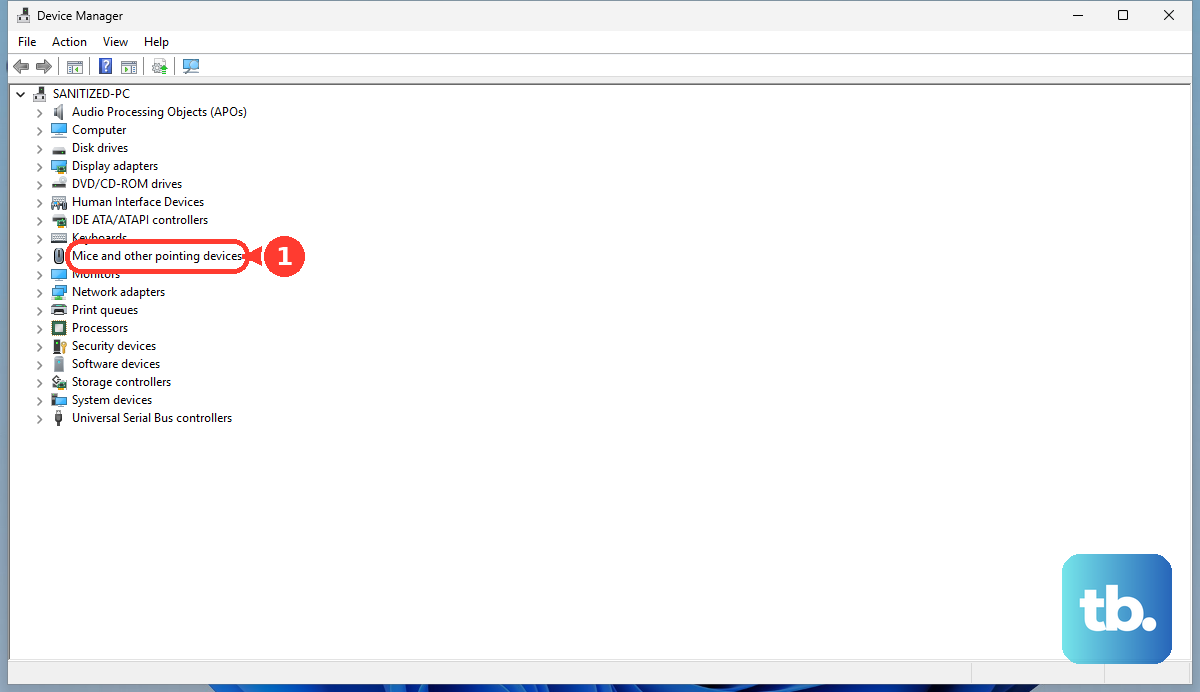
You can also update manually. Press Windows key + X and select Device Manager. Expand Mice and other pointing devices. Right-click on the listed touchpad (it might be called a Dell Touchpad, Synaptics, or Precision Touchpad) and select Update driver.
Run the Dell Hardware Diagnostics
Dell builds a comprehensive hardware test right into the BIOS. Restart your Latitude 14 and immediately start tapping the F12 key repeatedly at the Dell logo. This brings up the one-time boot menu.
Use the arrow keys to select Diagnostics and press Enter. The test will automatically check your touchpad and other input devices for hardware failures. This is a great way to rule out a physical problem.
Check and Adjust BIOS Settings
The touchpad can be disabled at a system level in the BIOS, which survives Windows restarts. To enter the BIOS, restart the laptop and tap the F2 key repeatedly as soon as you see the Dell logo.
Navigate using the arrow keys. Look under sections like System Configuration or Advanced for an option related to the internal pointing device or touchpad. Ensure it is set to Enabled. The F2 BIOS on Latitudes has extensive security settings, but the touchpad toggle is usually straightforward.
Reinstall the Touchpad Driver Completely
If updating didn't help, a clean reinstall might. Go back to Device Manager under Mice and other pointing devices. Right-click your touchpad driver and choose Uninstall device. Check the box that says "Attempt to remove the driver software for this device" if it appears.
Restart your laptop. Windows will install a basic, generic driver upon reboot. For full functionality, including multi-finger gestures, immediately open Dell Command Update or visit the Dell support site to download and install the official touchpad driver for your model.
Inspect for Enterprise Software Conflicts
This is a known issue for Latitude laptops deployed in corporate environments. Security software like endpoint protection, encryption tools, or other managed IT services can sometimes interfere with input drivers. If the touchpad worked before an IT-pushed software update, that's a strong clue.
You can try booting into Safe Mode to test. If the touchpad works perfectly in Safe Mode, a software conflict is likely. You'll need to contact your IT support team to review recently deployed applications or driver packages.
Examine for Physical Issues
If the touchpad is completely dead in all scenarios, Windows, BIOS, and even the Dell Diagnostics, a hardware fault is probable. The connection between the touchpad and the motherboard is a thin ribbon cable that can come loose if the laptop was dropped or serviced.
Liquid spills are another common cause, often leading to erratic behavior before total failure. In these cases, the internal assembly or the touchpad itself may need to be replaced by a technician.