
When your Dell Latitude 14 goes silent, it's usually a quick software setting or driver hiccup. I'd start by checking the basics, as a simple volume mix-up is often the culprit.
Check the Volume and Output
Click the speaker icon in your taskbar and make sure the slider isn't at zero. More importantly, click the little arrow next to the slider to see the output device list. If you recently unplugged headphones, Windows might still be trying to send sound to them. Select your laptop's speakers from that menu.
Run the Windows Audio Troubleshooter
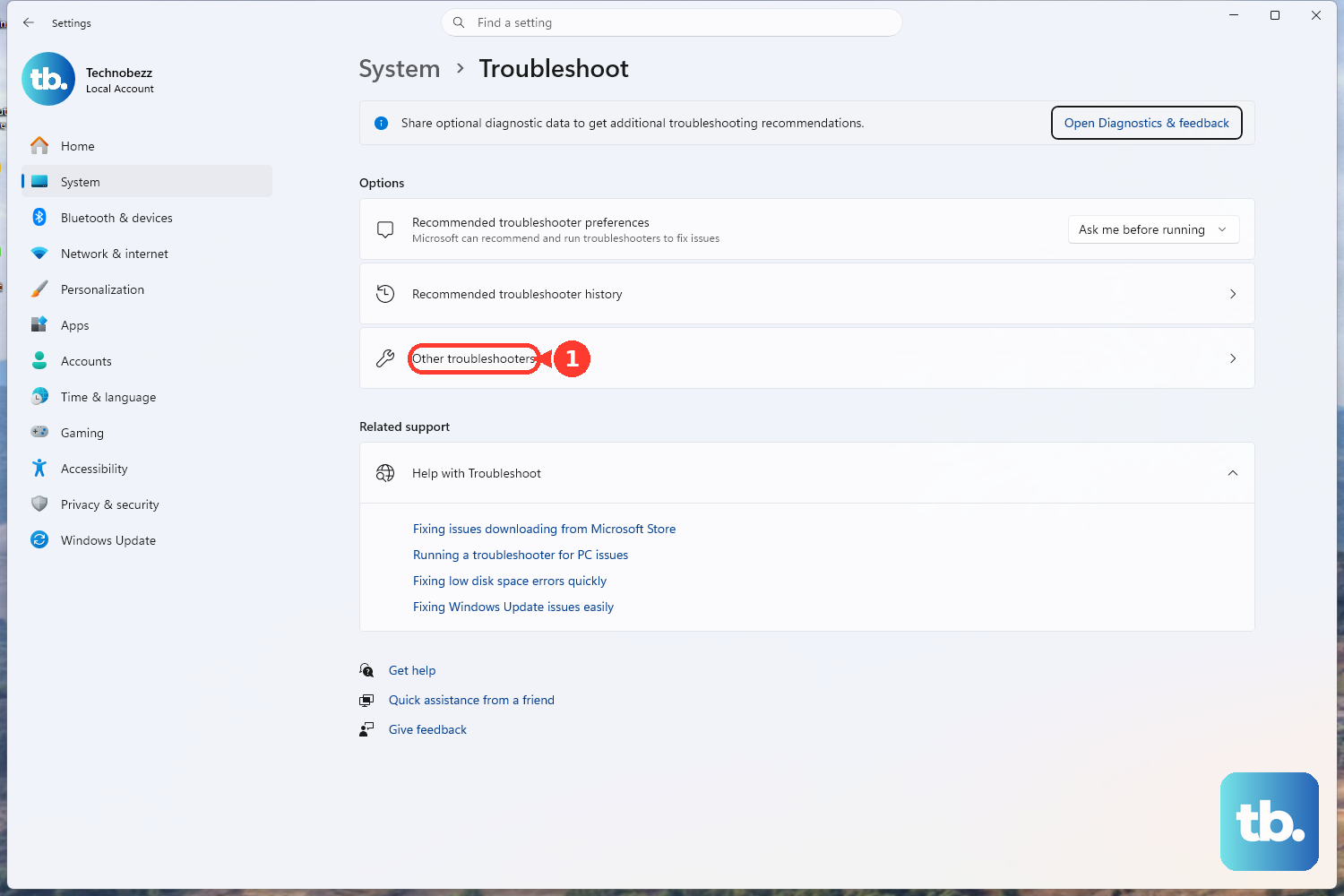
Go to Settings > System > Troubleshoot > Other troubleshooters. Find and run the Playing Audio troubleshooter. It can automatically fix common glitches like disabled services or incorrect default devices, which saves you a lot of manual digging.
Restart Your Latitude
This is the classic IT fix for a reason. Click Start > Power > Restart. A full reboot clears out any stuck audio processes and reloads all the drivers fresh. It's particularly effective if the sound cut out after a Windows update or coming out of sleep mode.
Update or Reinstall Audio Drivers
Press the Windows key + X and choose Device Manager. Expand the Sound, video and game controllers section. Right-click your audio device (it's often Realtek Audio) and select Update driver > Search automatically. If that doesn't work, right-click it again and choose Uninstall device, then restart your laptop. Windows will install a fresh driver on startup.
For a Latitude, I'd also recommend using Dell Command Update. It's designed for enterprise management and often has more reliable, tested driver packages specifically for your model than the generic Windows ones.
Check App-Specific Volume Mixer
Sometimes the system volume is fine, but one app is muted. Right-click the speaker icon in the taskbar and select Open Volume mixer. You'll see individual sliders for each open application. Make sure the app you're using, like your web browser or media player, isn't set to zero.
Restart the Windows Audio Services
Press Windows + R, type services.msc, and hit Enter. In the list, find Windows Audio. Right-click it and select Restart. Do the same for the Windows Audio Endpoint Builder service. If either service was hung up, this will get sound back immediately.
Disable Audio Enhancements
Sound enhancements can sometimes conflict with the hardware. Go to Settings > System > Sound, click on your output device (the speakers), and scroll down to Audio enhancements. Try setting this to Off to see if it resolves cutting or missing audio.
Check for Enterprise Software Conflicts
If your Latitude is managed by a company, certain security or encryption software can interfere with audio drivers. This is a known quirk on some enterprise images. You might need to check with your IT department to see if there's a policy or a specific driver version they recommend for compatibility.
Test with Dell Diagnostics
To rule out a hardware failure with the speakers, you can run a built-in test. Restart your laptop and press F12 repeatedly at the Dell logo to enter the boot menu. Select Diagnostics from the list. The system will run a hardware check, including an audio test that will play a series of tones.
Roll Back a Problematic Driver Update
If the sound stopped right after a driver update, you can revert it. Open Device Manager, double-click your audio device, go to the Driver tab, and click Roll Back Driver. This will revert to the previous version that was working.