
A touchpad that suddenly stops responding turns your laptop into a desktop. Whether the cursor is frozen, taps don't register, or two-finger scrolling is gone, you can usually get it working again without much fuss.
I'd start with the quickest fix first. Look at the top row of your keyboard for a key with a touchpad icon, often on F5 or F6. Press the Fn key and that function key together. You should see a notification pop up saying the touchpad is enabled or disabled.
Restart Your Inspiron 16
A simple restart clears out temporary software glitches that can lock up the touchpad. This is especially true if it stopped working after the laptop woke from sleep, which is a known quirk with some models.
If you can't use the touchpad to restart, use the keyboard. Press the Windows key, then use the Tab key to navigate to the power icon in the lower right, hit Enter, and select Restart with the arrow keys.
Disconnect Any External Mouse
Windows sometimes disables the internal touchpad when it detects an external mouse. Unplug any USB mouse or disconnect your Bluetooth mouse completely.
To stop this from happening automatically, go to Settings > Bluetooth & devices > Touchpad. Look for a setting that says something like "Leave touchpad on when a mouse is connected" and make sure it's turned on.
Run Dell SupportAssist
Your Inspiron 16 comes with a built-in tool for this. Open the Dell SupportAssist app and run the hardware diagnostics scan. It can automatically detect if there's a driver issue with your touchpad and often offers a one-click fix to update it.
This is usually faster than manually hunting for drivers and it ensures you get the right one from Dell.
Update or Reinstall the Touchpad Driver
Open the Start menu and type "Device Manager." Look for Mice and other pointing devices and expand it. You'll likely see "Dell Touchpad" or "Synaptics HID Device." Right-click on it and choose Update driver.
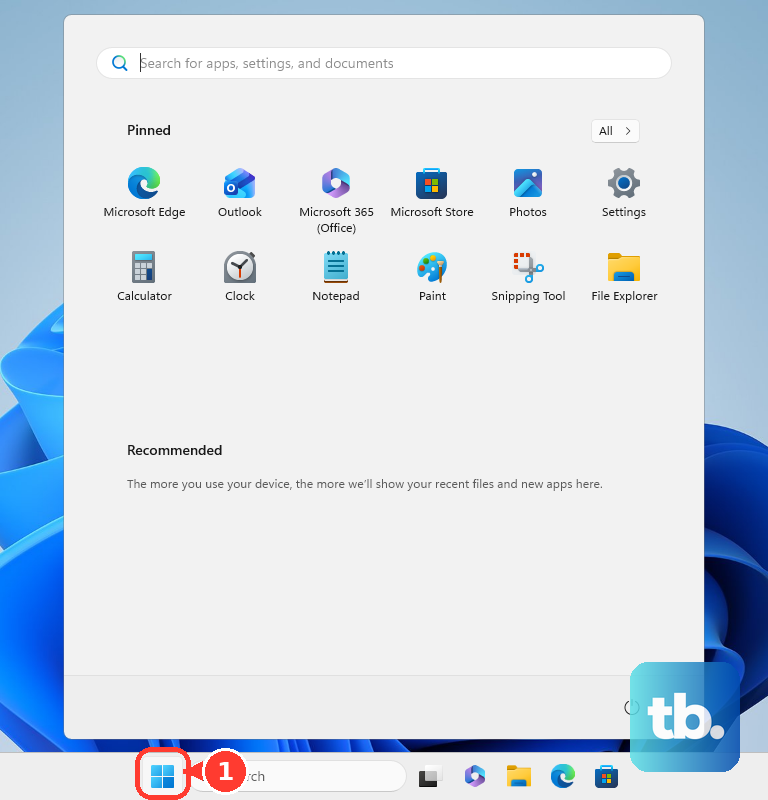
If that doesn't work, right-click it again and select Uninstall device. Restart your laptop. Windows will install a basic driver upon reboot, which might get it working. For full gesture support, you'll then want to install the latest Precision Touchpad driver from the Dell support website for your specific Inspiron 16 model.
Check Touchpad Settings in Windows
It's possible the touchpad was accidentally turned off in the settings. Go to Settings > Bluetooth & devices > Touchpad.
Make sure the master toggle at the top is set to "On." Also, scroll down and check that options like "Taps" or "Two-finger tap" are configured the way you want them.
Verify the Touchpad Is Enabled in BIOS
This is a less common issue, but it's worth a quick check. Restart your laptop and immediately start tapping the F2 key repeatedly to enter the BIOS setup.
Use the arrow keys to navigate. Look for a section like "System Configuration" or "Advanced." Find an option for "Internal Pointing Device" or "Touchpad" and ensure it is set to "Enabled." Save and exit.
Clean the Touchpad Surface
Over time, oils from your fingers and dust can build up and interfere with the touchpad's sensitivity. Shut down the laptop and wipe the touchpad surface gently with a microfiber cloth slightly dampened with water.
Make sure it's completely dry before you turn the computer back on. Also, try using the touchpad with clean, dry fingers to rule that out.
Run the Built-in Hardware Diagnostics
Dell puts a robust hardware test right on your machine. Restart the Inspiron 16 and as soon as you see the Dell logo, start tapping the F12 key. This brings up the one-time boot menu.
Use the arrow keys to select "Diagnostics" and press Enter. The test will run automatically and will specifically check the touchpad hardware. If it fails here, it points to a potential physical issue.
If none of these software fixes work, and the diagnostics test fails, the problem could be physical. The ribbon cable connecting the touchpad to the motherboard can come loose, especially if the laptop was recently moved or bumped. In that case, you'd need to have it looked at by a technician.