
When you plug in your Dell Inspiron 15 and the battery percentage just won't budge, it's a frustrating roadblock. The problem could be with the power adapter, the port, the battery itself, or even a software setting that's telling the system to stop charging.
Check the Power Adapter and Outlet
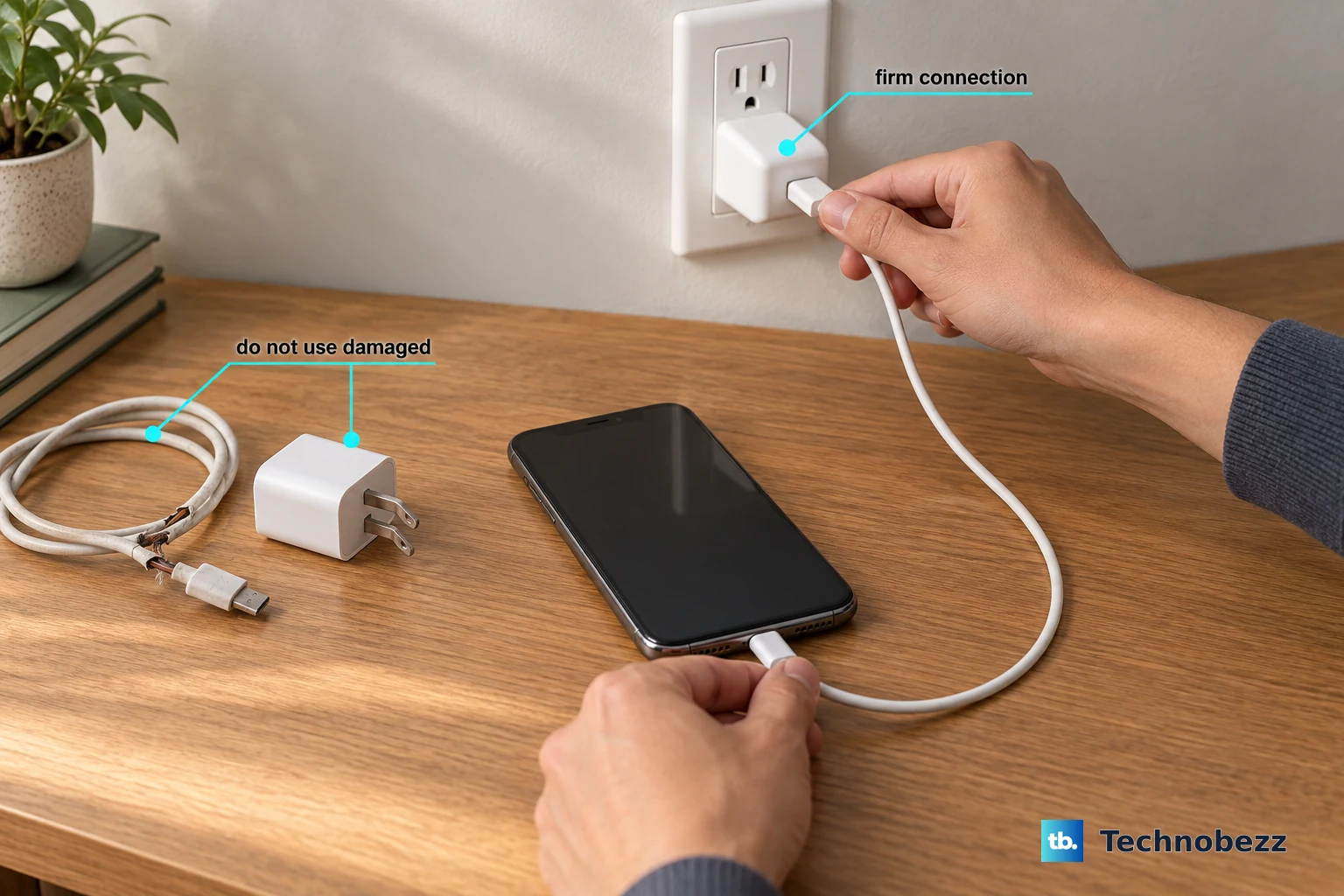
Start with the basics. Check the AC adapter's cable for any obvious damage, kinks, or fraying, especially near the ends. Try plugging it into a different wall outlet to rule out a problem with the power source.
The LED light on the Dell power brick should be solid white or green when it's plugged into the wall. If it's off or blinking, that's a strong sign the adapter itself has failed. I'd check this one first, as it's a common culprit.
Perform a Full Restart
Shut down your Inspiron completely, not just putting it to sleep. Once it's fully off, plug in the charger, then press the power button to turn it back on. This simple step resets the laptop's power management controller and can often get charging working again.
If a standard restart doesn't help, try a forced power drain. Turn off the laptop, unplug the charger, and hold down the power button for a full 30 seconds. Then, plug the charger back in and power it on normally.
Inspect and Clean the Charging Port
Take a close look at the barrel-style charging port on the side of your Inspiron. Use a bright light to check for any packed-in lint, dust, or debris that could be preventing the plug from seating fully.
Gently clean the port with a wooden toothpick or a blast of compressed air. Be very careful not to bend or damage the central pin inside the port. A poor physical connection is a frequent cause of intermittent charging.
Check for a Battery Charge Limit
Some Dell laptops have a battery setting called "Primarily AC Use" or a custom charge threshold that can limit the maximum charge to prolong battery lifespan. You can check this in the Dell Power Manager application, which might be pre-installed on your system.
Open the Dell Power Manager and look for a setting like "Primary AC Use" or a custom charge threshold. If it's set to stop charging at 80%, that explains why it won't go to 100%. You can adjust this setting based on your needs.
Update Your Battery Drivers in Windows
Outdated or corrupted drivers can confuse Windows about your battery status. Press the Windows key + X and select Device Manager. Expand the Batteries section.
Right-click on Microsoft ACPI-Compliant Control Method Battery and select Uninstall device. Do the same for the ACPI-Compliant Control Method Battery listing if you see it. Restart your laptop, and Windows will automatically reinstall fresh drivers upon boot.
Generate a Battery Health Report
Windows has a built-in tool to check your battery's condition. Open Command Prompt as an administrator and type the command: powercfg /batteryreport.
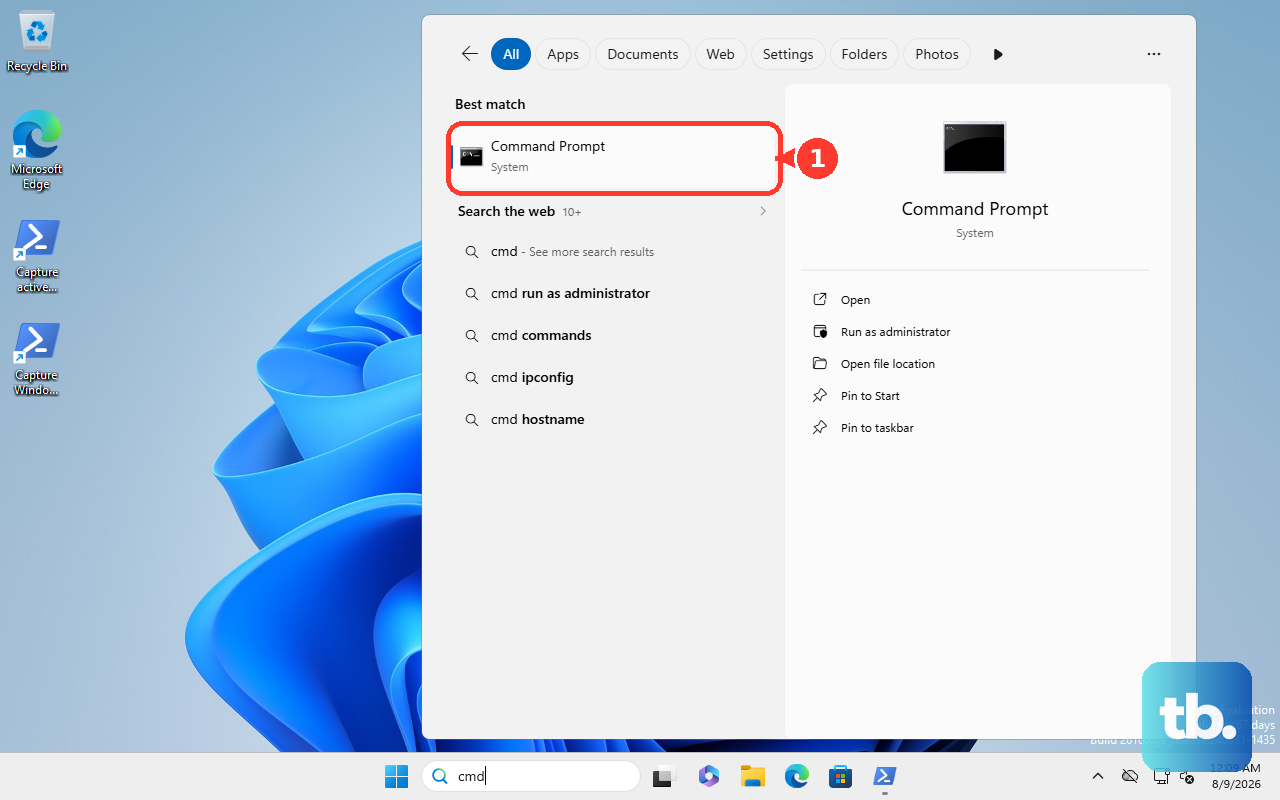
This generates an HTML file in the folder you ran the command from, and Command Prompt shows the exact path (typically C:\Windows\System32 when run as an administrator). Open it and look for the "Design Capacity" versus "Full Charge Capacity" numbers. If the full charge capacity is significantly lower than design capacity, your battery has degraded and may need replacing.
Try a Different Compatible Charger
If you have access to another Dell charger that's compatible with your Inspiron 15 model, test with it. Adapters can fail internally even if the light is on, providing insufficient power.
Make sure any replacement charger matches the required voltage and has equal or higher wattage (e.g., 65W) than your original. Using an underpowered charger might run the laptop but won't charge the battery.
Update Your System BIOS
BIOS updates from Dell often include fixes for power management and charging circuitry issues. To check, enter your laptop's Service Tag on the support.dell.com website to get model-specific drivers.
You can enter the BIOS by pressing F2 repeatedly during startup to see your current version. Download and install any available BIOS update from Dell's support site, following their instructions carefully, as this process is sensitive.
Run Dell SupportAssist Diagnostics
Your Inspiron likely came with Dell SupportAssist. Open it and run the hardware diagnostics scan. This tool can test the battery and AC adapter directly and will report if it detects a failure with either component.
It's a straightforward way to get a definitive answer from the system itself about whether a hardware part is faulty and needs to be replaced.