
When your Dell Inspiron 14 shows a "USB Device Not Recognized" error or simply doesn't power or detect a connected device, it's a common but fixable headache. The issue could be with the port itself, a driver conflict, or a Windows power setting. I'd start by checking the basics.
Test a Different USB Port
Unplug your device and try it in another USB port on your Inspiron 14. If it works in a different port, the original one might be physically damaged or have a loose connection internally. Try both the USB-A and USB-C ports to see if the problem is specific to one type.
Perform a Full Restart
Shut down your laptop completely, wait a few seconds, and then power it back on. A full restart reloads the USB drivers and resets the USB controller, which often clears up temporary glitches that cause devices to go unrecognized. Don't just close the lid to put it to sleep.
Check the Device on Another Computer
This is the quickest way to rule out a problem with the USB device itself. Plug it into a different PC or laptop. If it fails to work there too, the flash drive, mouse, or keyboard is likely the culprit. If it works perfectly elsewhere, the focus shifts to your Inspiron.
Swap Out the USB Cable
For devices like external hard drives or phones, the cable is a frequent point of failure. Try a different, known-good cable. Some cables are designed only for charging and lack the internal wires for data transfer, which can be confusing if the device seems to get power but isn't detected.
Update or Reinstall USB Drivers
Press the Windows key + X and select Device Manager. Expand the Universal Serial Bus controllers section. Look for any entries with a yellow exclamation mark. Right-click on them and choose Update driver.
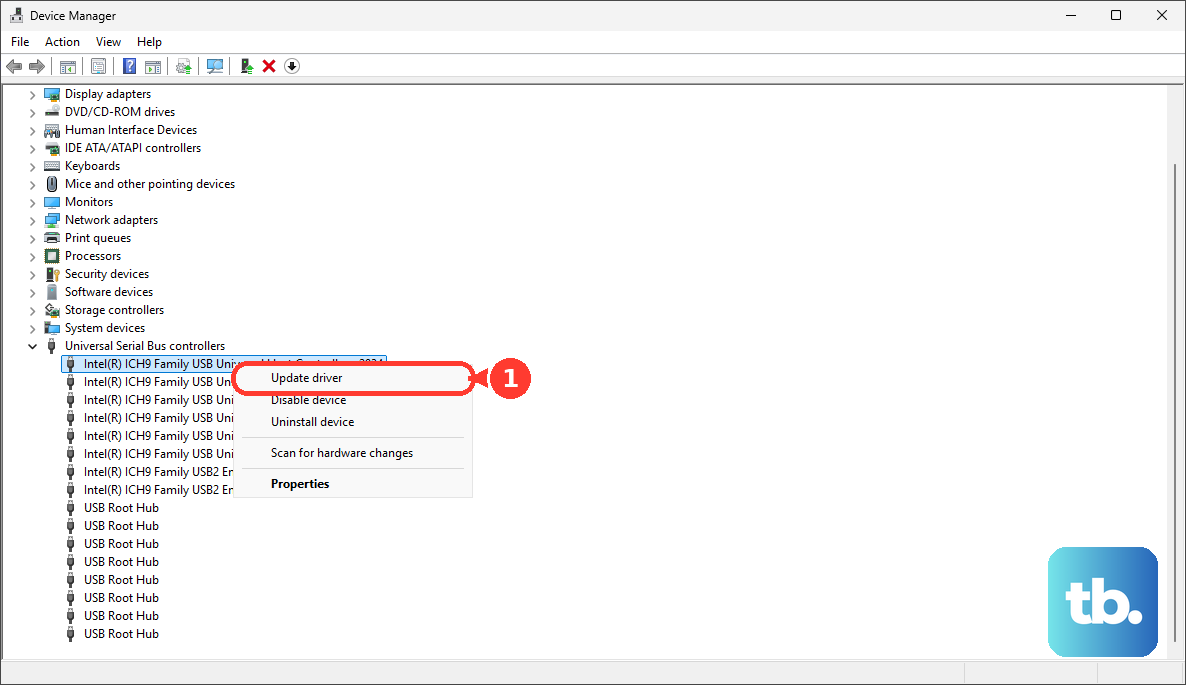
If that doesn't help, you can try uninstalling the driver for the problematic USB controller, then restart your laptop. Windows will automatically reinstall a fresh driver upon reboot. For the most accurate drivers, use your Inspiron 14's Service Tag on the Dell support site.
Disable USB Selective Suspend
Windows can turn off USB ports to save battery, which sometimes prevents devices from waking up properly. Go to Control Panel > Power Options. Click Change plan settings next to your selected plan, then Change advanced power settings.
In the new window, scroll down and expand USB settings, then expand USB selective suspend setting. Set both "On battery" and "Plugged in" to Disabled. Click Apply and OK.
Use Dell SupportAssist for Drivers
Dell's SupportAssist tool is handy for managing drivers. It can scan your system and identify outdated or corrupt drivers, including those for USB controllers. Open the SupportAssist app (it's pre-installed) and run a driver check. It will fetch the correct drivers directly from Dell.
Run the Built-in Hardware Diagnostics
Restart your Inspiron 14 and press the F12 key repeatedly as it boots to enter the one-time boot menu. Use the arrow keys to select Diagnostics and press Enter. This runs Dell's pre-boot hardware test, which can check the USB subsystem for physical failures.
Check for Windows Updates and Optional Drivers
Go to Settings > Windows Update and click Check for updates. Install all available updates. Then, click Advanced options and look under Optional updates. There may be driver updates specifically for chipset or USB controllers that aren't installed by default.