
That sudden blue screen on your Dell Inspiron 14 is Windows hitting the emergency stop button. It's usually a driver conflict, a hardware hiccup, or a corrupted system file. The specific error code on the screen gives you a clue, but the fixes below handle most of the common causes.
Write Down the Stop Code
When the blue screen appears, look for the all-caps error code. Common ones include DRIVER_IRQL_NOT_LESS_OR_EQUAL, SYSTEM_SERVICE_EXCEPTION, or KERNEL_SECURITY_CHECK_FAILURE. Jot this down. You can search for it later, but starting with the general troubleshooting steps often resolves the issue without needing to decode it.
Perform a Full Restart
A single blue screen can sometimes be a random glitch. Hold down the power button until the laptop turns off completely, wait a few seconds, then turn it back on. If it boots to Windows and runs normally, it might have been a one-off event. If the blue screen comes back quickly or prevents you from logging in, you've got a recurring problem to solve.
Boot Into Windows Safe Mode
If the laptop crashes before you can do anything, you need to get into Safe Mode. From the sign-in screen, hold the Shift key and click the power icon, then select Restart. After it reboots to a blue menu, go to Troubleshoot > Advanced options > Startup Settings and click Restart. When it comes back up, press the 4 key to enable Safe Mode. This loads Windows with only essential drivers, which can help you isolate a bad software or driver update.
Roll Back a Problematic Update
Think about when the crashes started. If they began right after a Windows Update, you can remove it. In Safe Mode or normal Windows, go to Settings > Windows Update > Update history > Uninstall updates. Look for the most recent quality update or feature update, right-click it, and select Uninstall. I've seen this fix issues where a new update clashes with older Inspiron 14 drivers.
Update Your Drivers with Dell SupportAssist
Outdated or corrupt drivers are the most frequent cause of blue screens on these laptops. Dell's SupportAssist tool is actually great for this. Open it and run a driver scan. It will find updates specifically for your model. Pay special attention to audio, chipset, and network drivers, as these are common culprits. For the GPU, if you have one, get drivers directly from Intel, AMD, or NVIDIA's website.
Run the Dell Pre-boot Diagnostics
Before diving deep into Windows, it's smart to check the hardware. Restart your Inspiron 14 and immediately start tapping the F12 key repeatedly. This brings up the one-time boot menu. Use the arrow keys to select Diagnostics and press Enter. Let the ePSA hardware test run. It will check your memory, hard drive, and other components for failures and can give you a clear error code if it finds a hardware fault.
Scan for Corrupted System Files
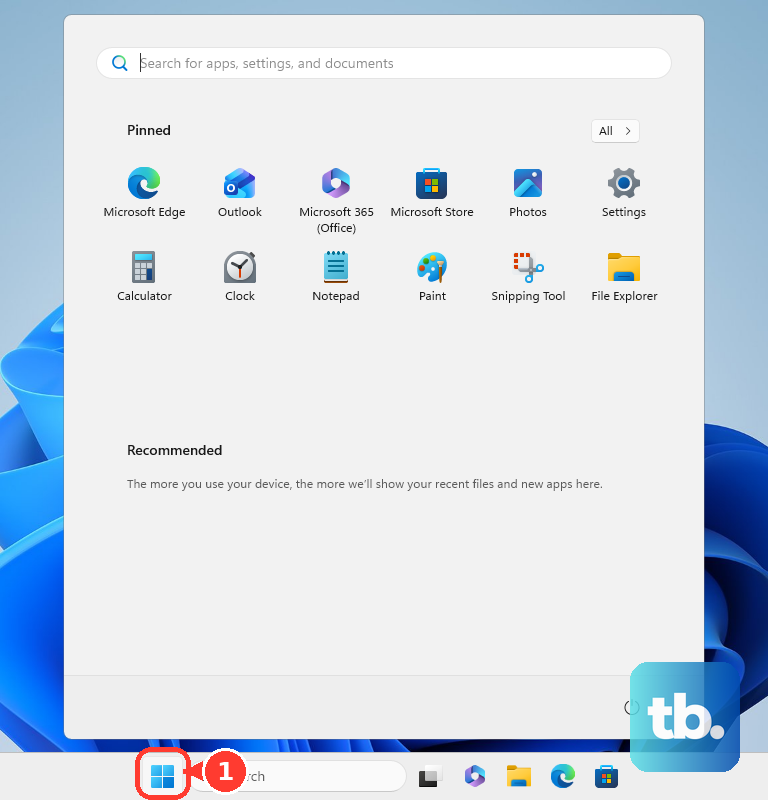
Corrupted Windows files can trigger crashes. Open the Start menu, type cmd, right-click Command Prompt, and select Run as administrator. In the black window, type sfc /scannow and press Enter. This System File Checker will scan and repair protected files. If it finds problems it can't fix, run this command first: DISM /Online /Cleanup-Image /RestoreHealth. Then, run the sfc command again.
Check Your RAM for Errors
Faulty memory is a classic blue screen cause. Search for Windows Memory Diagnostic in the Start menu and open it. Choose Restart now and check for problems. Your laptop will reboot and run a comprehensive memory test, which takes several minutes. If it reports any errors, you likely have a bad RAM stick. On the Inspiron 14, you'd need to open the bottom panel to reseat or replace the memory modules.
Inspect Your Storage Drive
A failing SSD can cause all sorts of instability. Open an Administrator Command Prompt like before. To check your main drive, type chkdsk C: /f /r and press Enter. If it asks to schedule the scan for the next restart, type Y and then restart your laptop. The check will run before Windows loads. Many bad sectors or errors in the report suggest the drive may be failing.
Manage Your WiFi Driver
Some Inspiron 14 models with certain Intel WiFi adapters have known issues with slow speeds or dropped connections that can sometimes lead to system instability. If you suspect your network driver, go to the Dell support website. Enter your Service Tag to get the exact driver for your build. Uninstall the current WiFi driver in Device Manager, then install the one directly from Dell's site. This often works better than a generic Windows update.
Reset Your PC
If you're still hitting blue screens after all this, a reset is a strong next step. Go to Settings > System > Recovery. Click Reset PC. Choose Keep my files to reinstall Windows while preserving your personal documents. This will remove all your apps and drivers, giving you a fresh start. It's very effective at clearing out deep-seated driver conflicts that other tools can't fix.