
When your Dell G16's keyboard starts acting up, keys not registering, ghost typing, or just going completely dead in the middle of a game, it can bring your session to a screeching halt. Let's get it working again.
A browser based key test shows every keypress in real time, which makes it easy to tell a failed switch from a settings problem before you start troubleshooting.
Force Restart the Laptop
Hold down the power button for about 15 seconds until the laptop completely powers off. Wait a few seconds, then press the power button again to turn it back on. This is the equivalent of a hard reboot and can clear temporary glitches that might be locking up the keyboard controller.
Check for Alienware Command Center Conflicts
Open the Alienware Command Center app and look at your performance profiles. I've seen cases where a custom thermal or overclocking profile can cause system instability that manifests as peripheral issues. Try switching to a default profile like "Balanced" and see if keyboard responsiveness returns.
Update Your Drivers from the Source
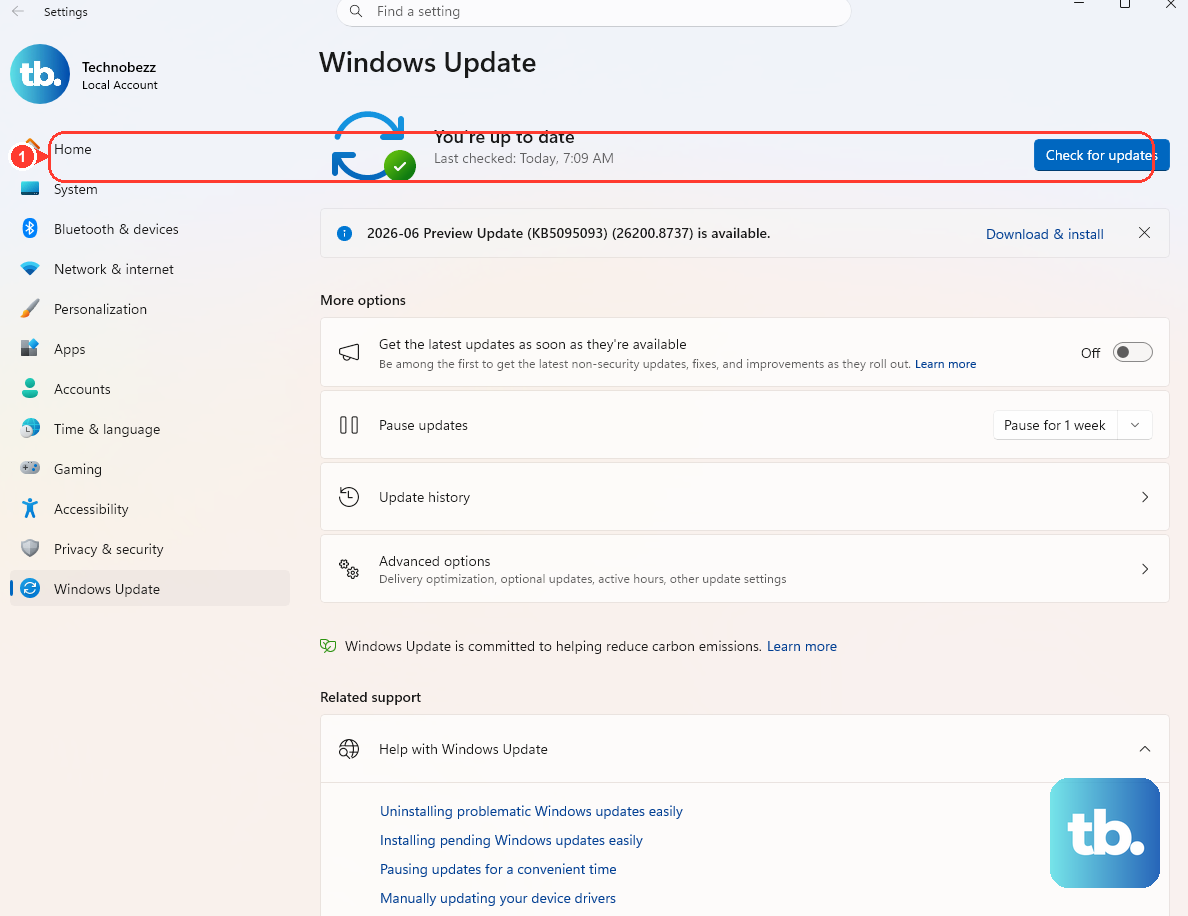
For the G16, you should get your NVIDIA or AMD graphics drivers directly from the manufacturer's website, not through Windows Update. Outdated or generic drivers can cause all sorts of weird system behavior, including input problems. While you're at it, check the Dell Support site for chipset and keyboard driver updates specific to your G16 model.
Disable Filter Keys and Sticky Keys
Press the Shift key five times quickly. If a window pops up, you've accidentally enabled Sticky Keys. Click the link to go to keyboard settings and turn it off. Also, navigate to Settings > Accessibility > Keyboard and ensure "Filter Keys" is toggled off, as this feature can introduce lag and make keys seem unresponsive.
Run the Dell SupportAssist Hardware Scan
Restart your G16 and immediately start tapping the F12 key to enter the boot menu. Use the arrow keys to select "Diagnostics" and run the comprehensive hardware test. It will automatically check the keyboard hardware and give you a clear pass/fail result, which is great for ruling out a physical failure.
Check for Physical Debris
Gaming laptops are snack-friendly, which makes them crumb-friendly. Turn the G16 off, tilt it, and gently tap the sides. Use a can of compressed air to blow between the keys, angling the nozzle to dislodge anything stuck underneath. Even a small piece of debris can prevent a key from making proper contact.
Boot into Safe Mode
If the keyboard works fine in Safe Mode, you know a software or driver conflict in your normal Windows session is the culprit. To enter Safe Mode, go to Settings > System > Recovery and click "Restart now" under Advanced startup. After the reboot, choose Troubleshoot > Advanced options > Startup Settings > Restart, then press 4 or F4 to enable Safe Mode.
Verify Your Keyboard Layout and Language
If you're getting the wrong characters, your keyboard layout might have switched. Go to Settings > Time & Language > Language & Region. Click on your language (e.g., English) and then "Options." Under Keyboards, make sure only the layout you intend to use (like US QWERTY) is listed. Remove any others.
Inspect the BIOS for Discrete GPU Settings
Restart and tap F2 repeatedly to enter the BIOS. Look for a setting related to the discrete GPU, sometimes called "Hybrid Graphics" or "Optimus." If your G16 is set to use only the discrete Nvidia GPU, try switching it to a hybrid or "Optimized" mode. Some users have reported that forcing dGPU-only mode can lead to system instability that affects other components.
Use an External Keyboard as a Test
Plug in any USB keyboard. If it works perfectly, it strongly points to a hardware issue with your G16's internal keyboard. The problem could be a loose ribbon cable connection inside the chassis or, in the worst case, a damaged keyboard that needs replacement. This simple test separates software problems from hardware ones.