
When your Dell G16's camera shows a black screen, isn't detected by apps, or gives an error, it can throw a wrench in your gaming streams or video calls. The fixes are usually straightforward, so let's get right into them.
Check the Physical Camera Shutter
This is the quickest thing to check. The Dell G16 has a physical privacy shutter built into the bezel above the screen. Look for a small, thin plastic slider right next to the camera lens. If it's covering the lens, you'll just see a black screen. Slide it to the side to open the shutter and reveal the camera.
Update Your Camera Drivers
Outdated or corrupted drivers are a common culprit. Don't rely on Windows Update for this. Go directly to Dell's support website, enter your G16's Service Tag, and look for camera or imaging device drivers. I'd download and install those first. You can also try updating through Device Manager by right-clicking the camera under Cameras or Imaging devices and selecting Update driver.
Check Windows Privacy Settings
Windows can block camera access at a system level. Go to Settings > Privacy & security > Camera. Make sure the main Camera access toggle is on. Then, scroll down to ensure the specific app you're using, like Discord, OBS, or Zoom, is also toggled on in the list of allowed apps.
Close Other Camera Applications
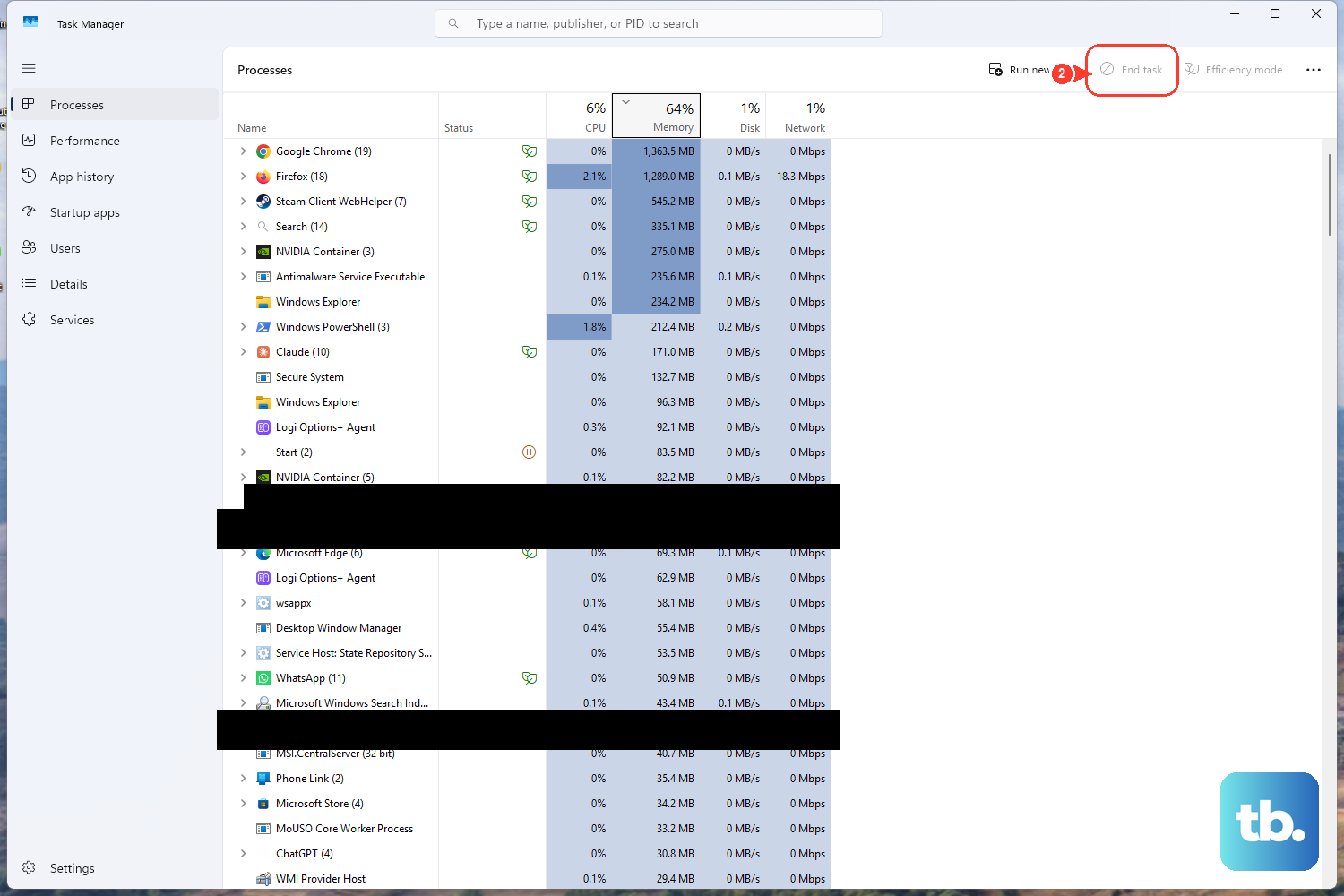
Only one program can use the camera at a time. If you have a game launcher, Discord, or another video app running in the background, it might be holding the camera hostage. Open Task Manager with Ctrl+Shift+Esc, look for any of those apps under the Processes tab, and end the task. Then try your camera again in the app you want.
Reinstall the Camera Driver
If updating didn't work, a clean reinstall often does. Open Device Manager, find your camera, right-click it, and select Uninstall device. Check the box that says "Attempt to remove the driver for this device" if you see it. Restart your G16. Windows will automatically try to install a fresh driver upon reboot. You can then install the latest one from Dell's site again for good measure.
Test with the Windows Camera App
Open the built-in Camera app from your Start Menu. This is a great way to isolate the problem. If the camera works perfectly here but fails in another app like your game streaming software, then the issue is with that app's settings. You'll need to dig into that program's video or device preferences and make sure it's set to use the correct integrated camera.
Check for System and BIOS Updates
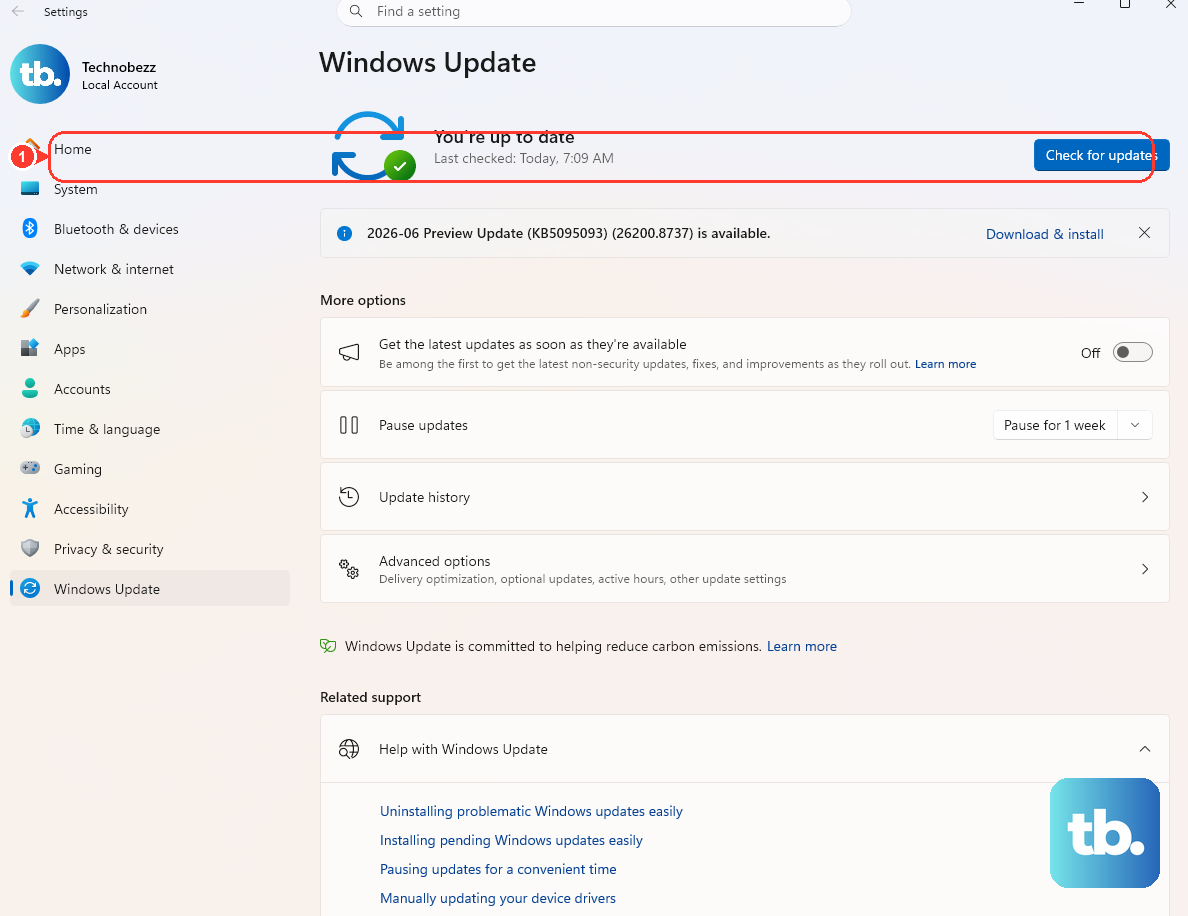
Head to Settings > Windows Update and install any available updates. Sometimes, system updates include compatibility fixes for hardware. It's also worth checking for a BIOS update for your G16 on Dell's support page. An outdated BIOS can cause all sorts of hardware weirdness, and the update process is usually handled by a simple Dell installer.
Reset the Camera App
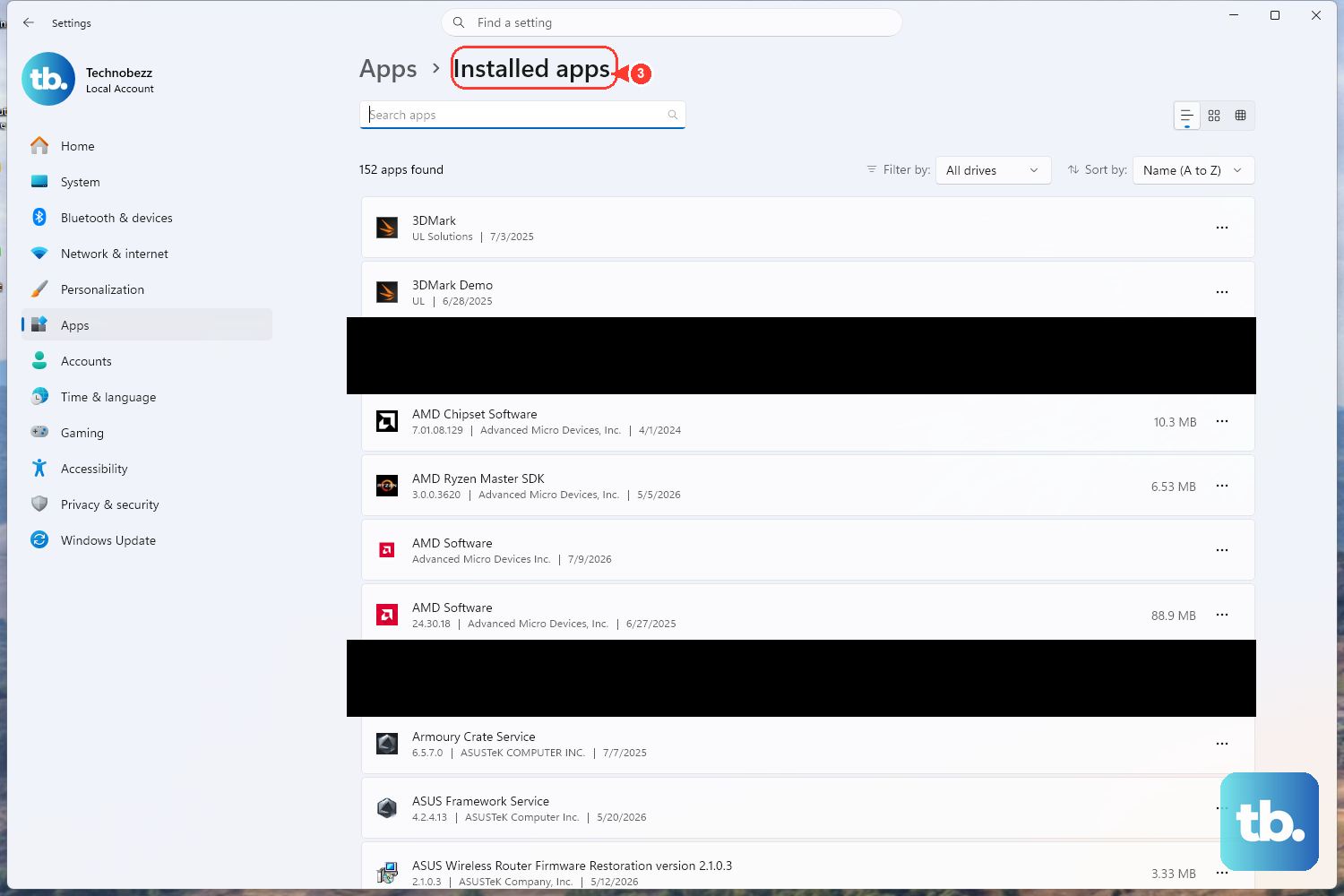
If the issue is only with the Windows Camera app itself, you can reset it. Go to Settings > Apps > Installed apps, find the Camera app, click the three dots next to it, and select Advanced options. Click the Reset button. This clears the app's cache and settings without affecting your other programs or drivers.
Run the Hardware Diagnostics
Dell builds a handy diagnostics tool right into the BIOS. Restart your G16 and tap the F12 key repeatedly as it boots to enter the One-Time Boot Menu. Select Diagnostics from the list. The tool will run a series of tests, including one for the camera. If it fails the hardware test, you'll know the issue is likely physical.