
Screen flickering on your ASUS ZenBook 14 is incredibly distracting, turning a sleek laptop into a frustrating light show. The display might flash rapidly, show horizontal lines, or go black for a split second. Let's get it fixed.
I'd start with the MyASUS app. It's ASUS's official hub for driver updates and diagnostics. Open it, head to Customer Support > LiveUpdate, and install any available updates, especially for the Intel or NVIDIA graphics drivers. A quick driver refresh solves a lot of these issues.
Use MyASUS to Run a Hardware Check
Before diving deep into software, let's rule out a hardware fault. Open the MyASUS app again and go to System Diagnosis. Run the display test. It will cycle through colors and patterns. If the screen flickers or shows anomalies during this test, it points to a potential hardware problem with the panel or its connection.
Update Your Graphics Drivers Manually
While MyASUS is good, sometimes you need the absolute latest driver. Press the Windows key, type Device Manager, and open it. Expand Display adapters, right-click your GPU (likely Intel Iris Xe or an NVIDIA chip), and select Update driver.
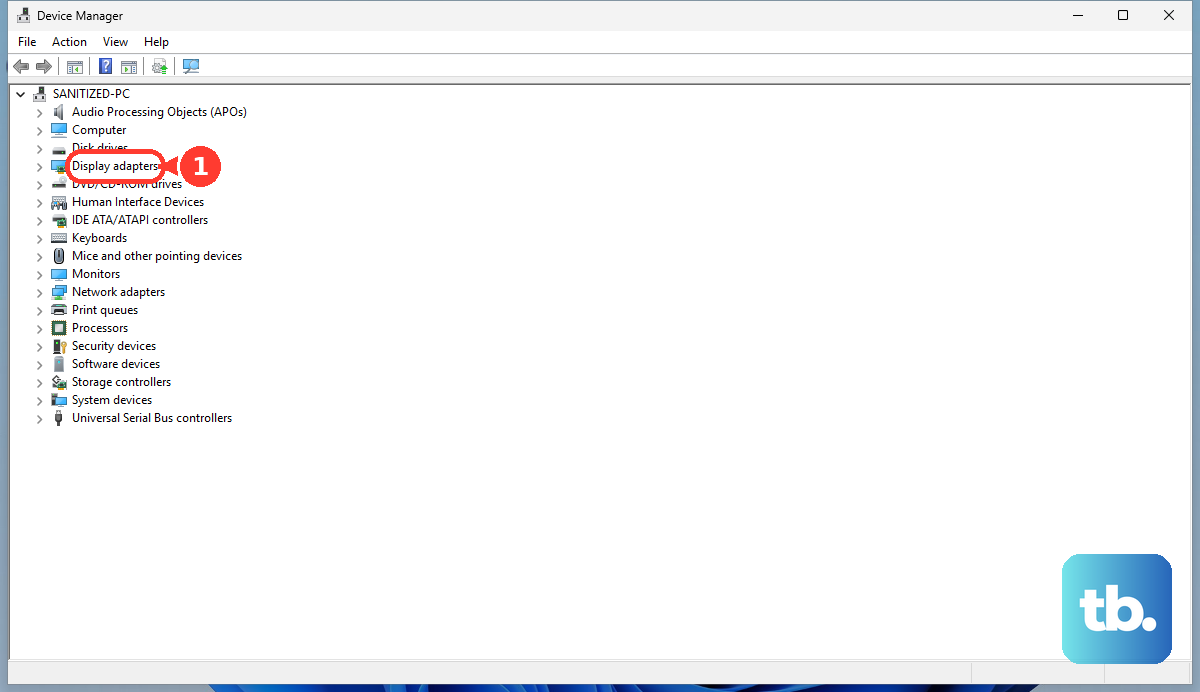
Choose Browse my computer for drivers and then Let me pick from a list. If an older driver version is listed, select it and click Next to roll back. This is a common fix if the flickering started right after a Windows Update that installed a new driver.
Disable the ScreenPad if You Have One
Some ZenBook 14 models feature a ScreenPad secondary display. Its driver can sometimes conflict with the main display. Try disabling it to see if the flickering stops. You can usually toggle it off via a function key (like F6) or through the ScreenPad settings in the Windows notification center.
If that helps, visit the ASUS support site for your specific model and download the latest ScreenPad driver from there, as it may be newer than what's in MyASUS.
Adjust Your Display's Refresh Rate
Right-click your desktop and select Display settings. Scroll down and click Advanced display. Look at the refresh rate setting. If it's set to a high value like 90Hz or 120Hz, try changing it to 60Hz to see if the flickering stops.
This can resolve flickering caused by panel compatibility, especially if you're using an external monitor. Just toggle it back and forth to reset the connection.
Check for a Loose Internal Cable
Does the flickering get worse when you open or close the lid, or gently flex the laptop base? This can indicate a loose internal display cable (called an eDP cable). Over time, the hinge movement can slightly disconnect it.
This is a hardware issue. If your ZenBook is still under warranty, contact ASUS support. I've seen this require a professional repair to reseat or replace the cable.
Boot into Safe Mode to Isolate the Cause
If the flickering is constant, restart your laptop. As soon as the ASUS logo appears, press and hold the power button for 10 seconds to force it off. Do this twice, and on the third startup, Windows should enter the Automatic Repair environment.
From there, go to Troubleshoot > Advanced options > Startup Settings > Restart. After the restart, press 4 or F4 to boot into Safe Mode. If the screen is stable in Safe Mode, a third-party app or driver is the culprit.
Update Your System BIOS
An outdated BIOS can cause all sorts of instability, including display problems. Restart your ZenBook and tap the F2 key repeatedly as it boots to enter the BIOS. Note the current version.
Then, go to the ASUS support website, find your exact ZenBook 14 model, and download the latest BIOS file. Follow ASUS's instructions carefully to update it. A BIOS update can improve compatibility with Windows and hardware components.
Disable Hardware Acceleration in Apps
Specific applications like Google Chrome or Discord can cause flickering. In Chrome, go to Settings > System and turn off Use hardware acceleration when available. Restart the browser.
This tells the app to stop using your GPU directly for rendering, which can resolve conflicts that lead to screen tearing and flashes, especially in windowed mode.