
When you plug your ASUS VivoBook 15 into an external monitor and get no signal, it's usually a quick settings or driver fix. Let's get that second screen working.
If the fault comes and goes, an online monitor test helps you reproduce it on demand with solid colors and gradient patterns.
Start with the Windows + P Shortcut
This is the fastest thing to try. With your monitor connected, press the Windows + P keys together on your VivoBook. A menu will pop up on the right side of your screen.
Select Duplicate or Extend. If it's set to "PC screen only," your laptop won't send any video signal out. I'd cycle through the options once to see if any of them trigger the display to wake up.
Inspect Your Cable and Ports
Unplug the HDMI cable from both your laptop and the monitor, then plug it back in firmly. A loose connection is a common culprit. If you have a spare HDMI cable, try it.
Also, check the monitor itself. Make sure it's powered on and set to the correct HDMI input source using the buttons on the monitor. It sounds obvious, but it's an easy step to miss when you're focused on the laptop.
Run a Display Detection
Go to Settings > System > Display. On this page, click the Detect button. Windows will actively search for any connected displays.
If your monitor appears, click on it in the diagram. Scroll down and make sure the display resolution is set to something the monitor supports, like 1920x1080. Setting it too high can sometimes cause a blank screen.
Update Your Graphics Drivers
Outdated or corrupted display drivers are a prime suspect. For your VivoBook 15, you'll want to get these directly from ASUS or the chipmaker. Open your browser and go to the ASUS support site, enter your exact model number, and download the latest VGA/Graphics driver.
You can also use the MyASUS app that came pre-installed on your laptop. Open it and check the Customer Support or LiveUpdate section for available driver updates. Installing the official package often resolves HDMI handshake issues.
Restart with the Monitor Connected
Shut down your VivoBook completely. With the external monitor still plugged in and turned on, power the laptop back on. Some systems only initialize the external video port during the boot sequence.
This forces the graphics hardware to recognize the display from the start. Watch the monitor as soon as you hit the power button to see if you get a BIOS or Windows logo.
Use the MyASUS App for Diagnostics
Since you have an ASUS laptop, take advantage of the MyASUS software. Open it and look for a system diagnostics or hardware check tool. It can sometimes identify issues with display outputs or other components.
While you're in there, it's a good chance to check for any BIOS updates. An update from ASUS could include fixes for display connectivity. The app usually makes this process much simpler than doing it manually.
Disable and Re-enable the Graphics Adapter
Press Windows + X and select Device Manager. Expand the Display adapters section. Right-click on your Intel, AMD, or NVIDIA graphics device and select Disable device.
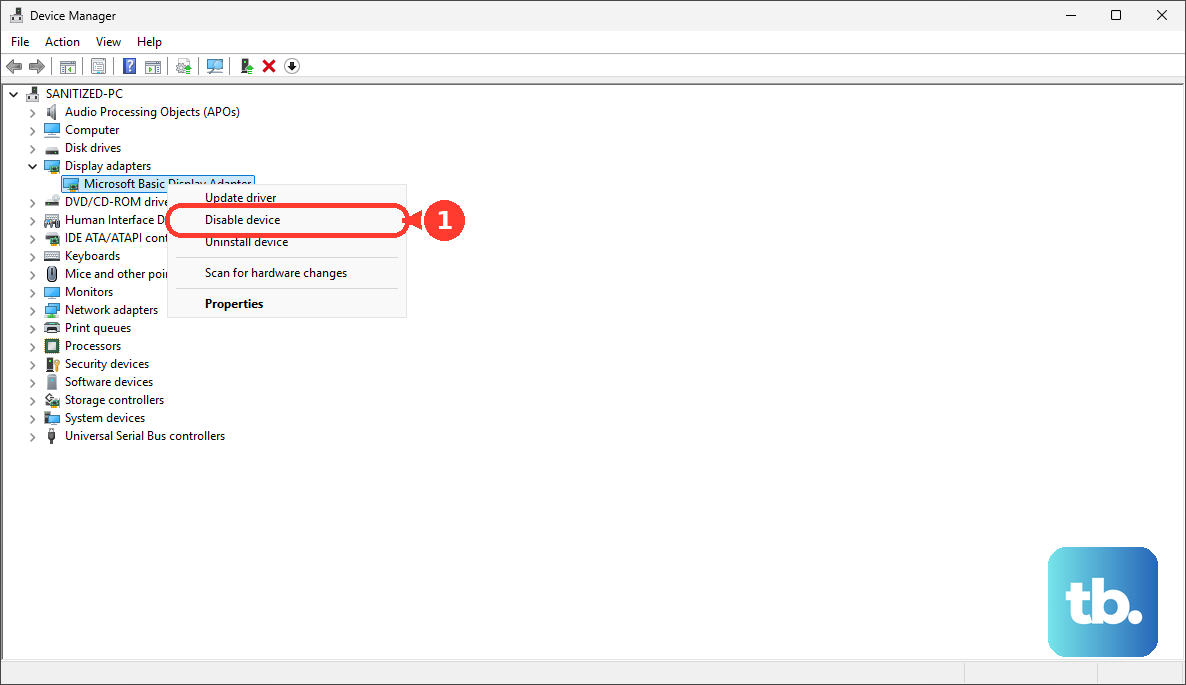
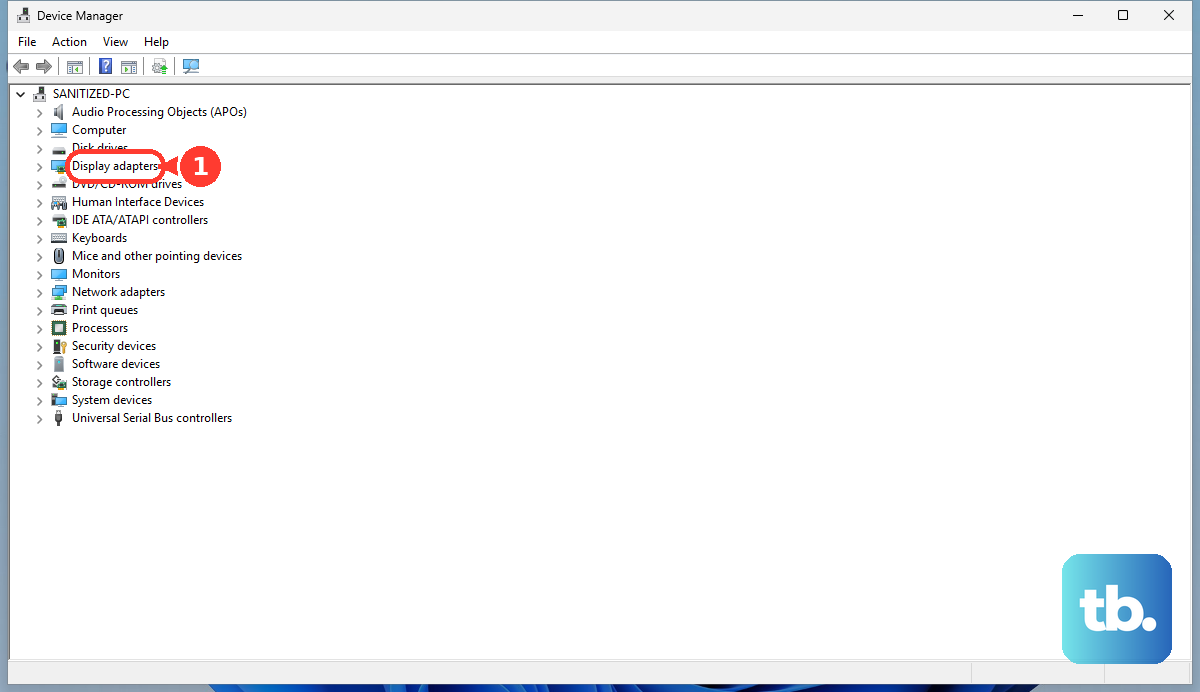
Your screen might flicker or go blank for a second. Wait about 10 seconds, then right-click the same adapter and choose Enable device. This refreshes the driver and can re-establish a connection to the external monitor.
Check Your VivoBook's USB-C Port
Many VivoBook 15 models have a USB-C port that supports DisplayPort Alt Mode. This means you can output video through it with a simple USB-C to HDMI adapter.
If you have such an adapter, try connecting your monitor to the USB-C port instead of the dedicated HDMI port. If it works that way, it points to a potential hardware issue with the laptop's native HDMI port itself.
Enter the BIOS to Check Settings
Restart your VivoBook and immediately start tapping the F2 key repeatedly to enter the BIOS setup. Navigate using the arrow keys and look for any display or graphics settings.
You're checking to ensure nothing is disabled that would block external video output. Settings can occasionally get reset. Just be careful not to change anything else. Save and exit if you make a change, or just exit without saving if everything looks normal.