
When your Acer Nitro V 15 shows a "USB Device Not Recognized" error or simply doesn't see your connected mouse, keyboard, or external drive, it's a common but fixable hiccup. The problem usually sits with the port, the cable, a driver, or a Windows power setting.
Start With a Different Port
Unplug your device and try a different USB port on your laptop. The Nitro V 15 typically has a mix of USB-A and USB-C ports. If your device works in another port, the original one might have a loose connection or be temporarily disabled by the system.
This is the quickest way to rule out a physical port issue. I'd try this first, especially if you've been plugging and unplugging a lot from the same spot.
Perform a Full Restart
Close your games and applications, then do a full shutdown and restart of your laptop. Don't just put it to sleep. A restart clears temporary glitches in the USB controller and reloads all the necessary drivers from scratch.
It's a simple step, but it resolves a surprising number of these recognition errors. Give it a moment to boot back up completely before testing your USB device again.
Test the Device and Cable Elsewhere
If the problem persists, you need to figure out where the fault lies. Connect the USB device to another computer if you can. If it fails there too, the device itself is likely the problem.
If it works on another PC, the issue is with your Nitro V 15. Also, try a different cable. A cable can often charge a device but fail to transfer data if its internal data wires are damaged.
Update or Reinstall USB Drivers
Press the Windows key, type "Device Manager," and open it. Look for the section called Universal Serial Bus controllers and expand it. Keep an eye out for any entries with a small yellow warning icon.
Right-click on the USB controller or the unrecognized device and choose Update driver. Select Search automatically for drivers. If that doesn't help, try right-clicking and selecting Uninstall device, then restart your laptop. Windows will automatically reinstall the driver on reboot.
Disable USB Selective Suspend
Windows tries to save power by putting idle USB ports to sleep, which can sometimes prevent devices from being detected. To turn this off, go to Control Panel > Power Options.
Click Change plan settings next to your active plan, then Change advanced power settings. In the new window, scroll down and expand USB settings, then expand USB selective suspend setting. Set both "On battery" and "Plugged in" to Disabled.
Run the Hardware Troubleshooter
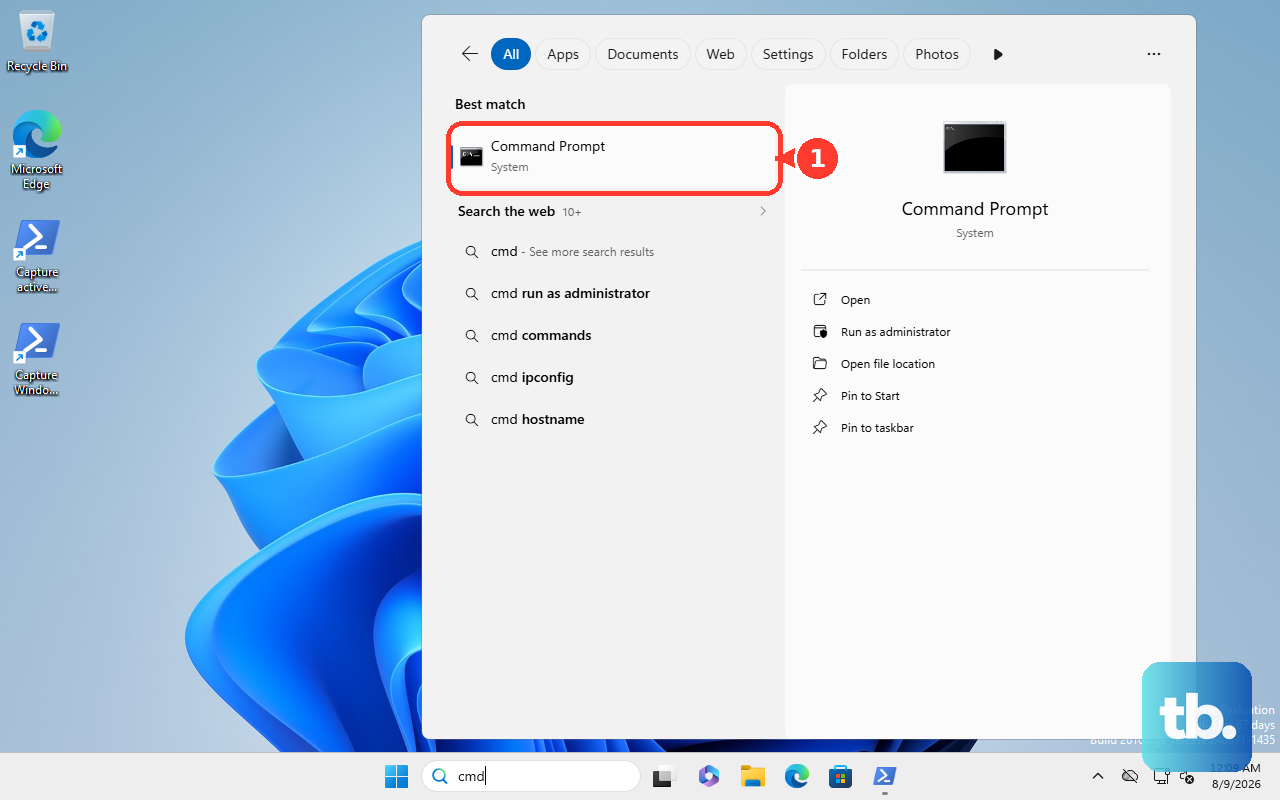
Windows has a built-in tool for this. Right-click the Start button and select Windows Terminal (Admin) or Command Prompt (Admin). Type the following command and press Enter: msdt.exe -id DeviceDiagnostic.
This launches the Hardware and Devices troubleshooter. Follow the prompts to let it scan for and attempt to fix any configuration problems with your USB ports and connected hardware.
Check for System Updates
Go to Settings > Windows Update and click Check for updates. Install any available updates, especially the optional driver updates.
You can find these by going to Advanced options > Optional updates after checking. Microsoft and Acer often release stability and compatibility patches that can resolve USB issues.
Manually Scan for Hardware Changes
Go back to Device Manager. With the top-level "Device Manager" entry selected, click the Action menu at the top and choose Scan for hardware changes.
This forces Windows to immediately re-check all hardware buses, including USB. It's a good final step after trying other fixes, as it can prompt the system to recognize a device it was previously ignoring.
Consider Your Nitro V 15's Performance Settings
If you're using the NitroSense app, try switching to a different performance profile or enabling Max Fan mode. While primarily for thermals, these settings affect system power delivery.
A more aggressive performance profile ensures the USB controllers are receiving consistent power, which can sometimes help with finicky high-power devices like external hard drives.











