Few things feel as alarming as watching your screen turn blue, read "Your PC ran into a problem and needs to restart," and reboot on its own while you were mid-task. You are not alone, and in many cases this is not a sign that your PC is dying.
The fixes below move from the safest, simplest checks to the more advanced boot repairs, so start at the top and stop as soon as your machine is stable again. Everything here applies to both Windows 10 and Windows 11.
What That Blue Screen Is Actually Telling You
The message "Your PC ran into a problem and needs to restart" is a stop code error, also called a bug check, a kernel error, or a Blue Screen error (BSOD). Near the bottom of the screen you will usually see a specific stop code such as PAGE_FAULT_IN_NONPAGED_AREA or MEMORY_MANAGEMENT.
Write that code down, because it tells you which kind of failure occurred and gives you something specific to search for.
Microsoft attributes the cause to a hardware device, its driver, or software. In most cases the problem is resolved by the restart itself, with no further action needed.
If this happened once and your PC came back fine, you can simply let it restart and carry on. If it keeps happening, work through the fixes below.
Fix 1: Remove Hardware You Just Added
If you connected or installed new hardware just before the crashes started, that addition is the prime suspect. This is Microsoft's first listed basic step for repeated stop-code restarts.
Shut down your PC completely.
Remove the recently added hardware, for example a new drive, RAM stick, or peripheral.
Restart and watch for whether the error returns.
If the restarts stop, the hardware or its driver was the trigger. If you need that device, you can revisit its driver later in Device Manager.
Fix 2: Free Up Disk Space and Install Updates
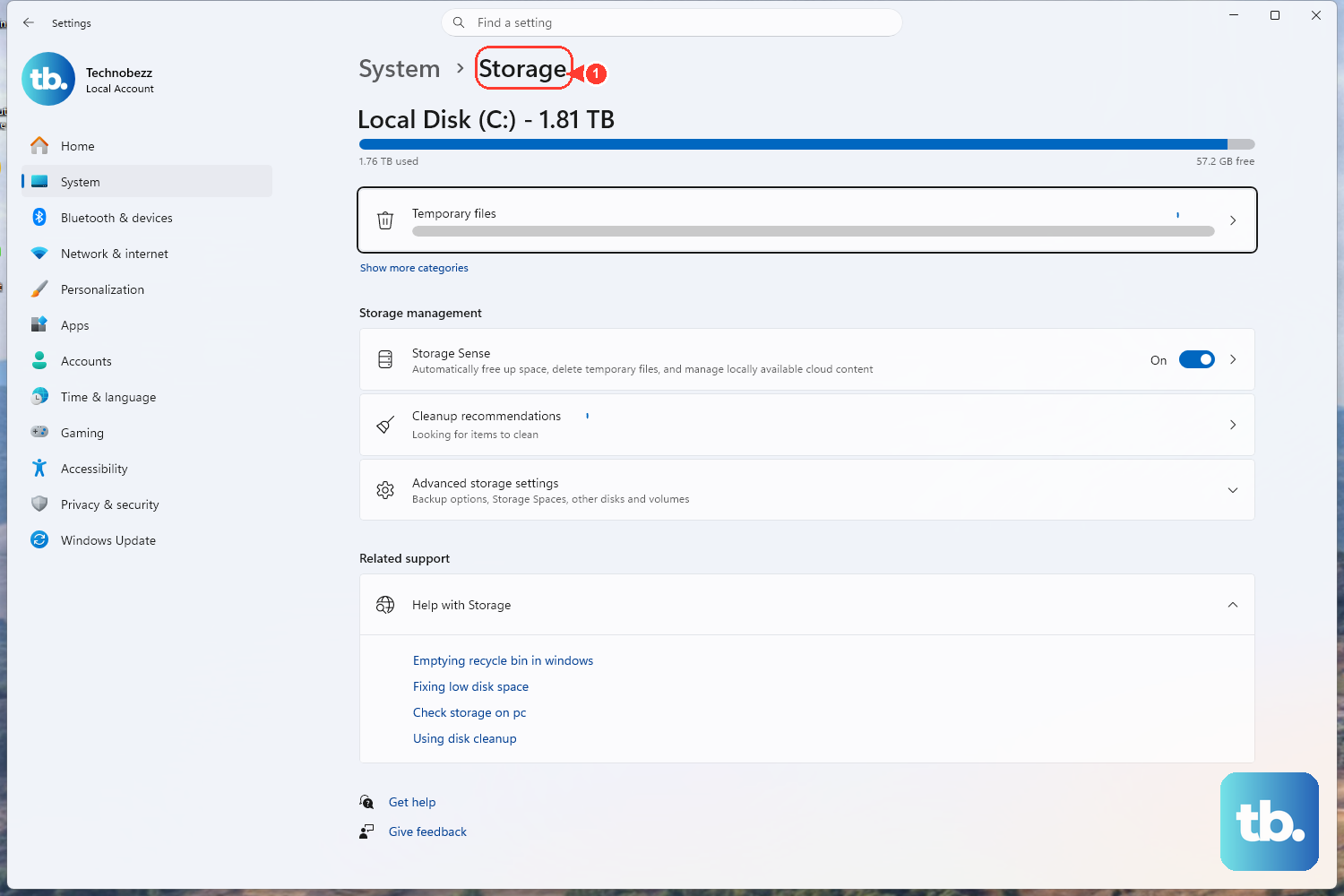
A drive that is nearly full can contribute to instability, so clear out what you can to give Windows room to work. Then make sure the operating system itself is current.
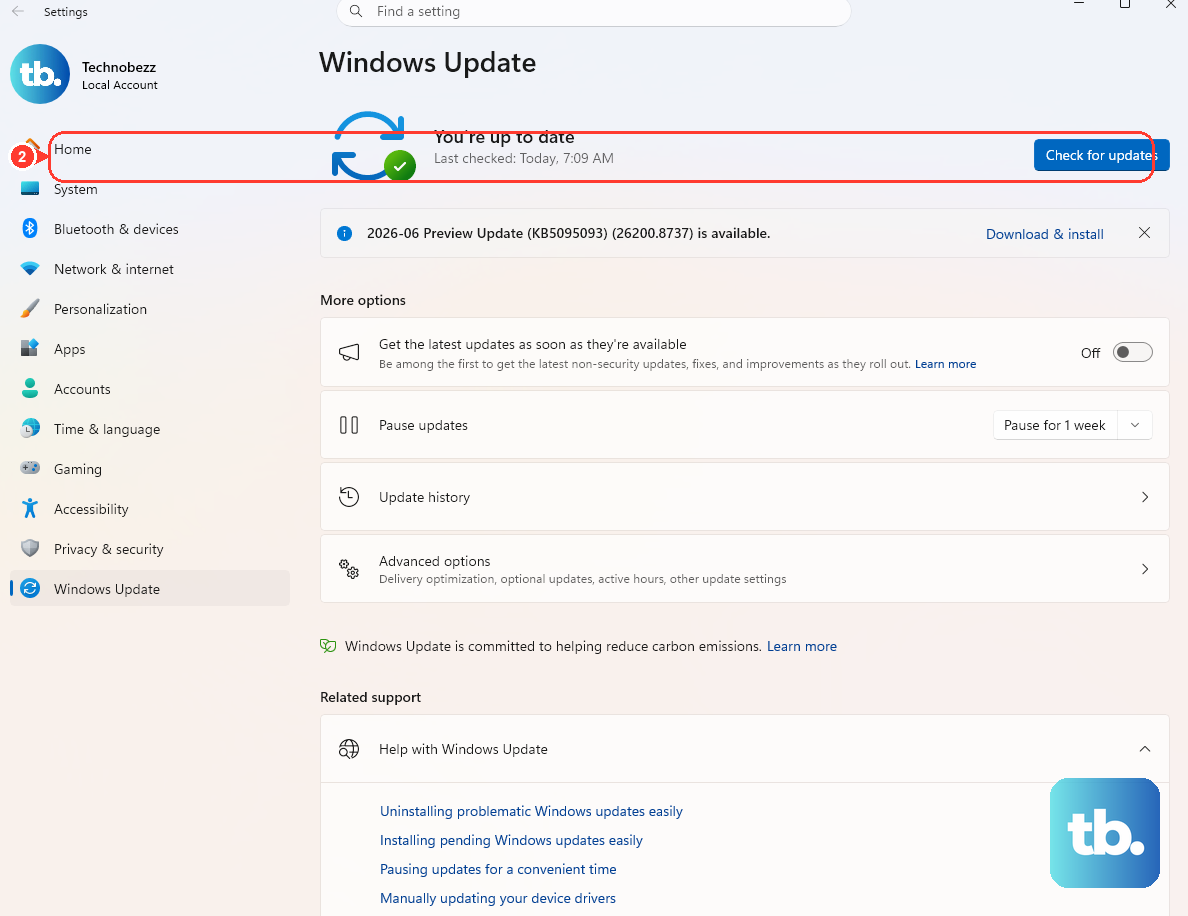
Go to Start > Settings > Windows Update, then select Check for updates and install whatever is offered. Many crashes are caused by issues that a later update already addresses.
Fix 3: Update or Roll Back a Problem Driver
Because drivers are a common source of stop errors, Device Manager is one of the highest-value places to look. Right-click the Start button and select Device Manager.
Scan the list for any device marked with an exclamation point, which flags a problem.
Right-click the flagged device and select Update driver.
If the crashes began right after a driver change, roll that driver back to its previous version instead.
If a specific driver is named in the stop message, you can disable that driver while in Safe Mode, covered in the next fix, to confirm whether it is responsible.
Fix 4: Boot Into Safe Mode to Isolate the Cause
Safe Mode starts Windows with only a minimal set of files and drivers, which makes it the cleanest way to tell whether default settings and basic drivers are at fault. If the crash does not happen in Safe Mode, the problem lies with something loaded during a normal startup.
First reach Advanced startup. On Windows 11 go to Settings > System > Recovery > Advanced startup > Restart now.
On Windows 10 go to Settings > Update & Security > Recovery > Advanced startup > Restart now. You can also hold Shift while choosing Power > Restart.
From Advanced startup choose Troubleshoot > Advanced options > Startup Settings > Restart.
After the reboot, press 4 or F4 for Safe Mode, or 5 or F5 for Safe Mode with Networking.
On that same Startup Settings screen, pressing 9 disables automatic restart on system failure, which can keep the blue screen on display long enough to read the stop code if it normally flashes by too fast.
Fix 5: Repair System Files With DISM and SFC
Corrupted system files are a common cause of stop errors, and Windows includes two built-in tools to repair them. Run them in order, because the first one supplies the files the second one needs.
Open an elevated Command Prompt: type cmd in the Search box, right-click Command Prompt in the results, and select Run as administrator.
Run DISM.exe /Online /Cleanup-image /Restorehealth first. This repairs the Windows component store and provides the files SFC needs, and it may take several minutes.
Then run sfc /scannow. This scans all protected system files and replaces any corrupted ones with a cached copy.
Do not close the window until verification reaches 100% complete.
Fix 6: Check the Disk for Errors With chkdsk
If a stop code points to memory or paging trouble, such as PAGE_FAULT_IN_NONPAGED_AREA, the underlying disk may have logical or physical errors worth checking. Microsoft documents the chkdsk tool for this stop code.
In an elevated Command Prompt, run chkdsk /f /r to detect and repair disk errors and bad sectors. When you target the system partition, the scan runs after you restart, since Windows needs to lock the drive.
Fix 7: Uninstall the Most Recent Windows Update
If the crashes started right after an update installed, removing that update can roll the system back to a stable state. You can do this from inside Windows or, if it will not boot, from the recovery environment.
On Windows 11, go to Start > Settings > Windows Update > More options > Update history > Related settings > Uninstall updates. On Windows 10, go to Start > Settings > Update & Security > Windows Update > View your update history > Uninstall updates.
If Windows will not start at all, do it from the Windows Recovery Environment: choose Troubleshoot > Advanced options > Uninstall Updates, then select either Uninstall latest quality update or Uninstall latest feature update.
Fix 8: Roll Back With System Restore
System Restore reverses recent system changes by returning Windows to an earlier restore point, which is ideal when the trouble clearly began after a recent change. It does not touch your personal files, but it will undo apps, drivers, and updates installed after the chosen point, so review the restore point details before you confirm.
From inside Windows, press the Windows key + R, type rstrui.exe, and press Enter. If Windows will not start, reach the recovery environment and select Troubleshoot > Advanced options > System Restore.
When Windows Will Not Start at All
If your PC cannot even reach the desktop, you can still repair it through the Windows Recovery Environment (WinRE). To force WinRE after failed boots, interrupt startup by holding the power button when the Windows logo appears, do that a couple of times, then start again.
Windows enters the Recovery Environment automatically after multiple failed startups. You can also boot from a recovery drive or installation media and choose Repair your computer on the setup screen.
Once inside WinRE, run Startup Repair: select Troubleshoot > Advanced options > Startup Repair. Startup Repair scans for and automatically fixes problems that prevent Windows from starting, including missing or damaged system files.
It is the safest first step when the system will not boot.
If you can open a Command Prompt from WinRE, you can also run an offline System File Checker with SFC /Scannow /OffBootDir=C:\ /OffWinDir=C:\Windows, substituting the correct drive letters for your installation.
Advanced Last Resort: Rebuild the Boot Files
This section is intended for users who are comfortable at the command line, and it should be your final option only when boot-loader corruption is clearly the issue. Open a Command Prompt from WinRE or installation media before running these commands.
- 1.Run
BOOTREC /FIXMBRto rewrite the master boot code on legacy BIOS/MBR systems. - 2.Run
BOOTREC /FIXBOOTto write a new boot sector. - 3.Run
Bootrec /ScanOSto scan for Windows installations that are not in the boot menu.
If the BCD itself is damaged, Microsoft documents this exact sequence, run in order: bcdedit /export c:\bcdbackup, then attrib c:\boot\bcd -r -s -h, then ren c:\boot\bcd bcd.old, then bootrec /rebuildbcd. The first command backs up your current configuration before you rebuild it.
Do not substitute other arguments; use only the documented commands above.
Frequently Asked Questions
Does this error always mean my hardware is failing?
No. Microsoft says the cause is usually a hardware device, its driver, or software, and that in most cases the restart alone resolves it with no further action needed. A driver problem is a common culprit, so failing hardware is not a foregone conclusion.
What is the stop code at the bottom of the blue screen for?
The stop code, such as PAGE_FAULT_IN_NONPAGED_AREA or MEMORY_MANAGEMENT, identifies the type of failure that triggered the crash. Note it down so you can search for it, since it points you toward the most relevant fix.
Why should I run DISM before SFC?
DISM repairs the Windows component store and provides the healthy files that SFC needs to do its job. If you run sfc /scannow first and the cached copies are themselves damaged, the repair can stall. Running DISM.exe /Online /Cleanup-image /Restorehealth first gives SFC clean source files to work from.
Will System Restore delete my personal files?
System Restore returns Windows to an earlier restore point and is meant for undoing recent system changes such as apps, drivers, and updates. It does not remove your personal files, but review the restore point details before confirming so you know what will be rolled back.
How do I get into recovery if Windows will not boot?
Interrupt startup by holding the power button when the Windows logo appears, repeat that a couple of times, then start again. Windows opens the Recovery Environment automatically after multiple failed startups. Alternatively, boot from a recovery drive or installation media and choose Repair your computer on the setup screen.