Your iPhone says you have Yahoo Mail, but the inbox just sits there. No new messages arrive, the spinner stalls, or the Mail app keeps asking for a password you know is right.
Most of the time this comes down to one of a few things: stored account settings that broke after an update, an expired sign-in that needs reauthorizing, or two-step verification quietly blocking the regular password. None of them are hard to fix.
The fixes below are ordered quickest and most common first. Start at the top, test after each one, and stop as soon as mail starts flowing again.
Confirm It Is the Phone, Not the Account
Before changing anything on the iPhone, rule out an account problem. If Yahoo itself cannot send or receive, no amount of phone tweaking will help.
- 1.On a computer, sign in to Yahoo Mail in a web browser.
- 2.Compose an email and send it to yourself.
- 3.Check whether it arrives within about five minutes.
If you cannot sign in, or mail does not send or receive on the computer either, the problem is the account, not the iPhone. Skip down to the sign-in fixes first.
Also check with Yahoo or AOL whether there is a service outage on their side, which would affect every device at once.
Check Your Internet Connection
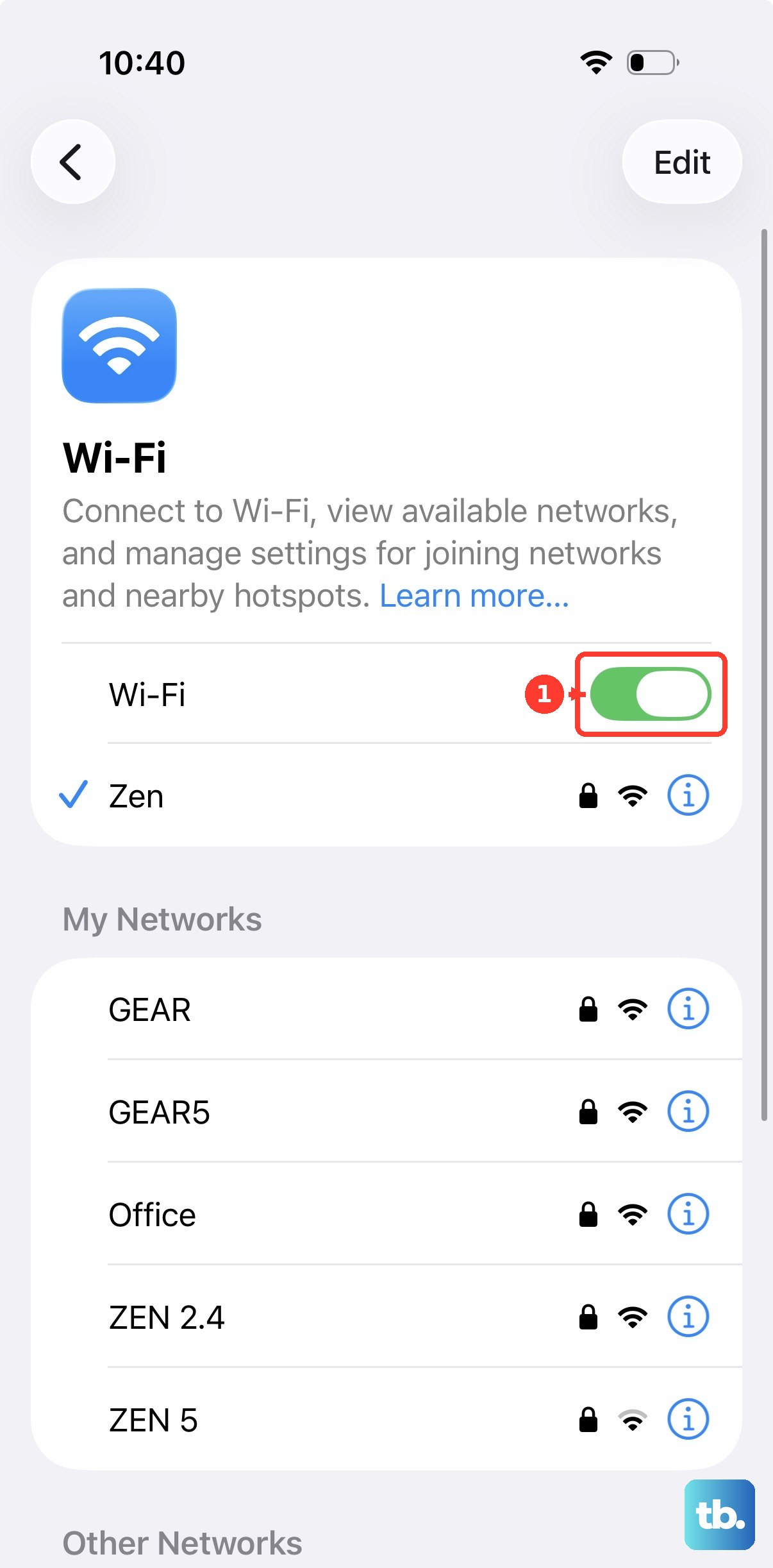
Make sure the device is actually online, on Wi-Fi or cellular. A dropped or captive-portal connection looks identical to a sync failure.
Toggle Wi-Fi off and back on, or load any web page to confirm data is moving. Then return to Mail and pull down to refresh.
Pull to Refresh and Check Fetch New Data
iOS does not always sync in the background. With the default Automatically setting, your iPhone fetches new mail in the background only when it is both charging and connected to Wi-Fi.
Off the charger or on cellular, mail can sit unfetched until you ask for it. Open Mail and swipe down inside the inbox to force a manual refresh.
If that brings mail in, adjust the schedule so it keeps arriving. Go to Settings, then tap Apps.
Choose Mail, then tap Fetch New Data. If you don't see it there, look under Mail Accounts. Make sure Fetch is selected under Yahoo!, then choose Automatically or Manually, or pick a fetch schedule.
A timed Fetch schedule pulls mail regardless of charging state, which solves the cellular and off-charger gap.
Re-enter Your Yahoo Password in iOS Mail
If Mail is prompting for a password, or the account simply stopped updating, an expired sign-in is the likely cause. Yahoo accounts in third-party apps occasionally need reauthenticating.
You can do this without deleting anything. Open the Settings app, tap Apps, tap Mail, then tap Mail Accounts.
Tap your Yahoo (or AOL) account, then tap Re-enter password. Enter your username and password, and complete two-factor verification if prompted.
If Mail rejects the password, verify it is correct by signing in to Yahoo's website with the same password. If the website also rejects it, reset the password there first, then come back and re-enter the new one on the iPhone.
Generate an App Password if Two-Step Verification Is On
This is a common hidden cause. If two-step verification is enabled, older apps that show a single password field will not accept your normal password.
They require a generated app password instead. Create one from a browser you have signed into Yahoo with for several days in a row, and avoid Incognito mode.
A fresh or private session can fail. Sign in to your Yahoo Account Security page.
Under External connections, click Create app password. Enter your app's name in the text field, then click Generate password.
Use the generated app password to log in to the app (as the password in iOS Mail or Outlook). Click Done.
One trap to know: app passwords stay active even after you change your main account password. A stale one will not fix itself.
If a previously working app password has stopped, delete it and generate a fresh one. Under External connections, open the app passwords, click Delete next to the old one, confirm with Delete, then generate a new password.
Remove and Re-add the Yahoo Account
If settings became corrupt, often after an iOS or Yahoo update, removing the account and adding it back rebuilds the connection cleanly. Before you do this, sign in on a computer to confirm your mail is saved on the server, because deleting the account removes locally stored messages from the phone.
To remove it, open Settings, tap Apps, tap Mail, then tap Mail Accounts. Tap your Yahoo Mail account, tap Delete Account, then tap Delete from my iPhone to confirm.
To add it back, open Settings, tap Apps, tap Mail, then tap Mail Accounts. Tap Add Account, choose from a list or enter your Yahoo Mail email address, tap Yahoo, then follow the prompts to sign in.
Update iOS, Then Switch to the Yahoo Mail App
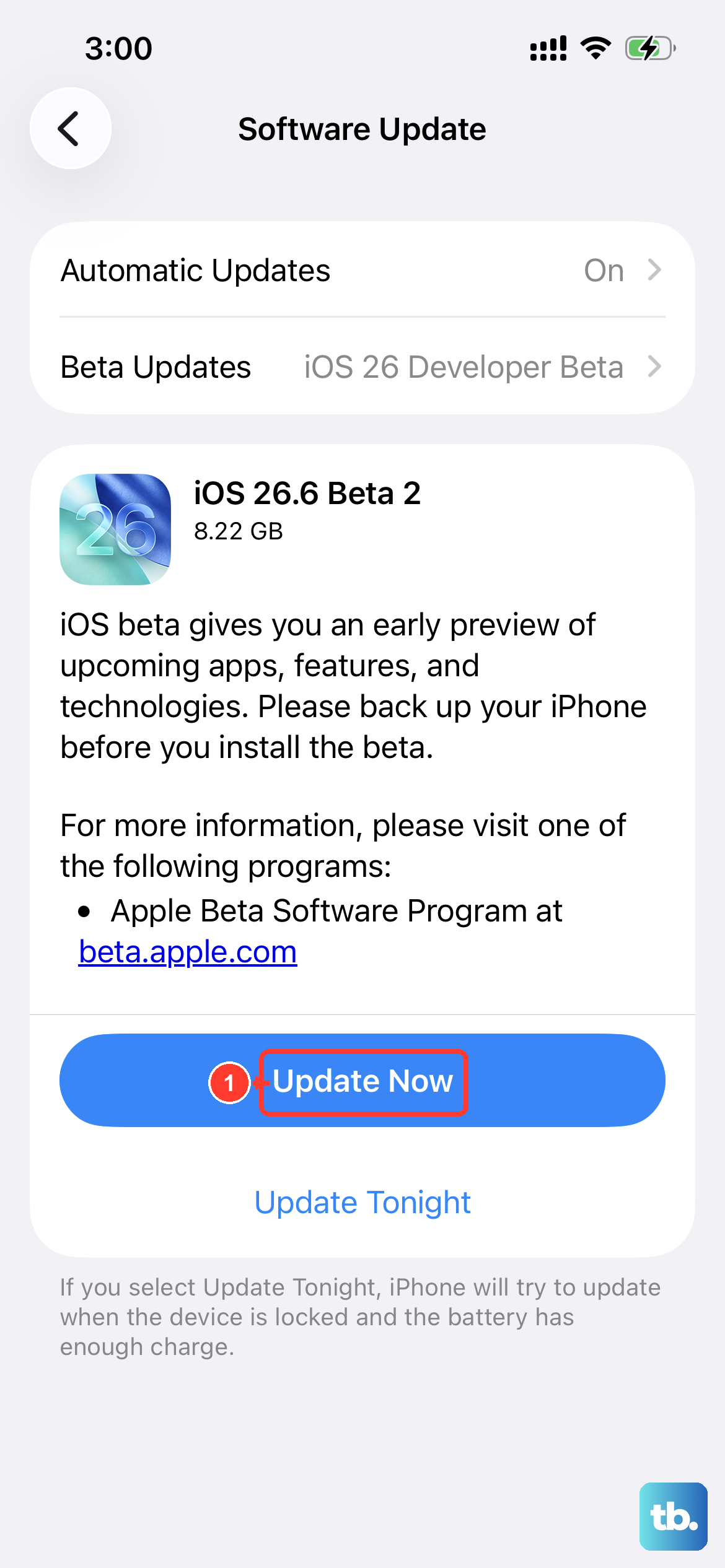
An outdated iOS can carry stale connection settings, and updating sometimes refreshes them on its own. Make sure you are running the latest version of iOS, then test Mail again.
If iOS Mail still will not connect after that, the issue may be the device itself. Download the dedicated Yahoo Mail app from the App Store as a reliable alternative way in.
Inside that app you have three escalating fixes if mail is not arriving: update the app to the latest version, sign out and back in, and finally uninstall and reinstall it. To sign out and back in within the Yahoo Mail app (iOS or Android), tap the Profile icon, tap Manage Accounts, tap Edit, tap Remove beside your account, confirm, then add the account again through Manage Accounts and Add Account.
Set Up Yahoo Manually With IMAP and SMTP Settings
Older iOS versions do not support Yahoo's automated setup and must be configured by hand. Use these verified server settings:
Incoming Mail (IMAP): server imap.mail.yahoo.com, port 993, Requires SSL: Yes. Outgoing Mail (SMTP): server smtp.mail.yahoo.com, port 465 or 587, Requires SSL: Yes, Requires authentication: Yes.
Username: your full email address ([email protected]). Password: use a generated app password, not your regular password, especially with two-step verification on.
Both SMTP ports require SSL and authentication. Pairing a port without SSL is a common reason sending breaks while receiving still works.
Fix Underlying Sign-in Problems
If your computer test showed the account itself failing, resolve that first; it blocks syncing everywhere.
For a forgotten password or an "Invalid ID or Password" error, use the Sign-in Helper with your recovery mobile number or alternate email, and confirm Caps Lock is off and browser autofill is updated if you recently changed the password.
If the sign-in screen loops or reloads, click "Not you?" on the sign-in page, enter your Yahoo ID and password, then click Sign in. If it keeps looping, clear the browser's cookies, restart the browser, or try a different supported browser.
If the account is locked, it unlocks automatically after 12 hours, but you do not have to wait; the Sign-in Helper can restore access immediately.
Frequently Asked Questions
Why does Yahoo Mail only update when my iPhone is charging?
With the default Automatically setting, iOS fetches mail in the background only when the device is both charging and on Wi-Fi. Switch to a Fetch schedule, or pull down to refresh manually, to get mail off the charger or on cellular.
Why does Mail keep asking for my password even though it is correct?
The sign-in token in the app has likely expired and needs reauthenticating, or two-step verification is on and the app needs an app password instead of your normal one. Re-enter the password in Settings first; if that fails, generate an app password.
I changed my Yahoo password but the app still will not sync. Why?
App passwords stay active even after you change your main password, so an old app password is not automatically updated. Delete the stale app password from your Yahoo Account Security page and generate a new one.
Will deleting the account on my iPhone lose my emails?
It removes emails stored locally on the phone. Sign in on a computer first to confirm your messages are saved on the server, then delete and re-add the account safely.
My AOL Mail also stopped syncing on iPhone. Are the fixes the same?
Largely yes, since AOL is in the Yahoo family. Update your device's operating system, delete and re-add the AOL account, and use an app password if two-step verification is on. As a workaround, you can read mail in a browser at mail.aol.com.
How do I know if the problem is Yahoo and not my phone?
Send yourself a test email from Yahoo Mail in a computer browser. If it does not arrive there either, the account or a service outage is the cause, so fix sign-in or wait out the outage rather than troubleshooting the phone.