
If your Xiaomi 15 feels sluggish online, the first thing I'd try is a quick network reset. This clears all your saved WiFi passwords and Bluetooth pairings, but it often resolves weird connection glitches that can slow things down. Go to Settings > About phone > Reset phone and tap Reset Wi-Fi, mobile & Bluetooth.
Check Your Network Mode and Signal
Your phone might be stuck on a slower network type. Open the Phone app and dial *#*#4636#*#* to access the testing menu. Tap Phone information and look for "Set preferred network type." Make sure it's set to a mode that includes "NR" for 5G, like "NR/LTE/WCDMA."
Also, keep an eye on the signal indicator. If you're only seeing "H+" or "3G" instead of "4G" or "5G," you're on a much slower connection. Moving to a different location or toggling Airplane mode on and off can sometimes force the phone to find a better signal.
Manage Data Usage with HyperOS Tools
HyperOS has built-in tools to stop apps from hogging data in the background. Head to Settings > SIM cards & mobile networks. Here, you can tap on your SIM and enable Data saver to restrict background data for all apps.
For more control, go to Settings > Apps and select a specific app. Tap Mobile data & Wi-Fi and you can disable "Allow background data usage." This is great for apps you don't need constantly updating.
Clear the Cache for System Services
Corrupted cache data in system apps like Google Play Services can cause slowdowns. Navigate to Settings > Apps > Manage apps. Tap the three-dot menu, select Show all apps, and find "Google Play Services."
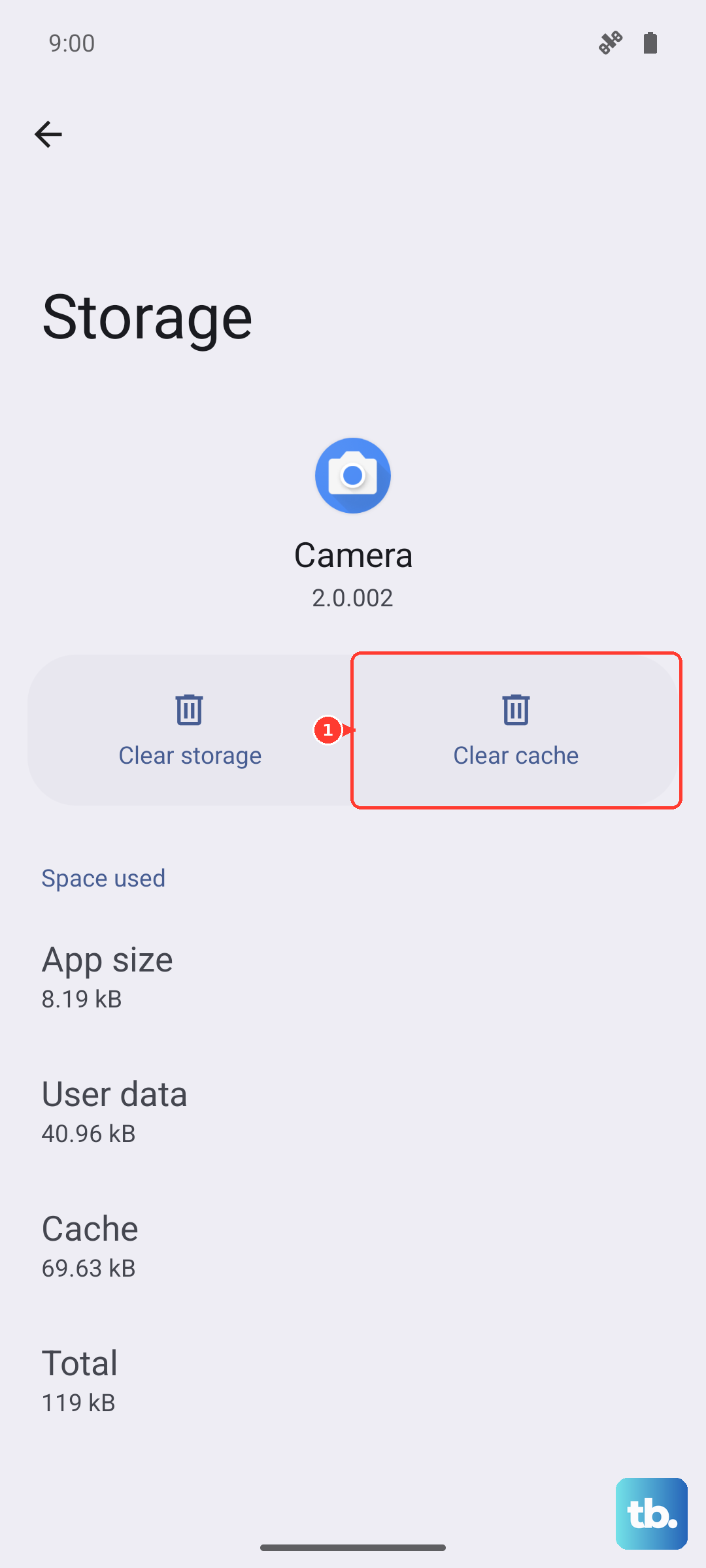
Tap into it, then go to Storage usage and hit Clear cache. Do the same for your main browser, whether it's Chrome, MIUI Browser, or something else. This clears temporary files without deleting your personal data.
Disable Battery Saver and Check for Overheating
Battery Saver mode intentionally limits background network activity to save power, which can make the internet feel slow. Swipe down from the top of your screen to open the Control Center and make sure the battery saver icon isn't active.
The Snapdragon 8 Elite chip is powerful but can get warm. If the phone is hot from sustained gaming or use, it may throttle performance, including network speeds. Give it a few minutes to cool down, and consider using a lighter performance profile or the built-in Game Turbo mode for better thermal management during long sessions.
Review Your DNS Settings
Sometimes, the default DNS servers from your carrier or ISP aren't the fastest. You can change them to a faster public DNS like Google DNS or Cloudflare. For WiFi, long-press on your network name in the WiFi settings and tap Modify network.
Tap Advanced options and change the IP settings to "Static." Scroll down to enter 8.8.8.8 as DNS 1 and 8.8.4.4 as DNS 2. For mobile data, you might need a third-party app from the Play Store to change the DNS, as Android doesn't always expose this setting directly for cellular.
Turn Off MIUI Optimization (Temporarily)
This is a more advanced step, but some users report that MIUI's system optimizations can interfere with app performance. To check, go to Settings > About phone and tap on MIUI version seven times to enable Developer Options.
Then, go back to Settings > Additional settings > Developer options. Scroll way down near the bottom and look for "Turn on MIUI optimization." Toggle it off and restart your phone. See if speed improves. Remember, you can always turn it back on if things behave oddly.
Ensure Your Software is Up to Date
Xiaomi frequently releases updates for HyperOS that can include modem firmware improvements and connectivity fixes. Go to Settings > About phone > MIUI version and tap "Check for updates." Install any available system updates.
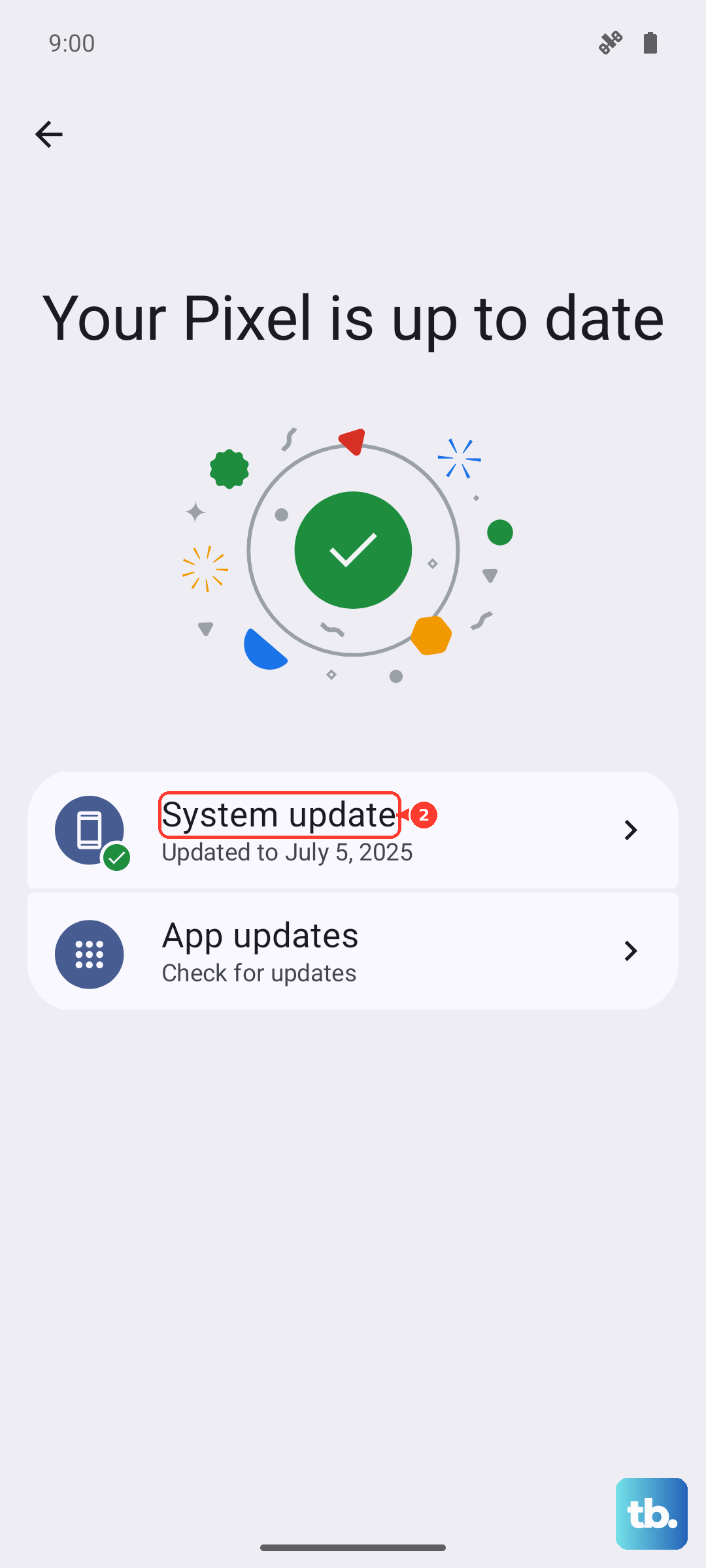
Also, open the Google Play Store, tap your profile icon, and go to Manage apps & device to update all your apps. Outdated apps can sometimes have bugs that affect network calls.
Perform a Force Restart
If the phone is feeling unresponsive or the network is completely stuck, a force restart can clear temporary software hangs. Simply press and hold the Power button for 15 seconds or more until you feel the device vibrate and see the Xiaomi logo appear. This is different from a normal restart and can fix deeper glitches.