
When your Xiaomi 15 goes silent and you're missing alerts for messages, emails, or calls, it can feel like you're cut off. This is a common hiccup with Android 15 and HyperOS 2, but it's usually something you can fix yourself in a few minutes. Let's get your notifications working again.
Restart Your Xiaomi 15
This is the universal first step for a reason. A simple restart clears out temporary system glitches and resets all your apps, which often resolves notification delays or failures. Just press and hold the power button, then tap 'Restart'.
If the screen is unresponsive, you can perform a force restart. Press and hold the power button for about 15 seconds until you feel the phone vibrate and see the Xiaomi logo appear.
Check Do Not Disturb and Silent Mode
It's easy to accidentally enable these modes. Swipe down from the top of your screen twice to open the full Quick Settings panel. Look for the 'Do Not Disturb' icon (a circle with a line through it) and the 'Silent' mode icon (a speaker with a slash).
Make sure both are turned off. You can also check in Settings > Sound & vibration > Do Not Disturb to see if any schedules are active.
Review App Notification Permissions
HyperOS gives you fine-grained control over notifications. Go to Settings > Notifications & status bar > App notifications. Here, you'll see a list of all your apps.
Tap on the app that's not alerting you, like Gmail or WhatsApp. Ensure the main toggle at the top is on. Then, check that the specific notification categories you want (like "New mail" or "Messages") are also enabled and not set to silent.
Disable Battery Optimization for Key Apps
Android's battery saver can be too aggressive. To stop it from delaying or blocking alerts, go to Settings > Apps > [App Name]. Tap on 'Battery saver'.
Select 'No restrictions' from the list. This tells the system to let that app run normally in the background so it can fetch new messages and send you alerts promptly.
Clear the App's Cache and Data
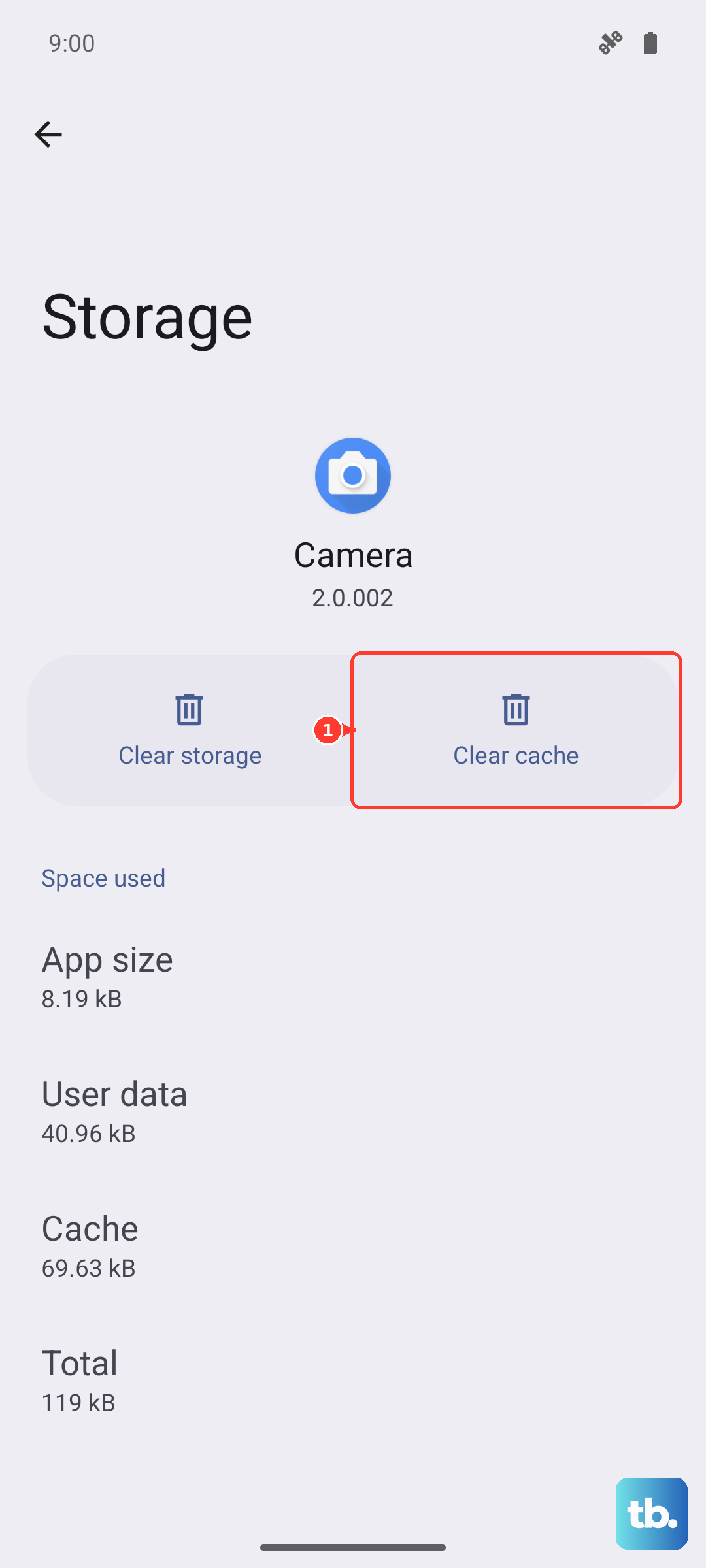
Corrupted temporary files can break an app's notification function. Head back to Settings > Apps > [App Name] and tap on 'Storage usage'.
Tap 'Clear cache' first. If that doesn't work, you can try 'Clear data'. A quick warning: clearing data will reset the app to its default state, so you might need to log back in.
Check for System Ads and Promotions
Some Xiaomi phones have promotional notifications from system apps enabled by default. These can sometimes interfere with the notification system. It's worth turning them off.
Go to Settings > Passwords & security > Privacy > Special permissions > Display pop-up windows. Review the list and disable it for any system apps you don't recognize. Also, check Settings > Notifications & status bar for a "Recommendations" or "Get recommendations" toggle and turn it off.
Update Your Apps and System Software
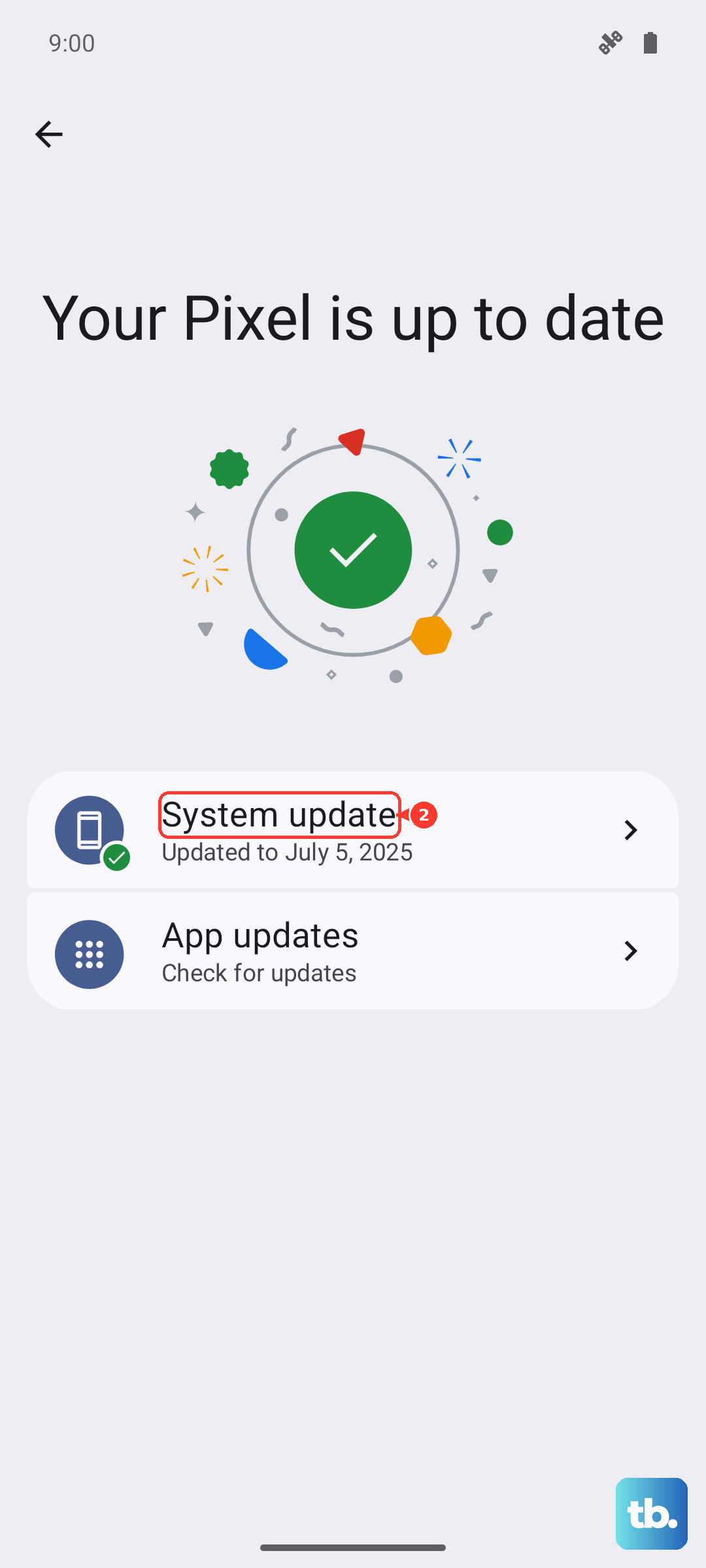
An outdated app might have a bug that breaks notifications. Open the Google Play Store, tap your profile icon, and go to 'Manage apps & device' to see available updates.
More importantly, check for a system update. Xiaomi frequently releases HyperOS updates that fix bugs. Go to Settings > About phone > HyperOS version and tap 'Check for updates'.
Reset App Preferences
This is a safe, broad reset that doesn't delete your data. It will revert all your app permissions, notification settings, and default apps back to their original state. You'll just need to re-allow permissions when you use apps for the first time afterward.
To do this, navigate to Settings > Apps > Reset app preferences at the bottom of the screen and confirm.
Enable Autostart for Messaging Apps
HyperOS can prevent apps from starting automatically after a reboot. For critical apps like your SMS app or WhatsApp, you should enable this. Go to Settings > Apps > Autostart.
Find your essential messaging apps in the list and toggle them on. This ensures they're always ready to receive and alert you to new messages.
Check Network Connections
For apps like WhatsApp, Telegram, or email clients, a poor data connection can delay notifications. Try switching between Wi-Fi and mobile data to see if the problem is network-related.
You can also try turning Airplane mode on for 30 seconds, then off again. This resets your phone's network radios and can clear up connection hiccups.
Verify the Notification Channel Isn't Muted
On Android, each type of alert from an app is its own "channel." Sometimes, a single channel can get muted. When you get a notification, long-press on it and tap 'Settings'.
Alternatively, go through Settings > Notifications & status bar > App notifications > [App Name]. Look at each notification category and ensure the sound/vibration is set correctly and isn't minimized.