
When your Xiaomi 15 stops ringing for incoming calls, it can leave you feeling completely disconnected. This is a common headache with Android phones, especially on newer systems like HyperOS 2. The problem could be a simple toggle you accidentally switched or a deeper software hiccup.
Thankfully, you can almost always fix it yourself. I'd start with the quick checks at the top, as they solve the majority of issues in under a minute.
Start With These Quick Checks
First, pull down the notification shade from the top of your screen twice to see the full Quick Settings panel. Look for the airplane icon and make sure Airplane Mode is turned off. If it's on, tap it to disable it, wait a few seconds, and then tap it again to turn it back on and off. This resets all your radio connections.
Next, check your signal bars. If you're seeing only one bar or an "X," you might simply be in a poor coverage area. Try moving to a different room or near a window. A quick restart can also clear out temporary glitches. Just press and hold the power button, then tap "Restart."
Finally, ensure your SIM card is active. You can try calling your carrier's customer service from another phone, or check your account status through their mobile app or website to confirm there are no billing issues suspending your service.
Review Your Do Not Disturb and Focus Modes
HyperOS has several ways to silence your phone that are easy to enable by mistake. Swipe down and check the Quick Settings tiles for "Do Not Disturb" or "Focus Mode." If either is active, tap it to turn it off.
For a more thorough check, go into Settings > Sound & vibration > Do Not Disturb. Look at the schedule and rules to see if a specific time or event is blocking calls. Also, check Settings > Notifications & Status bar > App notifications to make sure your Phone app hasn't had its notifications accidentally disabled.
Check for Call Blocking and Spam Protection
Xiaomi's dialer has built-in spam protection that can sometimes be a bit too aggressive. Open your Phone app and tap the three-dot menu in the top-right corner, then go to Settings > Call blocking & identification.
Here, you can review your block list to see if any numbers were added by mistake. You can also temporarily toggle off "See caller and spam ID" to see if that feature is incorrectly filtering legitimate calls. Some users have reported this fixes the issue after a HyperOS update.
Verify Call Forwarding and Barring Settings
It's rare, but sometimes call forwarding gets activated without your knowledge, sending all your calls straight to voicemail or another number. To check, open the Phone app, tap the menu, and go to Settings > Call settings > Call forwarding.
Make sure all the options (like when busy, unanswered, or unreachable) are set to "Turn off" or your carrier's default. Also, look for a setting called "Call barring" or "Fixed dialing numbers" in the same menu and ensure it's not enabled, as this can restrict incoming calls.
Inspect Your SIM Card
A loose or faulty SIM card is a classic culprit. You'll need the SIM ejector tool that came in the Xiaomi 15's box. Gently push it into the small hole on the SIM tray on the bottom edge of the phone to pop it out.
Remove the SIM card, give the gold contacts a gentle wipe with a soft, dry cloth, and then re-seat it firmly in the tray. Push the tray back in until it clicks. If you have access to another phone, try your SIM in that device to see if calls come through, which would point to a phone setting instead of a carrier issue.
Reset Your Network Settings
If you're still having trouble, resetting your network settings can clear out any corrupted connection data. Go to Settings > Additional settings > Backup & reset > Reset phone > Reset network settings.
Tap to confirm. Be aware this will erase all saved Wi-Fi passwords, Bluetooth pairings, and mobile data preferences, so you'll have to reconnect to your wireless networks and devices afterward. It won't delete your personal files or apps.
Update Your Xiaomi 15 Software
Outdated software, especially on a new OS like HyperOS 2, can have bugs that affect calling. Xiaomi regularly releases updates to patch these issues. Connect to Wi-Fi and go to Settings > About phone > HyperOS version.
Tap "Check for updates." If an update is available, download and install it. It's best to do this while your phone is charging with the included 90W HyperCharge adapter or a compatible high-wattage charger to ensure the process isn't interrupted.
Clear the Phone App's Cache and Data
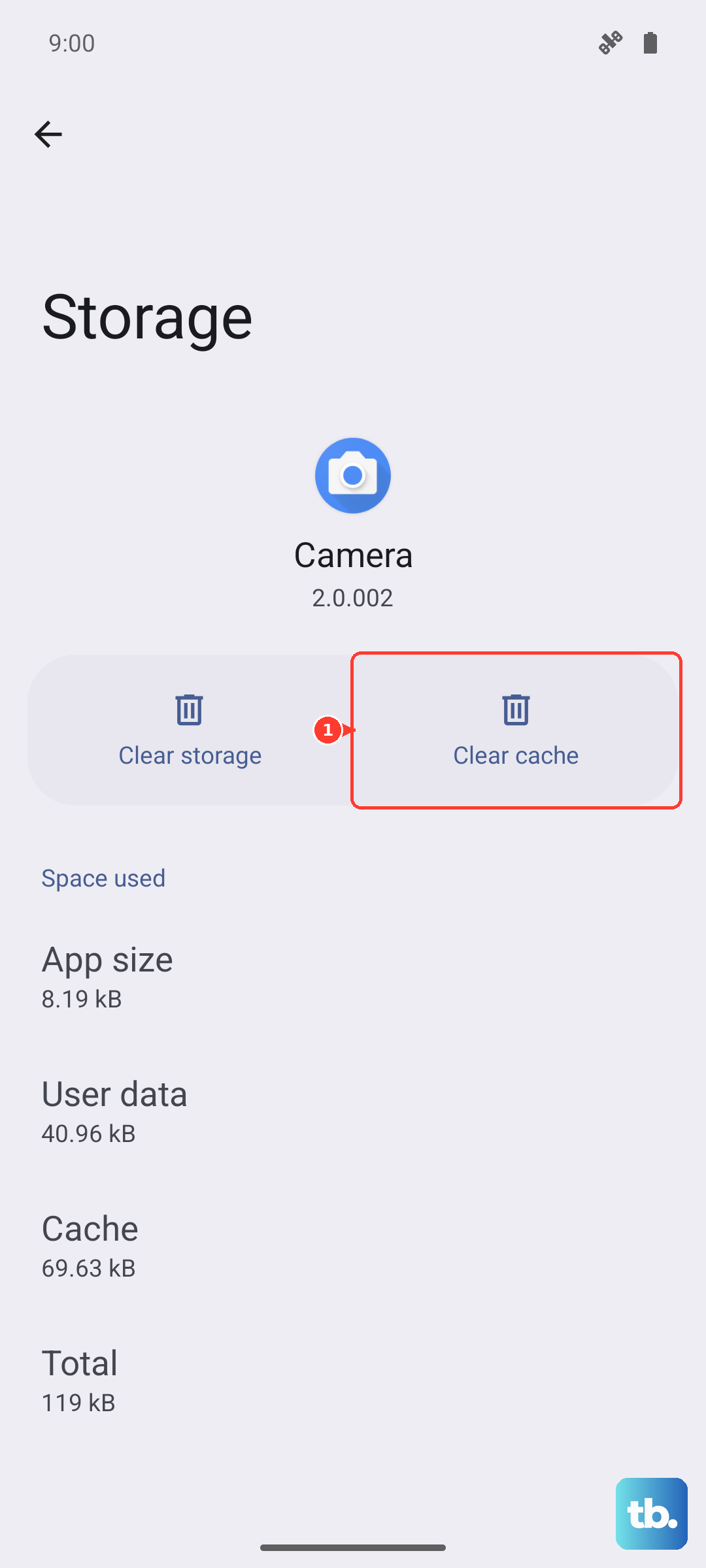
The Phone app itself can accumulate corrupted temporary files. To clear them, head to Settings > Apps > Manage apps. Find and tap on "Phone" in the list (you may need to search for it).
Tap on Storage usage at the bottom. Here, you'll see options to "Clear cache" and "Clear data." Tap "Clear cache" first, as this is safe and won't delete your call history or contacts. If the problem persists, you can try "Clear data," but note this will reset the Phone app to its default settings.
Check for Problematic Third-Party Apps
Sometimes, an app you installed can interfere with core phone functions. Think about any call-related apps, dialers, call recorders, or aggressive battery savers you've installed recently.
Try booting your phone into Safe Mode. Press and hold the power button, then tap and hold the "Power off" option on your screen until you see a prompt to reboot to Safe Mode. In Safe Mode, all third-party apps are disabled. If you can receive calls normally here, a recently installed app is likely the cause. You'll need to uninstall apps one by one to find the offender.
Perform a Factory Reset
This is your last resort before considering hardware repair. A factory reset will wipe your Xiaomi 15 back to its out-of-the-box state. Before you do anything, ensure all your important data is backed up. You can use Xiaomi Cloud or sync your photos and contacts to Google.
Once backed up, go to Settings > Additional settings > Backup & reset > Erase all data (factory reset). Follow the prompts to confirm. After the reset is complete, set up your phone as new initially to see if the calling issue is resolved before restoring your backup, as the backup could potentially restore the problematic setting or data.