
Seeing a "No SIM" or "SIM card not detected" message on your Xiaomi 15 can stop you from making calls or using mobile data right when you need it. This is often a quick fix, usually related to a software hiccup in HyperOS or a simple physical issue with the card itself.
I'd start with a force restart, as it clears temporary glitches that can affect the SIM reader. Just press and hold the Power button for about 15 seconds until you feel the phone vibrate and the screen turns back on.
Check Airplane Mode and SIM Status
Swipe down from the top of your screen to open the Control Center and make sure the Airplane mode icon isn't highlighted. If it is, tap it to turn it off. Next, verify your SIM is actually enabled in the settings.
Go to Settings > Mobile network. You should see your SIM card listed here. Make sure the toggle next to it is switched on. If you have a dual-SIM model, check that the correct one is set as the default for calls and data.
Inspect and Clean the Physical SIM Card
Power your Xiaomi 15 off completely before you do this. Use the SIM ejector tool that came in the box to pop out the tray. Carefully remove the SIM card and take a close look at the gold contacts.
If you see any dust, lint, or slight discoloration, gently wipe the contacts with a clean, dry microfiber cloth. You can also lightly blow into the SIM tray slot to dislodge any debris. Reinsert the card, making sure it's seated firmly and correctly in the tray before sliding it back into the phone.
To rule out a faulty SIM, try putting it into another phone. If it doesn't work there either, you'll need to contact your carrier for a replacement card.
Update Your Software
Software bugs in HyperOS 2 can sometimes interfere with network connectivity. It's worth checking for a system update, as Xiaomi frequently releases patches for these kinds of issues.
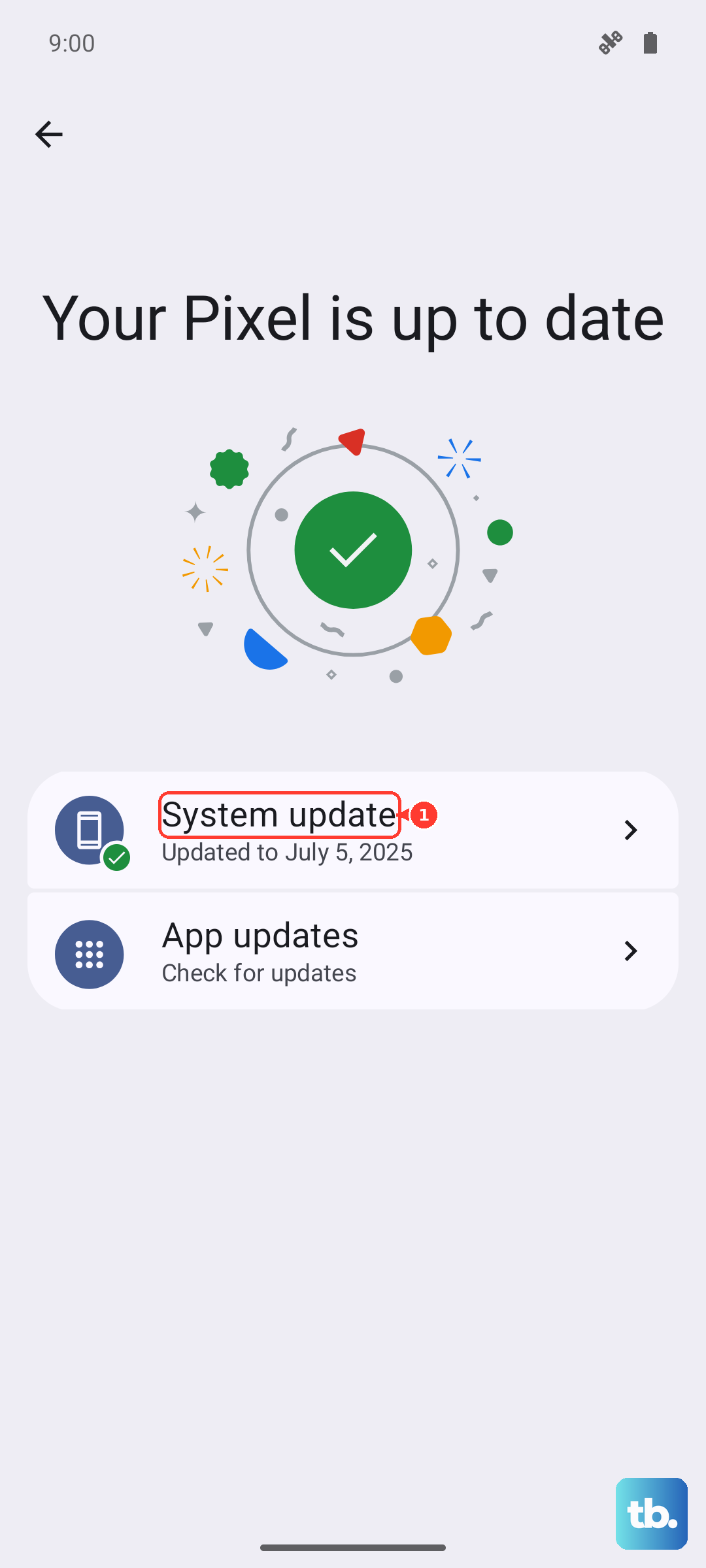
Head to Settings > About phone > HyperOS version. Tap "Check for updates" and install anything that's available. After the update finishes, give your phone another restart to let all the new software settle in properly.
Reset Your Network Settings
This is a very effective step that clears out any corrupted network configurations. It will reset your Wi-Fi, Bluetooth, and mobile network settings back to factory defaults, but it won't touch your personal photos, apps, or messages.
On your Xiaomi 15, go to Settings > Additional settings > Back up and reset. Tap on "Reset network settings" and confirm your choice. After the phone reboots, you'll need to reconnect to Wi-Fi networks and re-pair Bluetooth devices.
Configure Your APN Settings
Incorrect Access Point Name (APN) settings will prevent your phone from connecting to your carrier's mobile data network, which can sometimes be mistaken for a SIM issue. You can reset these to the carrier's default values.
Navigate to Settings > Mobile network > SIM cards & mobile data. Select your SIM and then tap on "Access Point Names (APN)". Tap the three-dot menu in the top right and select "Reset to default". If your carrier requires specific APN details, you may need to enter them manually here or contact your carrier to get the correct info.
Try Manual Network Selection
Letting your phone automatically choose a network is usually best, but if there's a glitch, forcing it to connect to your specific carrier can help. Go to Settings > Mobile network > SIM cards & mobile data.
Tap on "Network operators" or "Choose network". Your phone will search for a moment. When the list pops up, select your carrier's name from it. This bypasses the automatic selection process and can establish a cleaner connection.
Clear Cache for SIM Services
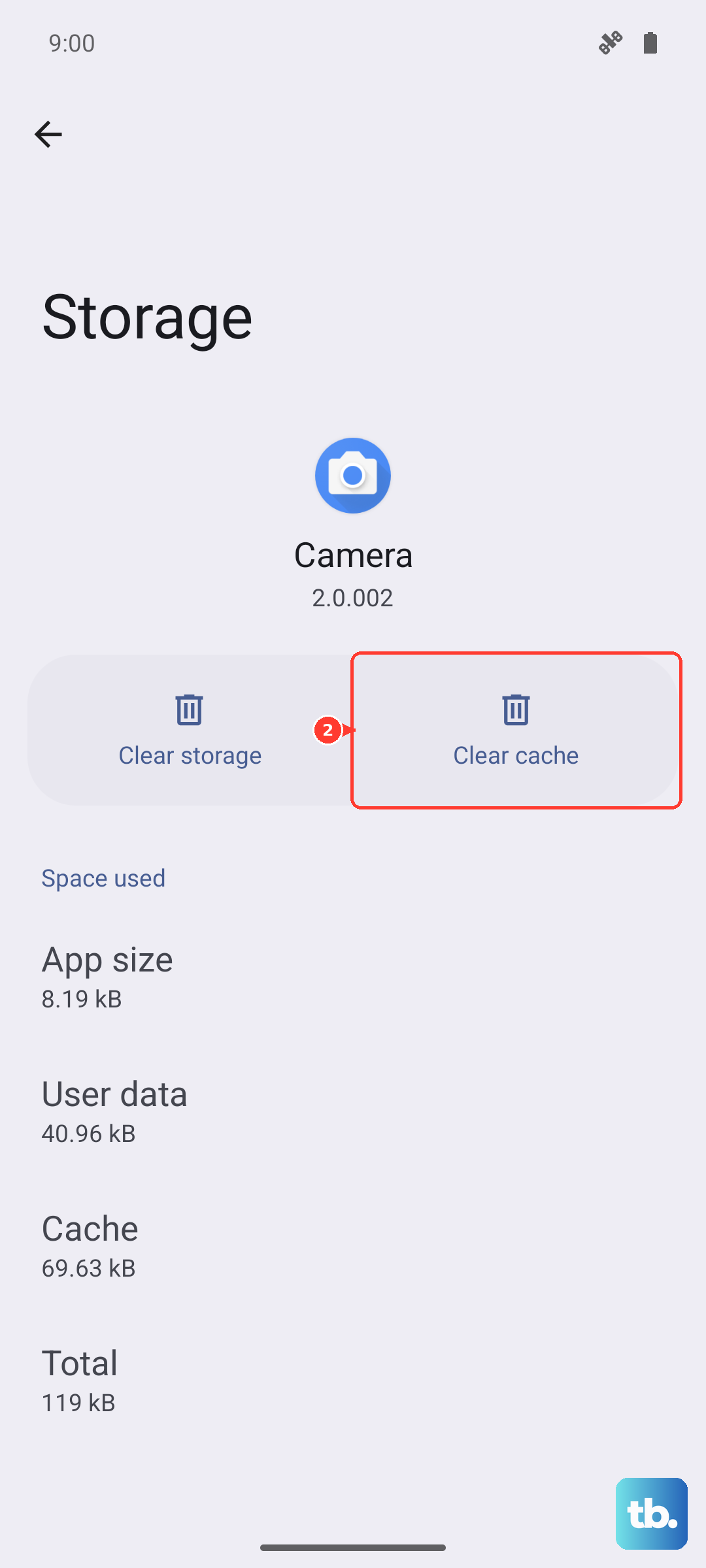
Cached data for system services related to the SIM card can become corrupted. Clearing this cache is safe and can resolve underlying software conflicts. Open Settings and go to Apps > Manage apps.
Tap the three-dot menu and select "Show system apps". Now, look for apps like "SIM Toolkit" or "SIM Services". Tap on one, go to its "Storage usage" page, and select "Clear cache". Repeat this for any other SIM-related system apps you find.
Check for eSIM Compatibility and Setup
The Xiaomi 15 supports eSIM, which is a digital SIM embedded in the phone. If your physical SIM slot is having persistent issues, switching to an eSIM with your carrier is a great permanent solution. You'll need to contact your mobile provider to see if they support eSIM activation for your Xiaomi 15 and to get the necessary QR code or activation details.
Consider a Factory Reset
If you've tried everything else and the problem seems software-related, a factory reset is the final step. This will erase all data on your phone, so you must back up everything important first using Xiaomi Cloud or by transferring files to a computer.
Once backed up, go to Settings > Additional settings > Back up and reset > Erase all data (factory reset). Follow the prompts to reset the phone. After it reboots, set it up as new to see if the SIM is detected before restoring your backup, as the backup could potentially restore the problem.











