
If your Xiaomi 15 is stuck with a spinning circle or a "Message not sent" error when trying to send a picture or video, it's usually a quick fix. The most common culprit is a simple setting that needs to be toggled.
First, pull down the notification shade and make sure mobile data is turned on. MMS can't send over Wi-Fi alone, it needs that cellular data connection. If you see the 5G or 4G icon, you're good to go. If not, tap the mobile data icon to enable it and try sending your message again.
Verify Your MMS Settings in the Messages App
Open the Messages app on your Xiaomi 15 and tap the three-dot menu in the top right, then go to Settings. Look for an option called Multimedia messages (MMS) or something similar within the settings menu.
Inside, ensure that Auto-download MMS is enabled. Also, if you're traveling, check for a Roaming auto-retrieve setting and turn that on too. Sometimes these get disabled, especially after a software update to HyperOS 2.
Check and Update Your APN Settings
Incorrect Access Point Name (APN) settings are a frequent cause of MMS failures. These tell your phone exactly how to connect to your carrier's multimedia service. To check them, go to Settings > Connections & sharing > Mobile network.
Tap on your SIM card, then select Access Point Names. You should see a list, with one selected (usually your carrier's name). If the list is empty or looks wrong, you'll need the correct info from your carrier.
You can usually find this on their website by searching for "APN settings." If you need to add a new one, tap the plus sign and enter the details exactly as provided. A single typo here can break MMS.
Clear the Cache for Your Messaging App
Temporary files can get corrupted and block the messaging app from working properly. Clearing the cache is a safe first step that won't delete your texts. Go to Settings > Apps > Manage apps.
Find and tap on Messages. Then, go to Storage usage and tap Clear cache. This only takes a second. After doing this, restart your phone by holding the power button for 15 seconds until it reboots, then test MMS again.
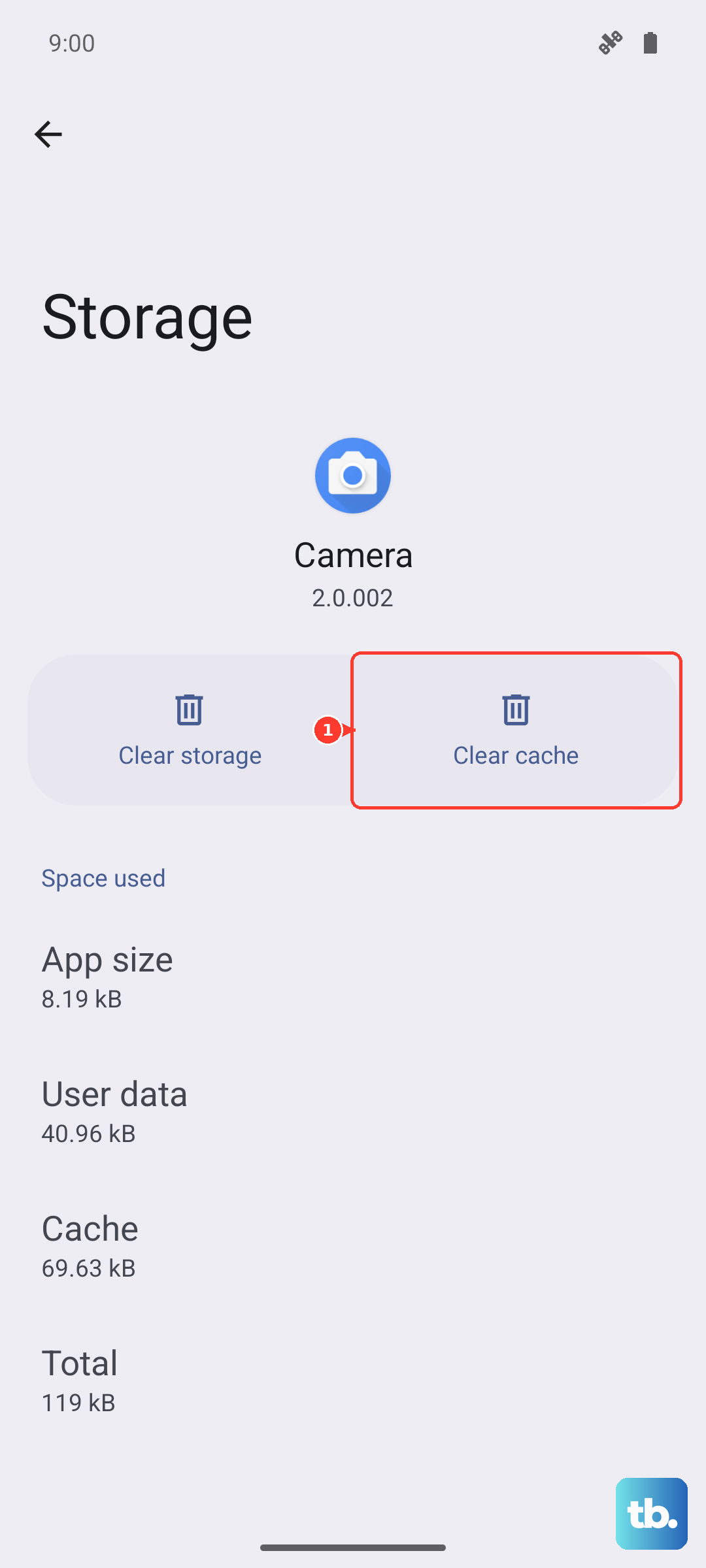
Reset Your Network Settings
If the simpler steps haven't worked, a network reset can clear out deeper configuration errors. This will erase all saved Wi-Fi networks, Bluetooth pairings, and cellular settings, so you'll have to reconnect to Wi-Fi afterwards.
To do this, navigate to Settings > About phone > Factory reset. Here, tap on Reset phone and then select Reset network settings. Confirm the action and let your phone restart. This often resolves stubborn MMS and data issues.
Ensure You Have Enough Storage Space
Your Xiaomi 15 needs a bit of free space to process and send multimedia messages. If your storage is critically low, it might fail silently. Go to Settings > Storage to check your available space.
If you're running low, try clearing out some old downloads, app caches, or unused apps. I'd aim for at least a few hundred megabytes free. You can also delete old message threads that are full of photos and videos, as those take up a lot of room.
Disable Any Active VPN or Ad Blockers
Virtual Private Networks (VPNs) and some system-wide ad blockers can sometimes interfere with the direct data connection MMS requires. If you have a VPN app running, try disabling it temporarily from the notification shade or within the app itself.
The same goes for any DNS-based ad blocking features you may have enabled in your private DNS settings (Settings > Connections & sharing > Private DNS). Set it to "Off" and see if your MMS goes through.
Update Your Phone's Software
An outdated version of HyperOS could have a bug affecting messaging. Xiaomi regularly releases updates that fix these kinds of issues. Go to Settings > About phone > HyperOS version.
Tap on "Check for updates" and install any that are available. It's a good idea to be on Wi-Fi and have your phone charged above 50% before starting an update. After it installs and reboots, test your MMS function again.
Try a Different Messaging App
If the problem persists only in the default Xiaomi Messages app, the issue might be with the app itself. Installing an alternative like Google Messages can be a great workaround and a useful test.
Download Google Messages from the Play Store. When you open it, it will ask to be set as your default SMS app, go ahead and allow that. Then, try sending an MMS. If it works, you've confirmed the problem is with the stock app, and you can stick with Google Messages or use it while waiting for an update.
Contact Your Mobile Carrier
Finally, if nothing on the device side works, the issue could be with your account or your carrier's network. Give them a call or use their online support chat.
Tell them you can't send picture messages (MMS) on your Xiaomi 15. They can check if MMS is properly enabled on your line, reprovision your service, or confirm if there are any known outages in your area. They might also have specific APN settings for the Xiaomi 15 that differ from generic Android ones.