
When your Xiaomi 15 can't download a picture or video someone sent you, it's usually a quick setting or network hiccup. MMS messages need a mobile data connection to work, and a few things in HyperOS can sometimes get in the way.
Let's start with the most common fixes that often solve the problem in under a minute.
Restart Your Xiaomi 15
A simple restart clears out temporary glitches that can stall the messaging service. Just press and hold the power button until the power menu appears, then tap "Restart."
If the screen is unresponsive, you can force a restart by holding the power button down for about 15 seconds until you feel the phone vibrate and see the boot logo.
Check Your Mobile Data Connection
MMS won't download over Wi-Fi alone. You need an active mobile data connection. Swipe down from the top of your screen to open the Quick Settings panel and make sure the mobile data icon is turned on.
Also, check your signal strength. If you're down to one bar, try moving to a different location. Being in a basement or a building with thick walls can sometimes block the data signal needed for MMS.
Close and Reopen Your Messages App
Sometimes the app itself just needs a fresh start. Swipe up from the bottom of your screen and hold to enter the recent apps view, then swipe the Messages app away to close it completely. Open it again and see if the download starts.
Enable MMS Auto-Download
Your phone might be set to wait for your permission before downloading MMS to save data. To change this, open the Messages app and tap the three-dot menu in the top-right corner. Go to Settings > Advanced settings.
Look for an option labeled "Auto-download MMS" or "Auto-retrieve MMS" and make sure it's toggled on. If you're traveling, also check for a separate "Auto-download MMS when roaming" setting and enable it if needed.
Verify Your APN Settings
Incorrect Access Point Name (APN) settings are a very common cause of MMS failures. These settings tell your phone how to connect to your carrier's multimedia messaging service.
Go to Settings > Connections & sharing > Mobile network. Tap on your SIM card, then select Access Point Names. Your carrier's correct APN should already be listed and selected.
If nothing is there, or if MMS still fails, you'll need to get the exact APN details from your carrier's website or customer support and enter them manually by tapping the "+" icon.
Clear the Messaging App's Cache
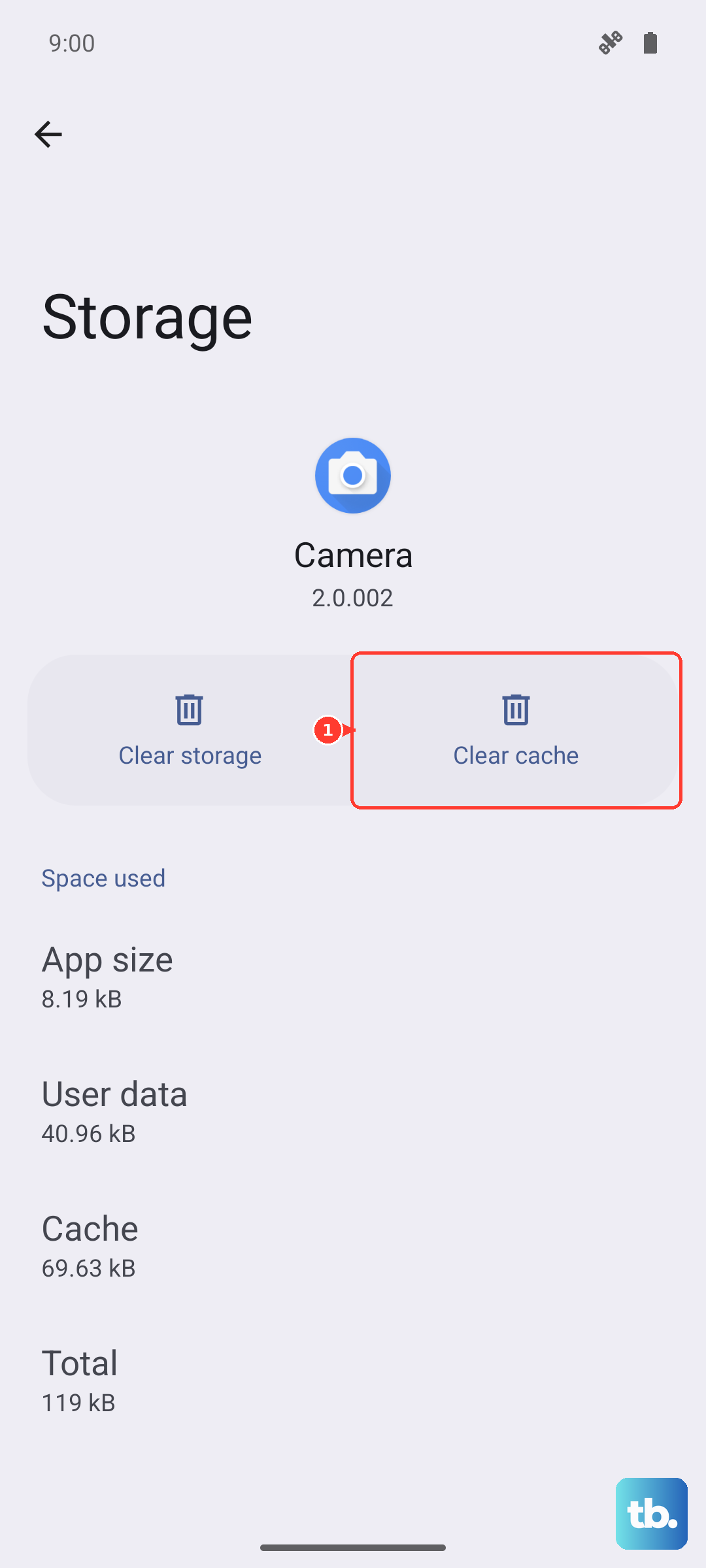
Corrupted temporary files can cause all sorts of app misbehavior. Clearing the cache is safe and won't delete your messages. Go to Settings > Apps > Manage apps.
Find and tap on "Messages" in your app list. Then, go to Storage usage and tap "Clear cache." After doing this, reopen the Messages app and check if the stuck MMS downloads.
Check for a System Update
Xiaomi frequently releases updates for HyperOS that fix bugs, including ones related to connectivity and messaging. An outdated system could be the culprit.
Head to Settings > About phone > HyperOS version. Tap the "Check for updates" button. If an update is available, I'd recommend installing it, as it often resolves these persistent little issues.
Reset Your Network Settings
This is a more thorough step that resets all Wi-Fi, Bluetooth, and cellular settings back to default without touching your personal data. It can clear up deeper configuration problems.
Navigate to Settings > About phone > Factory reset. Here, select Reset network settings. You'll need to confirm your lock screen password, and then the phone will reset and reboot. You'll have to reconnect to Wi-Fi networks and re-pair Bluetooth devices afterward.
Disable Any Data-Saving Modes
Features like Data Saver or Battery Saver can restrict background data, which prevents MMS from downloading automatically. Swipe down for Quick Settings and make sure any power-saving or data-saving icons are turned off.
You can also check in Settings > Battery to see if a power-saving profile is active, and in Settings > Connections & sharing > Data usage to manage Data Saver settings.
Try a Different Messaging App
If the problem persists only in the default Xiaomi Messages app, it's worth testing with a different app from the Play Store, like Google Messages. This can tell you if the issue is with the app itself or with the phone's system configuration.
Download an alternative app, set it as your default, and ask a friend to send you a test picture. If it comes through, the problem likely lies with the stock app's settings or cache, which you may need to clear data for (note: this will erase your message history in that app).