
Is your Xiaomi 15 feeling sluggish, with apps taking too long to open or animations stuttering? It's a common issue, even for a phone with the powerful Snapdragon 8 Elite chip. The good news is you can almost always get it running smoothly again with a few adjustments.
Performance slowdowns on the Xiaomi 15 are usually tied to software, not hardware. HyperOS 2 can get bogged down by background processes, cached data, or the occasional UI glitch. Let's go through the most effective ways to speed things up.
Restart Your Phone
This is the quickest and most reliable first step. A simple restart clears the phone's temporary memory and stops any background services that might be misbehaving. Just press and hold the power button, tap restart, and give it a minute to boot back up.
If the phone is completely frozen, you'll need to force a restart. Press and hold the power button for 15 seconds or more until you feel it vibrate and see the Xiaomi logo appear. This is a hard reboot that can clear deeper software hiccups.
Free Up Storage Space
When your internal storage gets too full, the phone has less room to operate efficiently, which can cause lag. Head to Settings > About phone > Storage to see what's taking up space.
Focus on clearing cached data from apps like social media, browsers, and streaming services. You can also move photos and videos to cloud storage or an SD card if you have one. I'd recommend keeping at least 10-15% of your storage free for optimal performance.
Close Background Apps
While Android is good at managing memory, having dozens of apps suspended in the background can still drain resources. Swipe up from the bottom and hold to enter the recent apps view. Swipe each app window up to close it.
For a more thorough clean-up, you can go to Settings > Apps > Manage apps, select an app, and tap "Force stop." Be careful with this, as stopping system apps can cause instability.
Update Your Software and Apps
Outdated software is a major culprit for performance bugs. Xiaomi regularly releases updates for HyperOS that include optimizations and bug fixes. Check for them in Settings > About phone > HyperOS version > Check for updates.
Don't forget your apps, too. Open the Google Play Store, tap your profile icon, and go to "Manage apps & device" to see all available updates. App updates often include performance improvements.
Clear App Caches (Especially System UI)
Over time, apps store temporary data that can become corrupted and slow things down. Clearing the cache for key apps can work wonders. Go to Settings > Apps > Manage apps, find the app (like Chrome, Google, or System UI), and select "Clear cache."
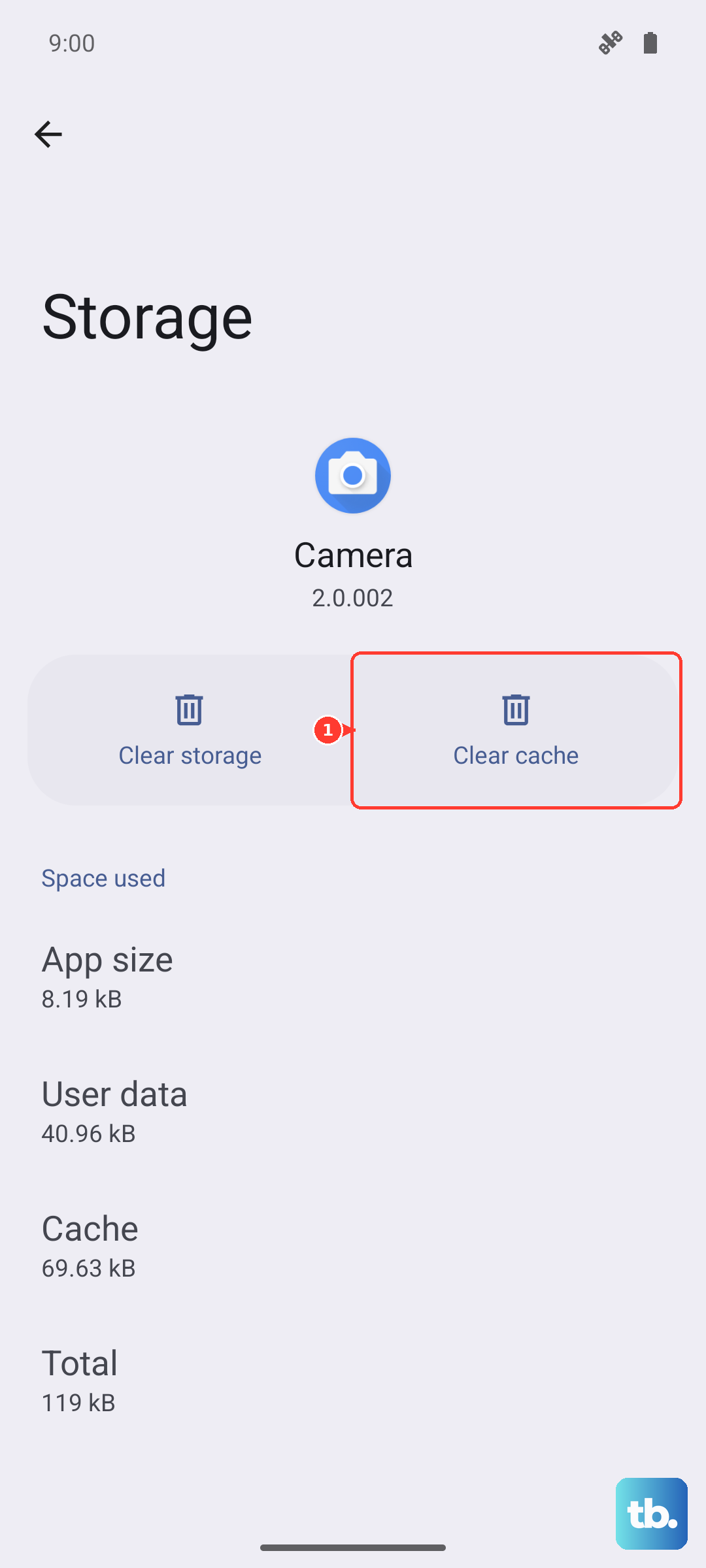
Clearing the cache for "System UI" can be particularly effective if you're experiencing home screen or notification shade lag. This won't delete your personal data, just temporary files.
Disable or Reduce Animations
The smooth animations in HyperOS 2 look great but require processing power. Speeding them up or turning them off can make the phone feel instantly snappier. You'll need to enable developer options first.
Go to Settings > About phone and tap "HyperOS version" seven times. Then, go back to Settings and into "Additional settings > Developer options." Scroll down to "Window animation scale," "Transition animation scale," and "Animator duration scale." Change each from 1x to 0.5x or off completely.
Manage Background Activity and Ads
HyperOS can be aggressive with background processes for some system apps. You can restrict this to save resources. Go to Settings > Apps > Manage apps, select an app, tap "Battery saver," and choose "Restrict."
Also, consider turning off system ads, which can sometimes load in the background. Navigate to Settings > Passwords & security > Privacy > Ads services and toggle off "Personalized ads." This might reduce some background data usage.
Use the Built-in Optimization Tools
Xiaomi includes a handy security and optimization app. Open the "Security" app on your phone and tap "Optimize." It will clean junk files, scan for viruses, and suggest closing background apps.
For gaming, make sure Game Turbo mode is enabled. This feature allocates system resources to your game and blocks notifications. You can usually access its settings by swiping in from a corner while in a game.
Check for Overheating
The Snapdragon 8 Elite is powerful but can run hot during long gaming sessions or video recording. When the phone overheats, it will throttle performance to cool down. If your phone feels very warm and is slowing down, give it a break.
Take it out of its case, avoid using it while charging with the 90W HyperCharge adapter, and close demanding apps. Let it cool down to room temperature, and performance should return to normal.
Perform a Soft Reset (Reset All Settings)
If you're still facing lag after trying everything, a soft reset can help. This will reset all your system settings (like Wi-Fi passwords and display preferences) to default but won't touch your personal data or apps.
Go to Settings > About phone > Factory reset. Then, select "Reset all settings" and enter your lock screen password to confirm. After the phone reboots, you'll need to reconfigure your preferences, but it can resolve persistent UI glitches.