
That "Unfortunately, the keyboard has stopped" pop-up on your Xiaomi 15 is a real conversation killer. It's a common hiccup with Android and HyperOS, but you can almost always get your typing back on track with a few quick steps.
Restart the Keyboard App
Let's start with the simplest fix. Force stopping the keyboard app clears out any temporary glitch that's causing it to crash. This works for both the default Xiaomi keyboard and any third-party one you've installed.
Head to Settings > Apps > Manage apps. You might need to tap the three-dot menu and select Show system apps to find it. Look for "Xiaomi Keyboard" or "System Keyboard," tap it, and hit Force stop. Exit settings and try typing in a message app to see if it's working again.
Give Your Phone a Quick Reboot
If the app restart didn't do the trick, a full phone reboot is the logical next step. It clears the system's working memory and can resolve a surprising number of small software conflicts, including those affecting the keyboard.
Just press and hold the power button until the power menu appears, then tap Restart. If your screen is completely unresponsive, you can force a restart by holding the power button down for about 15 seconds until the phone vibrates and boots up again.
Clear the Keyboard's Cache and Data
Corrupted temporary files are a frequent culprit. Clearing the cache is safe and won't delete your personal data, but clearing the data will reset the keyboard to its default settings. You'll lose custom dictionaries and any personalized preferences.
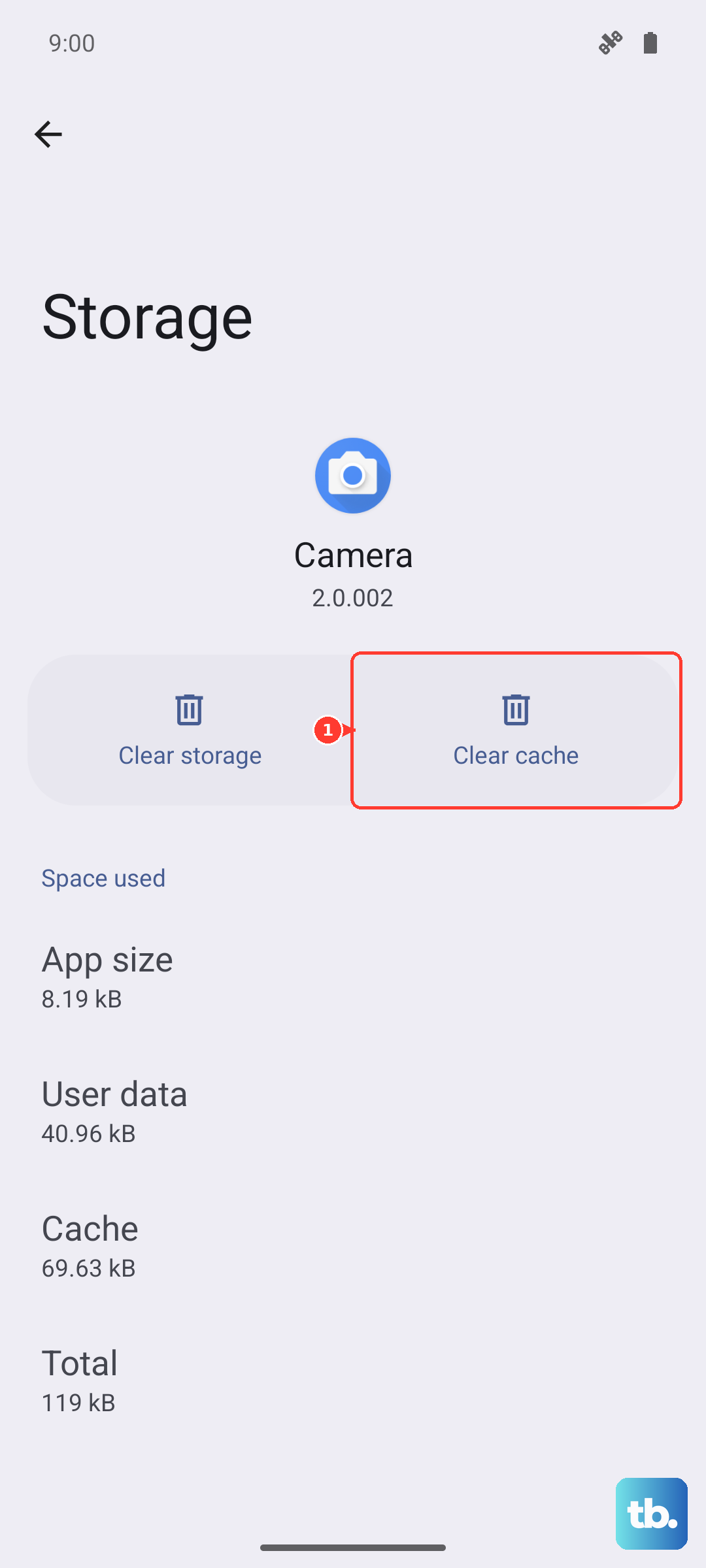
Go back to Settings > Apps > Manage apps, find your keyboard app, and tap on it. Select Storage usage at the bottom. Here, tap Clear cache first and test the keyboard. If it's still failing, come back and tap Clear data. Confirm the action, and your keyboard will be reset.
Update the Keyboard App
An outdated keyboard app can have bugs or compatibility issues with newer versions of HyperOS. The update might be waiting for you in the Play Store.
Open the Google Play Store, tap your profile icon in the top right, and go to Manage apps & device. Under "Updates available," see if your keyboard app is listed. If it's a third-party keyboard like Gboard, update it from here. For the system keyboard, updates often come with the broader system software.
Check for a System Software Update
Since the Xiaomi 15 runs HyperOS 2 on Android 15, a system update is likely to contain important bug fixes. Xiaomi is pretty proactive with updates, especially for a flagship model, and a keyboard crash could be a known issue they've already patched.
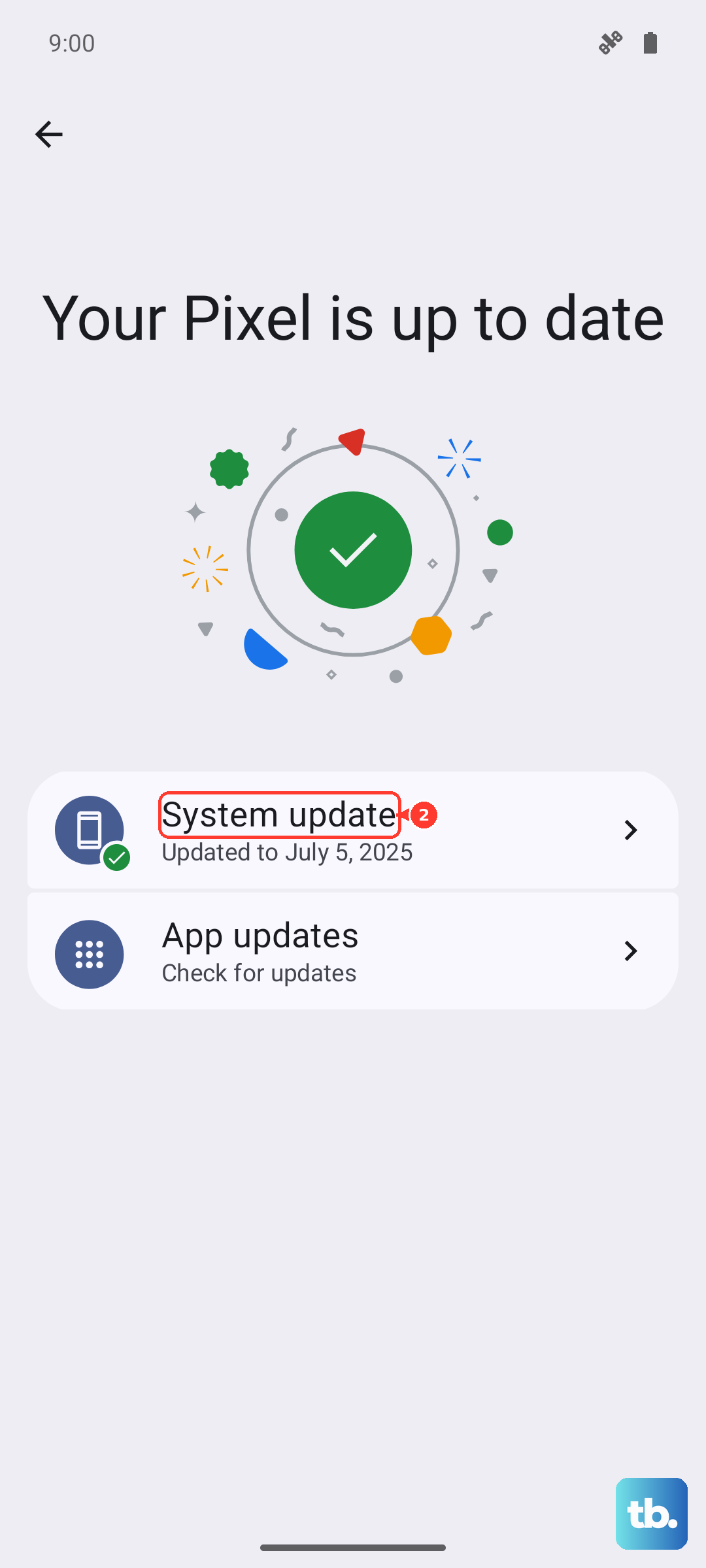
Navigate to Settings > About phone > HyperOS version. Tap the "Check for updates" button. If an update is available, I'd recommend installing it while connected to Wi-Fi. The powerful Snapdragon 8 Elite chip handles these updates quickly.
Boot Into Safe Mode
If the keyboard works fine but then suddenly starts crashing after you install a new app, Safe Mode is your detective tool. It temporarily disables all third-party apps, letting you see if one of them is the cause.
To enter Safe Mode, press and hold the power button until the power menu appears. Then, long-press the Power off option on your screen. A prompt will appear asking if you want to reboot to Safe Mode. Tap OK. If your keyboard works perfectly in Safe Mode, you know a downloaded app is the problem. Start by removing your most recently installed apps one by one.
Reset All System Settings
This is a more thorough step that won't erase your photos or apps, but it will revert all your system settings to factory defaults. Your Wi-Fi passwords, Bluetooth pairings, home screen layout, and app permissions will be reset.
You can find this option at Settings > Additional settings > Backup & reset > Erase all data (factory reset). Before you tap that, look for and select Reset all settings. This is the less nuclear option. Confirm and let the phone reboot. You'll have to reconfigure your preferences, but it often clears deep configuration conflicts.
Try a Different Keyboard App
Sometimes the fastest workaround is to just switch keyboards. This gives you a fully functional typing experience immediately while you sort out the issue with the default one.
Head to the Play Store and install a popular alternative like Gboard or SwiftKey. Once installed, go to Settings > Additional settings > Languages & input > On-screen keyboard. Tap Manage on-screen keyboards and enable your new keyboard. You can then set it as default right from there.
Check for HyperOS Interface Conflicts
The Xiaomi 15's HyperOS 2 is generally smooth, but occasional UI glitches have been reported. These can sometimes interfere with system apps like the keyboard. A specific setting related to text display or accessibility could be the trigger.
It's worth visiting Settings > Additional settings > Accessibility. Look through any services you have enabled here, particularly any related to text-to-speech, magnification, or special interaction controls. Try temporarily turning them off to see if your keyboard stability returns. Also, if you use a custom theme, try switching back to the default theme temporarily, as they can sometimes introduce instability.