
When your Xiaomi 15 starts rebooting on its own, it's a major disruption. This can happen for a few reasons, from a simple app crash to a deeper software bug in HyperOS 2. I'd start with the most common fix, which often solves the problem in under a minute.
Before you begin, it's a good idea to make sure your important data is backed up. You can use Xiaomi Cloud or simply connect your phone to a computer and copy your photos and files over. This keeps everything safe just in case.
Perform a Force Restart
This is the quickest way to clear a temporary software hiccup that's causing the restarts. It doesn't delete any of your data. Simply press and hold the power button on the side of your Xiaomi 15 for at least 15 seconds.
Keep holding it until you see the phone's screen go black and the Mi or HyperOS logo reappear. This forces a clean boot and can stop a restart loop right away.
Check for Problematic Apps
A misbehaving third-party app is one of the most frequent causes of random reboots. Start by checking which apps you installed or updated right before the problem began. You can boot into Safe Mode to test this.
To enter Safe Mode on the Xiaomi 15, press and hold the power button until the power menu appears. Then, tap and hold the "Power off" option on your screen. A prompt will ask if you want to reboot to Safe Mode, tap OK.
If the phone runs stable in Safe Mode, a downloaded app is likely the culprit. You'll need to restart normally and uninstall recent apps one by one to find the offender.
Update Your Apps and System Software
Outdated apps can clash with Android 15 and HyperOS 2, leading to instability. Open the GetApps store, tap your profile icon, and check for pending app updates. Install all available updates.
Next, check for a critical system update. Go to Settings > About phone > HyperOS version. Tap the "Check for updates" button. If an update is there, install it while your phone is connected to Wi-Fi and has at least 50% battery.
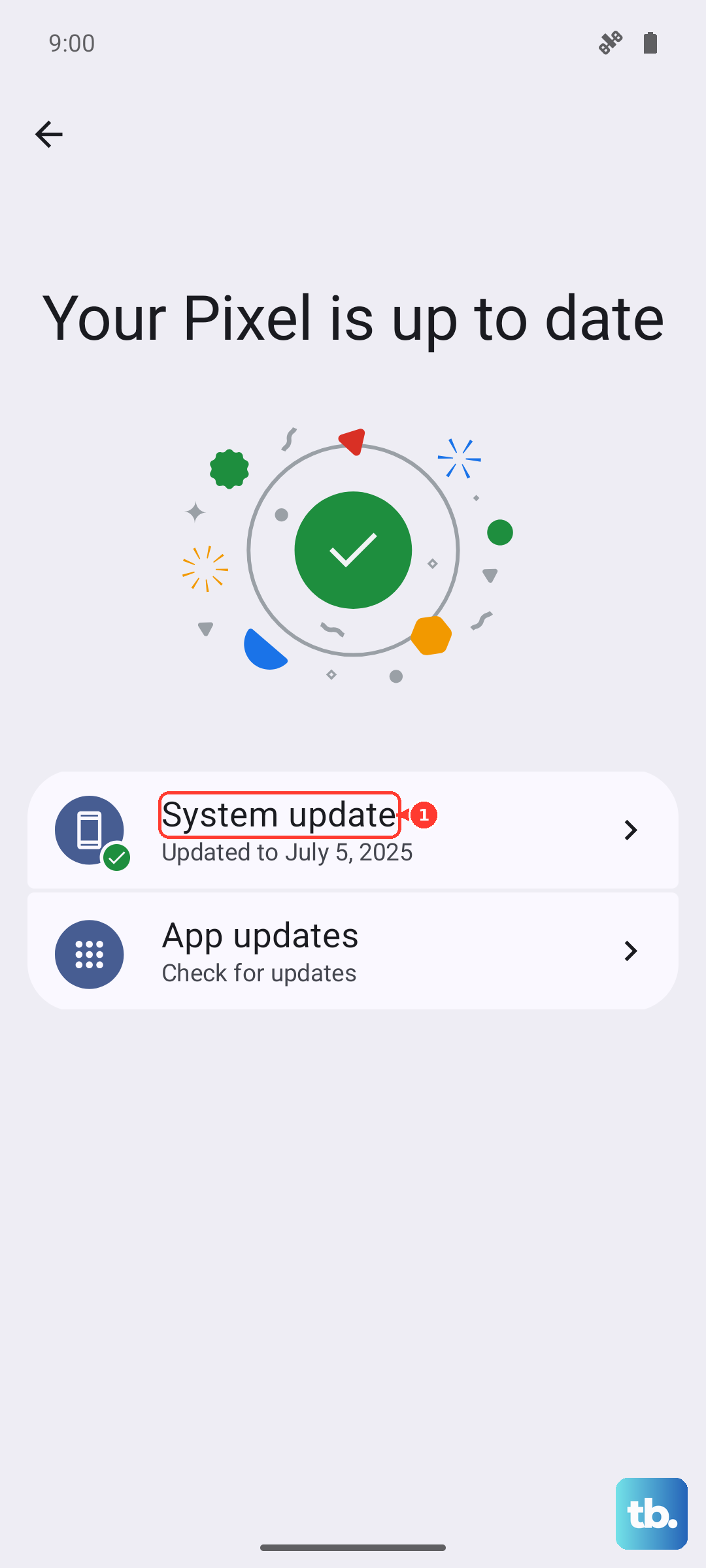
These updates often contain bug fixes specifically for stability and performance issues that can cause reboots.
Free Up Storage Space
When your phone's storage is critically full, the system can struggle to operate, which sometimes triggers restarts. Go to Settings > Storage to see how much space you have left.
If you're below 5GB of free space, start cleaning up. The Storage menu will offer suggestions like clearing app cache. You can also offload large videos or unused apps. I've seen this simple fix resolve weird system behavior more than once.
Disable Aggressive Battery Optimization
HyperOS includes powerful battery management that can sometimes be too aggressive, shutting down apps or processes in a way that causes a crash. You can adjust this for specific apps.
Go to Settings > Apps and select the app you suspect. Tap on Battery saver and choose "No restrictions". Try this for any apps you use heavily, especially messaging or social media apps that need to run in the background.
Check for Overheating
The Snapdragon 8 Elite chip is powerful but can run hot during long gaming sessions or while using the camera. If the phone gets too hot, it will protect itself by shutting down or restarting.
Feel the back of the phone. If it's very warm to the touch, stop using it for a few minutes and let it cool down. For gaming, try enabling Game Turbo mode from the sidebar, as it can help manage performance and heat more efficiently.
Also, avoid using the phone while it's charging with the 90W HyperCharge adapter, as this generates additional heat.
Reset All Settings
If the reboots continue, you can reset all your system settings to their defaults without touching your personal data like photos and messages. This clears any incorrect configurations that might be causing trouble.
Navigate to Settings > About phone > Factory reset. Here, select "Reset all settings" (not "Erase all data"). You'll need to enter your lock screen password and confirm. Your Wi-Fi passwords and personalized settings will be lost, but your files will remain.
Boot into Recovery Mode for a Deeper Reset
For persistent restart loops where you can't use the phone normally, Recovery Mode is the next step. First, power the phone off completely. Then, press and hold the Volume Up button and the Power button together.
Hold them until the Mi Recovery menu appears. Use the volume buttons to navigate and the power button to select. Choose "Wipe data" and then "Wipe all data". This will perform a factory reset, so it's a last resort. After it completes, select "Reboot".
Inspect the Hardware and Charging Gear
Faulty hardware or accessories can sometimes cause instability. First, try a different charging cable and power adapter. If your region didn't include a charger in the box, ensure any third-party charger you're using supports USB-C PD and is high quality.
Listen for any faint rattling sounds if you shake the phone gently, which could indicate a loose internal component. Also, inspect the USB-C port for any packed-in lint or debris that could be causing a short. A can of compressed air can clean it out safely.