
When your Xiaomi 15's GPS stops locking on, it can leave you stranded in more ways than one. The Snapdragon 8 Elite chipset has a powerful modem, but sometimes software quirks in HyperOS 2 or a simple app glitch can throw it off course. Let's get your navigation back on track.
I'd start with the quick refresh. Swipe down from the top of your screen to open the Quick Settings panel and tap the Location icon to turn it off. Wait about ten seconds, then tap it again to turn it back on. This simple reset clears the temporary connection and often solves the problem immediately.
Perform a Force Restart
If toggling GPS didn't help, a force restart is your next best move. This clears out any system glitches that might be affecting the radio hardware. Just press and hold the Power button for about 15 seconds, until you see the Xiaomi logo appear and the phone reboots.
It's a more complete reset than a standard restart and can fix odd behaviors that a normal reboot might miss.
Check HyperOS Location Settings and Permissions
HyperOS has a few layers of location controls that you need to verify. First, open Settings and go to Location. Make sure the main toggle at the top is switched on.
Next, tap on Location services right below that. For the best possible GPS performance, especially for navigation, you want this set to High accuracy. This mode uses GPS satellites combined with Wi-Fi and mobile networks to pin down your location quickly and precisely.
Finally, check app permissions. Go to Settings > Apps > Manage apps, then select your navigation app, like Google Maps or Waze. Tap on Permissions and ensure Location access is set to "Allow all the time" or "Allow only while using the app," depending on your preference.
Disable Battery Saver and Manage Game Turbo
The Xiaomi 15's aggressive battery optimization can sometimes limit background location services. Go to Settings > Battery and make sure any Battery saver mode is turned off while you need reliable navigation.
Also, if you were just gaming, check your Game Turbo settings. While it boosts performance, it can sometimes prioritize the CPU and GPU over other system functions. Exiting Game Turbo mode or closing your game launcher can free up system resources for the GPS.
Update Your Apps and HyperOS
An outdated version of Google Maps or another navigation app can have bugs that break GPS functionality. Head to the Google Play Store, tap your profile icon, and select Manage apps & device. Install any pending updates, especially for mapping apps.
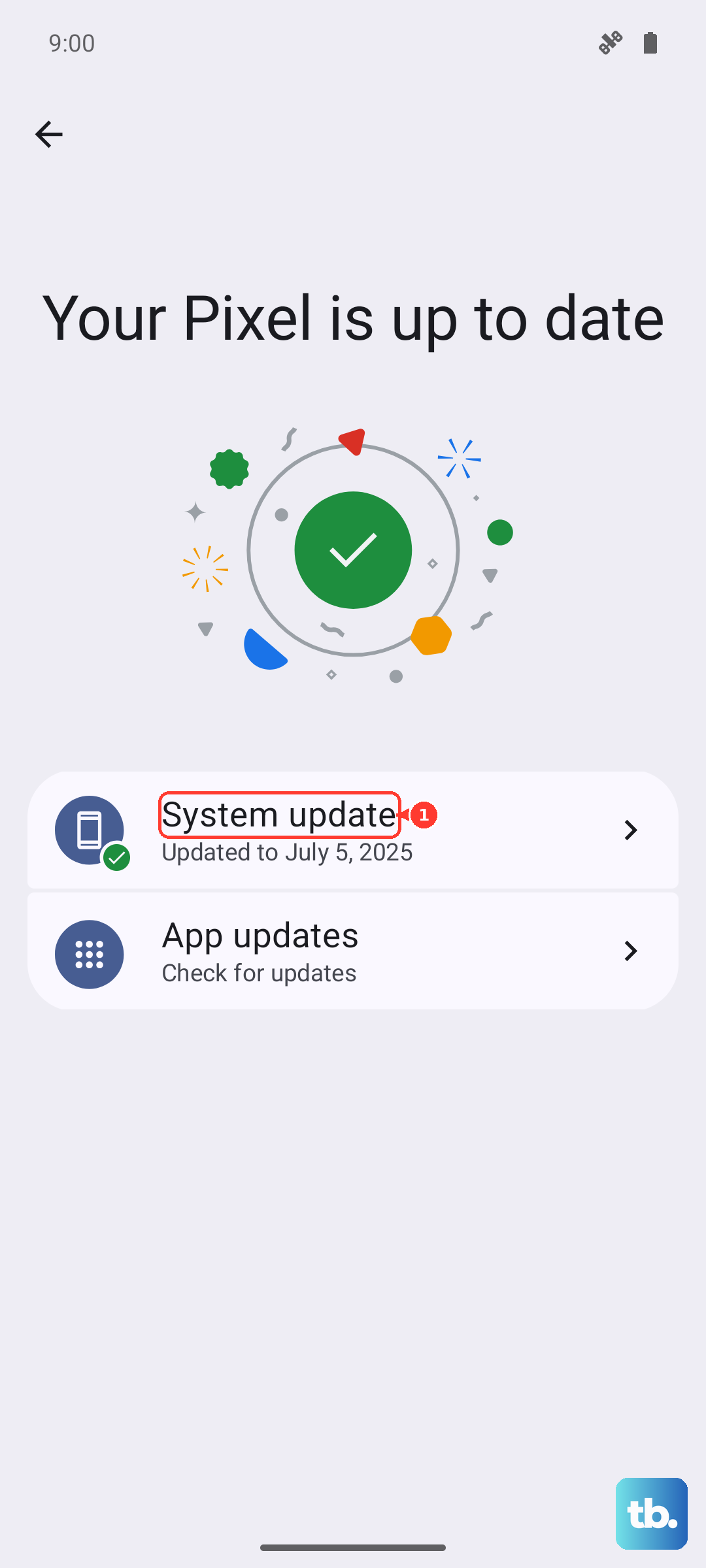
More importantly, check for a system update. HyperOS 2 is still receiving patches that fix various issues. Go to Settings > About phone > HyperOS version and tap on Check for updates. Installing the latest software can resolve GPS bugs introduced in earlier versions.
Clear the App Cache and Data for Maps
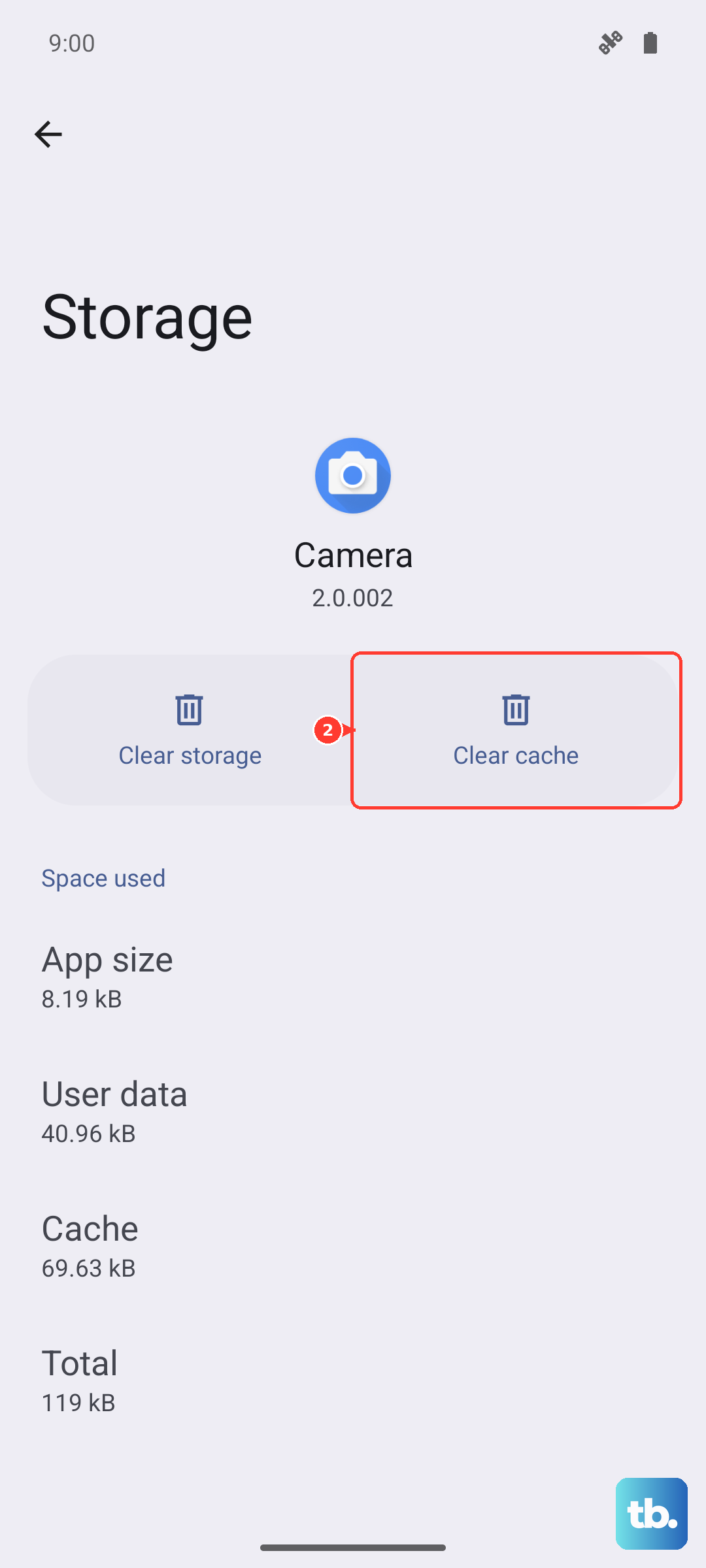
Corrupted temporary files in your navigation app can cause it to malfunction. Go to Settings > Apps > Manage apps and find Google Maps (or your primary navigation app). Tap on it, then select Storage usage.
Tap Clear cache first. This is safe and won't delete your saved places. If the GPS is still broken, you can try Clear data. Be warned, this will reset the app, so you'll need to sign back in and may lose offline maps.
Toggle Airplane Mode and Check SIM
This resets all the radios in your phone at once. Swipe down for Quick Settings and tap the Airplane mode icon. Wait 15 full seconds, then tap it again to turn it off. This can clear conflicts between the cellular modem and the GPS receiver.
Also, ensure your SIM card is properly seated and you have a mobile data connection. While GPS itself works without data, apps like Google Maps often use an A-GPS (Assisted GPS) signal from your mobile network to get a faster initial lock.
Test in Safe Mode
This will tell you if a third-party app you installed is causing the interference. To boot into Safe Mode, press and hold the Power button until the power menu appears. Then, tap and hold the "Power off" option on your screen.
You'll see a prompt to reboot to Safe Mode. Tap OK. Once booted, you'll see "Safe Mode" in the bottom corner. Try using Google Maps now. If GPS works perfectly in Safe Mode, a recently installed app is likely the culprit. Restart your phone normally to exit Safe Mode and try uninstalling apps one by one.
Calibrate Your Compass and Check Your Environment
Sometimes the issue is with the compass calibration, not the GPS itself. Open Google Maps and tap the blue location dot. Select Calibrate compass from the menu that pops up. You'll be prompted to move your phone in a figure-eight motion a few times.
Also, be mindful of your surroundings. GPS signals are line-of-sight to satellites. Thick concrete buildings, underground parking, dense tree canopies, and even some metal-heavy phone cases can block or weaken the signal. Try stepping outside to an open area.
Use a GPS Diagnostic Tool
Before considering a hardware fault, use an app like "GPS Test" or "GPS Essentials" from the Play Store. Open the app and look for the satellite screen.
If you're outdoors with a clear view of the sky and the app shows zero satellites in view, there could be a deeper antenna or hardware issue. If it sees plenty of satellites but your navigation apps still can't get a lock, the problem is almost certainly software-based on your Xiaomi 15.
For persistent software issues, you might consider backing up your data and performing a factory reset via Settings > About phone > Factory reset. This is a last resort, but it can eliminate any deep-seated system corruption affecting the location services.