
When the torch on your Xiaomi 15 won't turn on, it's a surprisingly frustrating glitch. The button in the Quick Settings panel might do nothing, or the icon could be dimmed out. Let's get your flashlight working again.
Close the Camera App
The camera flash and the torch use the exact same LED hardware. If your camera app is open, even just running in the background, the system reserves that LED for the camera. Swipe up from the bottom to enter the recent apps view and swipe the Camera app away to fully close it. You should be able to use the torch immediately after.
Force Restart Your Phone
This is the quickest way to clear a minor software hang. Simply press and hold the Power button for about 15 seconds. Keep holding it until you see the Xiaomi logo appear on the screen, then release. This forces a reboot and often resolves a non-responsive torch toggle.
Check for System Overheating
The Snapdragon 8 Elite chip in the Xiaomi 15 can run hot during intense tasks like gaming. As a safety measure, HyperOS will disable non-essential features like the torch if the phone gets too warm. If your device feels hot, let it sit and cool down for 10-15 minutes before trying the flashlight again.
Adjust the Torch Brightness
You might not realize the torch is on if it's set to its dimmest level. Instead of just tapping the torch icon in Quick Settings, press and hold it. A small menu should pop up with a brightness slider. Slide it all the way to the right to the brightest setting and see if the light turns on.
Toggle with Google Assistant
Try activating the torch with a voice command. Say "Hey Google, turn on the flashlight." If the assistant can turn it on but the physical button still doesn't work, it points to a user interface glitch rather than a hardware failure. A simple force restart, as mentioned earlier, typically fixes this.
Update HyperOS
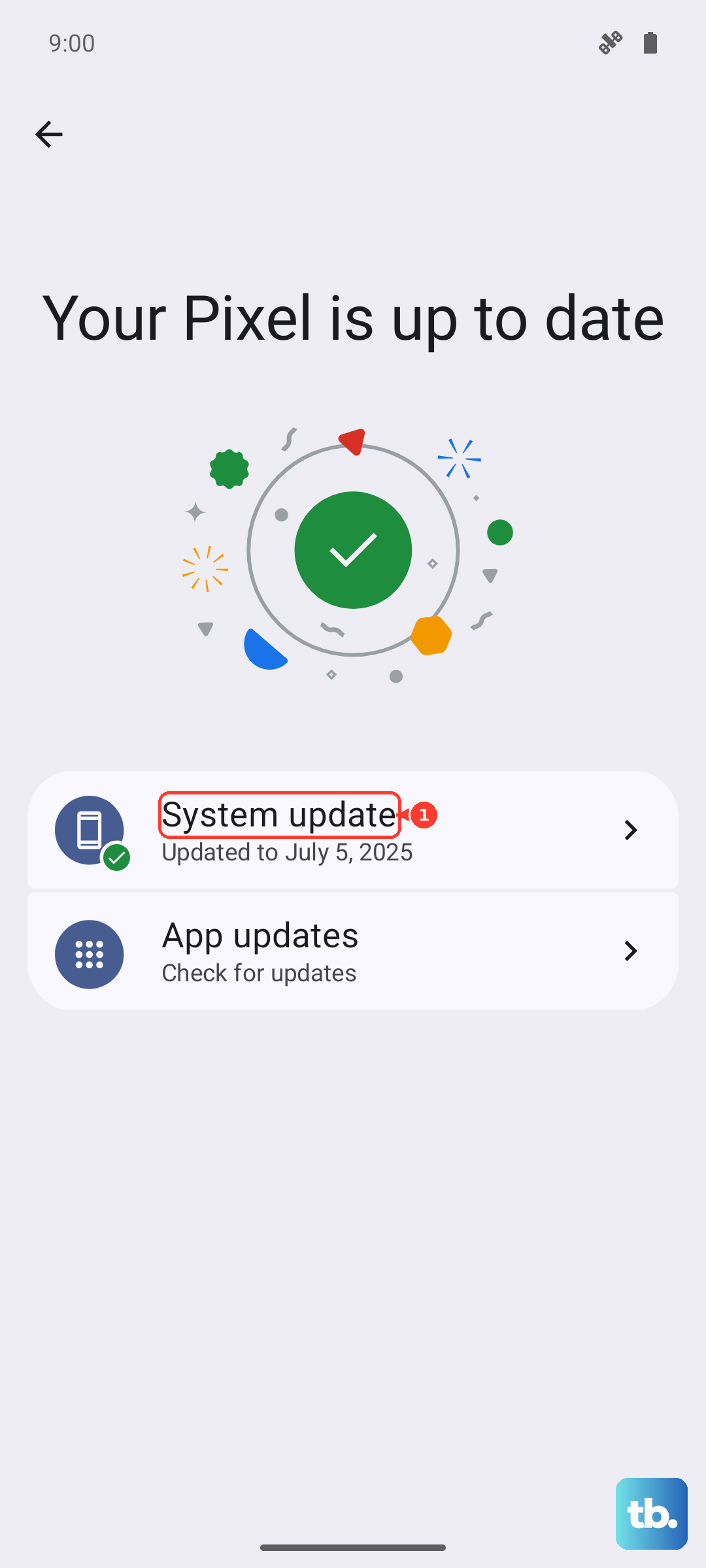
Go to Settings > About phone > HyperOS version and tap on "Check for updates." Install any available system update. Xiaomi regularly releases patches that fix bugs, including ones that can affect system controls like the flashlight. I've seen updates resolve similar quirks on other Xiaomi models.
Reset App Preferences
This resets permissions and default actions for all your apps without deleting any personal data. Navigate to Settings > Apps > Manage apps. Tap the three-dot menu in the top right, select "Reset app preferences," and confirm. This can clear any incorrect system settings that are blocking the torch function.
Check for a System UI Glitch
HyperOS 2 can have occasional interface bugs. Try pulling down the notification shade twice to fully expand the Quick Settings panel. Sometimes the toggle there is unresponsive, but the torch shortcut on your lock screen might still work. Swipe right on your lock screen and tap the torch icon to test it.
Test the Camera Flash
Open your Camera app and switch to a photo mode. Try taking a picture with the flash forced on. If the flash doesn't fire during a photo, then the LED hardware itself is likely faulty. If the camera flash works perfectly but the dedicated torch still doesn't, the issue is almost certainly a software bug that a reset or update should fix.