
Bluetooth acting up on your new Xiaomi 15 can be a real headache, especially when you're trying to connect to your wireless earbuds or your car. The good news is that most of the time, this is a software hiccup that you can fix yourself. Let's walk through the steps to get your wireless connections working again.
Check the Simple Stuff First
Before we get into the deeper fixes, run through this quick checklist. It sounds basic, but I've seen these simple oversights cause more problems than you'd think.
Make sure both your phone and the device you're trying to connect to have enough battery. A low battery can sometimes prevent a stable Bluetooth connection. Ensure the other device is actually in pairing mode, which is often indicated by a flashing light. Keep them close together, ideally within a few feet, while you're trying to pair.
Also, double-check that Bluetooth is actually enabled on your Xiaomi 15. Pull down the notification shade twice to see the full quick settings panel and look for the Bluetooth icon. If it's grayed out, tap it to turn it on.
Toggle Bluetooth and Restart
The oldest trick in the book often works wonders here. Start by turning Bluetooth off and back on. Swipe down from the top of your screen to open the Control Center, tap the Bluetooth icon to disable it, wait about ten seconds, and then tap it again to turn it back on.
If that doesn't do it, give your phone a quick restart. Sometimes, a background process in HyperOS 2 gets stuck and a fresh boot clears it right up. Just press and hold the power button, tap restart, and wait for your phone to come back online. Don't forget to restart the Bluetooth speaker, headphones, or other device you're trying to connect to as well.
Forget and Re-Pair the Device
Your phone might be holding onto a corrupted connection profile for that device. The fix is to make it forget the device entirely and start over from scratch.
Go to Settings > Bluetooth & device connection. Tap on the name of the problematic device, then tap Forget or the trash can icon. Confirm you want to remove it. Now, put the other device back into pairing mode and search for it again on your phone's Bluetooth list to create a fresh pairing.
Clear the Bluetooth System Data
Corrupted cache or data within the Bluetooth system service itself can cause all sorts of issues. Clearing it is a safe, next-level step that doesn't delete your personal files.
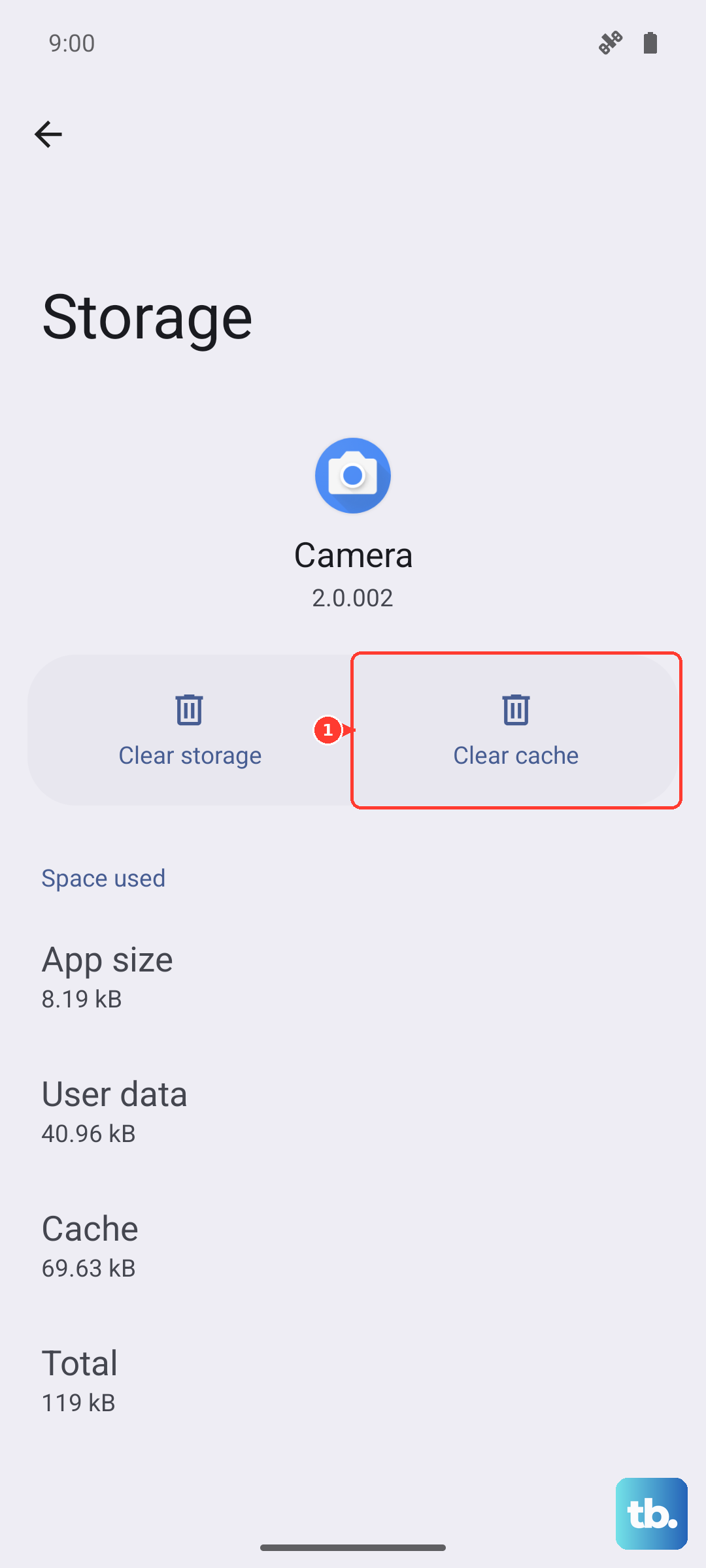
Head to Settings > Apps > Manage apps. Tap the three-dot menu in the top right and select Show system apps. Now, scroll down and find Bluetooth in the list (it might be listed as "Bluetooth Share" or similar). Tap on it, then tap Storage usage.
Here, tap Clear cache first. If the problem persists, come back and tap Clear data. Be aware that clearing data will forget all your paired Bluetooth devices, so you'll have to re-pair everything.
Reset Your Network Settings
This is a more comprehensive reset that affects Wi-Fi, mobile data, and Bluetooth all at once. It's very effective for persistent connection issues and will wipe your saved Wi-Fi networks and Bluetooth pairings.
To do this, open Settings and go to Additional settings. Tap on Back up & reset and then select Reset phone. Look for and choose Reset network settings. You'll need to enter your lock screen PIN or password to confirm. After the reset, your phone will reboot, and you can try setting up your Bluetooth connections again.
Check for a System Update
Xiaomi frequently releases updates for HyperOS that include bug fixes and improvements for connectivity. An outdated system could be the root of your Bluetooth troubles.
Go to Settings > About phone > HyperOS version. Tap on the logo to check for updates. If an update is available, make sure your phone is charged above 50% and connected to Wi-Fi before you download and install it. It's also a good idea to check if the Bluetooth device itself has a firmware update available through its own app.
Boot Into Safe Mode
If a recently downloaded third-party app is conflicting with Bluetooth, Safe Mode will help you find out. In Safe Mode, all downloaded apps are temporarily disabled.
To enter Safe Mode, press and hold the power button until the power menu appears. Then, tap and hold the Power off option on your screen. You should see a prompt asking if you want to reboot to Safe Mode. Tap OK. Your phone will restart, and you'll see "Safe Mode" in the bottom corner. Try using Bluetooth now. If it works, a third-party app is the culprit. Restart your phone normally to exit Safe Mode and try uninstalling apps one by one, starting with the most recently installed.
Review App Permissions and Battery Settings
HyperOS has aggressive battery optimization that can sometimes interfere with apps that need constant Bluetooth access, like fitness trackers or smartwatches. Go to Settings > Apps > Manage apps and find the app for your Bluetooth device (like a wearables app). Tap on it, then go to Battery saver and set it to No restrictions.
Also, check the app's permissions in its info page to ensure it has location permission if needed, as some devices use Bluetooth and location together for better functionality.
Consider a Factory Reset
This is your last resort before looking at potential hardware issues. A factory reset will erase everything on your phone, so it is absolutely critical to back up all your photos, messages, and app data first. You can use Xiaomi Cloud or a local backup to your computer.
Once backed up, go to Settings > Additional settings > Back up & reset > Erase all data (factory reset). Follow the prompts to complete the process. After the reset, set up your phone as new initially to see if Bluetooth works before restoring your backup.
Specific Fix for Car Bluetooth
Car systems can be particularly finicky. The most reliable method is to clear the connection from both sides. First, on your Xiaomi 15, go to Bluetooth settings and forget the car. Then, in your car's infotainment system, find the list of paired phones and delete your Xiaomi 15 from there.
With both devices having forgotten each other, turn your car's ignition to the "on" position (or start the engine) and begin the pairing process fresh from your car's menu. Sometimes, making your phone discoverable from the Bluetooth settings screen before the car searches can help.