
When your Xiaomi 14T Pro won't send photos, it's usually a quick setting or connection issue. The most common fix is to check your mobile data or WiFi connection first, as a weak signal is often the culprit.
Check Your Mobile Data and Network
Start by making sure your cellular data is actually turned on. Go to Settings > Mobile network and ensure the Mobile data toggle is enabled. If you're trying to send a large photo or video, you need a stable connection.
For the fastest speeds, especially with the 14T Pro's capable hardware, I'd recommend forcing 5G if it's available in your area. You can find this under Settings > Mobile network > Preferred network type. Select "5G/4G/3G/2G" to prioritize the fastest network.
Verify Your MMS and APN Settings
MMS, or Multimedia Messaging Service, is what allows you to send pictures over your carrier's network. If these settings are wrong, photos will fail to send. Open your default messaging app, tap the three-dot menu, and go to Settings > Advanced or MMS settings.
Make sure "Auto-download MMS" is enabled. If photos still won't go through, you may need to check your APN (Access Point Name) settings. Go to Settings > Mobile network > Access Point Names. Your carrier should have the correct settings pre-loaded, but you can contact them for the exact MMS APN details if needed.
Test Your Internet Connection
If you're on WiFi, check that you're properly connected. Sometimes, the phone can show it's connected to WiFi but there's no actual internet access. Try opening a webpage in your browser to test it.
You can also try toggling Airplane mode on and off. Swipe down from the top of your screen to open the Quick Settings panel and tap the airplane icon. Wait about 10 seconds, then tap it again to turn it off. This resets all your radio connections in one go.
Clear the Messaging App's Cache
The app you're using to send photos can accumulate temporary data that sometimes causes glitches. Go to Settings > Apps > Manage apps. Find your messaging app (like Google Messages or Xiaomi's Messages) and tap on it.
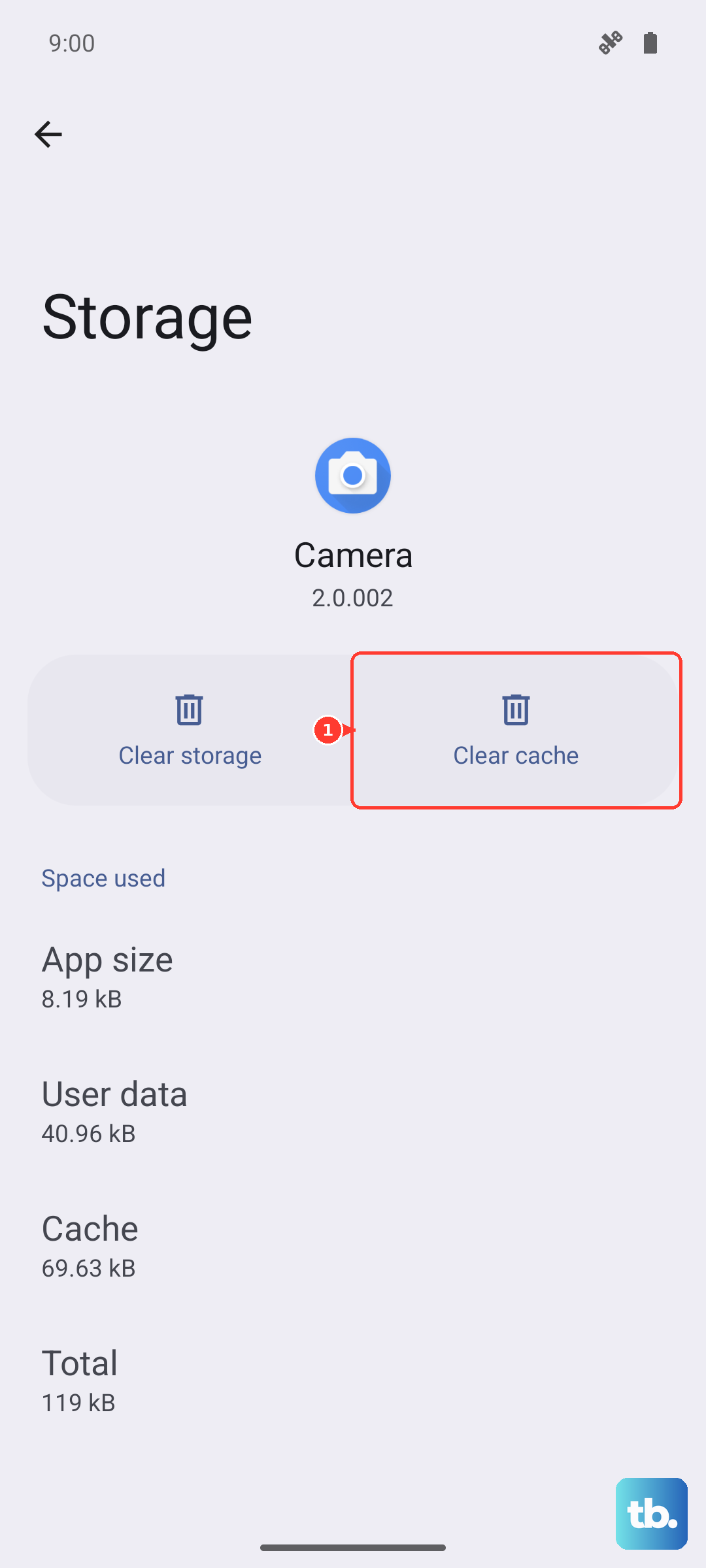
Tap Storage usage and then select Clear cache. This won't delete your conversations, just the temporary files. After clearing, open the app and try sending a photo again.
Check for App-Specific Data Restrictions
HyperOS includes features to save data, which can sometimes block MMS. Go to Settings > Mobile network > Data usage. Look for any "Data saver" or "Restrict background data" options and make sure they are turned off for your messaging app.
You can also check within the Security app. Open it, go to Data usage, and see if your messaging app is being restricted from using mobile data in the background.
Ensure Date and Time Are Correct
Incorrect date and time settings can interfere with network authentication, which might stop MMS from sending. Go to Settings > Additional settings > Date & time.
Make sure "Use network-provided time" is switched on. If it's already on, try turning it off and setting the time manually, then switch it back on to refresh the connection.
Try a Different Messaging App
This is a great way to figure out if the problem is with the app itself or a system-wide issue. Download a popular alternative like Google Messages from the Play Store and set it as your default.
If photos send successfully with the new app, the issue is likely with your previous app's configuration or data. You can then try clearing its data (not just cache) from the app management settings, but remember this will erase your conversation history within that app.
Restart Your Xiaomi 14T Pro
A simple restart clears out temporary software bugs that can affect messaging. Press and hold the power button, then tap "Restart" on the screen. If the phone is unresponsive, you can force a restart by pressing and holding the power button for about 15 seconds until you feel it vibrate and the screen comes back on.
Review Your Security App Settings
Xiaomi's Security app has deep controls that can sometimes block apps. Open the Security app and navigate to Settings (the gear icon) within it. Look for sections like "Battery" or "Permissions".
Find your messaging app in the list and ensure its background activity is not restricted. Some battery saver modes aggressively kill apps, preventing them from completing the upload of a photo.
Update Your Software and Carrier Services
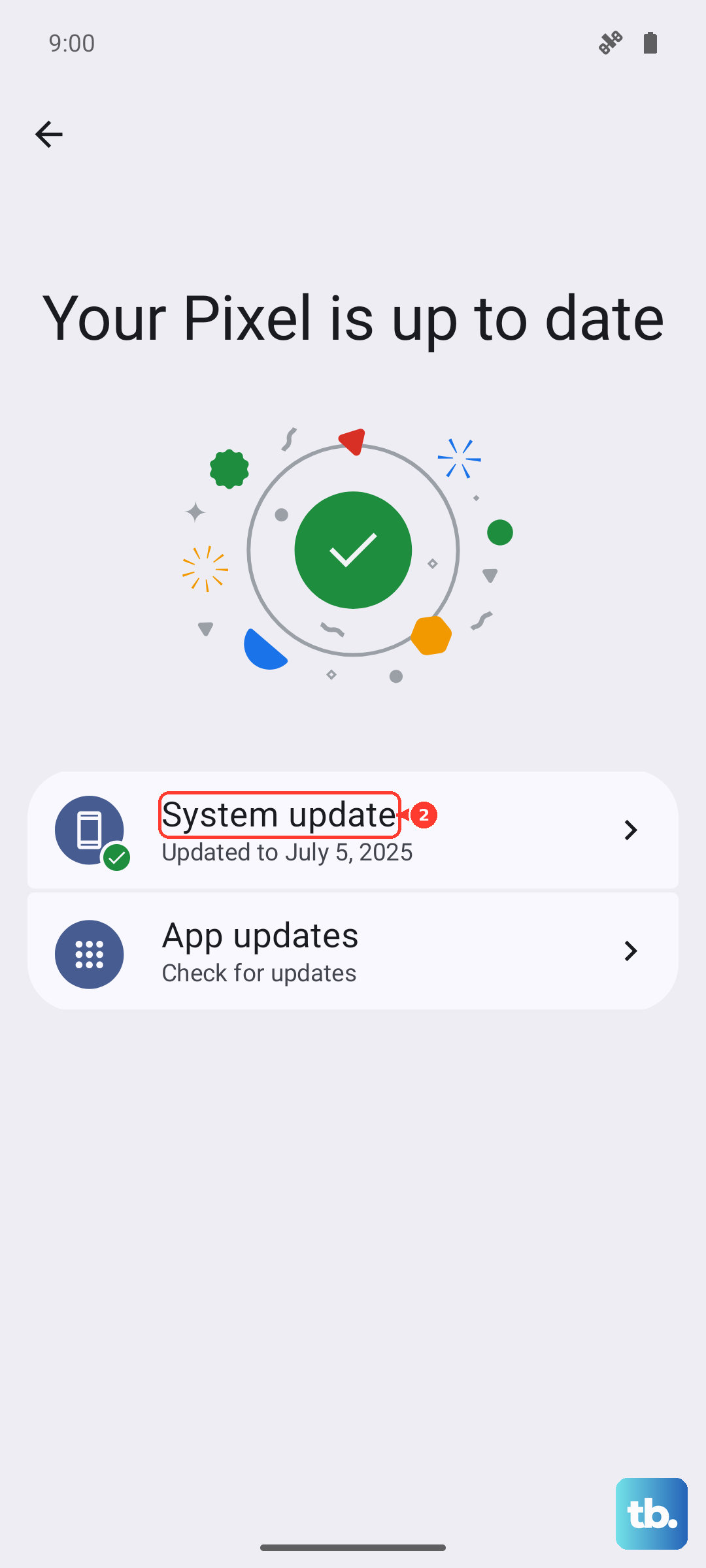
Make sure your phone is running the latest version of HyperOS. Go to Settings > About phone > System update and tap "Check for updates". An update often includes fixes for connectivity bugs.
Also, open the Google Play Store, tap your profile icon, and go to Manage apps & device > Manage > Updates available. Look for an update to "Carrier Services" and install it if one exists, as this manages communication with your mobile network.
Reset Network Settings as a Last Resort
If you've tried everything else, resetting network settings can resolve deep-seated configuration errors. Go to Settings > About phone > Factory reset.
Then, select Reset network settings. This will erase all saved WiFi passwords, Bluetooth pairings, and mobile network settings, returning them to factory defaults. You'll need to reconnect to your WiFi and re-pair Bluetooth devices afterward.