
If videos on your Xiaomi 14T Pro are stuttering, freezing, or dropping frames, it can really ruin the experience. This is a common issue with a few specific causes on this phone, and most of them are pretty straightforward to fix.
Free Up Storage Space First
This is often the quickest fix. The Xiaomi 14T Pro's powerful Dimensity 9300+ chip needs free space to cache video data smoothly. When storage is critically low, the system struggles, causing lag and stutter.
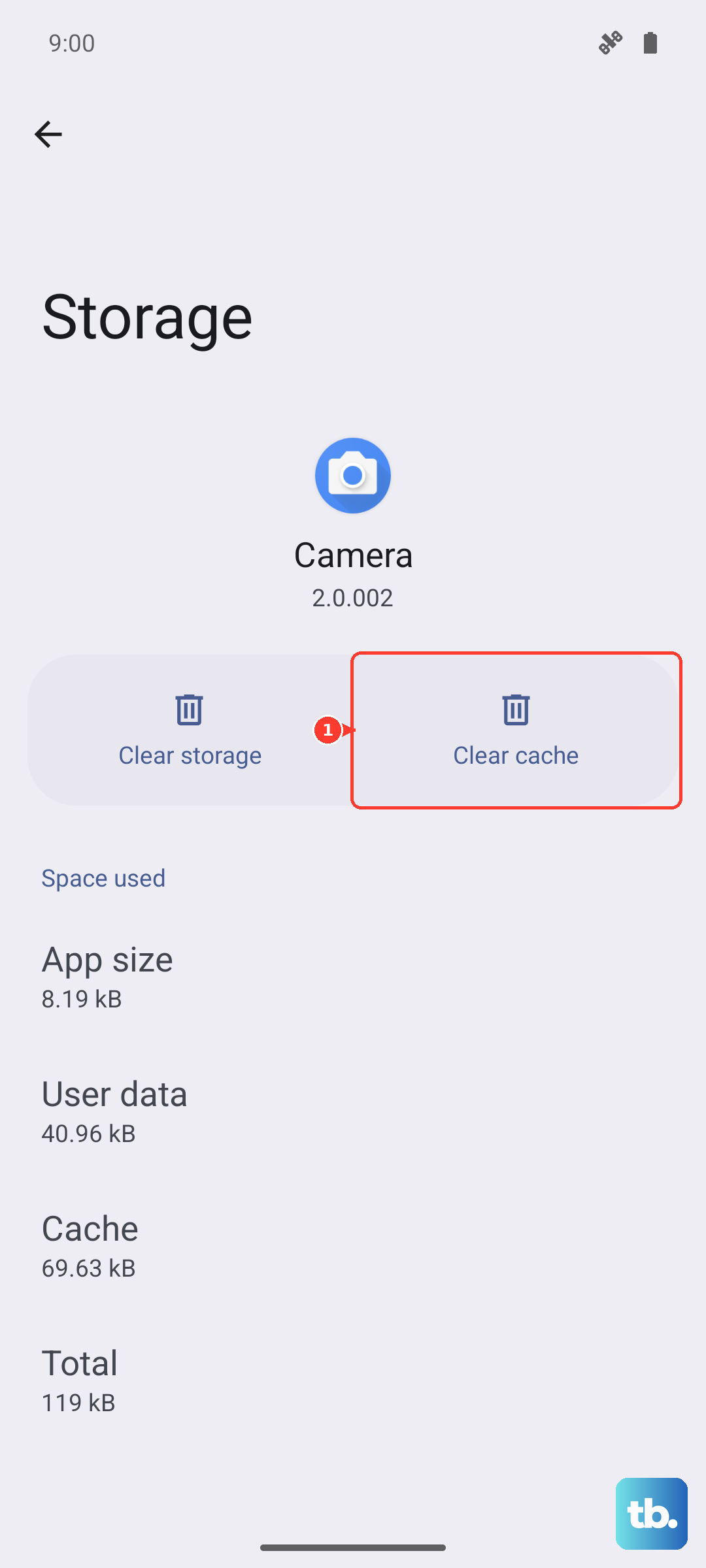
Head to Settings > Storage to see how much space you have left. If you're below 5-10GB free, it's time for a cleanup. I'd start by clearing the cache for apps like YouTube, Netflix, or your gallery app from Settings > Apps > [App Name] > Storage & cache > Clear cache.
Check for Overheating and Performance Throttling
The Xiaomi 14T Pro's processor is a powerhouse, but it can get hot during extended video sessions or if you've just been fast charging. The Dimensity 9300+ is known to throttle performance to manage heat, which can directly cause video lag.
Feel the back of the phone. If it's warm to the touch, let it cool down for a few minutes away from direct sunlight. Also, consider enabling Battery Protection mode, which caps charging at 80%. This not only helps battery longevity but can also reduce the heat generated during charging, keeping performance more consistent.
Update Your Software and Apps
Running an outdated version of HyperOS or your video apps can lead to compatibility issues and playback bugs. Xiaomi frequently releases updates that optimize performance and fix glitches.
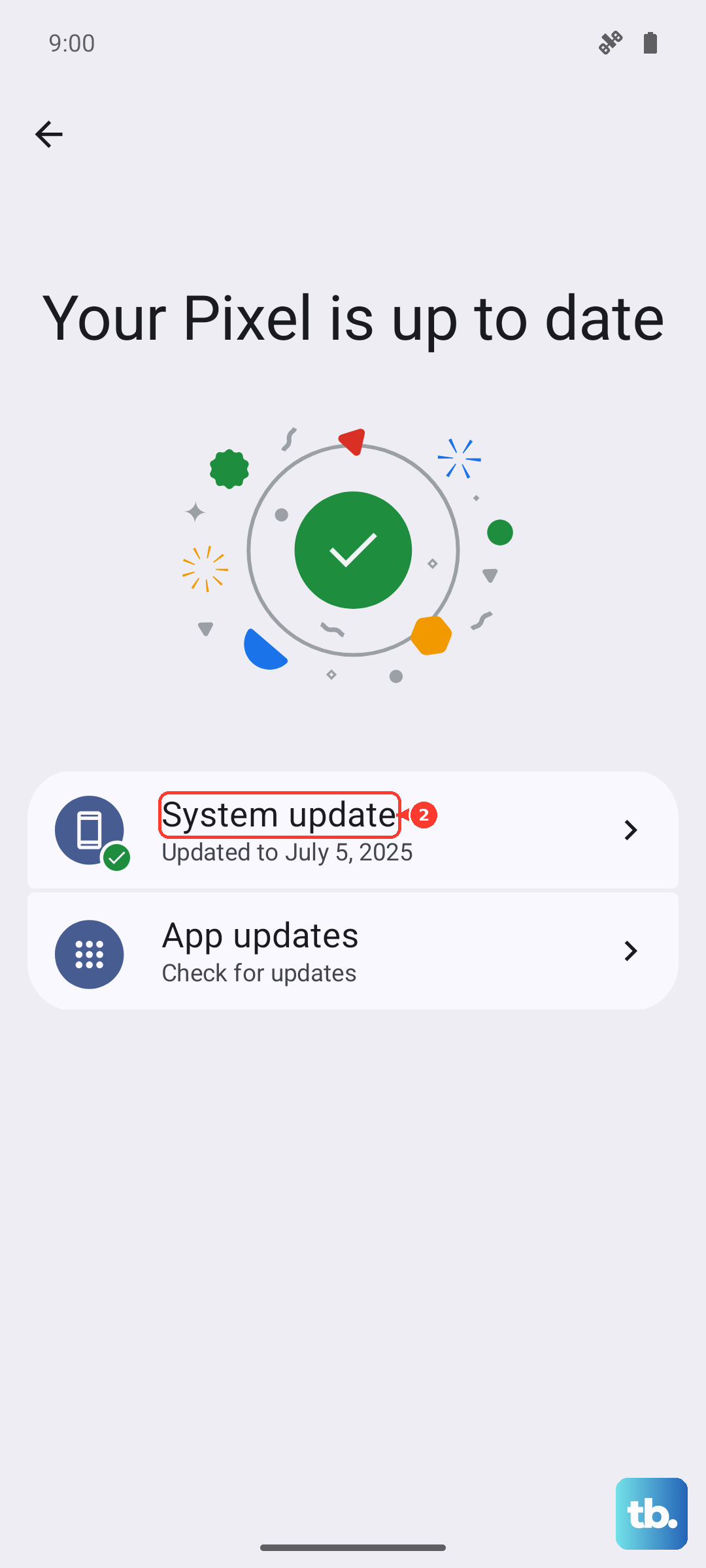
Check for a system update by going to Settings > About phone > HyperOS version and tap "Check for updates." Then, open the Google Play Store, tap your profile icon, and go to Manage apps & device > Updates available to update all your apps, especially streaming services and video players.
Manage Background Apps and Bloatware
HyperOS on some regional variants comes with pre-installed apps that can run in the background and consume system resources. Too many active processes can starve your video app of the power it needs for smooth playback.
Swipe up and hold to enter the recent apps menu, then swipe away everything you're not using. For a more thorough clean-up, you can review and disable or uninstall unnecessary pre-installed apps via Settings > Apps. Be careful not to remove anything critical to system function.
Reset App Preferences or Clear App Data
If the lag is happening in one specific app, its data might be corrupted. Resetting app preferences won't delete your personal data like logins, but it will reset permissions, notifications, and default app settings.
Go to Settings > Apps > See all apps, tap the three-dot menu in the top right, and select Reset app preferences. If the problem persists only in one app, like YouTube, you can try the nuclear option for that app: go to its app info page and select Storage & cache > Clear storage. Just remember, this will sign you out and reset the app to its default state.
Check Your Network Connection for Streaming
For streaming videos, a weak or unstable Wi-Fi or mobile data connection is the usual suspect for buffering and lag. The phone might be struggling to download the video stream fast enough.
Try switching between Wi-Fi and 5G to see if the problem is network-specific. If you're on Wi-Fi, try moving closer to your router. You can also run a quick speed test to confirm your connection is healthy.
Perform a Force Restart
This is a great way to clear out any temporary software glitches that might be affecting performance. It's different from a normal restart and doesn't delete any data.
Simply press and hold the power button on the side of your Xiaomi 14T Pro for about 15 seconds. Keep holding it until you see the phone's screen go black and the Xiaomi logo reappear, then release. This forces a full reboot of the system.
Review Video Player and Codec Settings
If you're playing local video files from your gallery or a third-party player, the file's codec might not be optimized for the phone's hardware. Some video players also have software decoding turned on by default, which is less efficient.
Try using a different video player app from the Play Store, like VLC or MX Player. Within these apps, check the settings for a "hardware acceleration" or "use hardware decoder" option and make sure it's enabled. This lets the powerful Dimensity chip handle the video decoding directly.
Reset All System Settings
If you've tried everything else and the lag is system-wide, resetting all your settings can help. This won't erase your photos, apps, or personal data, but it will reset Wi-Fi passwords, Bluetooth pairings, sound settings, and display preferences back to default.
You can do this by going to Settings > About phone > Factory reset. Then, select Reset all settings (reset system settings only). Enter your lock screen password if prompted, and confirm. Your phone will reboot with fresh system settings, which often resolves deeper software conflicts.