
That "Unfortunately, the keyboard has stopped" pop-up on your Xiaomi 14T Pro can really kill your flow. It's a common hiccup with Android and HyperOS, but you can almost always get your typing back on track with a few straightforward steps.
Force Stop and Restart the Keyboard App
This is the quickest fix and often works immediately. It clears any temporary glitch that's hanging up the keyboard process.
Head to Settings > Apps > Manage apps. You might need to tap the three-dot menu and select "Show system" to find it. Look for "System keyboard" or "Xiaomi Keyboard," tap it, and hit "Force stop."
After that, just back out and try opening your keyboard again in a messaging app.
Give Your Phone a Quick Reboot
If the keyboard app restart didn't do it, a full phone reboot is the logical next step. It clears the system's working memory and can resolve conflicts that a simple app restart misses.
Just press and hold the power button until the power menu appears, then tap "Restart." If your screen is completely unresponsive, you can force a restart by holding the power button down for a solid 15 seconds or more until the phone powers off and boots back up.
Clear the Keyboard's Cache and Data
Corrupted cache files are a frequent culprit. Clearing them is safe, as it only removes temporary data. Clearing storage data is more impactful, as it will reset the keyboard to its default settings, erasing any custom dictionaries or preferences you've set up.
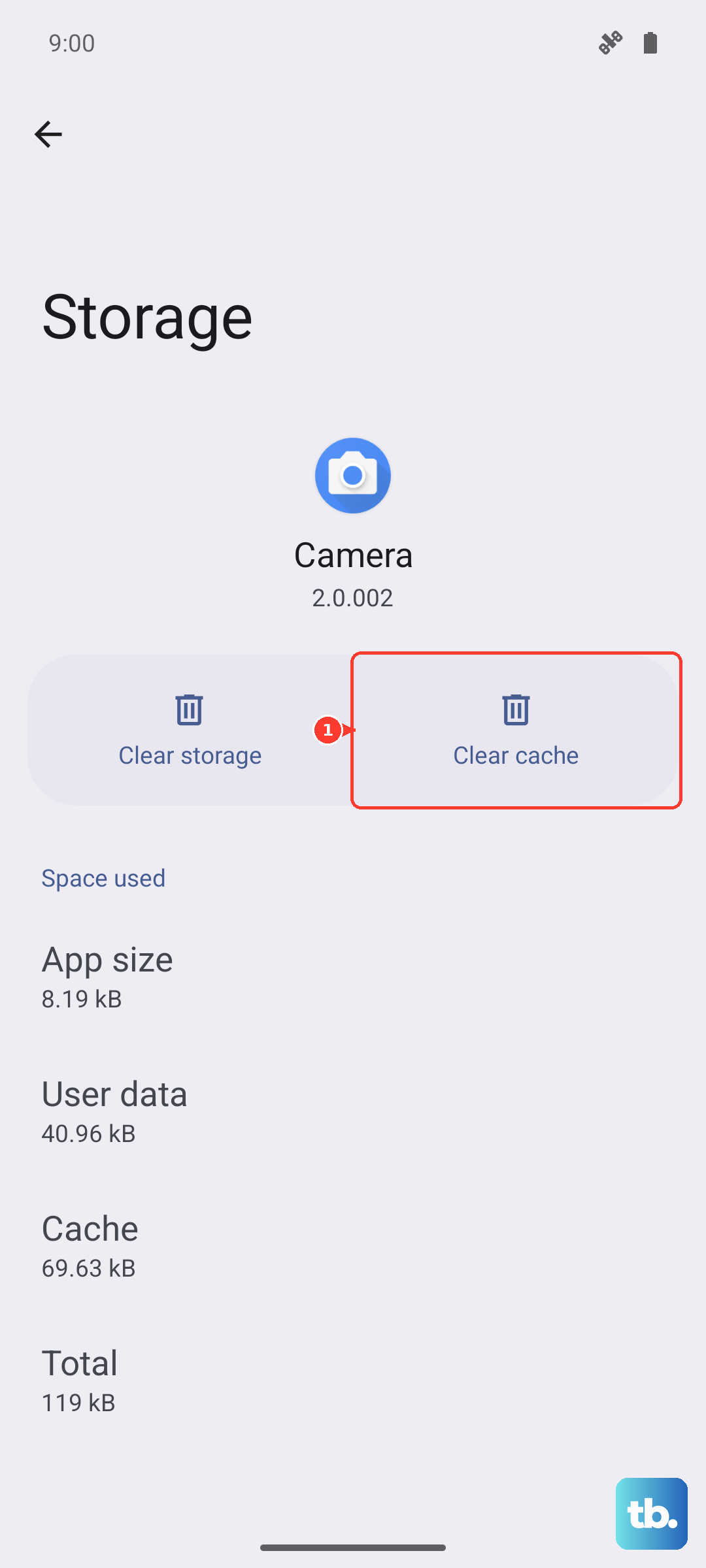
Go back to Settings > Apps > Manage apps, find your keyboard app, and select "Storage usage." Tap "Clear cache" first and test. If the problem persists, go back and tap "Clear data." Confirm the action, and your keyboard will be reset to its out-of-the-box state.
Check for Keyboard and System Updates
An outdated keyboard app can have bugs or compatibility issues, especially after a HyperOS update. Open the Google Play Store, tap your profile icon, and go to Manage apps & device > Updates available. See if your keyboard app is listed and update it.
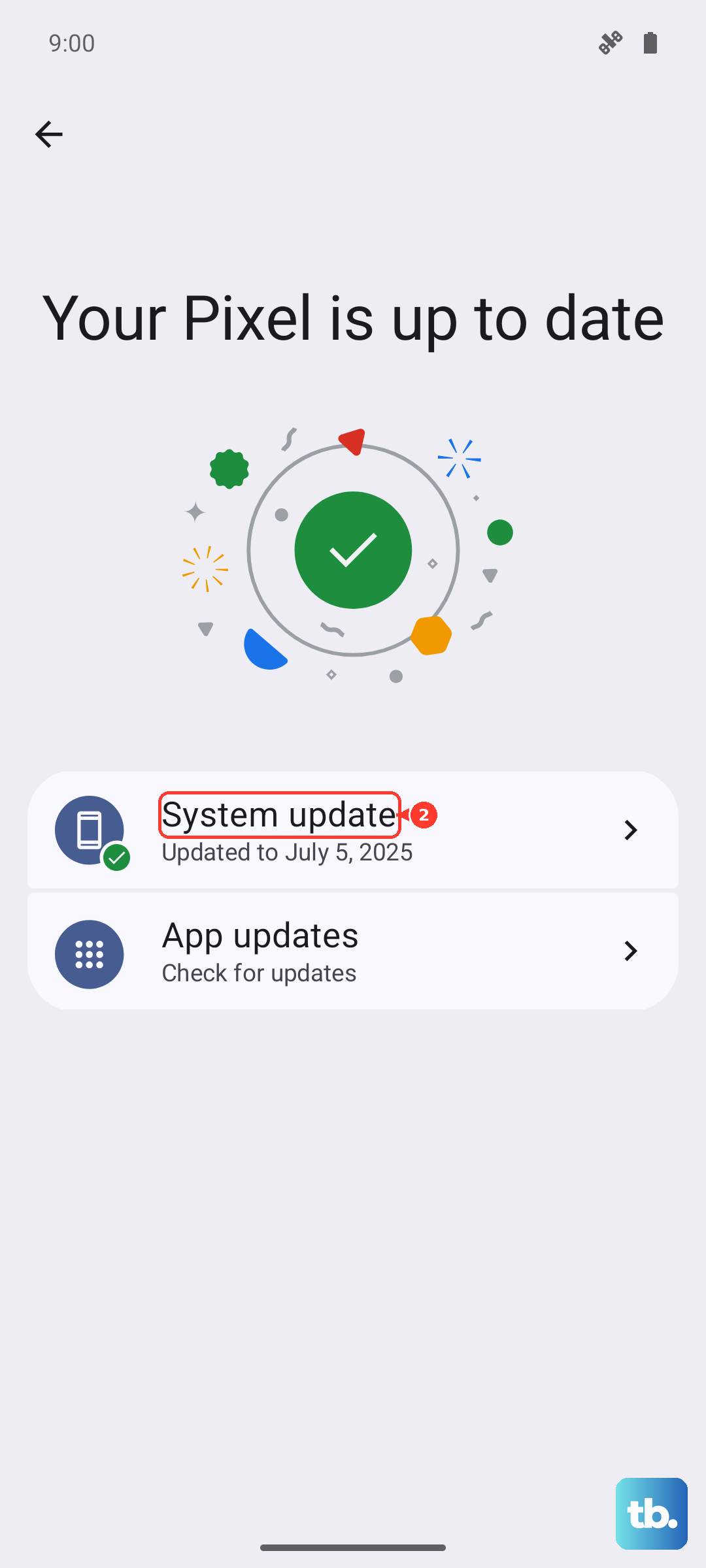
Also, check for a full system update. Go to Settings > About phone > MIUI version and tap "Check for updates." Xiaomi often pushes fixes for known bugs in these updates.
Try a Different Keyboard App
This is a great diagnostic step and a potential permanent solution. If a third-party keyboard like Gboard or SwiftKey works perfectly, then the issue is isolated to your default Xiaomi keyboard.
Install one from the Play Store, then go to Settings > Additional settings > Languages & input > On-screen keyboard to enable it and set it as default. I've found this bypasses the issue entirely while you troubleshoot the main app.
Boot Into Safe Mode
If the keyboard is failing system-wide, a third-party app you installed could be causing a conflict. Booting into Safe Mode temporarily disables all downloaded apps.
Press and hold the power button until the power menu appears. Then, tap and hold the "Power off" option on your screen. A prompt to reboot to Safe Mode will pop up, tap "OK." If your keyboard works normally in Safe Mode, you know a downloaded app is the problem. Start by uninstalling recent apps one by one to find the culprit.
Reset All App Preferences
This is less drastic than a factory reset but can fix misconfigured settings causing input issues. It resets permissions, default apps, and background restrictions for all applications.
You'll find this in Settings > Apps > Reset app preferences. Tap it and confirm. You'll need to re-grant permissions to apps afterward, but no personal data is deleted.
Manage HyperOS Bloatware and Services
Some users with regional variants of the 14T Pro have reported that certain pre-installed system apps or services can interfere. You can't remove all of them, but you can disable some.
Go to Settings > Apps > Manage apps, find any suspicious or recently updated system apps (especially ones related to input, language, or "services"), and try "Force stop" or "Disable" if the option is available. Be cautious and avoid disabling critical system processes.
Consider a Factory Reset
This is your last resort before seeking hardware help. A factory reset will wipe your phone back to its original software state, eliminating any deep-seated software corruption.
Back up everything important first, photos, messages, and app data. Then, go to Settings > About phone > Factory reset. Select "Erase all data." After the phone reboots, set it up as new to see if the keyboard works before restoring your backup, as the backup could potentially restore the problem.