
If your Xiaomi 14T Pro is refusing to pair with your wireless earbuds, car, or smartwatch, it can be incredibly frustrating. I've found that Bluetooth issues on HyperOS are usually a quick software fix, not a sign of a broken phone. Let's run through the most effective solutions to get your connection working again.
Check the Simple Stuff First
Before we dive into settings, take a quick look at the basics. Make sure both your phone and the device you're trying to connect to have decent battery life. The 14T Pro's 120W charging is fast, but you don't want a dead battery mid-pairing.
Pull down the notification shade twice and verify the Bluetooth icon is blue and active. Ensure the other device is actually in pairing mode, which often involves holding a button until a light flashes. Keep them close, ideally within a few feet, to avoid any initial signal issues.
Toggle Bluetooth and Restart
The oldest trick in the book is often the best. Swipe down from the top of your screen to open the Quick Settings panel and tap the Bluetooth icon to turn it off. Wait about ten seconds, then tap it again to turn it back on. This refreshes the Bluetooth stack and can clear a temporary glitch.
If that doesn't work, give both devices a full restart. For your Xiaomi 14T Pro, press and hold the power button until the power menu appears, then tap restart. Do the same for your headphones, speaker, or car system. A fresh start for both ends of the connection solves a surprising number of problems.
Forget and Re-Pair the Device
Sometimes a pairing attempt goes wrong and leaves corrupted data behind. The fix is to remove that device completely and start fresh. Open Settings > Bluetooth & device connection.
Tap on the device name you're having trouble with, then select Forget or Unpair. Once it's removed from the list, put the other device back into pairing mode and search for it again on your phone. This clean slate approach works most of the time.
Clear the Bluetooth App Data
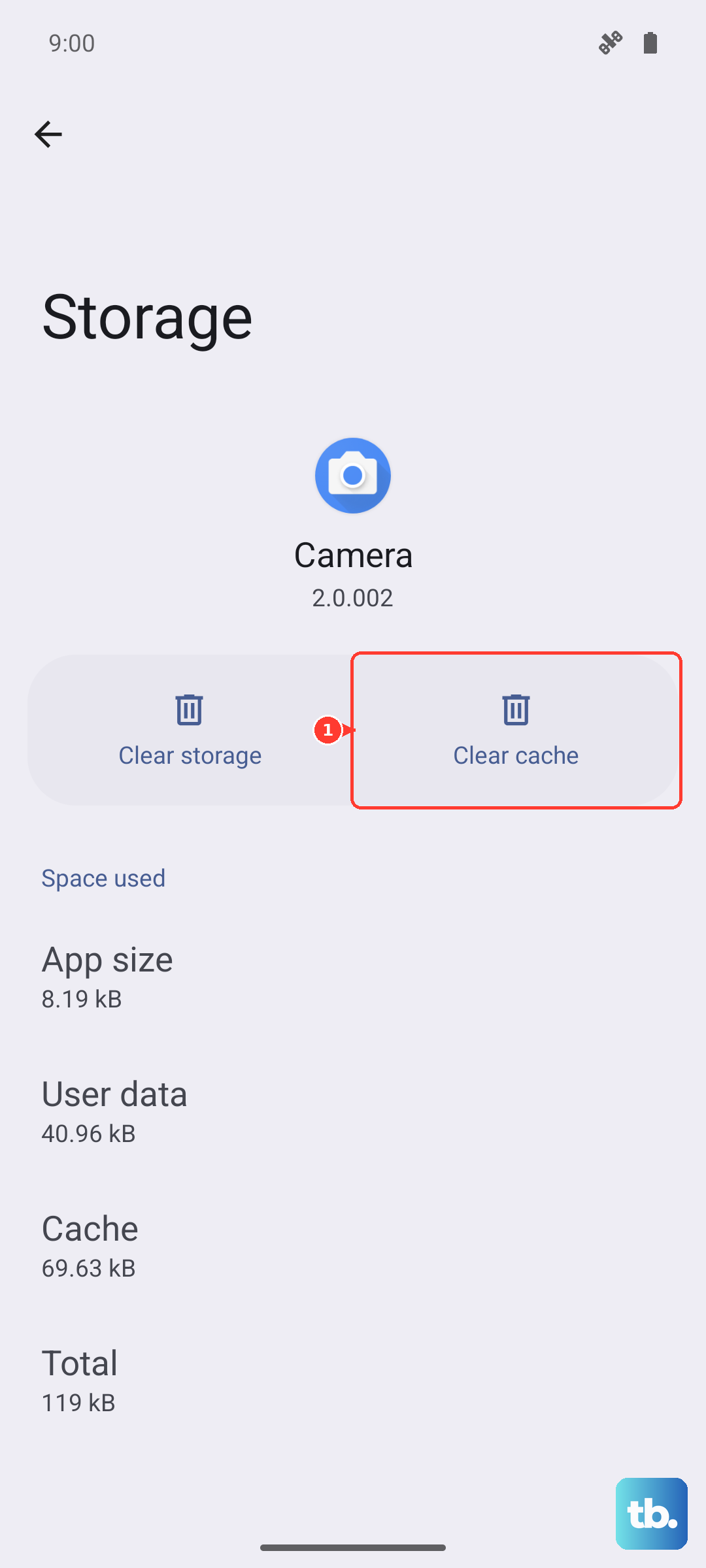
Behind the scenes, Bluetooth runs as a system service that stores cache and data. If this gets corrupted, pairing fails. To clear it, go to Settings > Apps > Manage apps.
Tap the three-dot menu in the top right and select Show system apps. Scroll down and find Bluetooth in the list. Tap on it, then go to Storage & cache. Tap Clear cache first and test. If the issue persists, come back and tap Clear data. This will forget all paired devices, so you'll need to re-pair everything.
Reset Your Network Settings
This is a more comprehensive step that resets all wireless radios, including Wi-Fi and mobile networks, back to their default state. It's very effective for stubborn connection issues. Navigate to Settings > Additional settings > Back up and reset.
Tap on Reset phone and then select Reset network settings. Confirm the action. Your phone will reboot, and you'll need to re-enter Wi-Fi passwords and re-pair all Bluetooth devices, but it often clears deep-seated glitches.
Check for a HyperOS Update
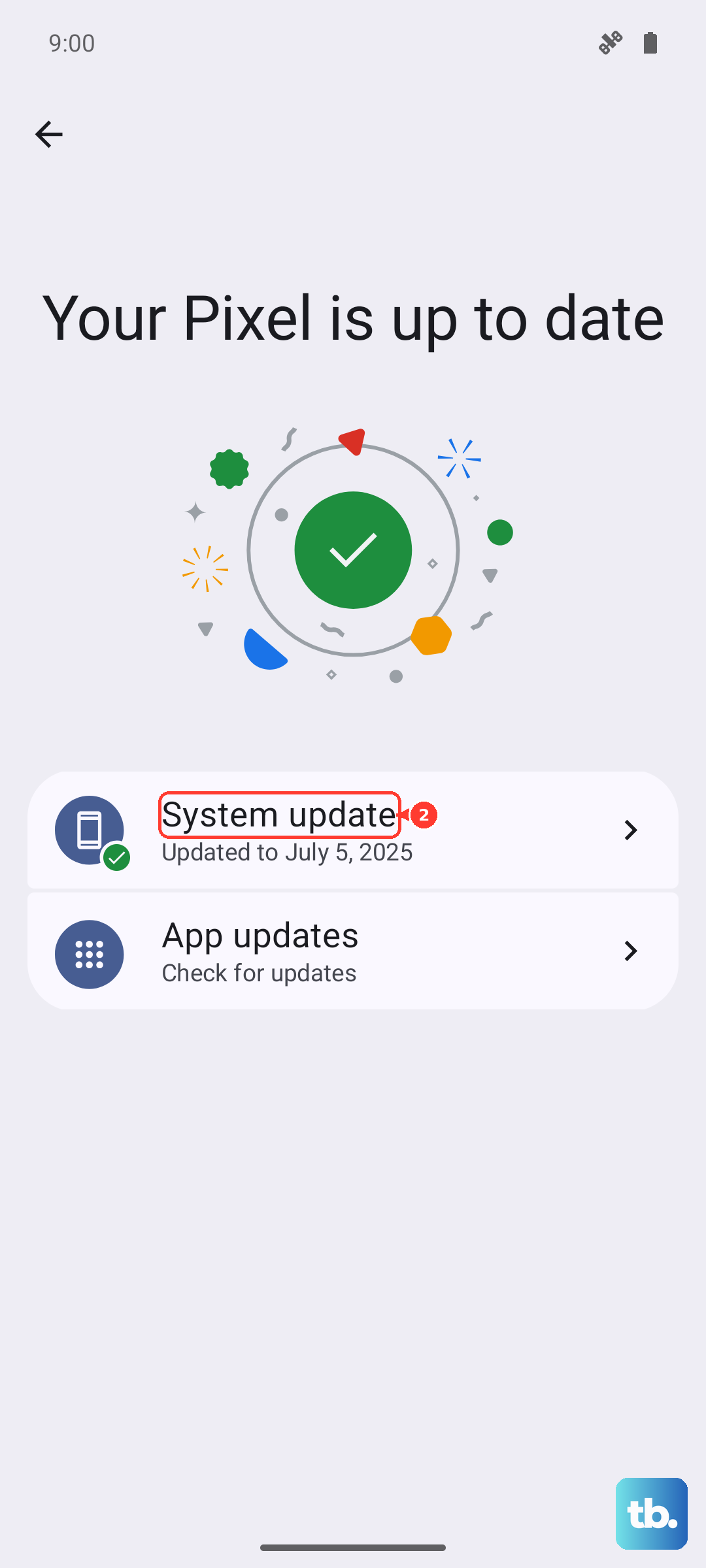
Xiaomi frequently releases updates that fix bugs and improve device compatibility. An outdated system could be the reason your phone won't talk to a newer Bluetooth accessory. Go to Settings > About phone > HyperOS version.
Tap the Check for updates button. If an update is available, install it. It's a good idea to plug in your 120W charger during this process, as the Dimensity 9300+ chip can use a fair bit of power during a system update.
Boot Into Safe Mode
If a recently installed third-party app is interfering with Bluetooth, Safe Mode will tell you. To enter it, press and hold the power button until the power menu appears. Then, tap and hold the Power off option on your screen.
You'll see a prompt to reboot to Safe Mode. Tap it. Once your phone restarts, you'll see "Safe Mode" in the bottom corner. Try pairing your Bluetooth device now. If it works, a downloaded app is the culprit. Restart normally and try uninstalling apps one by one, starting with the most recent.
Review App Permissions and Battery Settings
HyperOS has aggressive battery optimization that can sometimes restrict background processes for apps that manage Bluetooth devices, like companion apps for headphones. Go to Settings > Apps > Manage apps and find the app for your accessory.
Tap on it, then go to Battery saver. Make sure it's set to No restrictions. Also, check Permissions to ensure it has location access if needed, as some devices use it for improved connectivity.
Consider a Factory Reset
This is your last resort before looking at potential hardware issues. A factory reset will erase everything on your phone, so you must back up your photos, messages, and app data first. You can use Xiaomi Cloud or a local backup.
Once backed up, go to Settings > Additional settings > Back up and reset > Reset phone. Select Erase all data (factory reset) and follow the prompts. After the phone reboots, try pairing your Bluetooth device before restoring your apps, to see if a clean OS installation fixes it.
Check for Physical or Hardware Problems
If Bluetooth still fails after a factory reset on a clean system, the issue could be physical. While rare, it's possible. As a 2024 device, your Xiaomi 14T Pro should still be under warranty.
Contact Xiaomi support through the Services & feedback app on your phone or their official website. Before you send it off, if you have a case on your phone, try removing it. In very rare instances, a poorly designed case can interfere with the antenna signals.