Your friends are messaging you about strange DMs you never sent. There is a login alert from a country you have never visited, and the password you have used for years suddenly does not work. That sinking feeling is real, but so is the path back. In most cases you can reclaim an X (formerly Twitter) account by working through the right steps in the right order, even if you are currently locked out. There is no single official timeline for how long a full recovery takes, but the actions below put you back in control quickly when you still have access, and give you a clear escalation route when you do not.
For the reset itself, a browser based random password generator builds a long random password in one click. It runs entirely on your device, so the new password is never transmitted anywhere.
Before you touch anything, one ground rule keeps you safe. Start your recovery on a device, browser, and network you have signed in from before, because familiar fingerprints help X trust that the request is really you. Never create a brand-new account to report the hacked one, never share a verification code, password, or two-factor code with anyone (genuine support will not ask for it), and never pay a third-party "account recovery service." Confirm you are on the real X domain before you type a password or upload anything.
Confirm the Compromise and Check What the Attacker Touched
Take ten seconds to confirm this is a real takeover and not a glitch. Tell-tale signs include posts or Direct Messages you did not send, follows or blocks you did not make, a changed display name or profile photo, or email notices that your account details were updated. Login alerts showing an unfamiliar location or device are the clearest signal that someone else is in.
If you can still get into the account, do not waste time investigating; move straight to changing your password. The faster you cut off the intruder, the less damage they can do. If you are already locked out, skip ahead to the Forgot password reset flow.
Change Your Password and Log Out All Other Sessions
If you can still log in, change your password immediately. Open the Password tab in your account settings and choose a strong password you have not used anywhere before. This is the single most important move you can make while you still have access.
Changing or resetting your password logs you out of every active X session except the one you are using right now. That instantly kicks the attacker off any device they were signed in on. Once the new password is set, continue to the cleanup steps below so they cannot simply walk back in.
Use the Forgot Password Flow When You Are Locked Out
If your password no longer works, reset it through the official flow. From the sign-in page on X.com, mobile.X.com, or the X app for iOS or Android, tap Forgot password? and enter your email address, phone number, or username.
- 1.Open the sign-in screen and tap Forgot password?
- 2.Enter your email address, phone number, or username so X can find the account.
- 3.Wait for the reset code, which X sends by email or text. The code is valid for 60 minutes, so use it promptly.
- 4.Enter the code, tap Submit, then choose a new strong password.
One catch to know in advance is that if several accounts share a single phone number, you cannot use the phone number at this step, so reset using your email address or username instead. After the reset succeeds, you are back in and every other session has been signed out.
Lock Down the Email Address Tied to Your Account
Your inbox is the master key to your X account, because reset codes land there. If the attacker controls your email, they can simply reset your X password again, so secure the email first. Make sure you are the only person with access to that inbox, and that its own password is strong and unique.
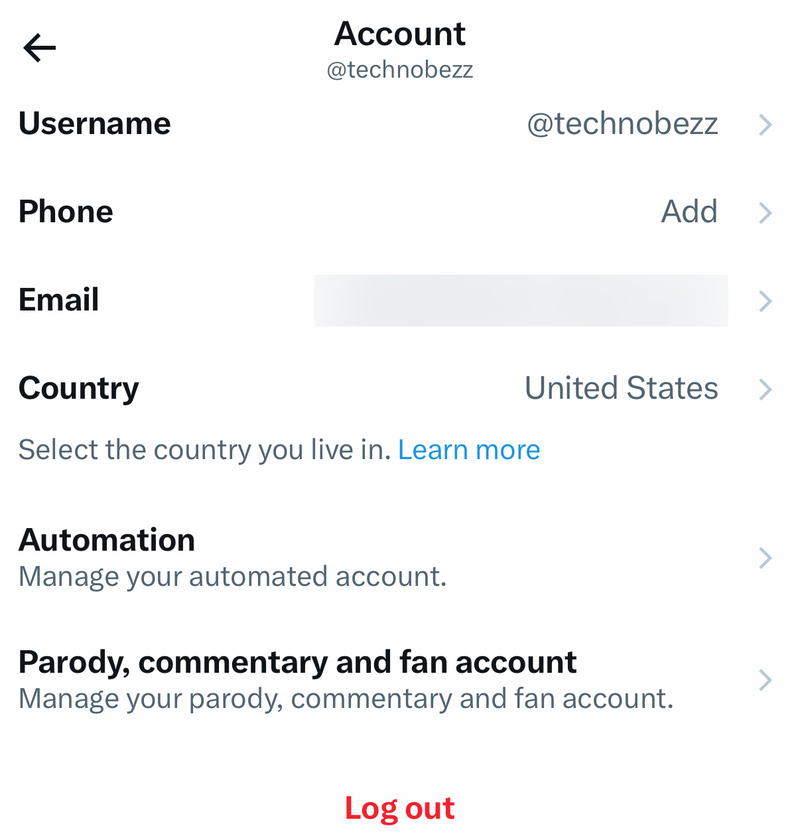
While you are at it, confirm the email address listed on X is still yours and was not swapped out. You can change your email from the X app, or by logging in at X.com and visiting the Account settings tab. If the address shown is one you do not recognize, correct it before moving on.
Revoke Unknown Apps and End Every Other Session
Attackers often leave behind a connected app so they can keep posting after you change your password. Cut those ties from one screen.
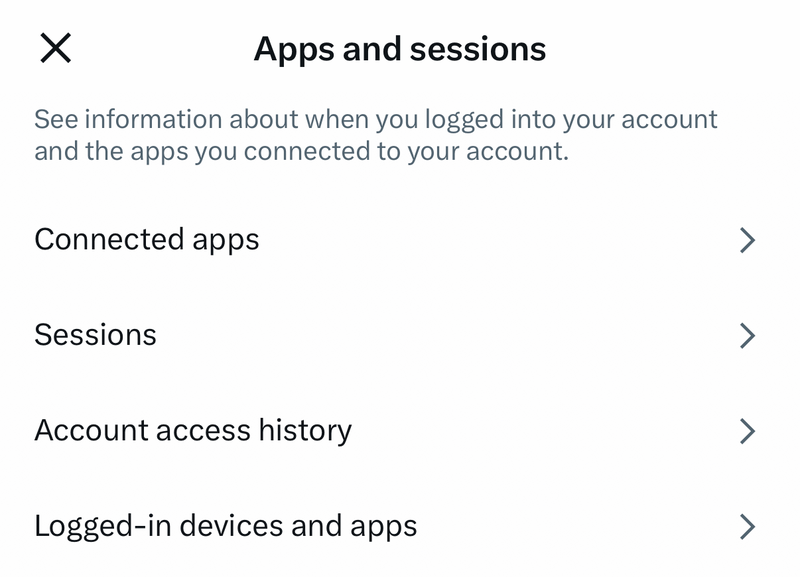
- 1.Go to Settings and privacy, then open Apps and sessions.
- 2.Under connected apps, click Revoke access next to any app you do not recognize.
- 3.Under Sessions, review each active login by location and time.
- 4.Click Log out next to a single suspicious session, or choose Log out all other sessions to end every session except the one you are currently using.
Revoking unfamiliar apps closes a back door that a password change alone does not shut. Anything you do not personally use should go.
Turn On Two-Factor Authentication and Save Your Backup Codes
Two-factor authentication (2FA) adds a second barrier so a stolen password is no longer enough to get in. X offers three methods, which are Text message, Authentication app, or Security key, and passkeys are also supported. Text-message 2FA is restricted to Premium subscribers (under the change effective 20 March 2023, with availability for Premium varying by country and carrier), so an authentication app or security key is the better choice for most people.
When you turn on 2FA from the iOS or Android app, a backup code is generated automatically. You can keep up to five active backup codes at a time, and they must be used in the order they were generated; using one out of order invalidates all previously generated codes. Store them somewhere safe and offline. Keep in mind that resetting your password logs you out of all sessions but does not by itself disable 2FA, so the protection stays in place.
When a Temporary Lock Blocks You, Give It About an Hour
Several failed sign-in attempts (yours or the attacker's) can trigger a temporary lock, where you cannot sign in even with the correct password. This is a safety brake, not a permanent ban. The lock lasts about an hour and clears on its own, so step away and try again later.
After roughly an hour, confirm you can sign in at x.com/login. If the correct password works at that point, continue hardening the account as described above.
If Your Account Is Locked for Security, Verify Ownership
Sometimes X locks an account it suspects is compromised and shows a verification message at login. When that happens, you prove the account is yours by following the verification prompt X shows, which may ask you to confirm a phone number or email address. Enter the code X sends to your phone or inbox to complete the check. Note that accounts flagged for repeated Rules violations may face additional limits and can stay restricted for a set period.
File a Support Request When You Cannot Reset or Get Past 2FA
If the self-service routes fail, because the attacker changed your email, you cannot get a reset code, or you are stuck behind 2FA, escalate to X directly. Use the "Account is hacked or compromised" form, found under Regain access, at help.x.com/en/forms/account-access/regain-access/hacked-or-compromised.
Submit the form from the email address associated with the compromised account, and include both your username and the date you last had access. X then emails further instructions to that address, which is exactly why securing your inbox earlier matters so much. If your specific blocker is a lost 2FA method with no backup code, use the "Problem with 2FA" form instead, at help.x.com/en/forms/account-access/regain-access/2fa-problem. There is no officially stated end-to-end timeline for how long a hacked-account request takes to resolve, so watch the email you submitted from and follow the instructions you receive.
Clean Up and Harden Once You Are Back In
Regaining access is not the finish line, because the attacker may have left a mess and a means of return. Walk through a final sweep so the takeover does not repeat.
- Delete any unwanted posts or Direct Messages that were sent while you were compromised.
- Scan your computers for viruses and malware, since a device-level infection can leak fresh passwords.
- Install security patches for your operating system and apps.
- If you keep receiving password-reset messages you did not request, enable the setting that requires your email and/or phone to initiate a password reset.
If you believe your account was locked, limited, or suspended in error, you can contact the support team through the appeals form at help.x.com/en/forms/account-access/appeals to request a review.
Frequently Asked Questions
How long does it take to recover a hacked X account?
There is no overall official timeline for resolving a hacked-account support request. Two specific timers are stated, though: a temporary lock from too many failed login attempts clears on its own after about an hour, and password-reset codes sent by email or text are valid for 60 minutes.
What if the attacker changed the email on my account?
Use the "Account is hacked or compromised" form under Regain access and submit it from the email address that was associated with the account, including your username and the date you last had access. X emails further instructions to that address. Secure that inbox first so the attacker cannot intercept the messages.
Does resetting my password remove the hacker and any 2FA they set?
Resetting or changing your password logs you out of all active sessions except the one you are using, which removes the attacker from any device they were on. However, it does not by itself disable two-factor authentication, so review your 2FA settings and your connected Apps and sessions after the reset.
I lost access to my phone and my backup codes for 2FA. What now?
If you are locked out, you can still log in with your username and password, then click the link at the 2FA prompt to enter a backup code. If you no longer have a backup code and cannot receive verification codes on your phone, use the "Problem with 2FA" form at help.x.com/en/forms/account-access/regain-access/2fa-problem for assistance.
Should I pay a service that promises to recover my account fast?
No. Do not pay any third-party "account recovery service," and never share your password, a verification code, or a two-factor code with anyone, because genuine X support will not ask for them. Stick to the official forms on the help.x.com domain and confirm you are on the real X site before entering credentials.
Why can I not sign in even though I am sure my password is correct?
Too many failed sign-in attempts can place a temporary lock on the account, which blocks login even with the right password. The lock lasts about an hour and clears automatically; wait, then confirm you can sign in at x.com/login.