Your fans are spinning hard, the laptop is warm, and Task Manager keeps pointing at a process called WMI Provider Host. It is a normal part of Windows that other apps and tools query for system information, so it should sit quietly in the background. When it pins a CPU core for minutes at a time, something is repeatedly asking it for data, the service is unhealthy, or core system files are damaged. The good news is that the cause is usually traceable, and you can work through it from the safest checks to the deeper repairs below.
Confirm WMI Provider Host Is Actually the Problem
Before changing anything, verify which process is eating your CPU. Press Ctrl + Shift + Esc to open Task Manager, then on the Processes tab click the CPU column header so the arrow points down (highest to lowest) and check whether WMI Provider Host sits near the top.
To pin it down precisely, switch to Task Manager > Details, sort by Name, and find the WmiPrvSE.exe process using high CPU. Note its process ID (PID); you may need to add the PID column to see it. In some cases the load is actually svchost.exe hosting the WMI service (Winmgmt) rather than WmiPrvSE.exe itself, which matters for a later fix.
It helps to know what normal looks like. Brief spikes are expected whenever a process handles a request, so a momentary jump is not a fault. Sustained usage of about 80 percent or higher for extended periods is what points to a real problem.
Take a moment to notice the pattern, too. Watch when WMI Provider Host spikes, for example at sign-in, at regular intervals, or while a specific app or script runs, so you can match it to whatever is querying WMI. For a second view of the same activity, run resmon from Start to open Resource Monitor, open the CPU tab, and sort by Average CPU.
Fix 1: Install Pending Windows Updates and Restart
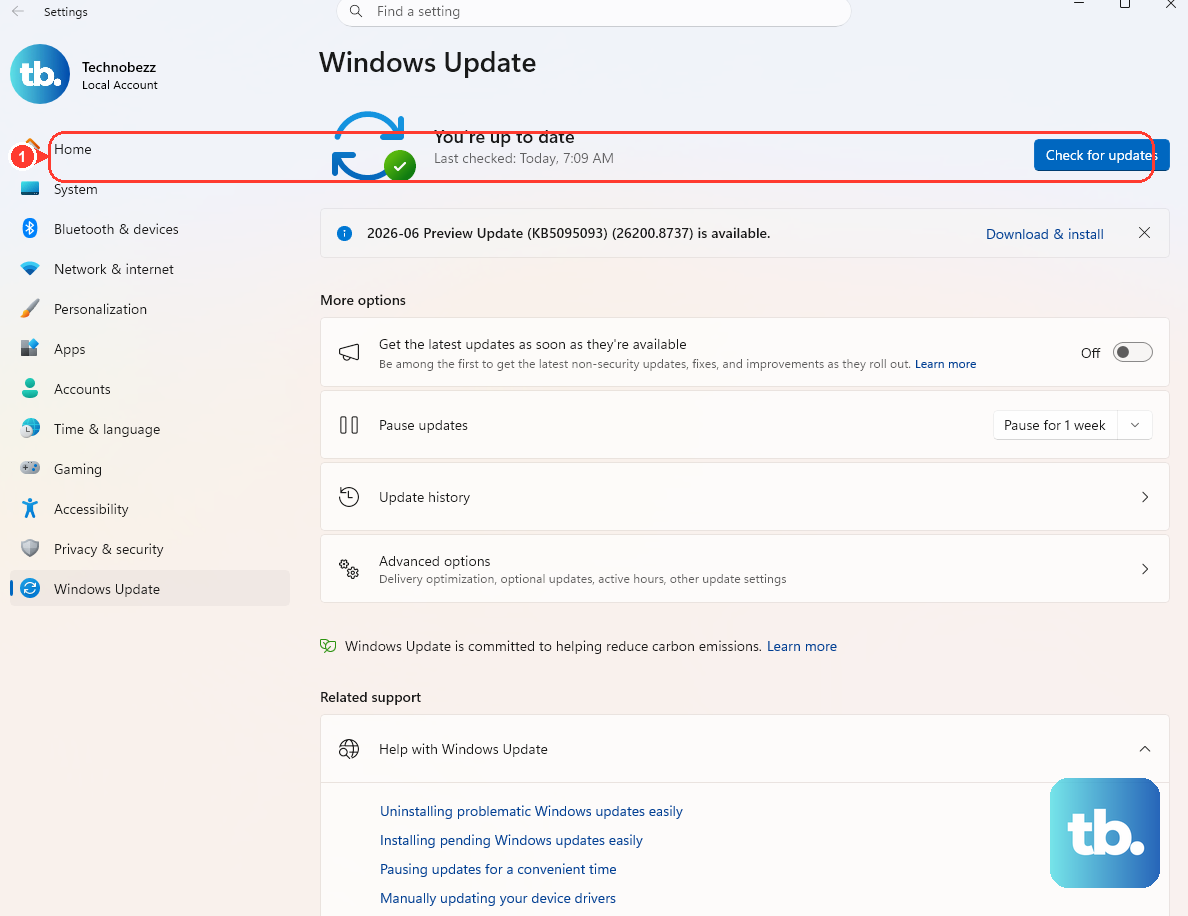
The least invasive fix is to get fully up to date, because updates apply fixes and component repairs that can quiet background processes consuming CPU. On Windows 11, go to Start > Settings > Windows Update and select Check for Windows updates.
On Windows 10, go to Start > Settings > Update & Security > Windows Update and select Check for Windows updates. If anything is offered, choose Download & install, then restart the device when prompted so the changes take effect.
Fix 2: Scan for Malware With Windows Security
Malware can drive both WMI and CPU activity, so a clean scan rules out an obvious cause early. Open the Windows Security app and select Virus & threat protection > Quick scan to check the most common locations fast.
If you want a more thorough pass, select Scan options and choose a different scan type. A full scan looks more broadly, and the Microsoft Defender Antivirus offline scan restarts the PC and scans before Windows loads, which is useful for stubborn infections that hide while the system is running.
Fix 3: Find the App or Service Hammering WMI, Then Stop or Update It
High WmiPrvSE.exe usage is usually caused by some service, app, monitoring tool, or script constantly sending WMI queries. The most direct way to catch the offender is to read the log of who is asking.
Open Event Viewer and navigate to Applications and Services Logs > Microsoft > Windows > WMI-Activity, then review the Operational log to see the client process making the queries. Match the ClientProcessId shown there to a process in Task Manager so you know exactly which program is responsible.
Once you have a suspect, confirm it by acting on it and watching the result:
- 1.Temporarily disable the suspect service, or uninstall or update the suspect application.
- 2.Recheck WMI Provider Host in Task Manager to see whether the CPU use drops.
- 3.If a third-party app is responsible, contact that application's vendor for a fix or updated build.
If you are comfortable with advanced tools, Sysinternals Process Explorer (a Microsoft download) has a WMI Providers tab that shows which provider a given WmiPrvSE.exe PID is hosting, which can narrow the search further.
Fix 4: Isolate the WMI Service Into Its Own Process to Measure It
If your earlier check showed the load on svchost.exe hosting WMI rather than on WmiPrvSE.exe, you can separate WMI out so its true cost is visible. Open an elevated Command Prompt and run tasklist /svc /fi "Services eq Winmgmt" to confirm which svchost.exe process is hosting the WMI service (Winmgmt).
If that svchost contains several services bundled together, move WMI into its own process with sc config Winmgmt type= own (note the space after type=), then restart the WMI service and run tasklist /svc to verify it now runs in its own svchost.
This step is for measurement, not a permanent change. After you finish troubleshooting, revert with sc config Winmgmt type= share and restart the service again so Windows returns to its normal grouped configuration.
Fix 5: Check and Salvage the WMI Repository If It May Be Corrupted
WMI stores its data in a repository, and an inconsistent repository can cause ongoing trouble. From an elevated Command Prompt, run winmgmt /verifyrepository to check the WMI (CIM) repository. A consistent repository passes, while an inconsistent one returns ERROR_INTERNAL_DB_CORRUPTION (net helpmsg 1358).
If it reports inconsistent, run winmgmt /salvagerepository, which performs a consistency check and rebuilds the repository while merging readable content, then run winmgmt /verifyrepository again to confirm it now passes.
Only if salvage does not work should you use winmgmt /resetrepository, which returns the repository to its fresh-install state. Important: Microsoft warns not to delete the WMI repository as a first action, because deleting it can damage the system or installed applications. Stick to the verify, salvage, then reset order.
Fix 6: Repair Windows System Files With DISM and SFC
Corrupted system files can cause WMI problems, and Windows includes two built-in tools to put them right. Open Command Prompt as administrator: type cmd in Search, right-click Command Prompt, and select Run as administrator.
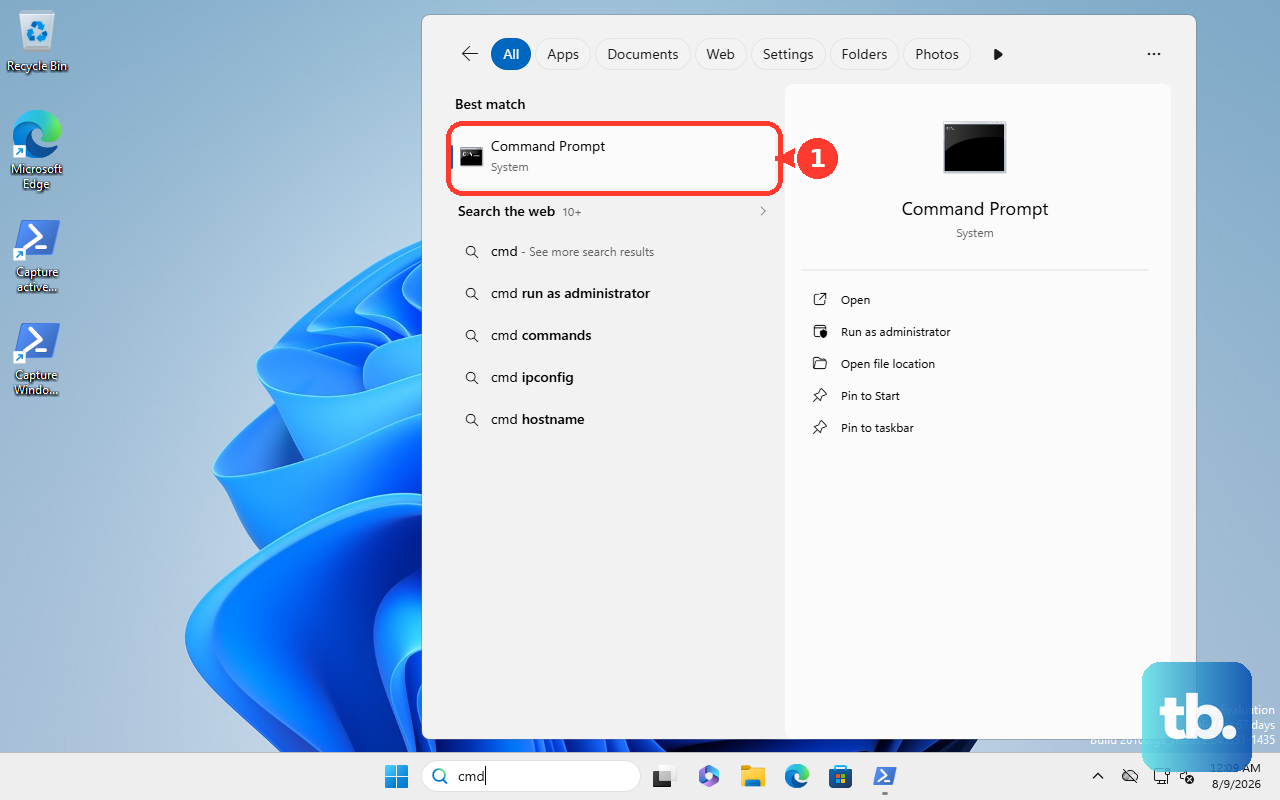
Run the tools in order and let each finish before moving on:
- 1.Run
DISM.exe /Online /Cleanup-image /Restorehealthfirst to repair the component store, and wait for it to complete. - 2.Run
sfc /scannownext in the same window to scan and repair protected system files. Do not close the window until verification is 100% complete.
When SFC finishes, it will report one of three outcomes: that it found no integrity violations, that it found and repaired corrupt files, or that it found corrupt files it could not fix. The first two results mean the scan did its job; the third tells you the corruption is deeper and the repository or update steps above may be the better lever.
Frequently Asked Questions
Is WMI Provider Host supposed to run all the time?
Yes. WMI Provider Host is a normal part of Windows that other apps and tools query for system information, so it runs in the background by design. Brief CPU spikes when it handles a request are expected; only sustained usage of about 80 percent or higher for extended periods signals a problem worth investigating.
Should I just disable the WMI service to stop the high CPU?
No. The supported approach is to restart the WMI service or temporarily separate it with sc config Winmgmt type= own for measurement, then revert with sc config Winmgmt type= share. Many parts of Windows and installed applications depend on WMI, so the goal is to find what is querying it, not to turn it off.
How do I tell which program is constantly querying WMI?
Open Event Viewer and go to Applications and Services Logs > Microsoft > Windows > WMI-Activity, then review the Operational log to see the client process making the queries. Match the ClientProcessId there to a process in Task Manager. Advanced users can also use Process Explorer's WMI Providers tab to see which provider a given WmiPrvSE.exe PID is hosting.
What does ERROR_INTERNAL_DB_CORRUPTION mean when I check the repository?
It means the WMI (CIM) repository is inconsistent. You will see this result, which maps to net helpmsg 1358, after running winmgmt /verifyrepository. Follow it with winmgmt /salvagerepository to rebuild the repository while merging readable content, and reserve winmgmt /resetrepository for cases where salvage fails.
Is it safe to run DISM and SFC?
Yes, these are built-in Windows repair tools. Run DISM.exe /Online /Cleanup-image /Restorehealth first, then sfc /scannow in the same elevated Command Prompt, and do not close the window until verification reaches 100% complete. SFC will report whether it found no issues, repaired files, or found corruption it could not fix.











