You open Settings, click Check for updates, and nothing happens; the spinner sits there, or you get a flat error telling you the Windows Update service is not running. When that service stalls, your PC stops receiving security patches and feature updates, which leaves you exposed and stuck on an aging build. The good news is that almost every cause traces back to a handful of fixable culprits: a confused troubleshooter target, a stopped background service, a corrupted update cache, or damaged system files. Work through the six fixes below in order, because they are arranged from the easiest and safest to the more involved, and most people are back in business long before the last one.
Let Windows Diagnose Itself With the Built-In Troubleshooter
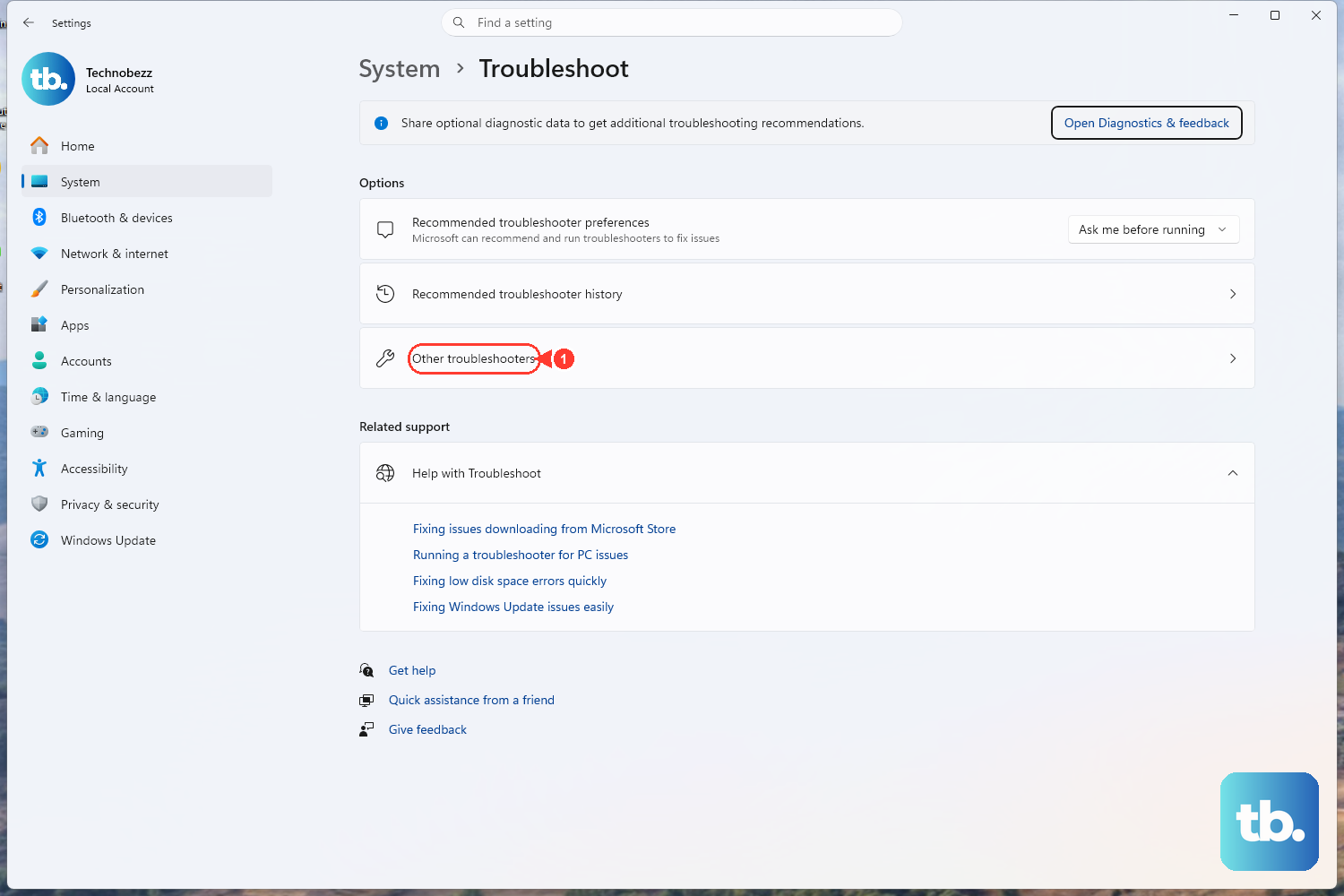
This is Microsoft's recommended first step and by far the safest, because the troubleshooter analyzes your situation and resets the Windows Update components that need it without you touching a single command. Start here before anything more hands-on.
On Windows 11, select Start > Settings > System > Troubleshoot > Other troubleshooters, then select Run next to Windows Update. Windows 11 also lets you run an automated troubleshooter from the Get Help app, which runs diagnostics and attempts to fix the problem for you automatically.
On Windows 10, select Start > Settings > Update & Security > Troubleshoot > Additional troubleshooters, then select Windows Update > Run the troubleshooter. Restart the device once it finishes so any repairs take effect, then try checking for updates again.
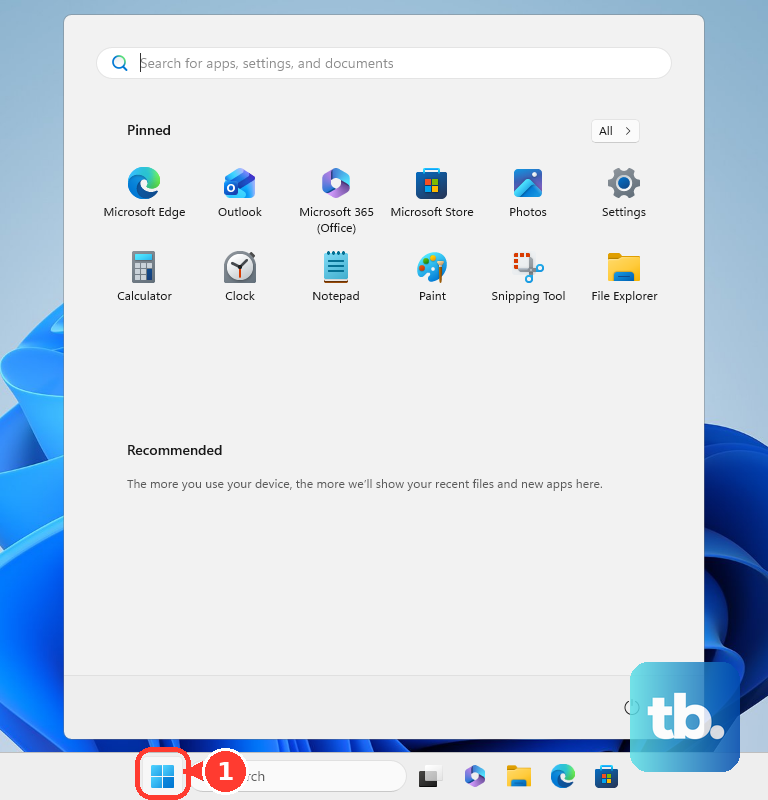
Restart and Make Sure You Have Room to Update
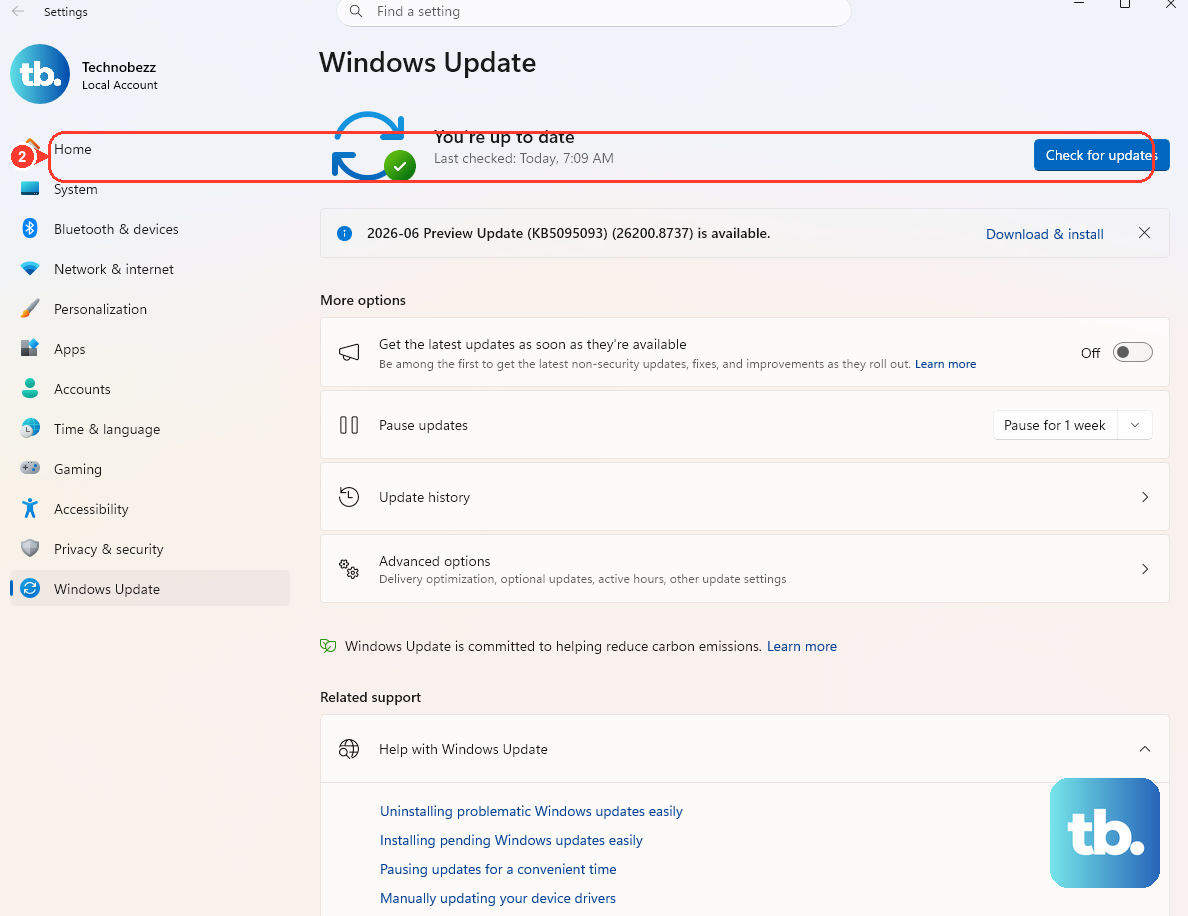
A simple restart does two useful things: it clears any running app that might be holding the update process hostage, and it applies any updates that were already staged and waiting for a reboot. Do this before assuming something is broken.
While you are at it, confirm you actually have free space to install. A nearly full drive alone can block an update from downloading or installing, so clear out some room if your storage is close to capacity.
After restarting, head to Settings > Windows Update on Windows 11, or Settings > Update & Security > Windows Update on Windows 10, and select Check for updates. If the process moves past where it was stuck, you are done.
Check That the Update Services Are Actually Running
When Windows Update freezes (for example, stuck at the scanning stage), the update process depends on a couple of background services. If either of those services stops unexpectedly, you get exactly the symptoms you are seeing.
First, close and reopen the Settings app. Then open the Services console: press Win+R, type services.msc, and press Enter. In the list, confirm that both the Update State Orchestrator service and the Windows Update service are running.
If either one is stopped, getting it back to its normal running state often clears the "service not running" message directly. Once both show as running, return to Windows Update and try checking for updates again.
Repair Corrupted System Files With SFC and DISM
Sometimes the update engine itself is fine, but damaged Windows system files underneath it are blocking installations. Two built-in tools repair that quietly in the background, and Microsoft lists both among the steps for troubleshooting Windows Update problems.
Open Command Prompt as Administrator, then run the image repair first followed by the file checker.
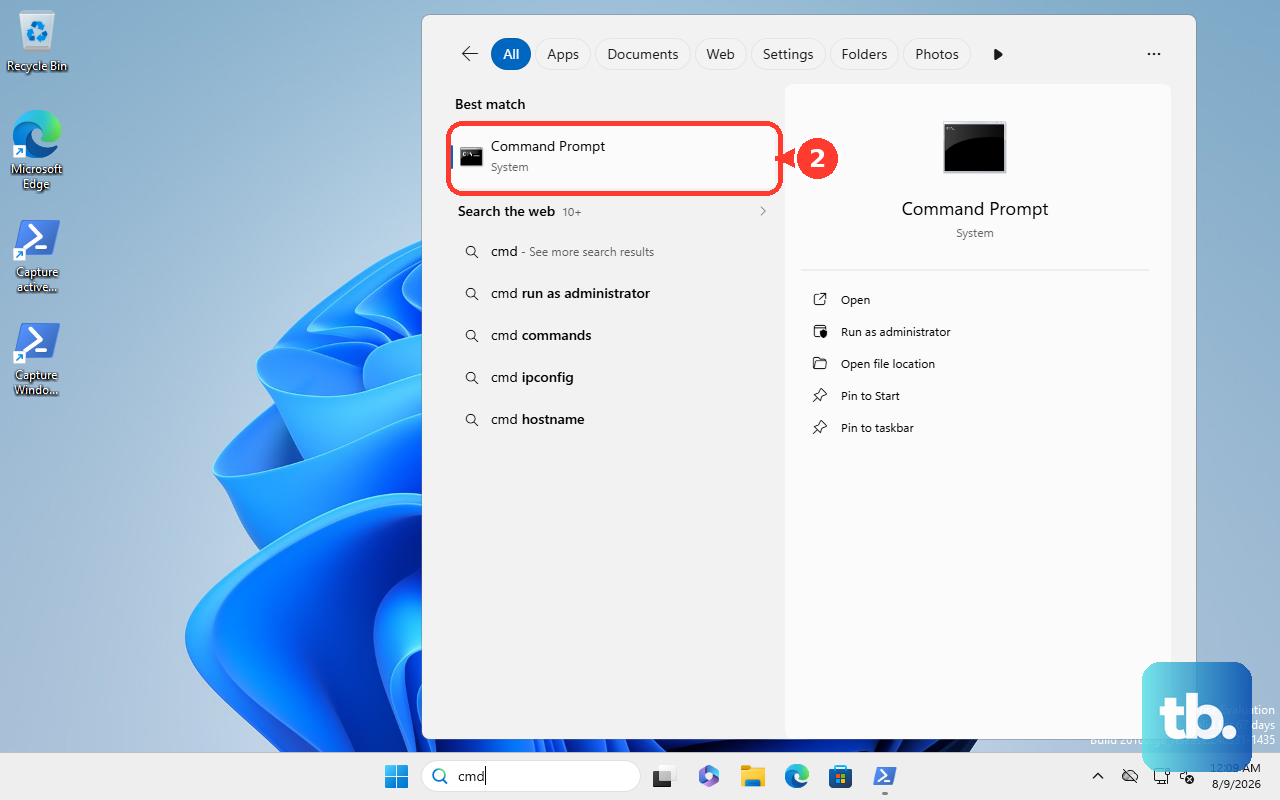
- 1.Run
DISM.exe /Online /Cleanup-image /Restorehealthand wait for it to complete; this repairs the underlying Windows image. - 2.Then run
sfc /scannowto scan and repair the protected Windows system files.
Let each command finish completely before moving on. Once both have run, restart the PC and try the update again, since the repaired files often unblock a previously failing service.
Reset the Windows Update Components and Cache
If updates still will not install, the download cache may be corrupted. Microsoft documents a way to reset the Windows Update Agent that clears that cache and lets Windows rebuild it from scratch. Run everything below from an elevated (Administrator) Command Prompt.
Start with the quick reset, in this exact order.
- 1.
net stop wuauservto stop the Windows Update service. - 2.
rd /s /q %systemroot%\SoftwareDistributionto clear the cached download data. - 3.
net start wuauservto start the Windows Update service again.
If the quick reset is not enough, do the more thorough version. Here you stop all three update-related services, optionally rename their cache folders, and then bring everything back up. The three services involved are the Background Intelligent Transfer Service (bits), the Windows Update service (wuauserv), and the Cryptographic service (cryptsvc); the catroot2 folder belongs to the Cryptographic service.
From the elevated Command Prompt, stop the three services in order.
- 1.
net stop bits - 2.
net stop wuauserv - 3.
net stop cryptsvc
Only if the earlier steps did not work, rename the cache folders so Windows is forced to recreate them. Renaming rather than deleting keeps a backup copy (the .bak versions) in case you need it.
- 1.
Ren %Systemroot%\SoftwareDistribution\DataStore DataStore.bak - 2.
Ren %Systemroot%\SoftwareDistribution\Download Download.bak - 3.
Ren %Systemroot%\System32\catroot2 catroot2.bak
Finally, restart the three services in order.
- 1.
net start bits - 2.
net start wuauserv - 3.
net start cryptsvc
After the services restart, go back to Windows Update and check for updates. Windows rebuilds the cache it just cleared, which often resolves a service that kept dropping out during downloads.
Fix a Recovery Environment Update That Keeps Failing
If your stuck update is specifically a Windows Recovery Environment (WinRE) update, such as KB5034441, the cause is often a recovery partition that is too small rather than a broken service. Microsoft's official KB5034441/KB5042320 page states the update requires 250 MB of free space in the recovery partition to install successfully, and that the update is not even offered when the WinRE partition lacks that room.
The documented resolution is to follow KB5028997, "Instructions to manually resize your partition to install the WinRE update." From an admin Command Prompt, you can first check the recovery environment status with reagentc /info.
Because resizing a partition is an advanced operation, follow Microsoft's KB5028997 steps exactly rather than improvising, and back up anything important first. This fix applies to Windows 10 versions 21H2 and 22H2 and Windows 11 versions 21H2, 22H2, and 23H2.
Frequently Asked Questions
Which fix should I try first?
Start with the built-in Windows Update Troubleshooter, because it is Microsoft's recommended first step and the safest option. It analyzes your situation and resets the update components that need it automatically, so you avoid commands entirely unless it cannot solve the problem.
How do I check that the update services are running?
Press Win+R, type services.msc, and press Enter to open the Services console. Confirm that both the Update State Orchestrator service and the Windows Update service show as running. Getting a stopped service back to its normal running state often clears the "service not running" message directly.
Is it safe to delete the SoftwareDistribution folder?
Microsoft documents clearing it as part of resetting the Windows Update Agent, using net stop wuauserv, then rd /s /q %systemroot%\SoftwareDistribution, then net start wuauserv. This clears the download cache, and Windows simply rebuilds it afterward. In the more thorough reset, the folders are renamed to .bak instead, which keeps a backup copy.
Why does my recovery (WinRE) update keep failing?
A WinRE update such as KB5034441 can repeatedly fail when the recovery partition is too small. Microsoft requires 250 MB of free space in that partition for the update to install, and the documented fix is to manually resize the partition by following KB5028997.
What if none of these fixes work?
Run the built-in troubleshooter again after a restart, then repeat the SFC and DISM repairs, since a clean image can change the outcome of later steps. If updates still refuse to install, confirm you have enough free disk space and that the Windows Update and Update State Orchestrator services are running before trying the component reset once more.











