You swapped your motherboard, dropped in a new CPU, or finished a big upgrade, and now your once-activated PC throws error 0xC004F211 along with a nagging "Activate Windows" watermark in the corner. The good news is that this is a known, expected behavior, not a sign that anything is broken.
Your Windows license is tied to your device's hardware, and when enough of that hardware changes, Windows can lose track of the matching license. Below are the fixes in order, starting with the safest checks before moving to the steps that actually reattach a license to your new setup.
What Error 0xC004F211 Is Actually Telling You
This error appears because Windows reported that the hardware of your device has changed. A Windows license is associated with your device's hardware, so significant changes (such as replacing the motherboard) can stop Windows from locating a matching license when the device restarts.
That same situation is why you also see the "Activate Windows" watermark on your desktop. The watermark appears when Windows is not currently activated, and it clears once Windows is activated again, which is exactly what the steps below are designed to do.
Before you start, two things make the rest of the process smoother: an active internet connection, and knowing whether you are on Windows 11 or Windows 10, since the menu paths differ slightly between the two.
Confirm Your Current Activation Status First
Start by checking exactly what Windows thinks your activation state is. This tells you whether your digital license is linked to a Microsoft account, which determines which fix will work for you.
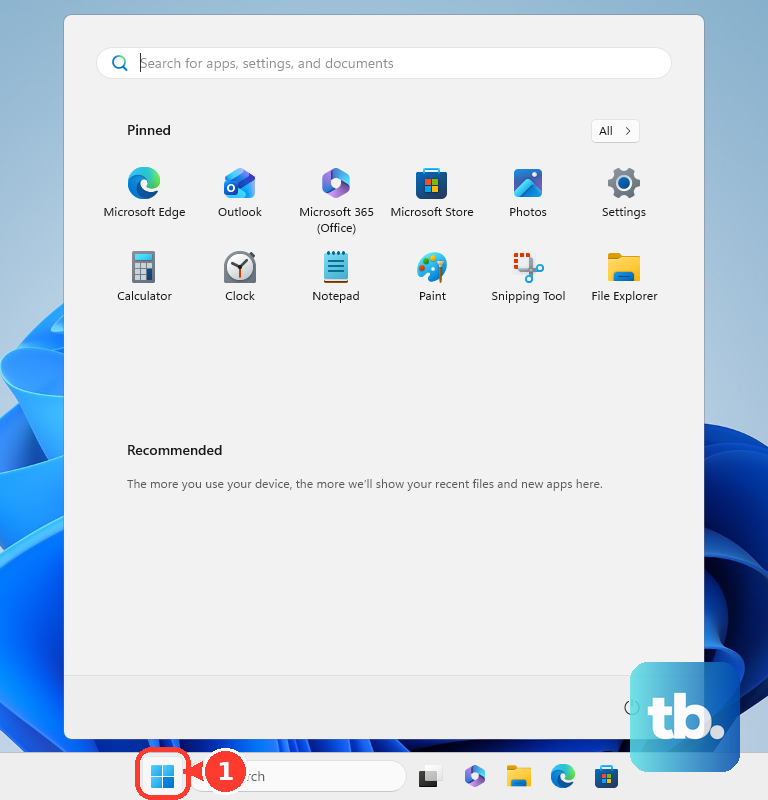
On Windows 11, select Start > Settings > System > Activation.
On Windows 10, select Start > Settings > Update & Security > Activation.
Read the status message at the top of the page.
The wording matters here. You may see a message like "Windows is activated with a digital license linked to your Microsoft account," or you may see that Windows is not activated. If your license is already linked to a Microsoft account, the hardware-change troubleshooter (covered below) is your most direct path. Make a note of the exact message before moving on.
Make Sure Your Microsoft Account Is Linked to the License
The hardware-change option in the Activation troubleshooter only works if your digital license is linked to a Microsoft account. Link the account while Windows is activated, before changing the hardware, so you can use that account to reactivate afterward.
Sign in to Windows as an administrator.
Next, go to Settings > Accounts > Your info.
Confirm that your email address appears alongside "Administrator," which means you are using a Microsoft account rather than a local account.
Before changing the hardware, if your account is not yet linked and Windows is activated, return to the Activation page and select "Add an account," then enter your Microsoft account credentials and select "Sign in." If you have already changed the hardware, use the same Microsoft account that was linked to the digital license before the change.
Run the Activation Troubleshooter and Pick the Hardware-Change Option
The Activation troubleshooter can help reactivate Windows after a hardware change. You will need an internet connection, an administrator account, and the same Microsoft account linked to your digital license before the change. The Troubleshoot option is available only when Windows is not activated.
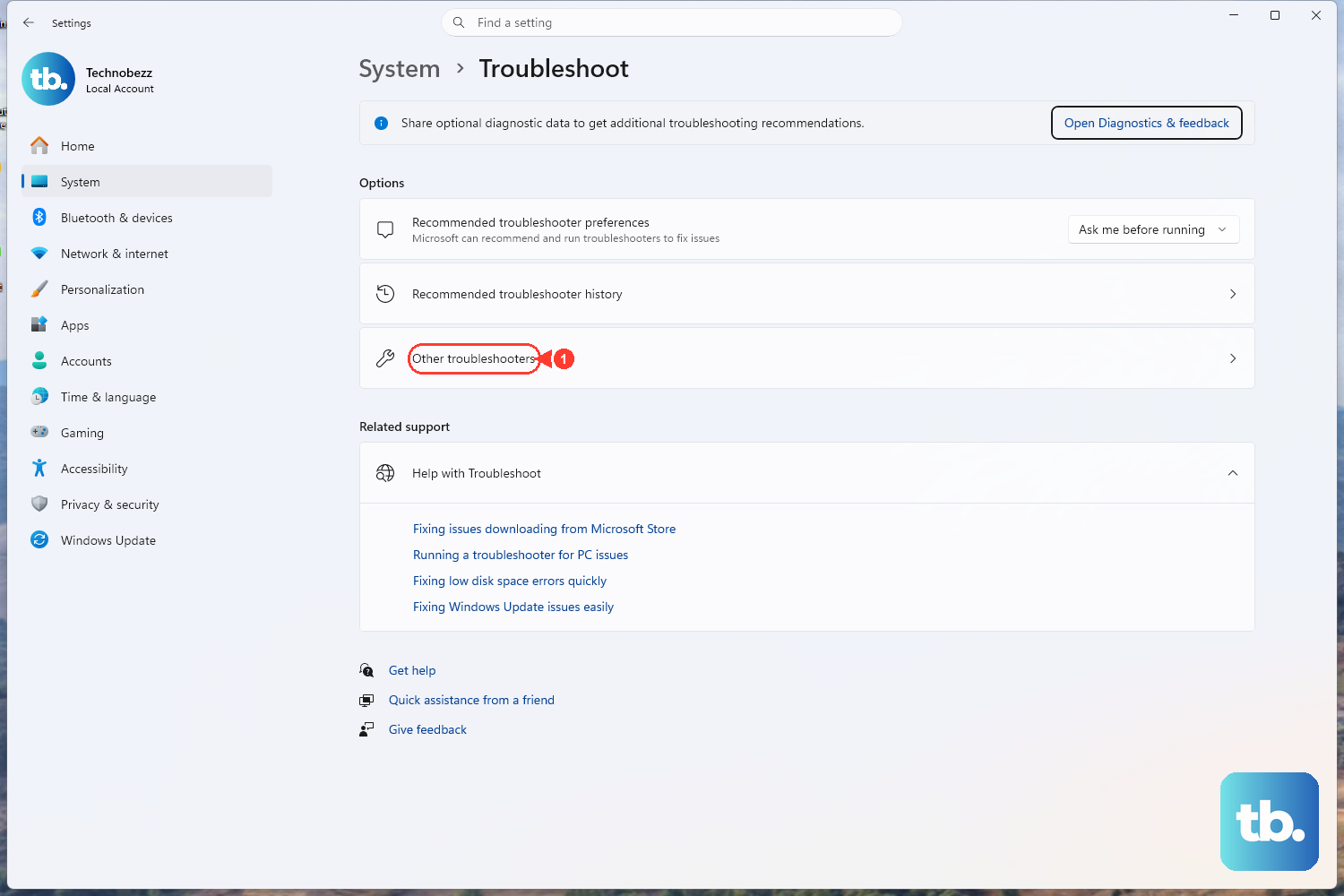
- 1.On Windows 11, go to Settings > System > Activation > Troubleshoot. On Windows 10, go to Settings > Update & Security > Activation > Troubleshoot.
- 2.If the troubleshooter cannot activate Windows, select "I changed hardware on this device recently," then select Next.
- 3.Sign in with your connected Microsoft account when prompted.
- 4.From the list of devices linked to your account, select the check box next to "This is the device I'm using right now."
- 5.Choose Activate.
One detail trips people up here: the edition must match. The Windows edition (Home or Pro) needs to be the same as what was on the device before the change. If you reinstalled a different edition during your upgrade, the troubleshooter may identify a digital license for another edition and provide instructions to install the correct edition. Alternatively, you will need a license for the edition you are now running.
Activate With Your 25-Character Product Key
If you have a Windows product key previously used on your device before the hardware change, you can try activating with it instead of relying on the digital license route.
On Windows 11, go to Start > Settings > System > Activation. On Windows 10, go to Start > Settings > Update & Security > Activation.
Then select "Change product key."
Enter the key in the format XXXXX-XXXXX-XXXXX-XXXXX-XXXXX and follow the prompts.
A product key is a 25-character code used to activate Windows. It works differently from a digital license, which activates without you entering any key at all. If you have a valid retail key on hand, this is often the fastest way to clear the error after a hardware swap.
When the Standard Fixes Do Not Clear the Error
If neither the troubleshooter nor a product key resolves 0xC004F211, you may simply no longer have a valid license for this hardware. If Windows came preinstalled on your device and you replaced the motherboard, you may need to purchase a new license.
From Settings > System > Activation, you can select "Go to Microsoft Store" to buy a Windows license if you no longer have a valid one. If you prefer to confirm your situation before spending anything, contact Microsoft Support for help reattaching a license to your new hardware. When the self-service options come up empty, support is the right channel for further assistance.
Whatever you do, resist the temptation to chase the watermark with shortcuts. It will only disappear once Windows is genuinely activated, so the routes above are the ones worth your time.
Frequently Asked Questions
Why did Windows deactivate itself after I upgraded my PC?
A Windows license is associated with your device's hardware. When you make a significant change, such as replacing the motherboard, Windows may not find a matching license when the device restarts, which produces error 0xC004F211 and the "Activate Windows" watermark.
How do I get rid of the "Activate Windows" watermark?
The watermark indicates that Windows is not activated, and it clears only when Windows is activated. Once you successfully reactivate using the troubleshooter, a product key, or a new license, the watermark goes away on its own.
Will the Activation troubleshooter work if I never set up a Microsoft account?
The hardware-change option in the troubleshooter only works if your digital license was linked to a Microsoft account before the hardware change. While Windows is activated, check your administrator account under Settings > Accounts > Your info, then link it by selecting "Add an account" on the Activation page. After the hardware change, sign in with that same Microsoft account.
What is the difference between a product key and a digital license?
A product key is a 25-character code used to activate Windows, entered in the format XXXXX-XXXXX-XXXXX-XXXXX-XXXXX. A digital license activates Windows without you entering a key. Depending on how your copy of Windows was obtained, you may have one or the other.
What if none of these steps work?
If the troubleshooter and product-key options do not resolve the error, you can buy a license through Settings > System > Activation by selecting "Go to Microsoft Store," or contact Microsoft Support for help reattaching a license to your new hardware.