You sign in, the password is accepted, and then nothing. The desktop never loads, the taskbar is missing, and you are left staring at a black void where Windows should be. Sometimes a lone mouse cursor floats on the screen; other times there is no cursor at all. The good news is that a black screen after login is usually a display, shell, or driver hiccup rather than a dead PC, and most cases clear up with a few quick moves. Work through the fixes below in order, starting with the fastest and safest, and stop as soon as your desktop comes back.
Wake the display before you assume the worst
If the machine appears to be running but the screen stays black, the very first thing to try is forcing the graphics driver to restart. Press the Windows logo key + Ctrl + Shift + B. This refreshes the connection between Windows and your display, and you may hear a short beep or see the screen flicker as it kicks in.
This shortcut is the best opening move because it changes nothing permanent on your system. It simply resets the display driver in place. If the picture snaps back, you are done. It works on both Windows 11 and Windows 10.
Send the picture to the right screen
Windows can sometimes route the image to a display that is not actually connected, leaving your main monitor black. To check and correct this, press the Windows logo key + P to open the projection menu.
Cycle through the four display modes one at a time: PC screen only, Duplicate, Extend, and Second screen only. If the output had been set to a disconnected second screen or the wrong port, landing on the correct mode brings your desktop back. This applies to Windows 11 and Windows 10.
Bring back a desktop that shows only a cursor
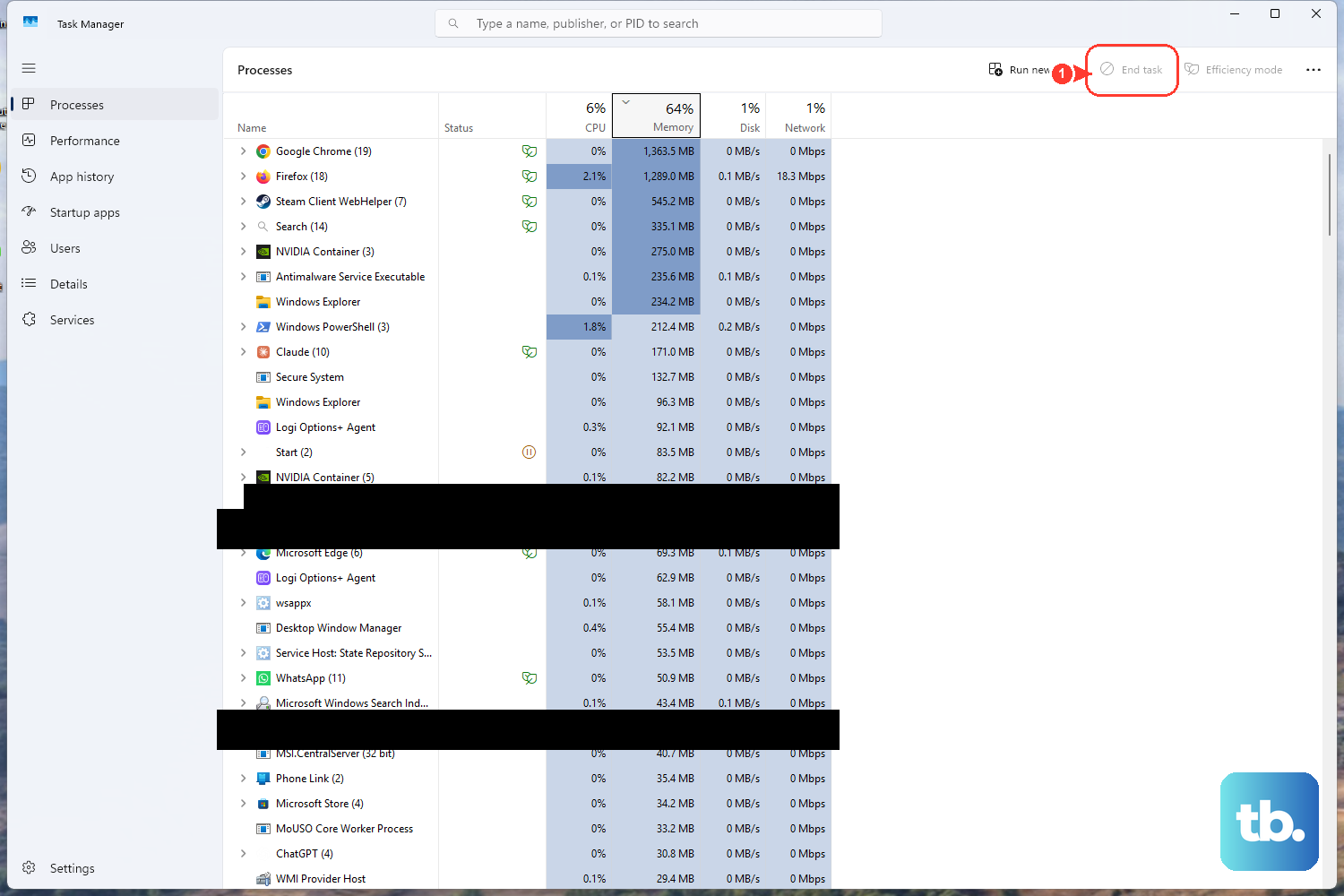
A black background with just a mouse pointer is the classic sign that the Windows shell (Explorer) stalled while loading. You can relaunch it without rebooting.
- 1.Press
Ctrl + Shift + Escto open Task Manager directly. If that does not respond, pressCtrl + Alt + Deland choose Task Manager. - 2.In the list of processes, find Windows Explorer.
- 3.Right-click Windows Explorer and select Restart. The desktop and taskbar should reappear within a few seconds.
- 4.If Windows Explorer is not listed at all, choose File > Run new task, type
explorer.exe, and press Enter to relaunch the shell manually.
These steps work the same on Windows 11 and Windows 10.
Rule out a hardware connection problem
Before digging into software, confirm the signal is reaching your monitor. Make sure every video cable (HDMI, DisplayPort, or VGA) is seated firmly at both ends, on the PC side and the monitor side.
If you have spares, try a different cable, a different port, or another monitor to isolate a faulty connection. On a laptop, disconnect any external displays and other peripherals, then restart. A loose or incorrect connection is one of the most common reasons for a blank screen, and it costs nothing to check.
Boot into Safe Mode to find the culprit
If the black screen keeps returning, Safe Mode loads Windows with only the essentials, which helps you tell whether a third-party driver or app is to blame. You can reach it straight from the sign-in screen.
- 1.At the sign-in screen, hold the
Shiftkey and select Power > Restart. - 2.When the PC reaches the Choose an option screen, select Troubleshoot > Advanced options > Startup Settings > Restart.
- 3.When the list of startup options appears, press 4 (or F4) for Safe Mode, or press 5 (or F5) for Safe Mode with Networking if you need internet access.
If the black screen does not happen in Safe Mode, a non-essential driver or app is the likely cause. Note that a BitLocker-encrypted device will ask for your recovery key during this process, so have that key on hand before you start. Safe Mode is available on Windows 11 and Windows 10.
Fix the graphics driver from Safe Mode
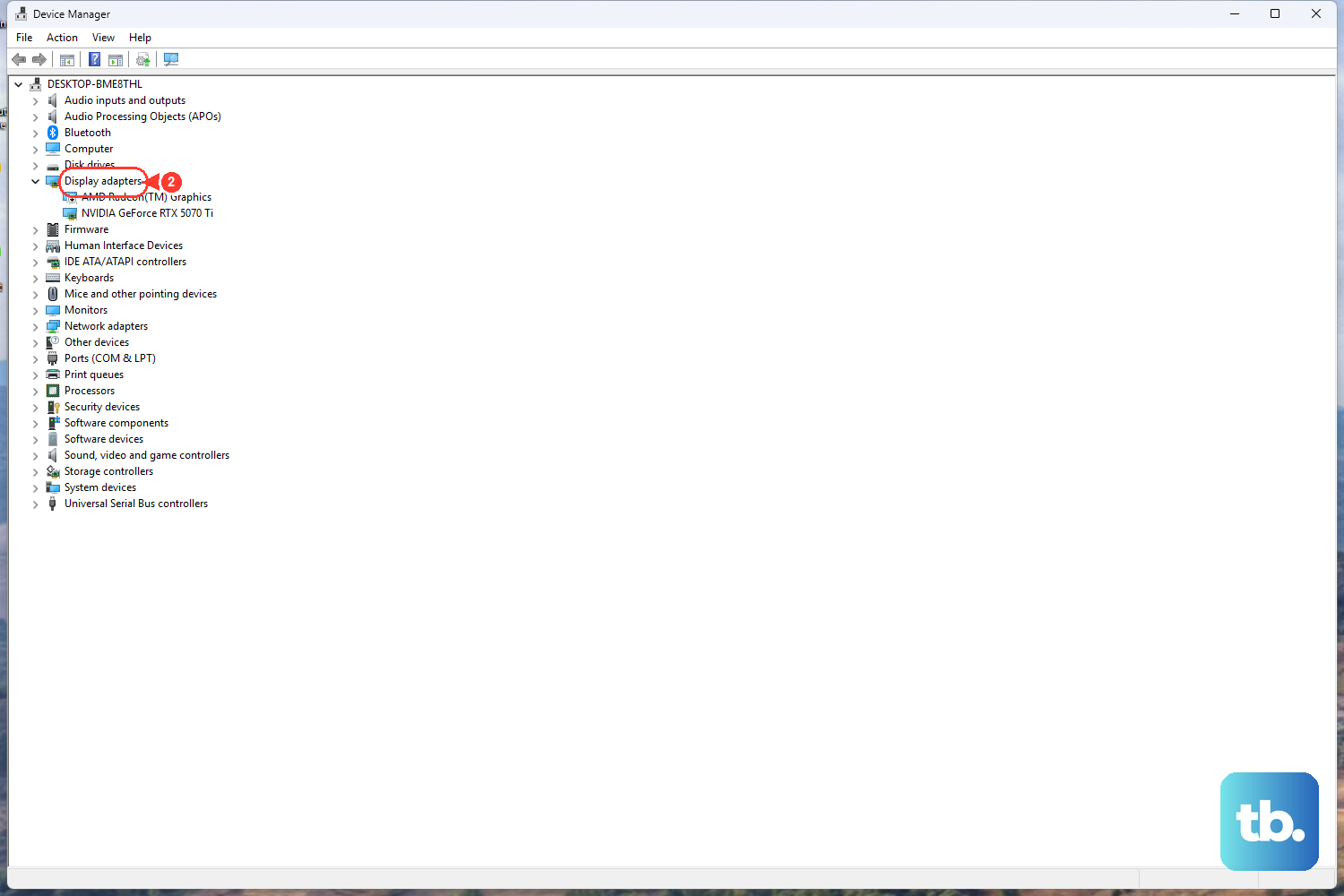
The display driver is the usual suspect behind a post-login black screen, and Safe Mode is the safest place to address it. While in Safe Mode, open Device Manager and expand Display adapters.
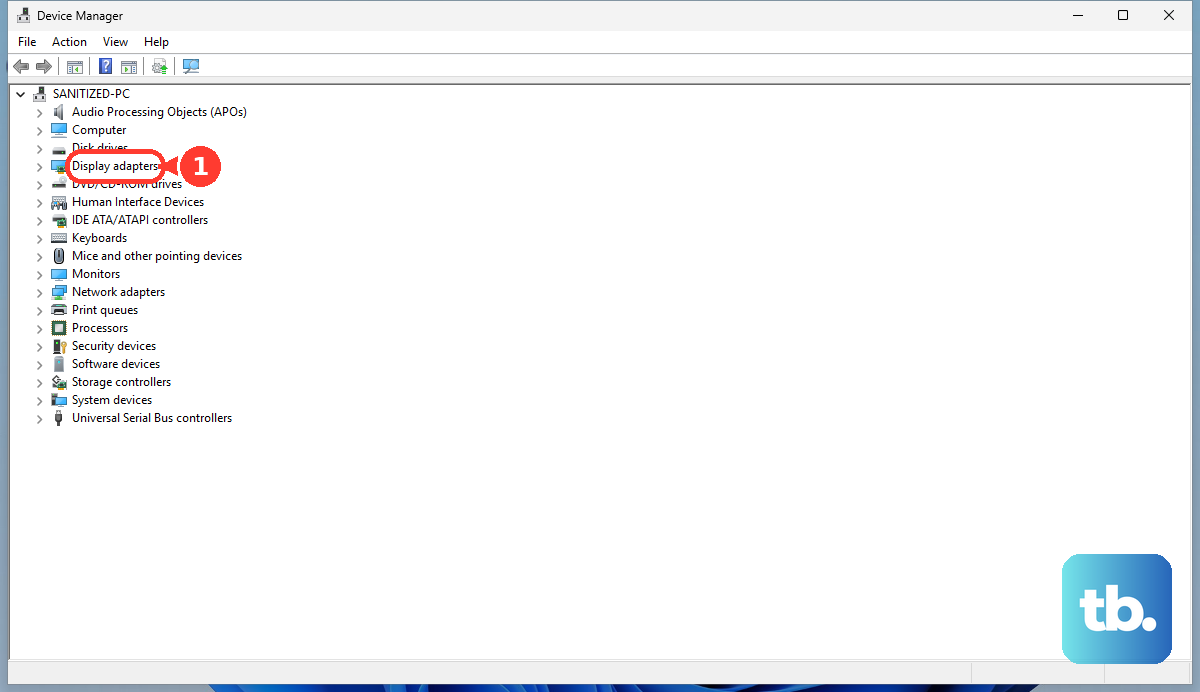
Right-click your graphics adapter and choose Update driver to pull a newer version. If the trouble began right after a driver or Windows update, choose Roll back driver instead to return to the previous version that worked. Both options are available on Windows 11 and Windows 10.
Catch up on pending Windows updates
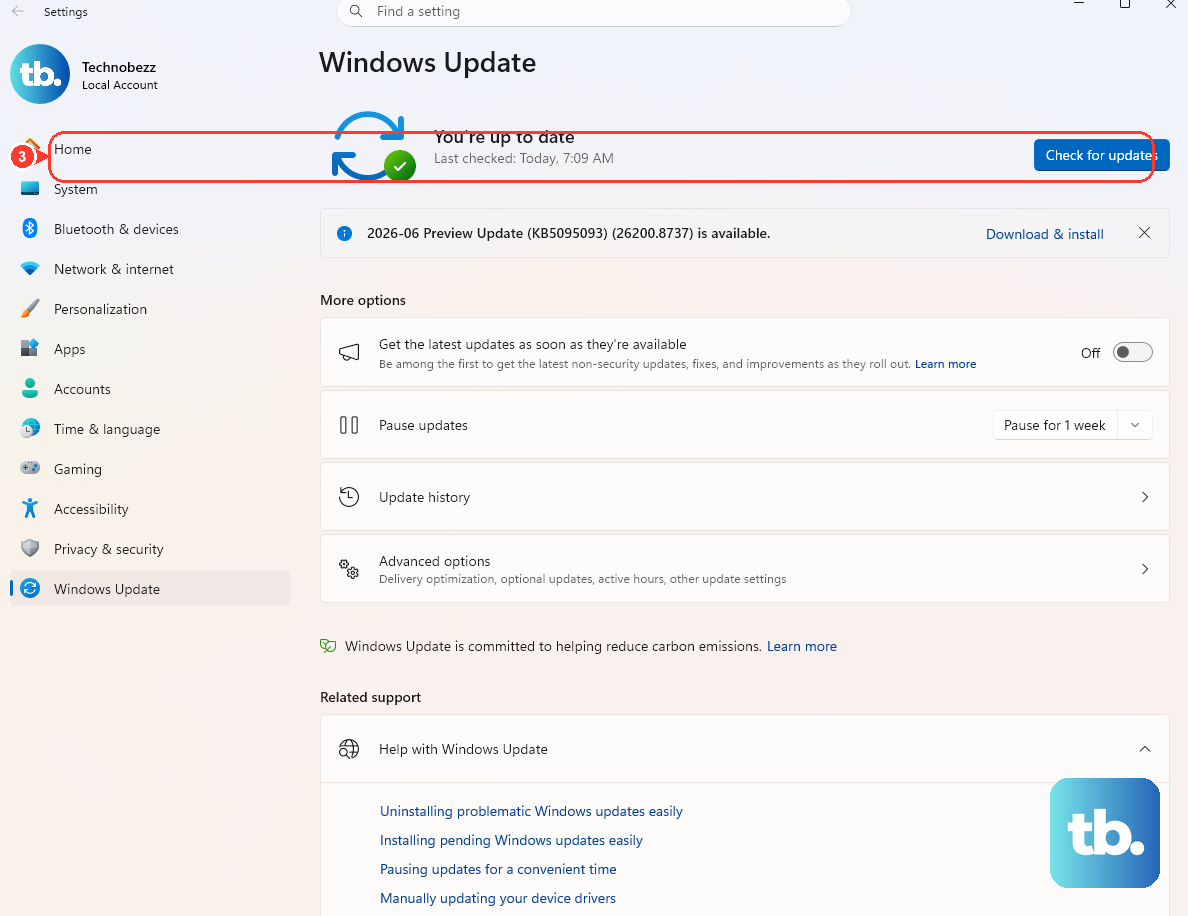
An interrupted or pending update can leave the system in a broken state, so installing what is waiting often clears things up. If you can reach the desktop, or while you are in Safe Mode, head to your update settings.
On Windows 11, go to Start > Settings > Windows Update, then select Check for updates and install anything available. On Windows 10, the path is Start > Settings > Update & Security > Windows Update. Restart afterward even if no restart is prompted, so any pending updates can finish installing.
Repair corrupted system files with DISM and SFC
Missing or damaged system files can break the shell that draws your desktop. Two built-in command-line tools can repair them, and the order matters: run DISM before SFC.
- 1.Open an elevated Command Prompt by typing
cmdin the Search box, right-clicking Command Prompt, and choosing Run as administrator. - 2.Run
DISM.exe /Online /Cleanup-Image /Restorehealthfirst and wait until you see the message 'The operation completed successfully.' - 3.Then run
sfc /scannowand let it finish. Do not close the window before the verification reaches 100%.
DISM repairs the Windows component store, and SFC then scans and restores protected system files using that healthy source. Both tools apply to Windows 11 and Windows 10.
Roll the whole system back with System Restore
If the black screen started right after a recent update or installation, you can undo that change by returning Windows to an earlier point in time. This relies on a restore point having been created before the problem began.
Boot into the recovery environment using Shift + Restart, or by force-restarting into recovery if you cannot reach the sign-in screen. Then go to Troubleshoot > Advanced options > System Restore and choose a restore point dated before the trouble started. System Restore is available on both Windows 11 and Windows 10. It does not delete your personal files, but it does roll back apps, drivers, and updates installed after the restore point, so review the listed point first so you understand which recent changes may be reverted.
Sidestep a damaged user profile
If the black screen happens only on your account while other accounts load normally, your user profile may be corrupted. Creating a fresh account confirms this and gives you a clean place to work from.
From a working or administrator account, go to Settings > Accounts > Other users and select Add account. Choose 'I don't have this person's sign-in information,' then 'Add a user without a Microsoft account' to create a local account, and sign in to it. If the new account loads a normal desktop, the original profile was the problem. This path is confirmed for Windows 11, and the guidance also covers Windows 10.
Recover access if you are stuck at sign-in
Sometimes the black screen is tangled up with a sign-in problem, and resetting your password gets you back in. The route depends on the type of account you use.
For a Microsoft account, select Reset password on the sign-in screen, or use Microsoft's online account recovery page on another device. Enter your username and follow the verification-code steps. For a local account on Windows 11 or Windows 10, select the password field, choose Reset password, answer the security questions you set up, and enter a new password. If you previously created a password reset disk, you can use that instead.
Frequently Asked Questions
Why does my screen go black only after I enter my password?
A black screen that appears right after login usually points to the Windows shell, the display driver, or your user profile rather than the hardware. Restarting the graphics driver with Windows logo key + Ctrl + Shift + B or restarting Windows Explorer in Task Manager resolves many of these cases. If only your account is affected, a corrupted user profile may be the cause.
What is the fastest fix to try first?
Press Windows logo key + Ctrl + Shift + B. It restarts the graphics driver and refreshes the connection to your display without changing anything permanent, which makes it the safest opening move. You may hear a beep or see the screen flicker when it works.
I only see a mouse cursor on a black desktop. What should I do?
That points to the Windows shell failing to load. Press Ctrl + Shift + Esc to open Task Manager, find Windows Explorer, right-click it, and choose Restart. If Windows Explorer is not listed, select File > Run new task, type explorer.exe, and press Enter.
Should I run SFC or DISM first?
Run DISM first. Use DISM.exe /Online /Cleanup-Image /Restorehealth and wait for 'The operation completed successfully,' then run sfc /scannow and let it reach 100% before closing the window. DISM repairs the component store that SFC relies on, which is why it goes first.
Will Safe Mode help me figure out the cause?
Yes. From the sign-in screen, hold Shift and select Power > Restart, then go to Troubleshoot > Advanced options > Startup Settings > Restart and press 4 for Safe Mode. If the black screen does not appear in Safe Mode, a non-essential driver or app is the likely cause, and you can update or roll back the display driver from there.











