
That spinning Wi-Fi icon on your Vivo X200 Pro is incredibly frustrating, especially when you know that massive 6000mAh battery is ready to go. Wi-Fi problems on Android are common, but they're almost always a software glitch you can fix yourself. Let's get you reconnected.
Toggle Wi-Fi and Restart Your Phone
Start with the simplest fix. Swipe down from the top of your screen to open the quick settings panel and tap the Wi-Fi icon to turn it off. Wait five seconds, then tap it again to turn it back on. This forces your phone to drop the connection and search for networks fresh, which often solves the issue right away.
If that doesn't work, restart your X200 Pro. Press and hold the power button until the power menu appears, then tap "Restart." A simple reboot clears out temporary system caches and processes that can interfere with the Wi-Fi radio. I'd start with this one, as it fixes more problems than people expect.
Use Airplane Mode to Reset All Radios
Airplane mode is a more thorough version of toggling Wi-Fi. When you enable it, it shuts down the Wi-Fi, cellular, and Bluetooth radios completely. Swipe down your quick settings and tap the airplane icon to turn it on.
Leave it enabled for about 15 to 20 seconds, then turn it off again. This gives the phone's modem a full reset and can clear up interference or connection handshake errors that prevent a stable link.
Forget the Problem Network and Rejoin
Your phone might be holding onto corrupted login data for your network. To clear it, go to Settings > WLAN. Tap on the network name you're trying to use and select Forget network.
Now, go back to the list of available networks, tap on yours again, and re-enter the password carefully. This is crucial if you've recently changed your Wi-Fi password or gotten a new router, as the old credentials will fail every time.
Check for Simple Oversights
It sounds basic, but double-check you're selecting the correct network. If you have a dual-band router, make sure you're connecting to the right SSID (like "HomeNetwork_5G"). Also, Wi-Fi passwords are case-sensitive, so ensure caps lock isn't accidentally on when you type it in.
While you're at it, check if other devices in your home can connect to the same Wi-Fi. If they can't, the problem is almost certainly with your router or internet service, not your Vivo phone.
Disable Bluetooth to Prevent Interference
Bluetooth and Wi-Fi can sometimes interfere with each other because they both use the 2.4GHz radio band. Try turning off Bluetooth temporarily from your quick settings panel.
See if your Wi-Fi connects immediately afterward. If it does, you've found a source of interference. You can usually turn Bluetooth back on once the Wi-Fi connection is established.
Turn Off Smart Network Switching in Funtouch OS
Vivo's Funtouch OS includes a feature designed to save data by switching to mobile data when Wi-Fi is weak. Ironically, it can sometimes prevent a connection altogether. To check, go to Settings > WLAN > tap the menu icon (three dots) > Advanced settings.
Look for an option called "Intelligent network switching," "Switch to mobile data," or something similar and make sure it is turned off. This stops your phone from second-guessing the Wi-Fi signal.
Check Power Saving and App Power Management
The X200 Pro's battery saving features are aggressive to protect that large battery. Go to Settings > Battery and make sure any power saving mode (like "Power Saving Mode" or "Super Power Saving Mode") is disabled.
Also, check app-specific power management. In Battery settings, look for "Background power management" or "App power management." Ensure system apps related to connectivity aren't being put to sleep.
Install the Latest System Update
Software bugs are a common cause of connectivity issues, and manufacturers release patches to fix them. Go to Settings > System update and tap "Check for updates."
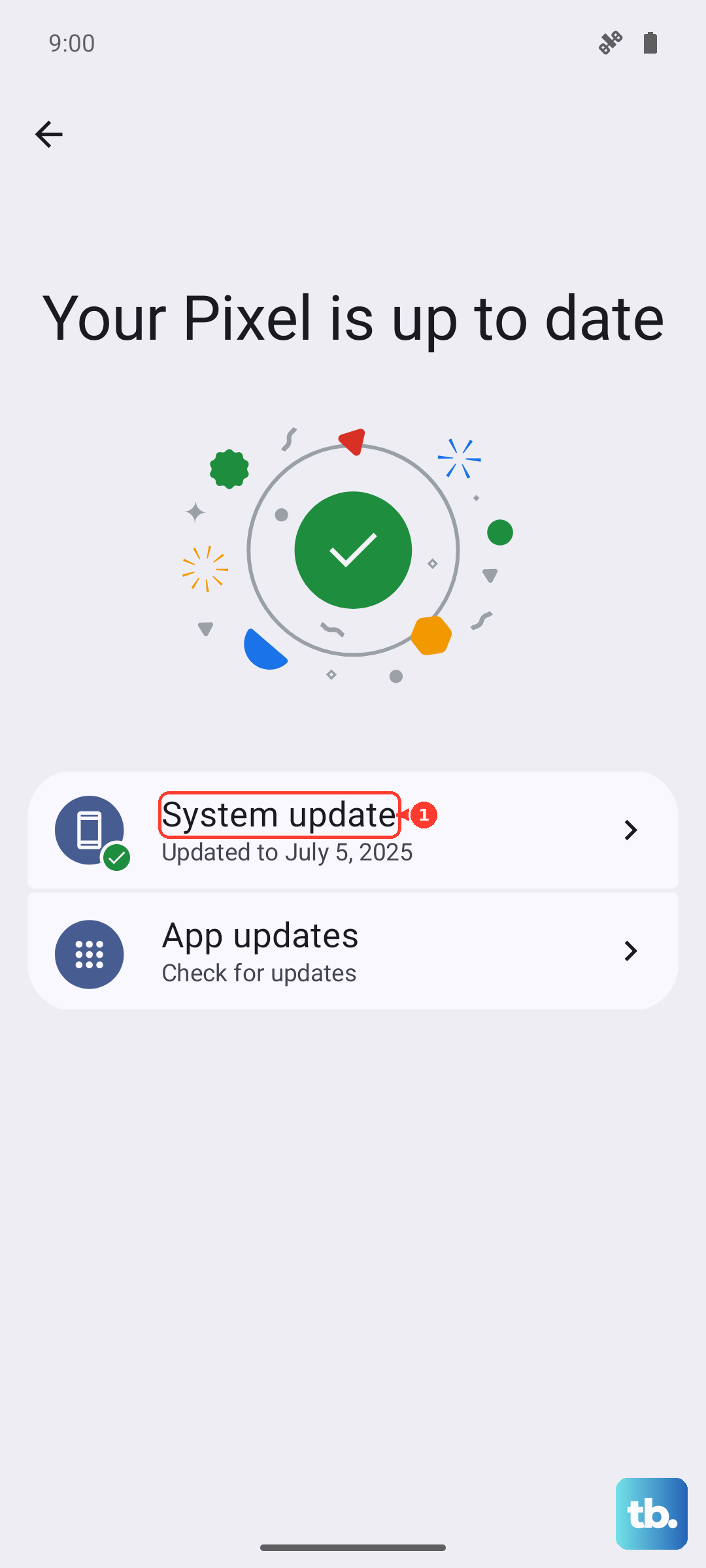
Install any available update for Funtouch OS 15. Updates often contain critical fixes for modem firmware and network stack stability that can resolve persistent Wi-Fi dropping or failure to connect.
Verify Your Date and Time are Correct
An incorrect system time can break Wi-Fi authentication because security certificates rely on accurate timestamps. Go to Settings > System management > Date and time.
Make sure "Automatic date & time" is enabled. This allows your phone to sync time with network servers, ensuring it's always correct for secure connections.
Reset Your Phone's Network Settings
This is a stronger step that resets all network-related configurations to factory defaults. Go to Settings > System management > Backup and reset > Reset phone.
Tap Reset network settings. This will erase all saved Wi-Fi networks, Bluetooth pairings, and mobile data settings. You'll need to reconnect to your Wi-Fi and re-pair Bluetooth devices afterward, but it clears out any deep-seated configuration errors.
Restart Your Wi-Fi Router
The issue might not be your phone at all. Unplug your router and modem from power for a full 60 seconds. This gives their internal memory a complete clear.
Plug them back in and wait for all the lights to stabilize. Then try connecting your X200 Pro again. If other devices were also having trouble, the router restart likely fixed it.
Boot Into Safe Mode to Check for App Conflicts
A third-party app you installed could be causing the problem. To test this, you need to boot into Safe Mode, which disables all downloaded apps. Press and hold the power button until the power menu appears; if that opens your voice assistant instead, press and hold the power button and Volume up together (power and Volume down on Samsung phones).
Then, tap and hold the "Power off" option on your screen. A prompt to reboot to Safe Mode should appear; tap "OK." If Wi-Fi works perfectly in Safe Mode, a recently installed app (like a VPN, ad blocker, or "cleaner" tool) is likely the culprit. You'll need to uninstall apps one by one to find it.
Perform a Factory Reset
If every other step has failed, a factory reset is the final software solution. This will erase all data on your phone, so you must back up everything important first. Use Google Drive, Vivo's cloud, or transfer files to a computer.
Once backed up, go to Settings > System management > Backup and reset > Reset phone > Erase all data. After the reset, set up your phone as new and test Wi-Fi before restoring your apps and data. If Wi-Fi still doesn't work after a clean factory reset, the issue may be hardware-related.