If your Vivo X200 Pro videos are stuttering, freezing, or dropping frames, it can really ruin the experience, especially with that great Zeiss camera system. The good news is that video lag is usually a software hiccup you can fix yourself.
Quick Fix: Force Restart and Check Storage
I'd start with a force restart. It clears out temporary glitches in Funtouch OS 15 without touching your data. Just press and hold the power button for about 12 seconds until you see the Vivo logo appear.
While you're at it, check your phone's storage. That massive 6000mAh battery is great for life, but if your internal storage is nearly full, the system struggles to process video files smoothly. Head to Settings > Storage to see how much space you have left.
Update Your Software and Apps
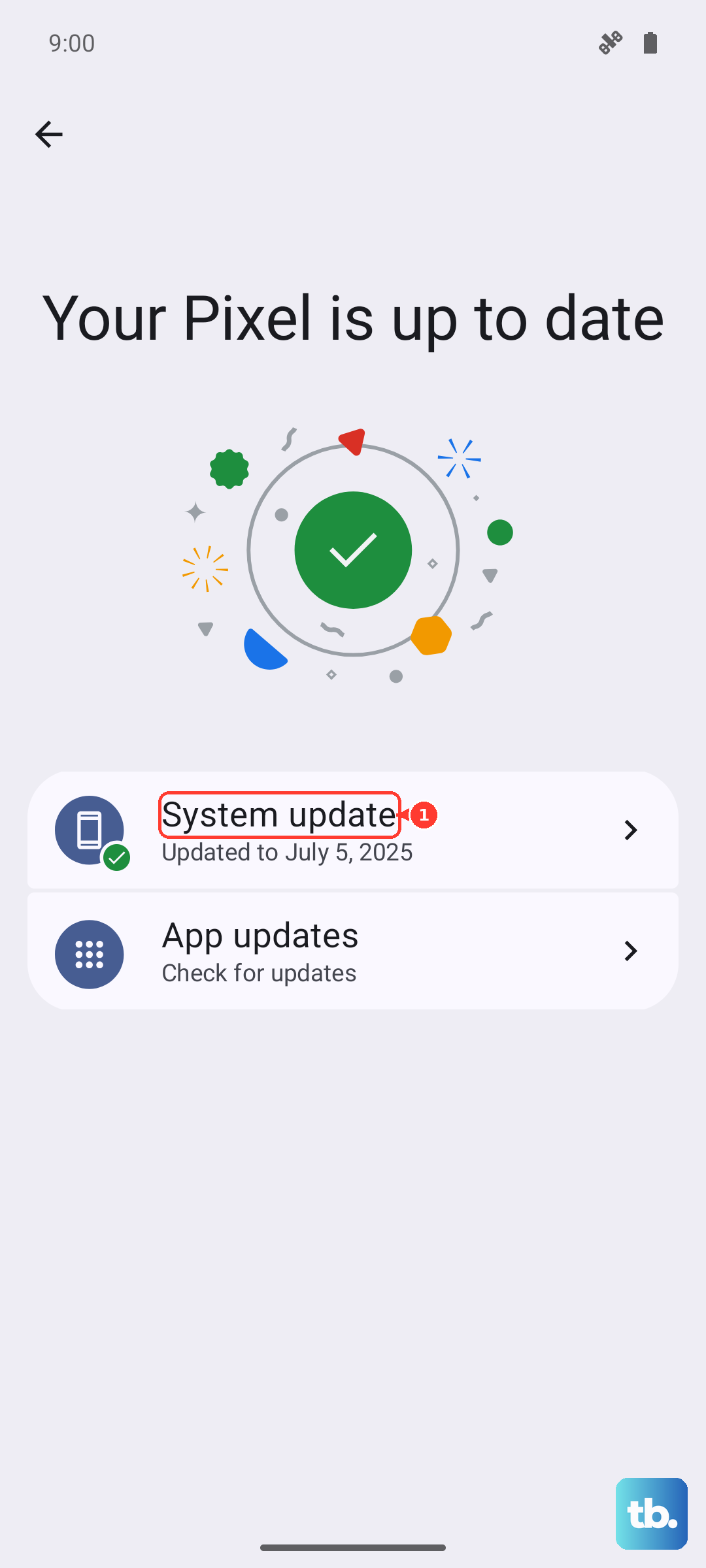
An outdated system is a common culprit. Vivo releases updates that often include performance optimizations and bug fixes for the media player and camera app. Go to Settings > System update to check for the latest available version of Android and Funtouch OS.
Don't forget about your apps. If the lag is happening in YouTube, Netflix, or another streaming service, open the Google Play Store, tap your profile icon, and select Manage apps & device > Updates available. Install any pending updates for your video apps.
Manage Background Processes and Performance Mode
Too many apps running in the background can steal the processing power needed for smooth video decoding. Swipe up from the bottom and hold to enter the recent apps view, then swipe away everything you're not using.
Your X200 Pro also has a performance mode. Sometimes, a battery-saving mode can throttle the CPU a bit too aggressively. You can check this by going to Settings > Battery and seeing which mode is active. Try switching to a balanced or high-performance mode to see if playback improves.
Clear App Cache and Data
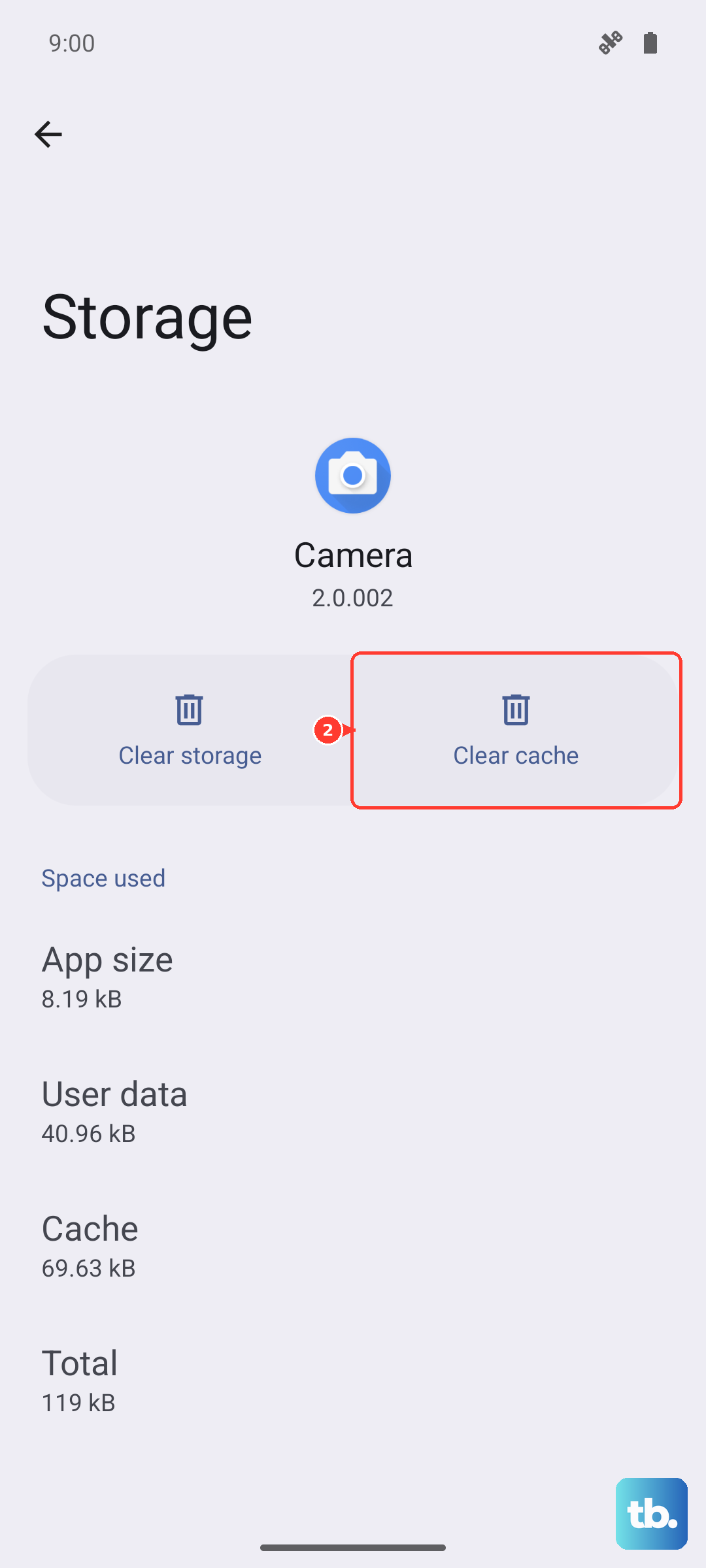
If the lag is specific to one app, like the gallery or a streaming service, its cached data might be corrupted. Clearing it can help. Go to Settings > Apps > [App Name] > Storage.
Tap on Clear Cache first. This won't delete your login info or saved videos. If the problem persists, you can try Clear Data, but be aware this will reset the app to its default state and you'll need to log in again.
Check Your Network Connection for Streaming
Buffering and lag during streaming are almost always network-related. If you're on Wi-Fi, try moving closer to your router or restarting the router itself. You can also try switching to mobile data to see if the problem is isolated to your home network.
For a more thorough check, you can run a speed test. There are many free apps on the Play Store, or you can use the built-in network diagnostics if your carrier provides them. A slow or unstable connection will cause videos to pause and stutter.
Review Video Playback Settings
Some video players have settings that can affect performance. For example, if you're using a third-party app, check if it has a software decoding option versus a hardware decoding option. Hardware decoding (using the phone's dedicated media processor) is almost always smoother.
Also, if you're trying to play an extremely high-resolution file (like an 8K video from another device), the X200 Pro might struggle. Try playing a standard 1080p or 4K video you've recorded on the phone itself to rule out a file compatibility issue.
Reset App Preferences or All Settings
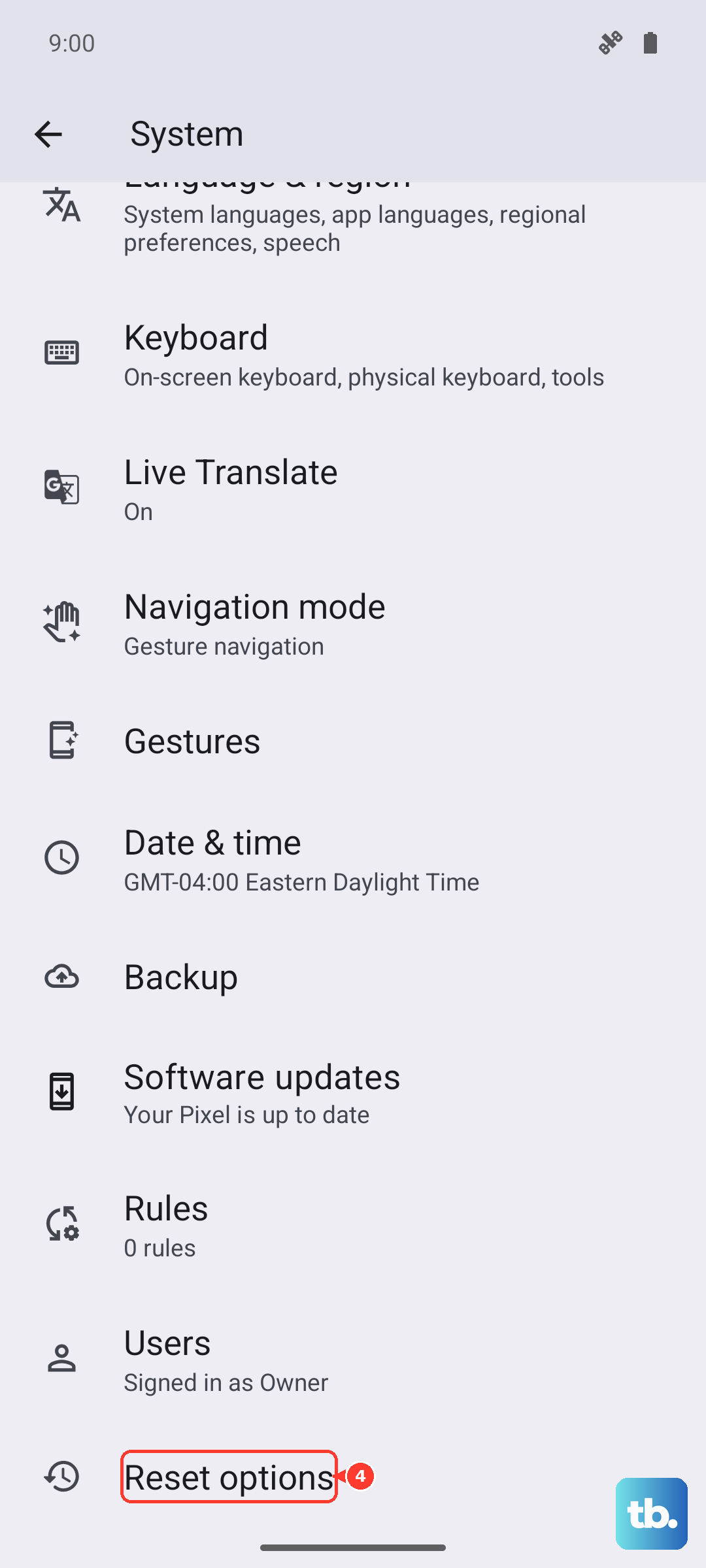
If a specific app is misbehaving, you can reset all app preferences. This resets permissions, background restrictions, and default apps without deleting any personal data. Go to Settings > System > Reset options > Reset app preferences.
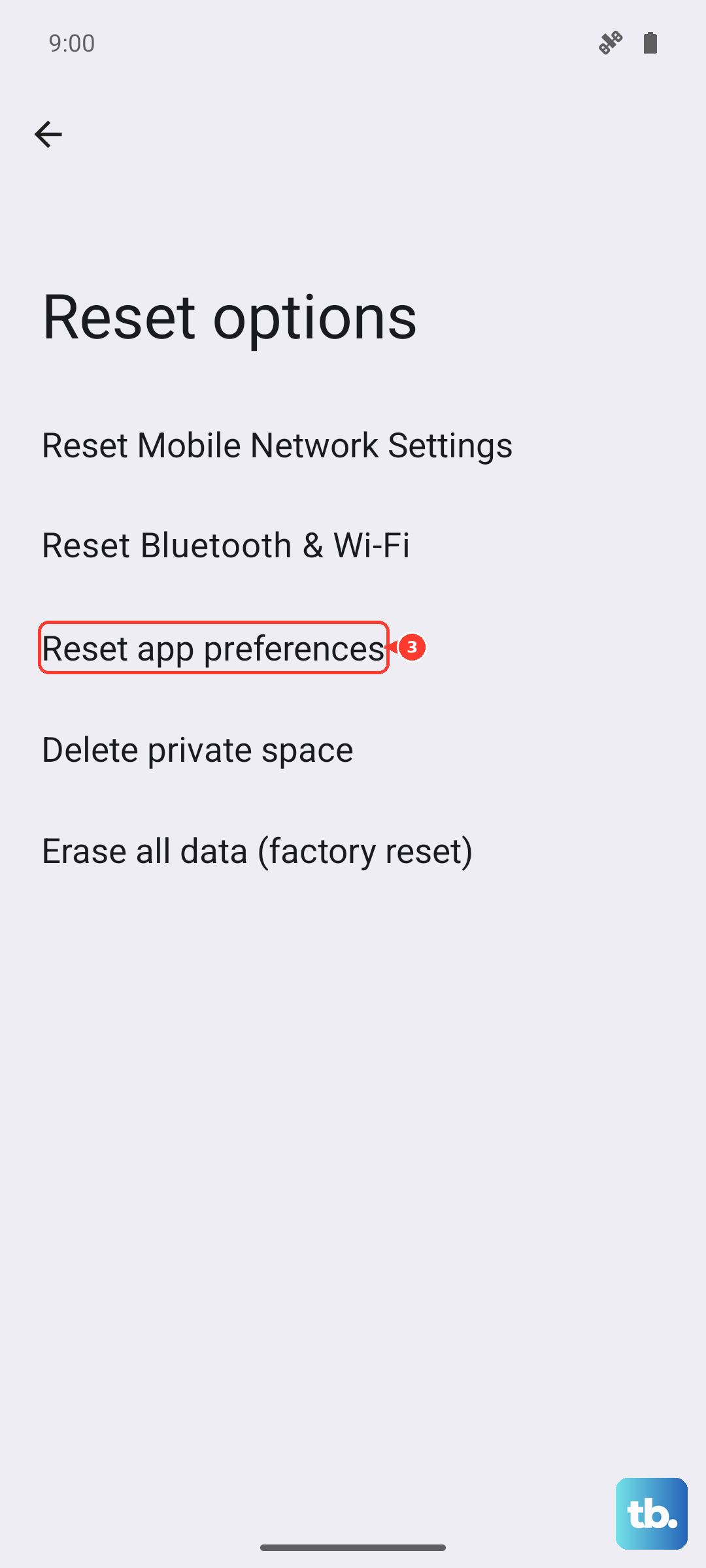
For a broader fix, you can reset all system settings. This will revert your Wi-Fi passwords, Bluetooth pairings, and custom display settings back to default, but it won't touch your photos or apps. Navigate to Settings > System > Reset options > Reset all settings.
Consider a Factory Reset
If you've tried everything and the lag is system-wide, a factory reset is the final step. This will erase everything on your phone, so it's crucial to back up your photos, videos, and important data first. You can use Google Drive or Vivo's own cloud backup.
Once backed up, you can perform the reset by going to Settings > System > Reset options > Erase all data (factory reset). After the phone restarts, set it up as new and test video playback before restoring your full backup, as the backup could potentially restore a problematic setting.