
Seeing a "Not registered on network" message on your Vivo X200 Pro is incredibly frustrating. It means your phone can't make calls, send texts, or use mobile data, which defeats the purpose of having a powerful device with that great Zeiss camera. This error pops up when your phone fails to properly identify itself to your carrier's cell towers.
Before we get into the deeper fixes, let's try the quick one. Pull down the notification shade from the top of your screen and tap the Airplane Mode icon. Wait about 15 seconds, then tap it again to turn it off. This forces your phone's modem to completely restart its connection to the network, and it resolves the issue more often than you'd think.
If that didn't work, don't worry. The problem can stem from a simple software glitch, a SIM card issue, or a network setting that's gotten out of sync. I've found that working through these steps methodically usually gets the X200 Pro back online. We'll start with the simplest solutions and work our way up.
Restart Your Vivo X200 Pro
It sounds too basic, but a full restart clears out temporary system errors that can block network registration. Just hold the power button until the power menu appears, then tap "Restart." Wait for the phone to fully boot up and see if your signal bars return. This is different from the force restart, which we'll use later if needed.
Check Your SIM Card and Tray
A loose or dirty SIM card is a common culprit. First, power off your X200 Pro. Use the SIM eject tool (it came in the box) to pop open the tray on the bottom edge of the phone. Carefully remove the SIM card and give both the gold contacts on the card and inside the tray slot a gentle wipe with a dry, soft cloth. Blow out any dust, reseat the card firmly, and push the tray back in until it clicks. Power the phone back on.
Verify Your Mobile Plan is Active
Sometimes the issue isn't your phone at all. If your prepaid plan has expired or your postpaid bill is overdue, your carrier will suspend service, which shows as a network registration error. Try logging into your carrier's account portal from another device or give them a quick call from a different phone to confirm your line is active and in good standing.
Manually Select Your Network Operator
Your phone might be trying to automatically connect to a network that's weak or undergoing maintenance. You can force it to search for and lock onto your specific carrier. Go to Settings > Network & internet > SIM cards & mobile networks. Tap your SIM card, then tap "Network operators." Turn off "Choose automatically," let it search, and then manually select your carrier's name from the list.
Reset Your Network Settings
This step clears all your saved Wi-Fi networks, Bluetooth pairings, and cellular configurations without deleting your personal data. It's very effective for persistent network glitches. On your X200 Pro, navigate to Settings > System management > Backup and reset > Reset network settings. Tap "Reset settings," confirm, and your phone will restart. You'll need to reconnect to Wi-Fi and re-pair Bluetooth devices afterward.
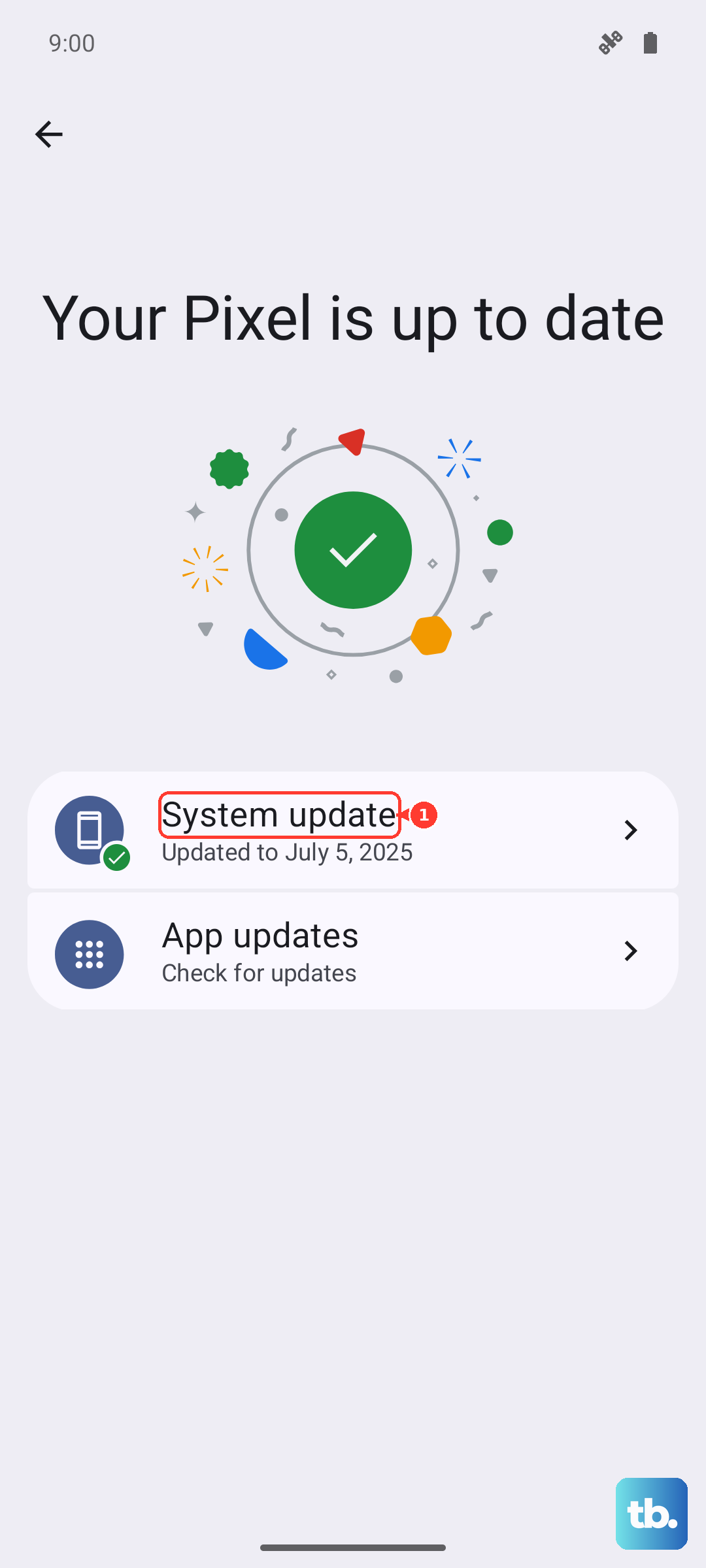
Update Funtouch OS
Vivo releases software updates that often include fixes for connectivity and modem issues. Keeping your X200 Pro on the latest version of Funtouch OS 15 (based on Android 15) is important. Go to Settings > System update and tap "Check for updates." If an update is available, install it. Make sure your phone is connected to Wi-Fi and has at least a 50% charge, or better yet, plug in that included 90W charger.
Clear the Cache for Phone Services
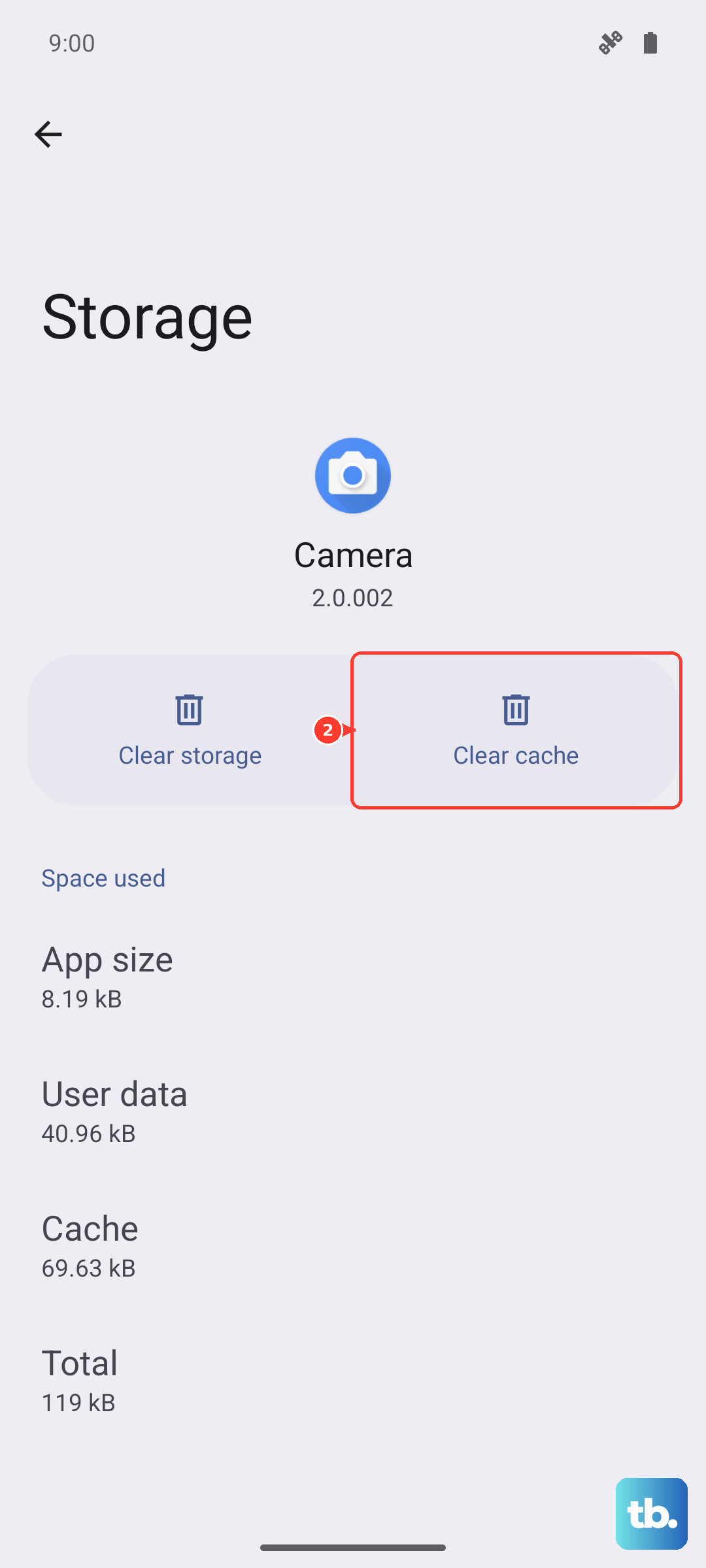
The system app that manages your cellular connection can accumulate corrupted temporary data. Clearing its cache can help. Head to Settings > Apps > See all apps. Tap the three-dot menu in the top right and select "Show system." Now, find and tap "Phone Services" (it might also be called "SIM Toolkit" or "Carrier Services"). Go into Storage & cache and tap "Clear cache." Restart your phone after doing this.
Perform a Force Restart
If your phone is frozen or the standard restart didn't help, a force restart is the next step. This is different from a normal reboot and can clear deeper system hangs. Simply press and hold the power button for about 12 seconds. Keep holding it until you see the Vivo logo appear on the screen, then release. This forces a hard reboot of all components, including the cellular modem.
Test With a Different SIM Card
At this point, we need to figure out if the problem is with your SIM or the phone itself. If you can, borrow a known-working SIM card from a friend or family member (even from a different carrier) and insert it into your X200 Pro. If the new SIM card connects to a network without any "not registered" errors, then your original SIM is likely faulty or damaged. You'll need to contact your carrier for a replacement SIM.
Factory Reset Your Device
This is the last software step and will erase all your personal data, so it's crucial to back up everything important first. Use Google Drive for your photos and contacts, and make sure any local files are saved. Once backed up, go to Settings > System management > Backup and reset > Erase all data (factory reset). Follow the prompts to reset the phone. After it restarts, set it up as new without restoring a backup immediately, just to test the network connection. If the error persists after a clean factory reset, the issue is likely a hardware fault with the phone's internal antenna or modem, and you should contact Vivo support.