
When your Vivo X200 Pro's GPS stops locking on, it can leave you stranded, especially when you're relying on that excellent camera to tag your photos or need navigation in an unfamiliar area. The good news is that most GPS problems are software glitches you can fix yourself in a few minutes.
I'd start with the quick refresh methods. They solve the issue more often than not and don't require any deep diving into settings.
Refresh Your GPS Connection
Pull down the notification shade twice to see the full Quick Settings panel. Look for the Location icon, which looks like a teardrop-shaped marker. Tap it once to turn location services off completely.
Wait about 30 seconds, then tap it again to turn it back on. This simple reset forces the GPS radio to reacquire signals from scratch. While you're there, also toggle Airplane mode on for 15 seconds and then off.
This resets all the device's wireless radios, including the one for GPS. It's a great way to clear any minor conflicts that might be preventing a solid lock.
Restart Your Vivo X200 Pro
If toggling doesn't work, a full restart is your next best step. It clears out any temporary system processes that might be interfering. Just press and hold the power button until the power menu appears, then tap "Restart."
For a more forceful reset, you can perform a force restart. Press and hold the power button for about 12 seconds or until you feel the phone vibrate and see the Vivo logo appear. This is different from a standard restart and can clear deeper glitches.
Check Funtouch OS Location Settings
Vivo's Funtouch OS has a few layers of location settings that need to be configured correctly. First, make sure the master switch is on. Go to Settings > Location and ensure the toggle at the top is enabled.
More importantly, tap on "Location Mode" or "Location Services." You need to select High Accuracy mode. This mode uses GPS satellites, Wi-Fi, and mobile networks together to get the fastest, most precise lock.
The "Battery Saving" mode, which only uses Wi-Fi and mobile networks, will cause pure GPS navigation apps to fail. The "Device Only" mode can be slower and less reliable indoors.
Verify App Permissions
Even with location services on globally, individual apps need permission. If Google Maps or your preferred navigation app was recently updated, its permissions might have been reset.
Go to Settings > Apps > [App Name] > Permissions. Find "Location" in the list and make sure it's set to "Allow all the time" or "Allow only while using the app," depending on your preference for that specific application.
Disable Battery Saver and Ultra Battery Mode
The X200 Pro has a massive 6000mAh battery, but its power-saving features can aggressively limit background processes, including GPS. Go to Settings > Battery and make sure "Battery Saver" is switched off.
Also check for an "Ultra Battery Mode" or similar extreme setting, as this will definitely prevent GPS from functioning in the background. You can turn these back on after your navigation is complete.
Update Your Apps and System Software
An outdated version of Google Maps, Waze, or another mapping app can have bugs that break GPS functionality. Open the Google Play Store, tap your profile icon, and go to "Manage apps & device" to check for updates.
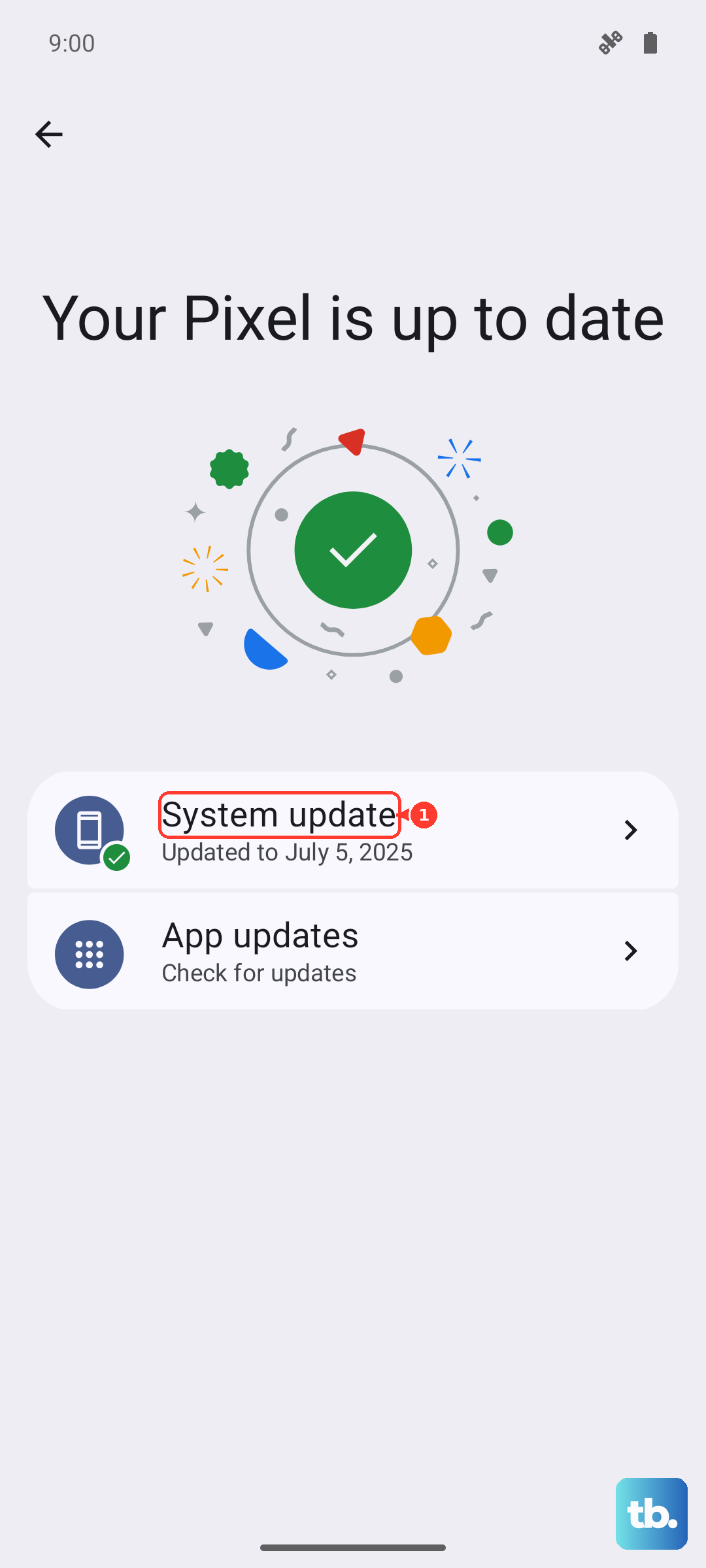
Also check for a system update. Vivo releases periodic updates for Funtouch OS that can include fixes for connectivity issues. Go to Settings > System > System update and tap "Check for updates."
Clear the App Cache and Data
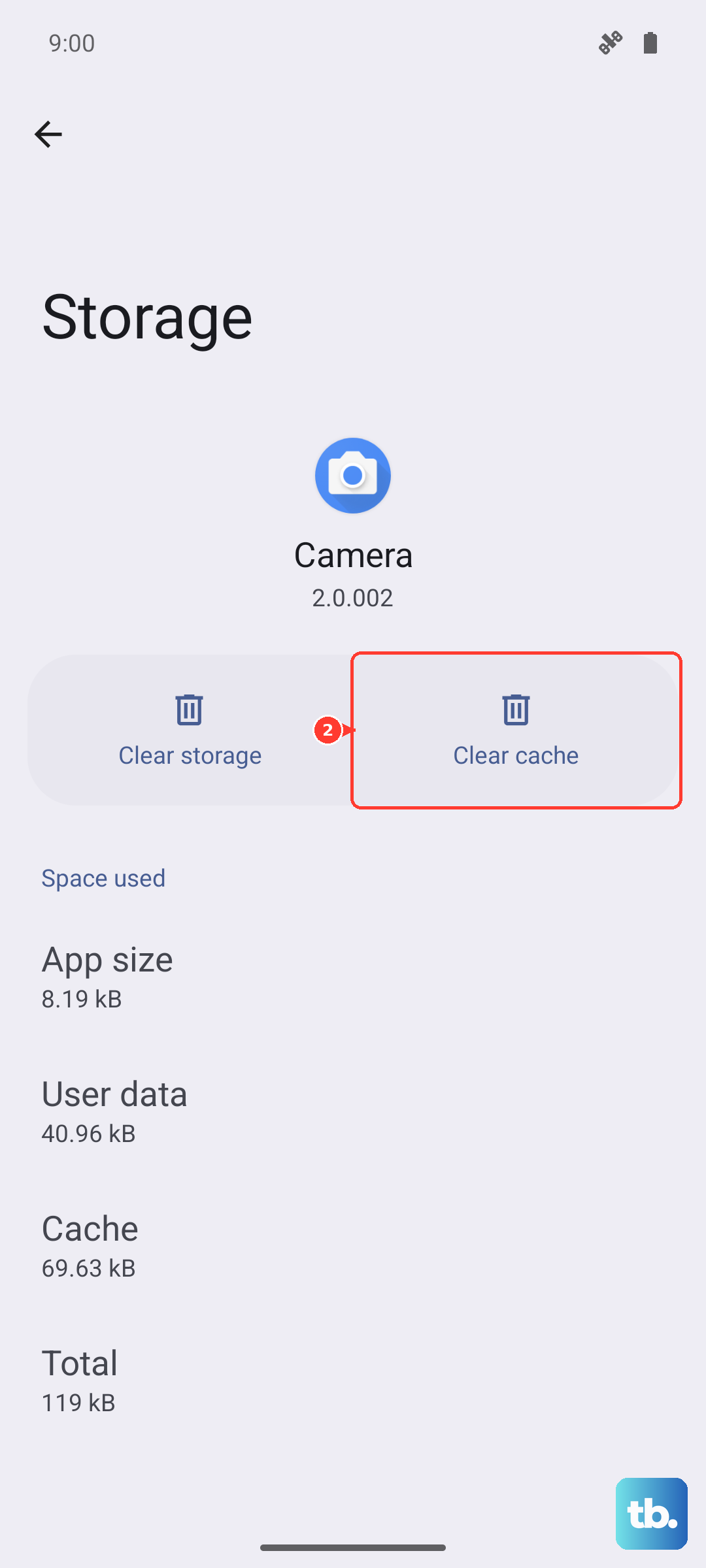
Corrupted temporary files in your navigation app can cause it to freeze or lose GPS signal. Go to Settings > Apps > Google Maps (or your problem app). Tap on "Storage & cache."
First, tap "Clear cache." This deletes temporary files without affecting your saved places. If the problem persists, you can tap "Clear storage" or "Clear data." Be warned, this will reset the app to its default state and delete offline maps and settings.
Test GPS with a Diagnostic App
To rule out a hardware issue, it helps to see what the GPS chip itself is doing. Download a free app like "GPS Test" or "GPS Essentials" from the Play Store.
Open the app and go to its satellite view. Take the phone outside with a clear view of the sky. If the app shows your phone connecting to multiple satellites (you'll see signal strength bars) but your navigation app still doesn't work, the problem is software.
If the diagnostic app shows zero satellites even after several minutes outdoors, it could point to a deeper issue.
Boot Into Safe Mode
Safe mode temporarily disables all third-party apps you've installed. If GPS works perfectly in Safe Mode, you know one of your downloaded apps is causing the conflict.
To enter Safe Mode on the X200 Pro, press and hold the power button until the power off menu appears. Then, tap and hold the "Power off" option on your screen. A prompt will appear asking if you want to reboot to Safe Mode. Tap "OK."
Test your GPS with a built-in app like Google Maps. To exit, just restart your phone normally.
Reset Location and Network Settings
This is a more significant step but doesn't delete your personal data like photos or messages. It will reset all your Wi-Fi passwords, Bluetooth pairings, and location preferences back to default.
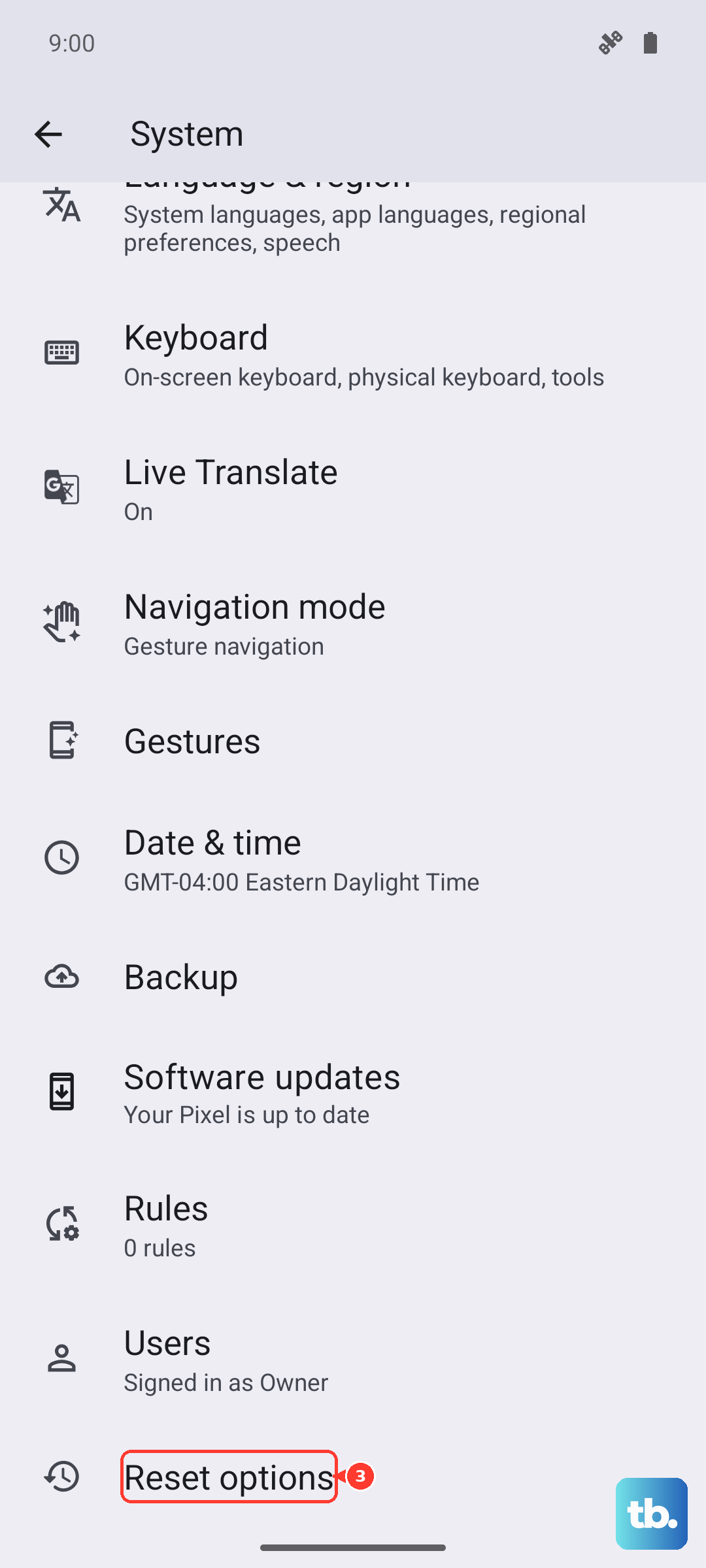
Go to Settings > System > Reset options. Tap on "Reset Wi-Fi, mobile & Bluetooth" or a similar option. Confirm the reset. After your phone reboots, you'll need to reconnect to Wi-Fi networks and repair Bluetooth devices, but it can resolve persistent radio conflicts.
If you've tried all these steps and a GPS diagnostic app still shows no satellite signals outdoors, the issue may be with the phone's internal antenna connection. In my experience, this is rare, but it's the point where contacting Vivo support would be the next logical step.