
When your Vivo X200 Pro's email app stops syncing or won't send messages, it can leave you feeling disconnected. The built-in email client on Funtouch OS 15 is generally reliable, but like any app, it can run into hiccups. I'd start with the quickest fixes first, as they often solve the problem in under a minute.
Before we get into the steps, do a quick mental check. Are you connected to Wi-Fi or mobile data? Sometimes a simple network switch is all it takes. Also, consider if you've recently changed your email password on another device without updating it on your phone.
Force Close and Restart the Email App
This is the digital equivalent of turning it off and on again, and it works surprisingly often. Swipe up from the bottom of your screen and hold to enter the recent apps view. Find the Email app and swipe it all the way up to close it. Wait a few seconds, then tap its icon again to relaunch it.
If the app was frozen or stuck on a task, this clears its temporary memory and gives it a fresh start. It's the first thing I try when an app is acting up on my own phone.
Check Your Network Connection
Email needs an active internet connection to sync. Pull down the notification shade from the top of your screen twice to see the full Quick Settings panel. Make sure both Wi-Fi and mobile data are turned on.
Try toggling Airplane mode on and off. Tap the airplane icon in the Quick Settings, wait about 15 seconds, then tap it again to disable it. This resets all your phone's radio connections at once, which can clear up a temporary network glitch preventing mail from sending or receiving.
Verify Your Sync and Fetch Settings
Your email might be arriving, but the app isn't checking for it frequently enough. Open the Email app and tap the menu icon (usually three lines or your profile picture). Go to Settings and select your email account.
Look for options labeled "Sync frequency," "Fetch new data," or "Check for new messages." Set this to "Push" if available, which delivers mail instantly. If Push isn't an option, set the fetch interval to every 15 or 30 minutes. Also, ensure the sync settings for folders like Inbox, Sent, and Drafts are enabled.
Review Your Account Password and Security
Email services like Gmail or Outlook sometimes require an "App Password" if you have two-factor authentication (2FA) enabled. Your regular password won't work in this case. You'll need to generate a unique 16-digit app password from your email provider's security website.
If you're unsure, the easiest test is to open a web browser on your phone and try to log into your email's website. If you can't log in there either, the issue is with your credentials, not the Vivo mail app. Reset your password through the web, then update it in your phone's account settings.
Clear the Email App's Cache and Data
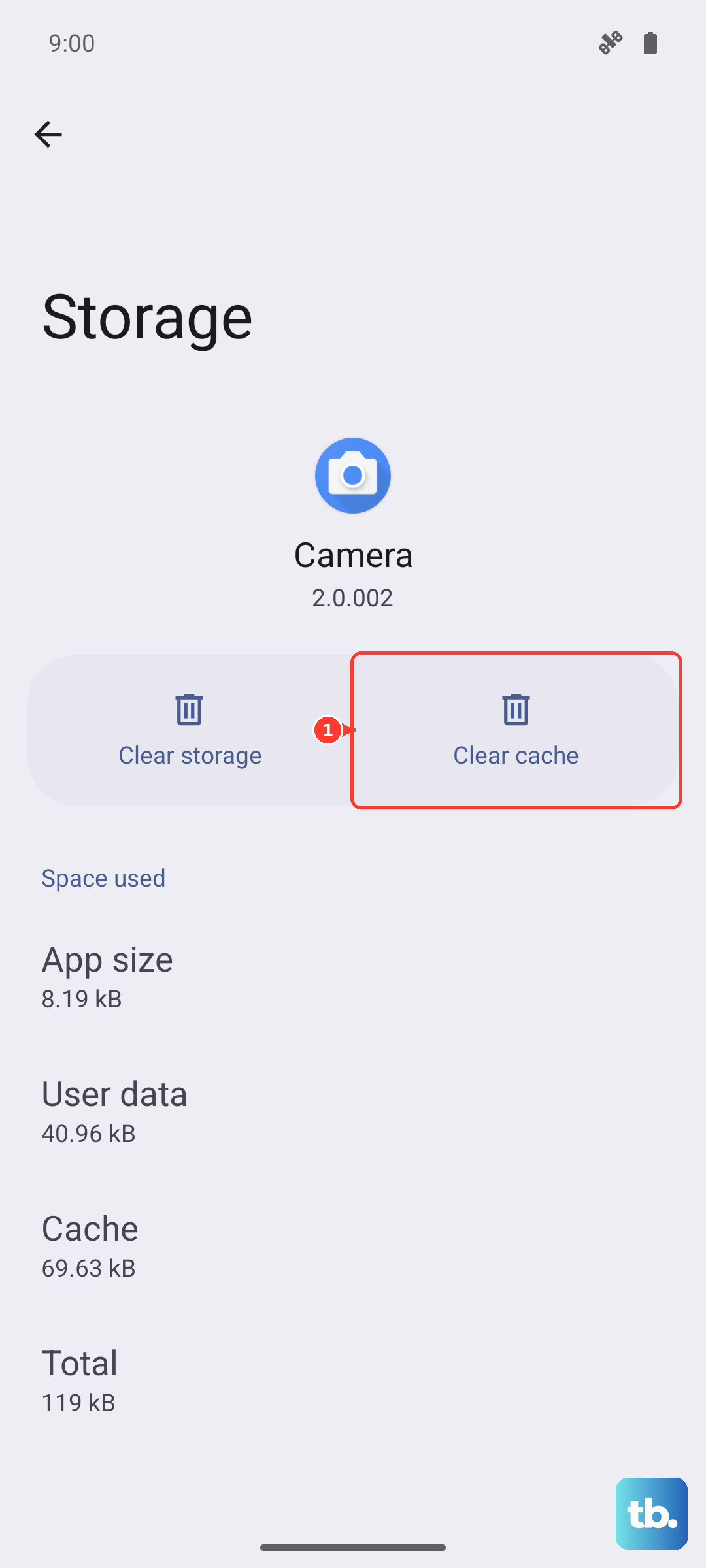
Corrupted temporary files can cause all sorts of strange behavior. Go to your phone's Settings > Apps > Manage apps. Find and tap on "Email" from the list. On the app info page, tap Storage usage.
First, tap "Clear cache." This deletes temporary files without touching your account. If the problem persists, you can tap "Clear data." Be warned, this will remove the app's settings and you'll need to set up your email account again, but it often resolves deeper glitches.
Check for System and App Updates
Vivo periodically releases updates to Funtouch OS that include bug fixes. An outdated system can have conflicts with email services. Go to Settings > System upgrade and tap "Check for updates."
If you're using a third-party email app like Gmail or Outlook from the Play Store, make sure it's also updated. Open the Google Play Store, tap your profile icon, go to "Manage apps & device," and apply any available updates.
Disable Battery Optimization for the Email App
Android's battery saving features can sometimes be too aggressive, preventing apps from syncing in the background. To whitelist the Email app, go to Settings > Battery > Background power management or App power saving.
Find the Email app in the list and set its mode to "Intelligent control" or "No restrictions." This tells your X200 Pro to allow the app to run necessary background tasks, ensuring new mail is fetched promptly.
Remove and Re-add Your Email Account
This is a more thorough reset that rebuilds your account connection from scratch. Open the Email app and go to Settings. Select the problematic account and look for the option to "Remove account" or "Delete account." Confirm the removal.
Don't worry, this doesn't delete your actual email. Once removed, go back to the app's settings and tap "Add account." Follow the prompts to set it up again. For services like Gmail or Outlook, this process is usually automatic and just requires your login.
Perform a Force Restart on Your Vivo X200 Pro
If the app itself is still unresponsive or the phone feels sluggish, a force restart can clear system-wide issues. Press and hold the Power button on the side of your phone. Keep holding it for about 12 seconds, or until you see the Vivo logo appear on the screen as it reboots.
This is different from a normal restart and can resolve deeper software freezes that might be affecting multiple apps, including email. It doesn't erase any of your personal data or settings.
Check Date, Time, and VPN Settings
Incorrect date and time settings can break secure connections to email servers. Go to Settings > Additional settings > Date & time and make sure "Automatic date & time" is enabled. Also, if you're using a VPN, try temporarily disabling it. Some VPN connections can interfere with the specific ports used for sending and receiving email.