
When your Vivo X200 Pro won't connect to your wireless earbuds, car, or speaker, it can be incredibly frustrating. You've got a powerful phone with a great camera and battery, but Bluetooth issues can stop you from enjoying it wirelessly. The good news is that most connection problems are software glitches you can fix yourself in just a few minutes.
I'd start with the simplest fix first. Pull down the notification shade from the top of your screen and tap the Bluetooth icon to turn it off. Wait about ten seconds, then tap it again to turn it back on. This quick refresh of the Bluetooth radio often clears up temporary connection hiccalls. Try pairing your device again right after.
Check the Simple Things First
Before we get into deeper troubleshooting, run through this quick checklist. Make sure both your X200 Pro and the device you're trying to connect to have enough battery, ideally above 20%. Keep them within a few feet of each other during the initial pairing process.
Double-check that the other device is actually in pairing mode. For headphones, this usually means holding a button until you see a flashing light. Also, ensure Bluetooth is truly enabled on your phone by looking for the blue icon in your quick settings panel.
Restart Your Vivo X200 Pro and the Other Device
If toggling Bluetooth didn't work, a full restart is your next best step. For the Vivo X200 Pro, press and hold the power button until the power menu appears, then tap "Restart."
Once your phone boots back up, restart the Bluetooth accessory as well. This clears out any minor software bugs in both devices that could be blocking the handshake. After both are back on, attempt the pairing process from scratch.
Forget and Re-Pair the Problem Device
Sometimes a pairing profile gets corrupted. To fix this, you need to remove the device from your phone's memory and start fresh. Open the Settings app and go to Bluetooth & device connection.
Tap on "Bluetooth." You'll see a list of previously paired devices. Find the one giving you trouble, tap the settings icon next to it, and select "Forget" or "Unpair." Now, put that device back into pairing mode and search for it again on your X200 Pro to create a new, clean connection.
Clear the Bluetooth System Cache
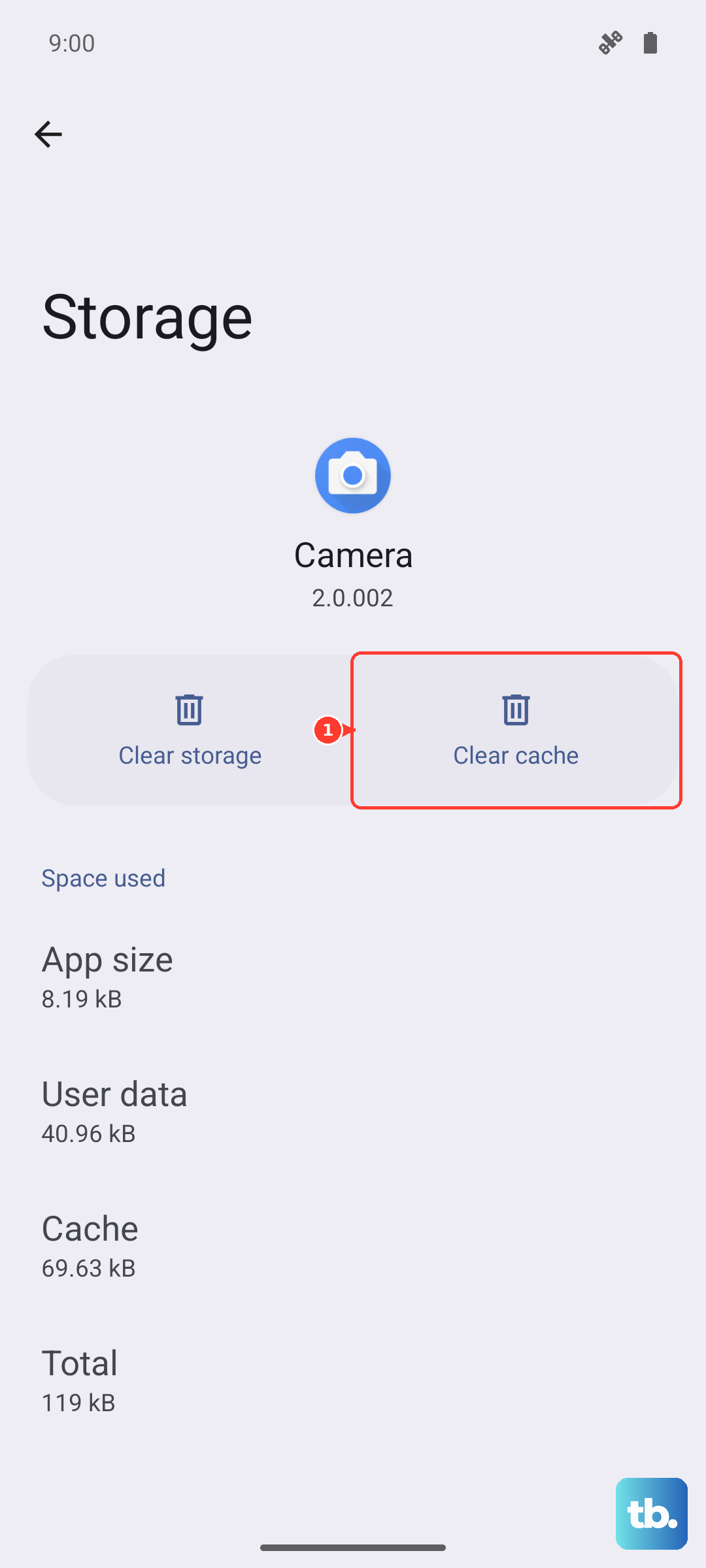
Your phone stores temporary data to help Bluetooth run faster, but this cache can become corrupted. Clearing it is a safe and effective fix. Go to Settings > Apps > Manage apps.
Tap the three-dot menu in the top right and select "Show system apps." Scroll down and find "Bluetooth" in the list. Tap on it, then go to Storage usage. Here, tap the "Clear cache" button. This doesn't delete any of your paired devices, it just cleans out the temporary files. Restart your phone and test Bluetooth again.
Reset Your Network Settings
This is a more comprehensive step that resets all wireless communications on your phone, including Wi-Fi and mobile networks, back to factory defaults. It's very effective for stubborn Bluetooth issues. Head to Settings > System management.
Tap on "Backup and reset," then select "Reset network settings." You'll need to enter your lock screen PIN or pattern to confirm. After the reset, your phone will reboot. You'll have to re-enter Wi-Fi passwords and re-pair all Bluetooth devices, but it often solves deep-seated connection problems.
Check for a Software Update
Vivo releases updates for Funtouch OS that frequently include bug fixes for connectivity. An outdated system could be the root of your Bluetooth troubles. Go to Settings > System update.
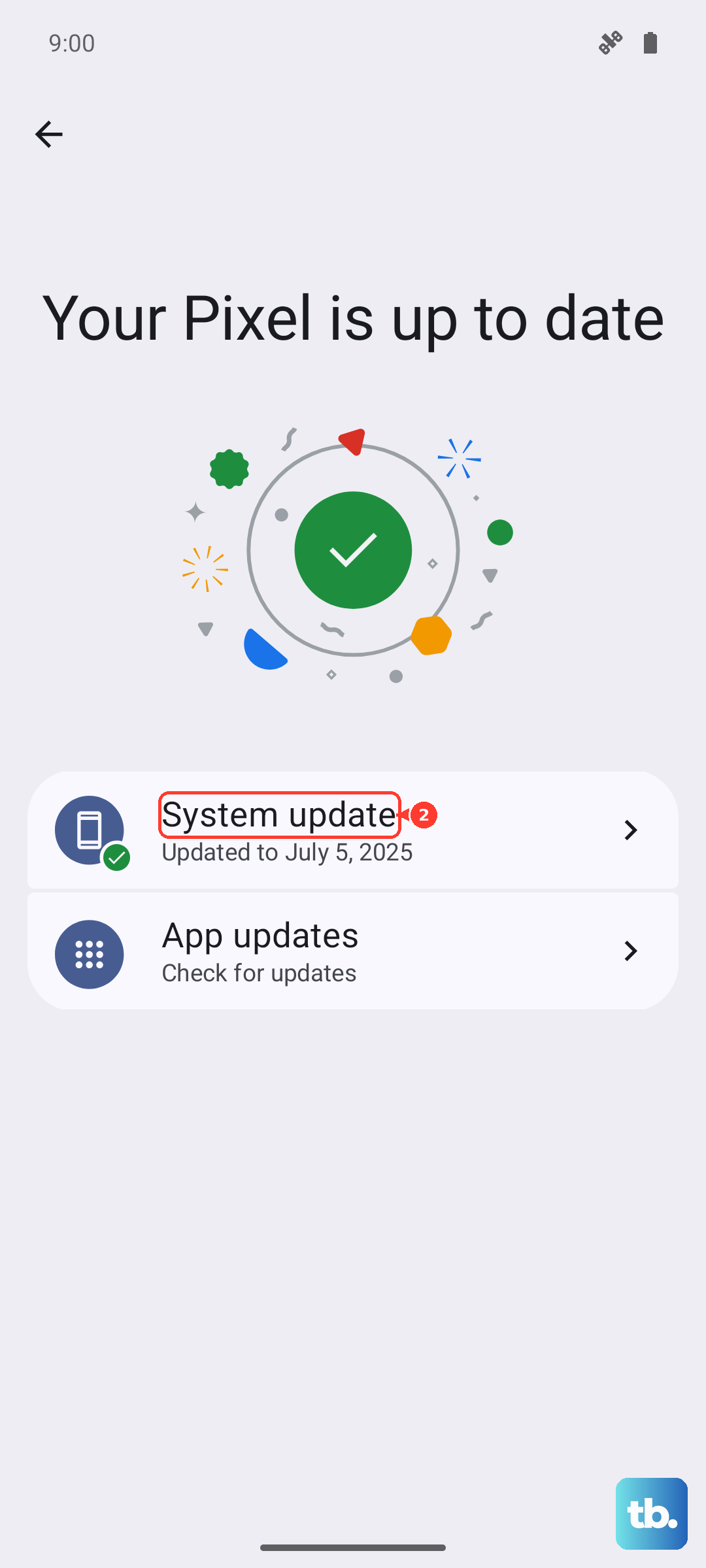
Tap "Check for updates." If an update is available, download and install it. Make sure your phone is connected to Wi-Fi and has plenty of battery, or better yet, plug in the included 90W charger. Also, check if the Bluetooth device itself has a companion app that might offer a firmware update.
Boot Into Safe Mode to Check for App Conflicts
A third-party app you installed could be interfering with Bluetooth. Safe Mode temporarily disables all downloaded apps so you can test. Press and hold the power button until the power menu shows up.
On the "Power off" option, tap and hold your finger on the screen. A prompt will appear asking if you want to reboot into Safe Mode. Tap "OK." Your phone will restart, and you'll see "Safe Mode" in the bottom corner. Try using Bluetooth now. If it works perfectly, a recently installed app is the culprit. Restart normally and uninstall apps one by one to find the offender.
Address Specific Connection Scenarios
For car Bluetooth problems, the process is similar but sometimes needs extra steps. Delete your Vivo X200 Pro from your car's infotainment system memory, and delete the car from your phone's Bluetooth list. With some cars, you may need to turn the car's ignition fully off and on again to reset its system before trying to pair anew.
If Bluetooth simply won't turn on at all on your phone, the combination of clearing the Bluetooth cache and then performing a forced restart often works. Press and hold the power button for about 12 seconds until the phone screen goes black and the Vivo logo reappears. This forces a deeper reboot than the standard restart.