
Is your Vivo X200 Pro stuck in one orientation and refusing to flip when you turn it sideways? It's a common hiccup where the auto-rotate feature just stops responding. The cause can be anything from a quick settings toggle to a deeper software glitch.
Here are the most effective ways to get your screen rotating again on Funtouch OS 15.
Toggle the Auto-Rotate Quick Setting
The absolute first thing to check is the auto-rotate toggle in your notification panel. It's incredibly easy to tap it by accident, locking your screen in place. When disabled, you'll usually see a small portrait or landscape icon with a lock symbol on it.
To fix this, swipe down from the top of your screen to open the Quick Settings panel. Look for the icon labeled "Auto-rotate" or one that shows a phone with arrows circling it. Tap it once to enable it, the icon should highlight or change color to indicate it's on.
If you don't see it in the first row, swipe left on the quick settings to see more icons, or tap the pencil/edit icon to add the Auto-rotate toggle to your main panel.
Enable Rotation for the Home Screen
By default, the Vivo X200 Pro's home screen often doesn't rotate, even with auto-rotate enabled. This is a design choice to keep your icons and widgets stable. If you want your entire home screen to go into landscape mode, you need to dig into the settings.
Open the Settings app and go to Display & Brightness. Look for an option called "Home screen rotation," "Rotate home screen," or something similar within the display settings. Toggle this setting on. Now, when you turn your phone sideways, your app icons and widgets should reorient themselves.
Force Restart Your X200 Pro
If the toggle is on but nothing's happening, a simple force restart can clear out any temporary software bugs that are freezing the sensor. This won't delete any of your data.
Press and hold the Power button for about 12 seconds. Keep holding it even after you see the Vivo or Funtouch OS logo appear. Release the button only after the phone completely restarts and you see the lock screen. This is the standard force restart method for the Vivo X200 Pro.
Check for App-Specific Rotation Locks
Some apps, especially video players or games, have their own internal rotation settings that override the system. If rotation works in your browser but not in Netflix, for example, the app itself is likely the culprit.
Open the problematic app and look in its own settings menu for a "screen rotation," "lock orientation," or "portrait mode" option. Also, if you only started having issues after installing a new app, that app might be interfering. Try uninstalling recent apps one at a time to see if the problem goes away.
Update Funtouch OS
Software bugs in the system can sometimes knock out sensor functions like auto-rotate. Vivo releases updates to fix these kinds of issues. While their update commitment can be less frequent than some brands, it's always worth checking.
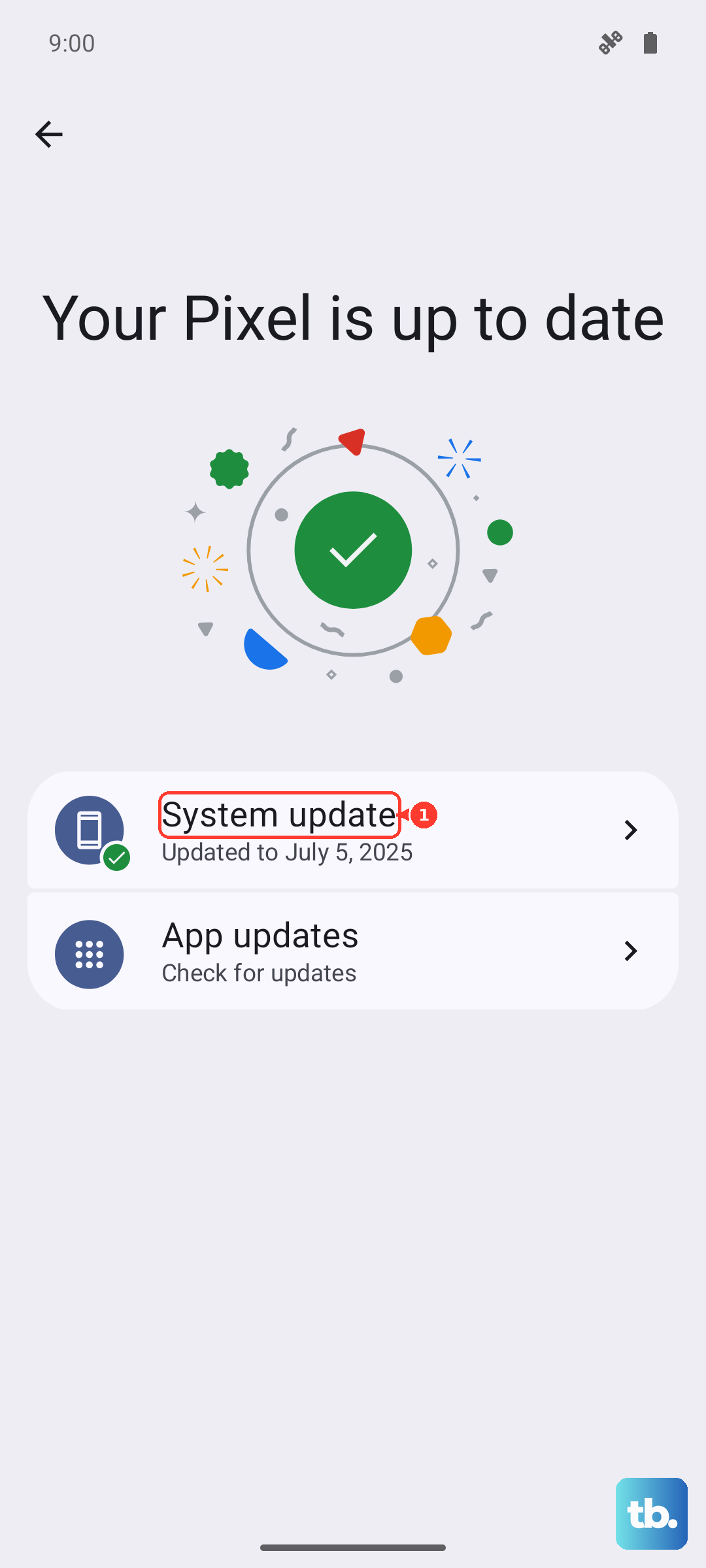
Go to Settings > System update. Tap "Check for updates." If an update is available, download and install it. Your phone will restart during the process. I've seen minor point updates resolve sensor quirks on plenty of Android phones.
Test the Sensors with a Diagnostic App
Auto-rotate relies on the accelerometer and gyroscope hardware inside your phone. You can check if these are functioning using a free sensor diagnostic app from the Play Store, as Vivo doesn't always include a built-in secret test menu like some brands.
Download an app like "Sensor Test" or "Phone Tester." Open it and navigate to the sensor section. You should see live data for the accelerometer and gyroscope. Tilt and rotate your phone; if the numbers on the screen change responsively, your hardware is likely fine and the issue is software-based.
Check for Power-Saving Interference
Aggressive battery saving modes can sometimes limit background processes, which might include sensor polling. The X200 Pro's massive 6000mAh battery means you probably don't need ultra-strict power saving, but it's worth a look.
Go to Settings > Battery. Check if you have a power saving mode enabled, like "Power Saving Mode" or "Ultra Power Saving." Try disabling it temporarily to see if auto-rotate starts working again. Also, look for any "background power management" settings that might be restricting system services.
Consider a Software Glitch or Reset
If you've tried everything and the sensors test fine in a diagnostic app, you might be dealing with a deeper software corruption. Before considering a hardware issue, you could try clearing the cache for system services.
Boot into Recovery Mode by turning off the phone, then pressing and holding the Power and Volume Up buttons together until the recovery menu appears. Use the volume keys to navigate to "Wipe cache partition" and select it with the power button. This clears temporary system files without touching your personal data. After it completes, select "Reboot system now."
As a very last resort, a factory reset will eliminate any software cause. Make absolutely sure to back up all your important data first. You can initiate this from Settings > System management > Backup and reset > Erase all data (factory reset).