You plug in a flash drive, an external hard drive, or a USB-C accessory, and Windows greets you with the dreaded "USB device not recognized" message or simply does nothing at all. The good news is that this problem is almost always fixable, and most of the fixes take only a minute or two. Work through the steps below in order; they are arranged from the quickest, safest checks to the more involved driver and power adjustments, so you can stop as soon as your device springs back to life. Everything here applies to both Windows 10 and Windows 11.
Start With the Cable, the Port, and the Hub
Before touching any settings, rule out a physical fault. Make sure the device cable is firmly seated at both ends.
Then try a known-good cable to confirm the original is not damaged.
Plug the device directly into a different USB port on the PC rather than into a non-powered USB hub, because a non-powered hub may not supply enough power for an external drive, which is a common reason a disk appears dead.
If you are connecting a USB-C device, the cable matters even more. Use the cable that came with the device, or a certified USB4 or USB-C cable that supports the same features as the device.
A cable that physically fits but does not carry the right data or power features can leave a perfectly good device looking unrecognized.
Fixing a USB-C Device With Limited or No Functionality
USB-C devices can behave oddly when the port or cable does not match what the hardware expects. If a USB-C device has limited or no functionality, plug it into a different USB port on the PC.
Make sure the cable supports the same USB-C features as the connected device.
Sticking to the manufacturer's cable or a certified USB4 or USB-C cable removes the most common variable.
If the device still is not recognized after swapping ports and cables, open Device Manager.
Find the device showing a yellow exclamation mark, right-click it, and select Properties.
The error code shown there tells you exactly which targeted fix to apply, and you will use those codes in the steps further down.
Reseat the Device by Uninstalling It in Device Manager
Sometimes the driver simply loaded in a confused state, and forcing Windows to reload it clears the fault. This is a clean, non-destructive reset of the device's software connection.
Right-click the Start menu and select Device Manager.
Expand the relevant category. For an external drive, expand Disk drives.
Right-click the problem USB device and select Uninstall device.
Once it is uninstalled, unplug the USB cable and wait a few seconds.
Reconnect the cable, and the driver should load automatically.
Re-check the drive in File Explorer to confirm it now appears.
Let Windows Diagnose It Through the Get Help App
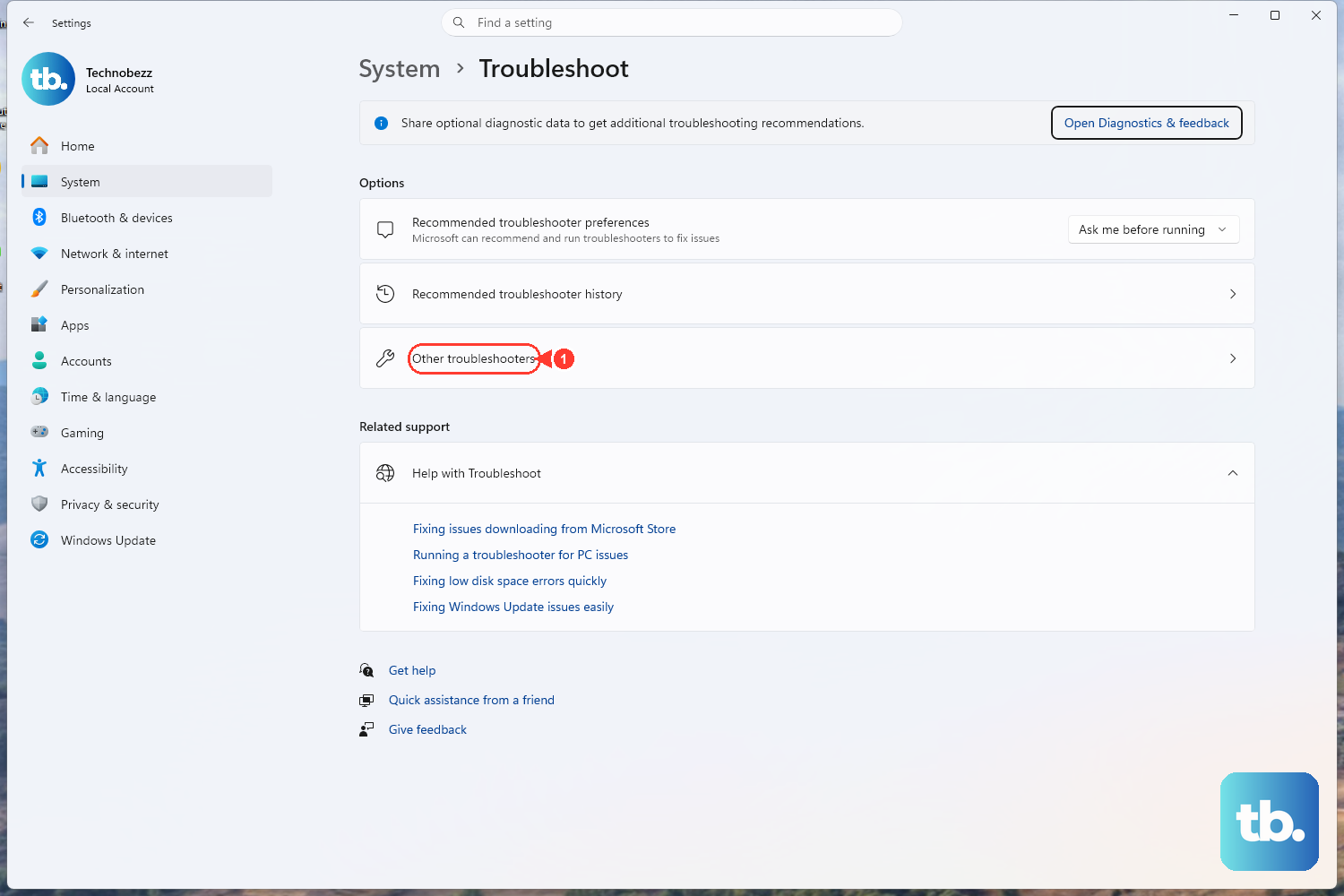
Microsoft's automated Windows troubleshooters now run inside the Get Help app. Open Start, type Get Help, open the app, and search for the troubleshooter that matches your scenario.
One honest caveat: Microsoft does not document a dedicated generic USB-device or hardware troubleshooter. If your USB device is unrecognized specifically, the most reliable path is the Device Manager error-codes route described next rather than hunting for a named USB troubleshooter that does not exist.
Update the Device Driver Through Device Manager
An outdated or corrupt driver is one of the most frequent causes of an unrecognized device. Updating it directly from Device Manager is quick and reversible.
Right-click the Start menu and select Device Manager.
Select the arrow next to the device category to expand it.
Right-click the device and select Update driver.
Select Search automatically for updated driver software.
If you already downloaded a driver from the device manufacturer, choose Browse my computer for drivers instead and point Windows to the file. These steps are identical on Windows 10 and Windows 11.
Read the Error Code and Apply the Matching Fix
When a device is in trouble, Device Manager marks it with a yellow exclamation mark.
Right-click that device and select Properties to read the error code.
Then follow the matching action below.
For Code 28 (the drivers for this device are not installed) and Code 43 (Windows has stopped this device because it has reported problems), reinstall the driver. Right-click the device and select Uninstall device.
On the Action menu select Scan for hardware changes to bring the driver back.
For Code 10 (this device cannot start), update the driver instead. Open the device's Properties.
Go to the Driver tab, select Update Driver, and follow the wizard.
Reinstall the USB Controllers
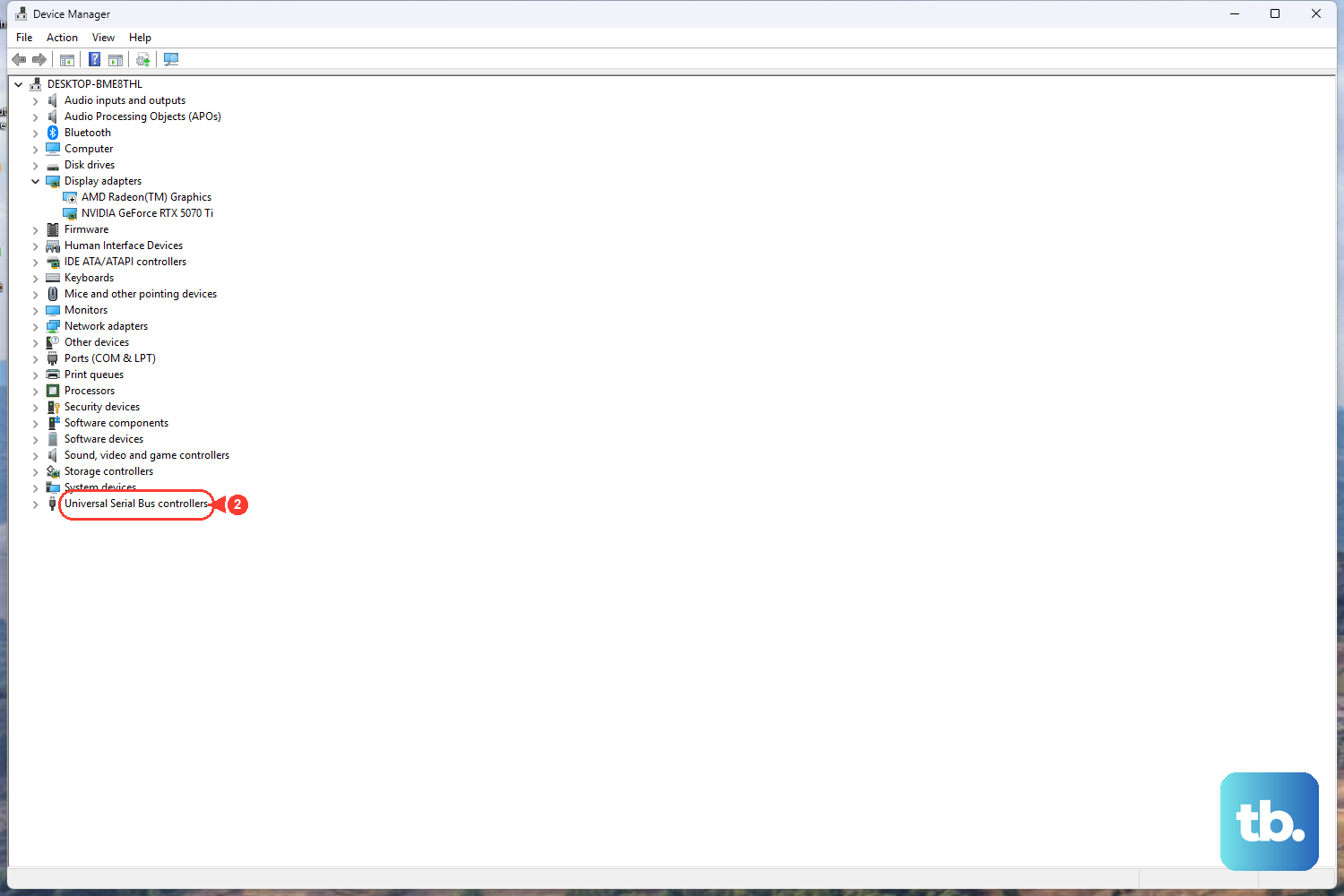
If individual device fixes have not worked, the problem may sit one level up in the USB controllers themselves. Reinstalling them lets Windows rebuild the whole USB stack on the next boot.
Heads up before you start: while the controllers are uninstalled, a wired USB keyboard or mouse may stop responding until the computer restarts and reinstalls them. Save any open work first, and keep a way to restart on hand.
- 1.Open Device Manager.
- 2.Expand Universal Serial Bus controllers.
- 3.Right-click each device under that category and select Uninstall device, repeating for each one.
- 4.Restart the computer.
On startup, Windows reinstalls the USB controllers automatically, often clearing the recognition fault in the process.
Install Windows Updates and Optional Driver Updates
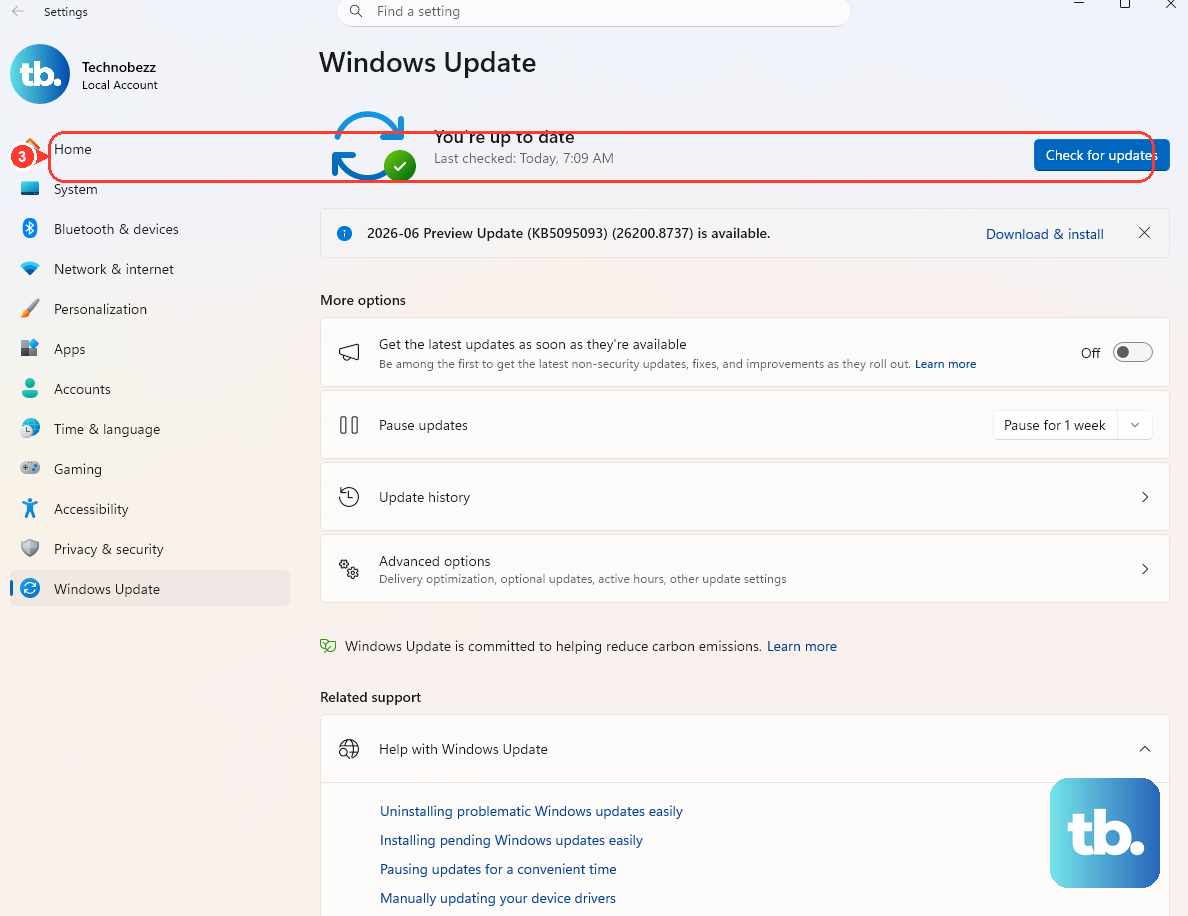
A missing update can leave Windows without the right driver for your hardware. Go to Start > Settings > Windows Update and select Check for updates, then install anything offered.
After that, open Advanced options > Optional updates > Driver updates, select the relevant drivers, choose Download and install, and restart if prompted.
Disabling USB Selective Suspend as a Last Resort
USB selective suspend lets Windows power down idle USB devices to save energy, but in rare cases it can prevent a device from waking correctly. Treat this as a genuine last resort, because Microsoft strongly recommends against disabling it: a device that is not suspended can keep the USB host controller from disabling its transfer schedule, which can stop the system's processors from entering deeper sleep states.
Only use this if every other fix fails, and re-enable it afterward if it does not help.
Select Start, type power plan, and select Choose a power plan.
Next to your selected plan, select Change plan settings, then Change advanced power settings.
Expand USB settings > USB selective suspend setting.
Set Plugged in to Disabled. On a laptop, set On battery to Disabled too.
Select Apply, then OK.
Get Fresh Chipset and USB Drivers From the Manufacturer
If the device is still not recognized after everything above, the most current USB drivers may only be available from your PC or motherboard maker. Find the manufacturer name in your PC documentation.
Visit that manufacturer's official support website, and download the appropriate chipset or USB drivers for your specific model.
When the Unrecognized Device Is an External Monitor
If your "device" is a connected display that Windows is not showing, the fix lives in the display settings rather than the USB stack. Go to Start > Settings > System > Display > Multiple displays and select Detect to force Windows to find the screen.
Then press Windows logo key + P and confirm a mode that shows the second screen is selected: PC screen only, Duplicate, Extend, or Second screen only.
Microsoft's external-monitor guidance also advises checking that the cable is firmly connected.
Try a different cable, and try a different video output port such as HDMI, VGA, DVI, or DisplayPort.
You can also reset the graphics driver on the spot with Windows logo key + Ctrl + Shift + B.
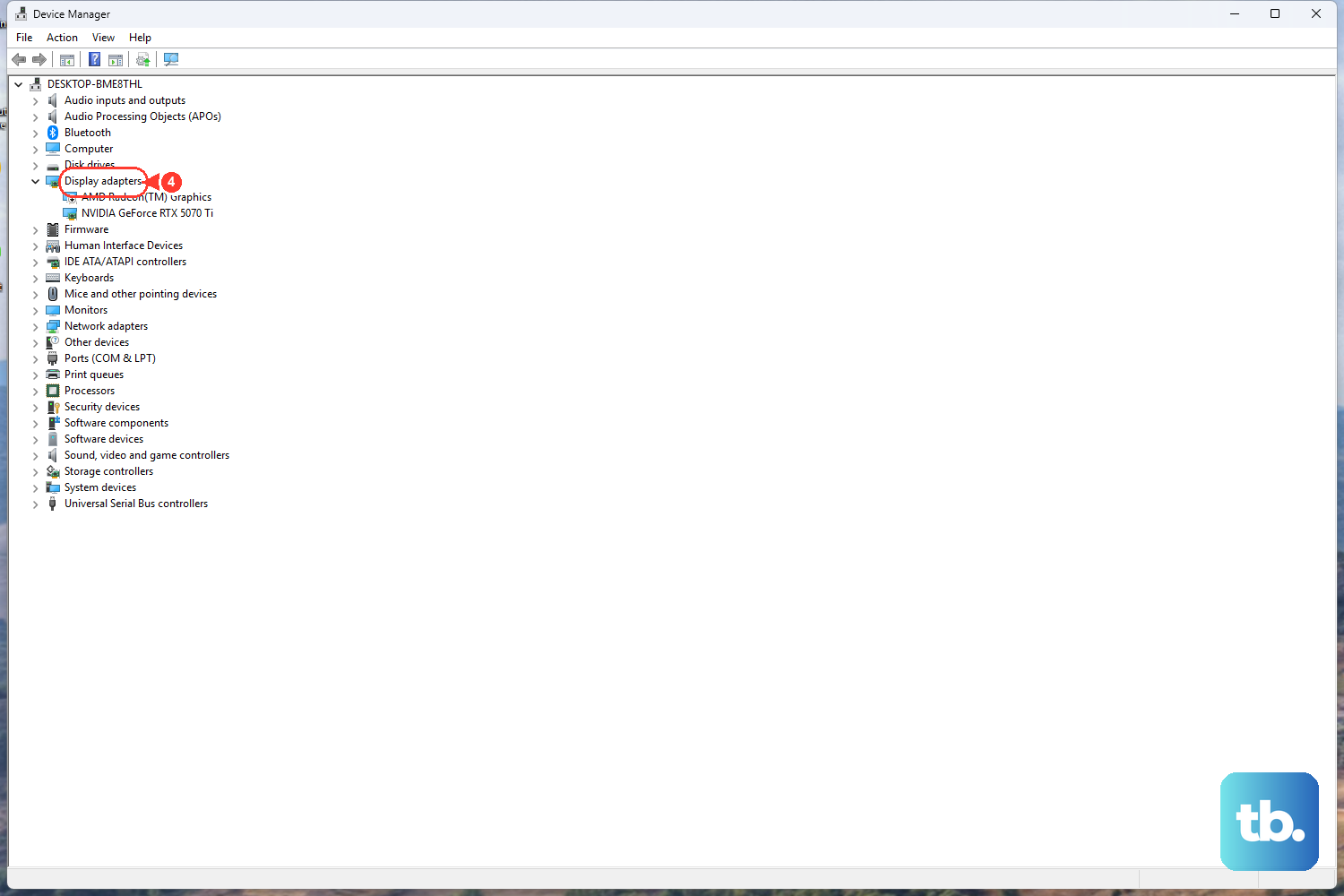
If display trouble started right after a driver change, handle the graphics driver in Device Manager under Display adapters.
To update, right-click the adapter, select Update driver, then Search automatically for updated driver software, and restart afterward.
To undo a bad update, right-click the adapter, select Properties, open the Driver tab, and select Roll Back Driver.
Frequently Asked Questions
Why does Windows say "USB device not recognized" when the device works on another computer?
This usually points to a software issue on your PC rather than a broken device. Start by reinstalling the device in Device Manager (Uninstall device, then unplug, wait a few seconds, and reconnect), update the driver through Device Manager, and install the latest Windows updates including optional driver updates. If it still fails, get fresh chipset or USB drivers from your PC or motherboard manufacturer.
What do the Device Manager error codes 10, 28, and 43 mean?
Code 10 means the device cannot start, and the fix is to update the driver from the device's Properties on the Driver tab. Code 28 means the drivers for the device are not installed, and Code 43 means Windows has stopped the device because it reported problems. For both Code 28 and Code 43, right-click the device, select Uninstall device, then choose Scan for hardware changes on the Action menu to reinstall the driver.
Should I disable USB selective suspend to fix my device?
Only as a last resort. Microsoft strongly recommends against disabling it, because a device that is not suspended can keep the USB host controller from disabling its transfer schedule and stop the system from entering deeper sleep states. Try every other fix first, and if disabling it does not solve the problem, re-enable it.
My external hard drive is not showing up. What should I check first?
Plug the drive directly into a USB port on the PC instead of a non-powered hub, since a non-powered hub may not supply enough power for an external drive. Then try a known-good cable and a different port. If it still does not appear, expand Disk drives in Device Manager, uninstall the drive, unplug it, wait a few seconds, and reconnect so the driver reloads.
The Get Help app does not have a USB troubleshooter. Is that normal?
Yes. Microsoft does not document a dedicated generic USB-device or hardware troubleshooter. For an unrecognized USB device, the recommended path is to open Device Manager, right-click the device with the yellow exclamation mark, select Properties to read the error code, and apply the matching fix for that code.











