
When the volume buttons on your Tecno Spark 30 Pro stop responding, it can feel like you've lost a key part of your phone. You press the rocker, but nothing happens, no volume change, no haptic feedback, just silence. The good news is that most of the time, this is a software hiccup or a simple physical blockage that you can fix yourself without a trip to a repair shop.
I'd start with the quick fixes at the top of this list. They solve the majority of issues and only take a minute to try.
Remove Your Phone Case
This is the easiest place to start. Take off any case or cover you have on your Spark 30 Pro. Sometimes, especially with thicker or ill-fitting cases, the plastic can press against the volume rocker and prevent it from clicking properly. Check if the buttons work freely without the case on.
Perform a Force Restart
A force restart is the go-to fix for many random glitches on Android phones, including unresponsive buttons. It clears the phone's temporary memory without touching your personal data. For the Tecno Spark 30 Pro, press and hold the Power button and the Volume Down button together for about 10 to 15 seconds.
Keep holding until you see the Tecno or Android logo appear on the screen, then release. The phone will boot up normally. Test the volume buttons as soon as the home screen loads.
Clean the Volume Buttons
Dust, lint, and pocket debris are common culprits. The Spark 30 Pro's button design can trap these particles over time, preventing the internal switch from being pressed. Gently run a dry toothbrush or a soft-bristled brush along the seam of the volume rocker.
You can also use a can of compressed air to blow out any loose dirt. For sticky residue, dampen a cotton swab with a tiny amount of isopropyl alcohol (90% or higher), wipe around the button, and let it dry completely before testing.
Check for Software Glitches in Apps
Sometimes the problem isn't with the phone, but with a specific app. Open different applications like YouTube, your music player, or a game and try the volume buttons in each one. If they work in some apps but not others, you've found the source.
In that case, try force-stopping the problematic app. Go to Settings > Apps, select the app, and tap Force Stop. Then clear its cache from the same menu under Storage. Restart the app and see if the volume controls return.
Test in Safe Mode
Booting into Safe Mode temporarily disables all third-party apps you've downloaded. If your volume buttons work perfectly in Safe Mode, it means a recently installed app is causing the conflict. To enter Safe Mode on the Spark 30 Pro, press and hold the power button until the power menu appears.
Then, tap and hold the Power off option on your screen. A prompt will ask if you want to reboot to Safe Mode; tap OK. Your phone will restart with "Safe Mode" visible in the bottom corner. Test the buttons here, then restart normally to exit.
Update Your Phone's Software
Running outdated software can lead to bugs that affect hardware controls. Tecno occasionally releases updates for HiOS that include stability fixes. Make sure your phone is connected to Wi-Fi and has at least 50% battery, then go to Settings > System > System update.
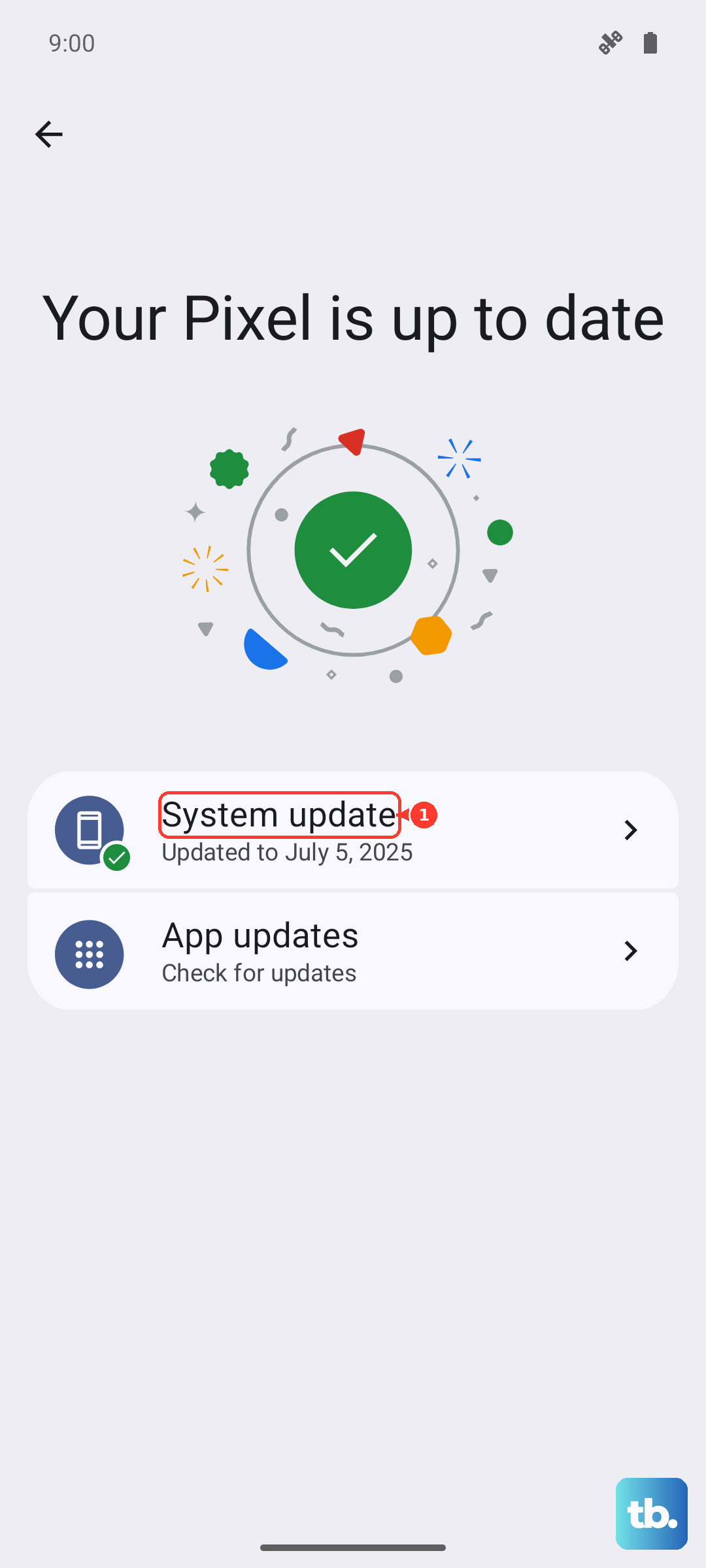
Tap Check for updates. If an update is available, download and install it. The phone will restart during this process. After the update is complete, check if the volume button functionality has been restored.
Check Accessibility Settings
Certain accessibility features can remap or disable hardware buttons. It's worth a quick look to make sure nothing is turned on by accident. Navigate to Settings > Additional settings > Accessibility.
Look through the menu for any options related to button shortcuts or volume key controls. If you see anything enabled that you don't use, toggle it off. The exact names of these settings can vary slightly in HiOS.
Enable On-Screen Volume Controls
While you're troubleshooting the physical buttons, you can use your phone's touchscreen to adjust volume. Swipe down from the top of your screen twice to open the full Quick Settings panel. You should see a volume slider there that you can drag.
You can also usually adjust media volume directly from within apps like Spotify or YouTube by tapping the screen to bring up the player controls. This is a good workaround while you figure out the main issue.
Consider a Factory Reset
If you've tried everything else and the buttons are still dead, a software corruption might be the cause. A factory reset will wipe your phone back to its original out-of-the-box state. This is a last resort because it will erase all your data, including apps, photos, and accounts.
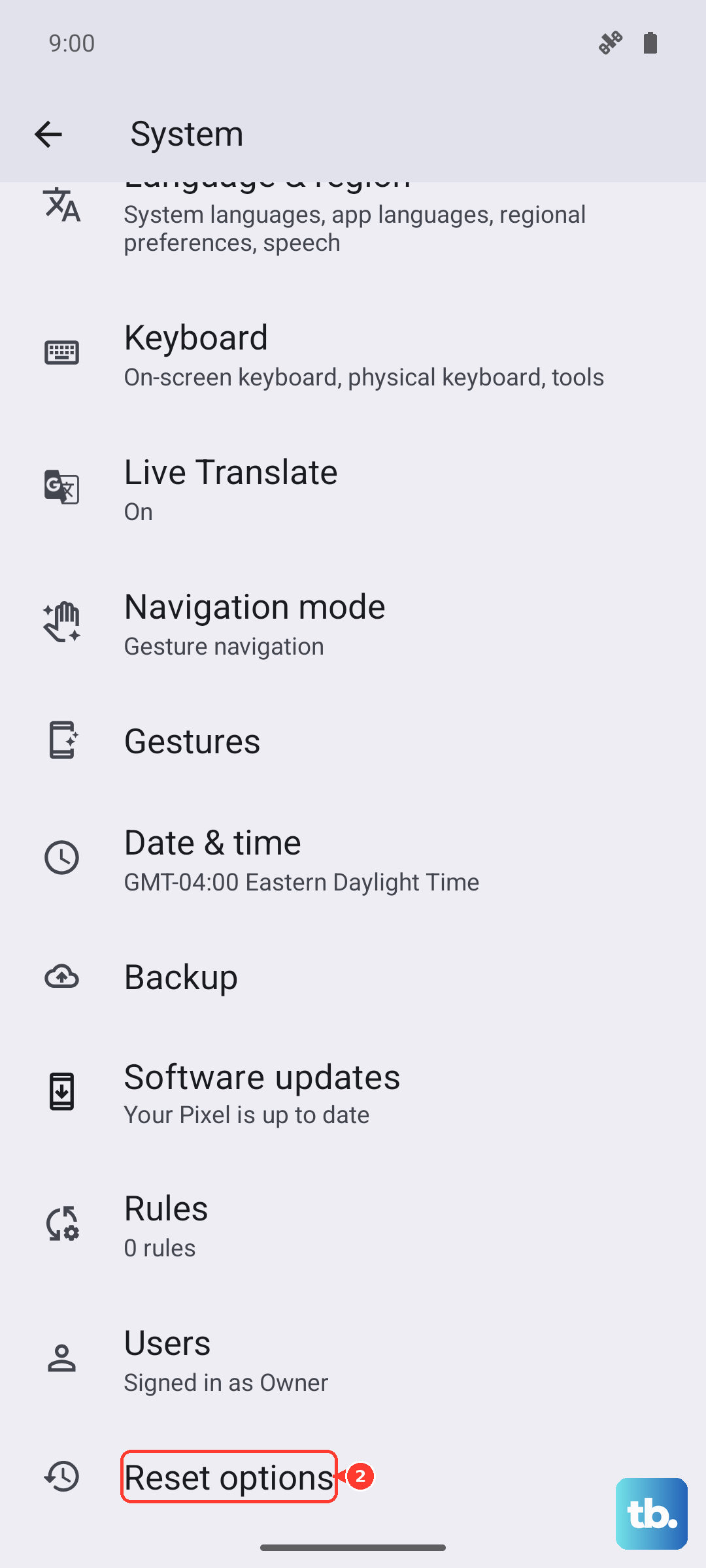
You must back up everything important first. You can use Google's backup service in Settings > System > Backup. Once backed up, go to Settings > System > Reset options > Erase all data (factory reset). Follow the prompts to complete the reset. After the phone reboots, set it up as new and immediately test the volume buttons before restoring your data.
Look for Physical Damage
If the buttons feel mushy, loose, or stuck in one position, the issue is likely physical. The Spark 30 Pro's Mediatek Helio G100 chipset is a budget processor, and the overall build, while decent, may not withstand significant drops or impacts as well as flagship phones.
Inspect the area around the volume rocker for any cracks in the plastic frame or signs of a previous drop. Water damage can also corrode the internal contacts, though this phone doesn't have an official water resistance rating. In cases of clear physical or liquid damage, the internal flex cable connecting the buttons to the motherboard may need to be replaced by a technician.