
Seeing your Tecno Spark 30 Pro stuck on the HiOS logo when you try to turn it on is a stressful experience. The screen lights up, the logo appears, and then nothing else happens. This boot loop is usually triggered by a software update that got interrupted, a corrupted system file, or an app that's causing a conflict during startup. The good news is you can almost always fix it yourself.
Force Restart Your Phone
This is the first thing you should try. A force restart cuts power to the system and can break a temporary software glitch. Press and hold the Power button and the Volume Down button together for about 10 to 15 seconds. Keep holding until you feel the phone vibrate and see the screen go black before the logo appears again.
If the phone successfully boots past the logo this time, you're good to go. I'd recommend checking for any pending system updates in your settings right away, as an incomplete update is a common culprit.
Charge with the Original 33W Charger
A completely drained battery can sometimes cause a phone to get stuck in a boot loop. Plug your Spark 30 Pro into the wall using the official 33W charger and USB-C cable that came in the box. Let it charge undisturbed for at least 30 minutes before trying to turn it on again.
Don't use a wireless charger, as the Spark 30 Pro doesn't support it. Using a slow or faulty charger might not provide enough power for the boot process to complete, so the included fast charger is your best bet here.
Boot into Safe Mode
If a recently installed third-party app is causing the problem, Safe Mode can help you identify it. To enter Safe Mode, first power off your phone completely. Then, press and hold the Power button until you see the Tecno logo appear on screen.
As soon as the logo shows up, immediately press and hold the Volume Down button. Keep holding it until the phone finishes booting. You should see "Safe Mode" in the bottom corner of the screen. In Safe Mode, you can uninstall any suspicious apps you installed just before the problem started.
Clear the System Cache
Corrupted cache data from apps or the system can interfere with the boot process. You can wipe this cache without deleting your personal data. First, power off your phone. Then, press and hold the Power button and Volume Up button together until the phone vibrates and the recovery menu appears.
Use the volume buttons to navigate to the option called Wipe cache partition and select it with the power button. Confirm your choice, wait for the process to complete, and then select Reboot system now. This takes about 30 seconds and often resolves boot issues.
Perform a Factory Reset from Recovery
Warning: This will erase all data on your phone. Only try this if you have a recent backup or if your data is already synced to the cloud. If Safe Mode didn't work, you'll need to access the recovery menu again by holding Power and Volume Up.
In the recovery menu, navigate to Wipe data/factory reset and select it. You'll likely have to confirm this action twice. After the reset finishes, choose Reboot system now. Your phone will start up as if it were brand new.
Check for a Failed Software Update
The Helio G100 processor in the Spark 30 Pro handles updates, but a poor internet connection or low storage during the process can corrupt the installation. If you get the phone working, immediately check your available storage. You should have at least 5-6 GB free for a system update to run smoothly.
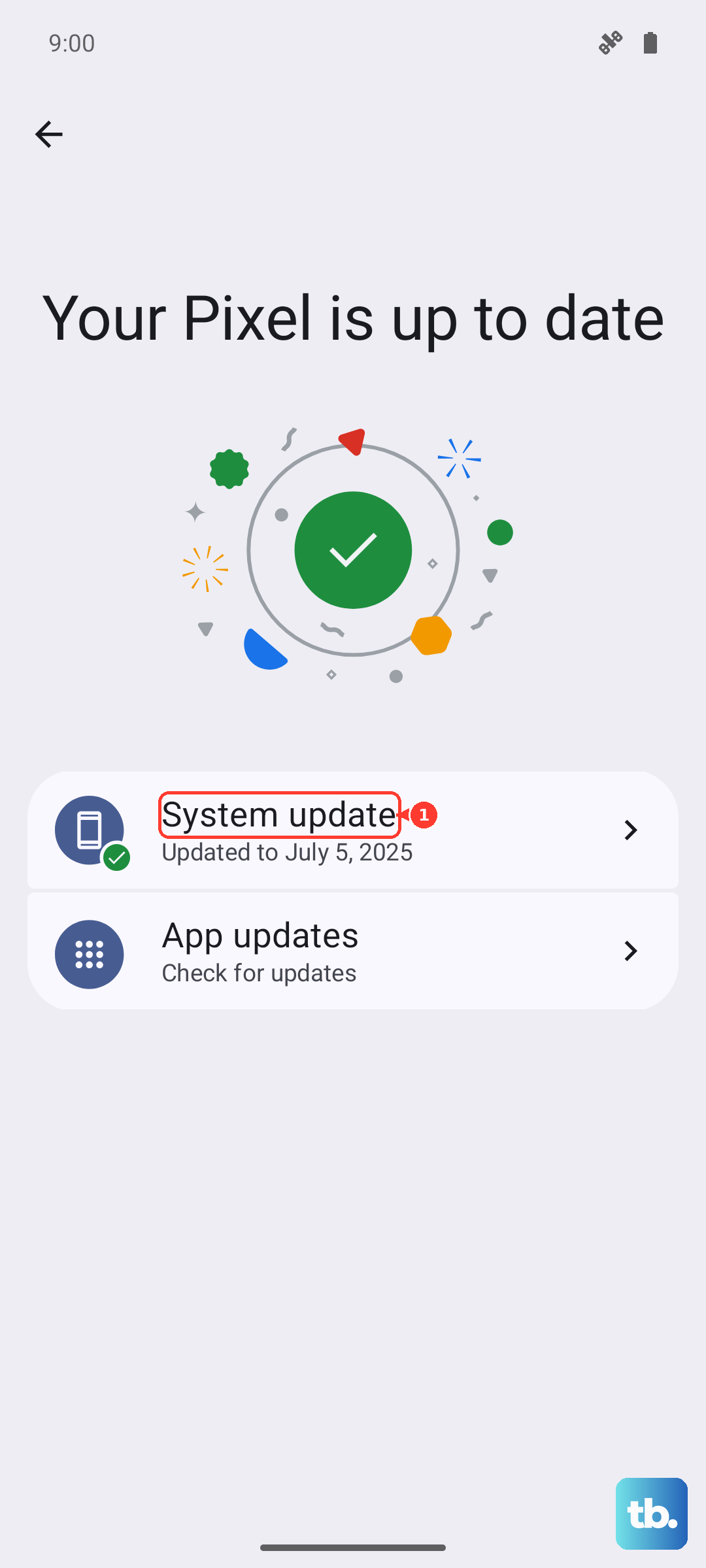
Go to Settings > About phone > Software information to see your current HiOS version. Then, go to Settings > System > System update to check for and manually download any available updates on a stable Wi-Fi connection.
Remove Problematic Apps and Bloatware
HiOS comes with a fair amount of pre-installed apps, and some of them can cause system instability. Once you're back into your phone, review your apps. Uninstall any apps you recently downloaded right before the boot loop started.
You can also disable or uninstall some of the pre-loaded bloatware you don't use. Go to Settings > Apps and look for apps with generic names or from unknown publishers. Freeing up RAM and storage this way can improve overall system stability and prevent future boot problems.
Consider a Hardware Issue
If your phone still won't boot past the logo after trying recovery mode and a factory reset, the problem might be physical. While less common, issues with the internal storage, the power button, or even water damage from the past can prevent a successful boot.
Since the Spark 30 Pro is a 2024 model, it should still be under warranty. Contact Tecno support or the retailer where you purchased the phone for further diagnosis. They can determine if a component needs to be repaired or replaced.