When the speaker on your Tecno Spark 30 Pro goes quiet or sounds distorted, it can really throw you off. Whether you're missing calls, struggling to hear videos, or dealing with crackly audio, the issue is usually something you can fix yourself. I've found that with Android 14 and HiOS 14, the solutions are often straightforward.
To separate hardware from software, open a speaker test and play the channel tones. What you hear, or do not hear, tells you which fixes below matter most.
Let's start with the quickest fix. Press and hold the Power button and the Volume Down button together for about ten seconds. Keep holding until you see the phone restart. This force reboot clears out temporary glitches and solves a lot of random audio problems right away.
Check All Your Volume Levels
It sounds simple, but it's the most common culprit. The Tecno Spark 30 Pro has separate volume sliders for media, calls, notifications, and alarms. You might have turned one down without realizing it.
While you're playing music or a video, press the physical volume up button on the side of the phone. If that doesn't work, dive into the settings. Go to Settings > Sound & vibration and tap on Volume. Make sure every slider is adjusted to a level you can hear.
Also, pull down your notification shade and check that you haven't accidentally tapped the silent or vibrate icon. A little bell with a slash through it means your phone is muted.
Clean the Speaker Grill Carefully
The speaker on the bottom edge of the Spark 30 Pro can easily get clogged with pocket lint or dust. This physically blocks the sound, making it muffled or completely silent.
First, shine a flashlight on the tiny grill. If you see debris, use a soft, dry toothbrush or a clean, dry cotton swab to gently brush it away. You can also try blowing lightly across it. Never use compressed air or poke anything sharp like a pin into the holes, as you'll likely damage the speaker inside.
Disconnect Bluetooth and Accessories
If your phone thinks audio should go somewhere else, it won't use its own speaker. Go to Settings > Bluetooth and turn the toggle off. This ensures sound routes back to your phone.
Also, remove any phone case that might be covering the speaker cutout. Even a well-designed case can sometimes get misaligned and muffle the sound. If you have headphones plugged into the USB-C port or a dongle connected, unplug those too.
Review Do Not Disturb and Sound Modes
HiOS has a few settings that can silence your phone more broadly than you intend. Swipe down twice to open the full Quick Settings panel and look for the "Do Not Disturb" icon. If it's highlighted, tap it to turn it off.
For a deeper check, go to Settings > Sound & vibration. Look for options like "Sound mode" and make sure it's set to "Sound" and not "Silent" or "Vibrate". Also, tap on More sound settings and ensure features like "Mute all sounds" aren't enabled.
Check for Problematic Apps in Safe Mode
A recently downloaded app could be interfering with your audio. Booting into Safe Mode temporarily disables all third-party apps, so you can see if one of them is the troublemaker.
To enter Safe Mode, press and hold the power button until the power menu appears. Then, tap and hold the "Power off" option on your screen. A prompt will ask if you want to reboot to Safe Mode. Tap "OK". If your speaker works perfectly in Safe Mode, you'll know a downloaded app is causing the issue.
To exit, just restart your phone normally. You can then start uninstalling apps you installed around the time the problem began.
Clear the Cache for the Sound-Related App
Sometimes the system app that manages audio can get bogged down with corrupted temporary data. Clearing its cache can give it a fresh start without deleting any of your personal settings.
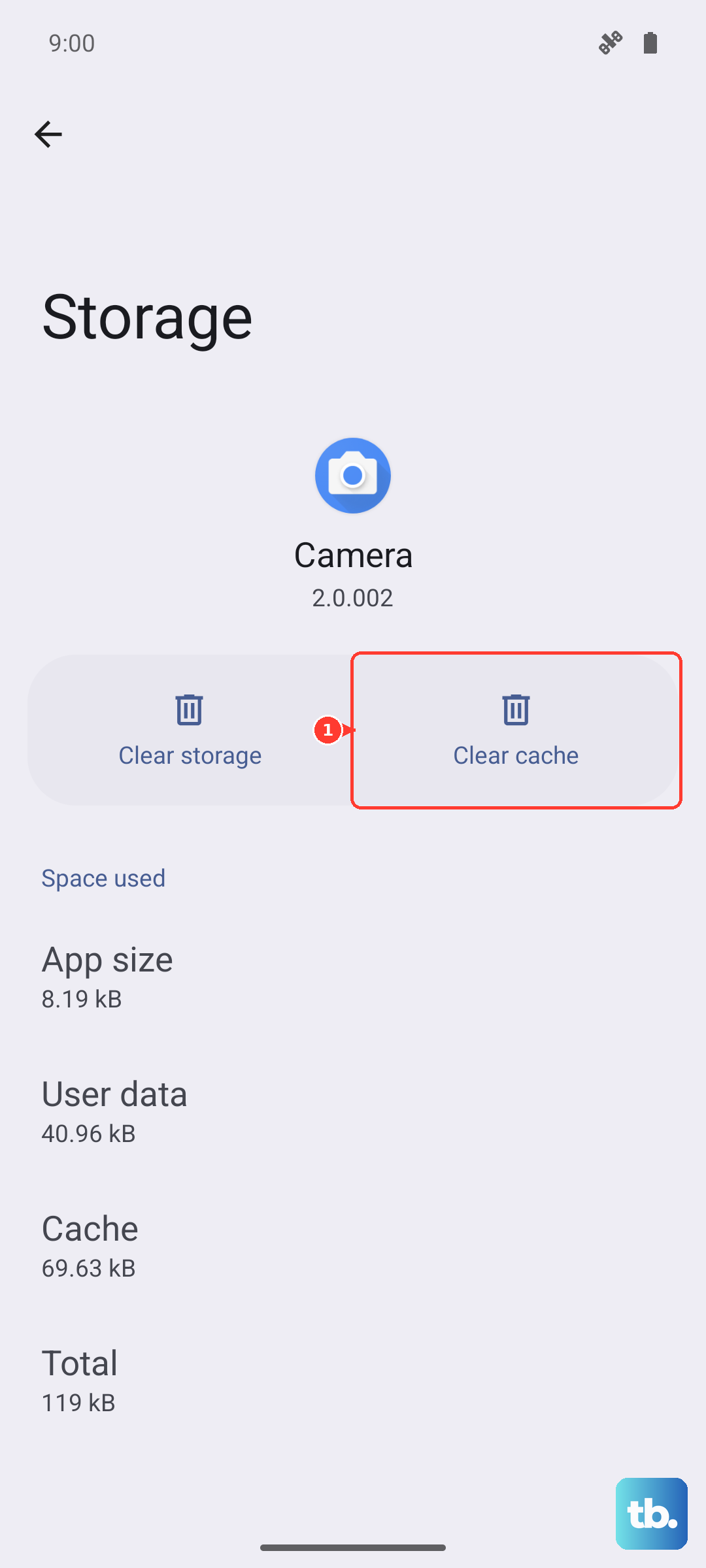
Go to Settings > Apps. Tap the three-dot menu in the top right and select "Show system apps". Scroll down and find the app called "Android System" or something similar like "SoundPicker". Tap on it, then select "Storage & cache". Finally, tap "Clear cache".
Update Your Phone's Software
Tecno releases updates that often include bug fixes for issues just like this. It's a good step, especially if the problem started after you got a new app or an update to HiOS itself.
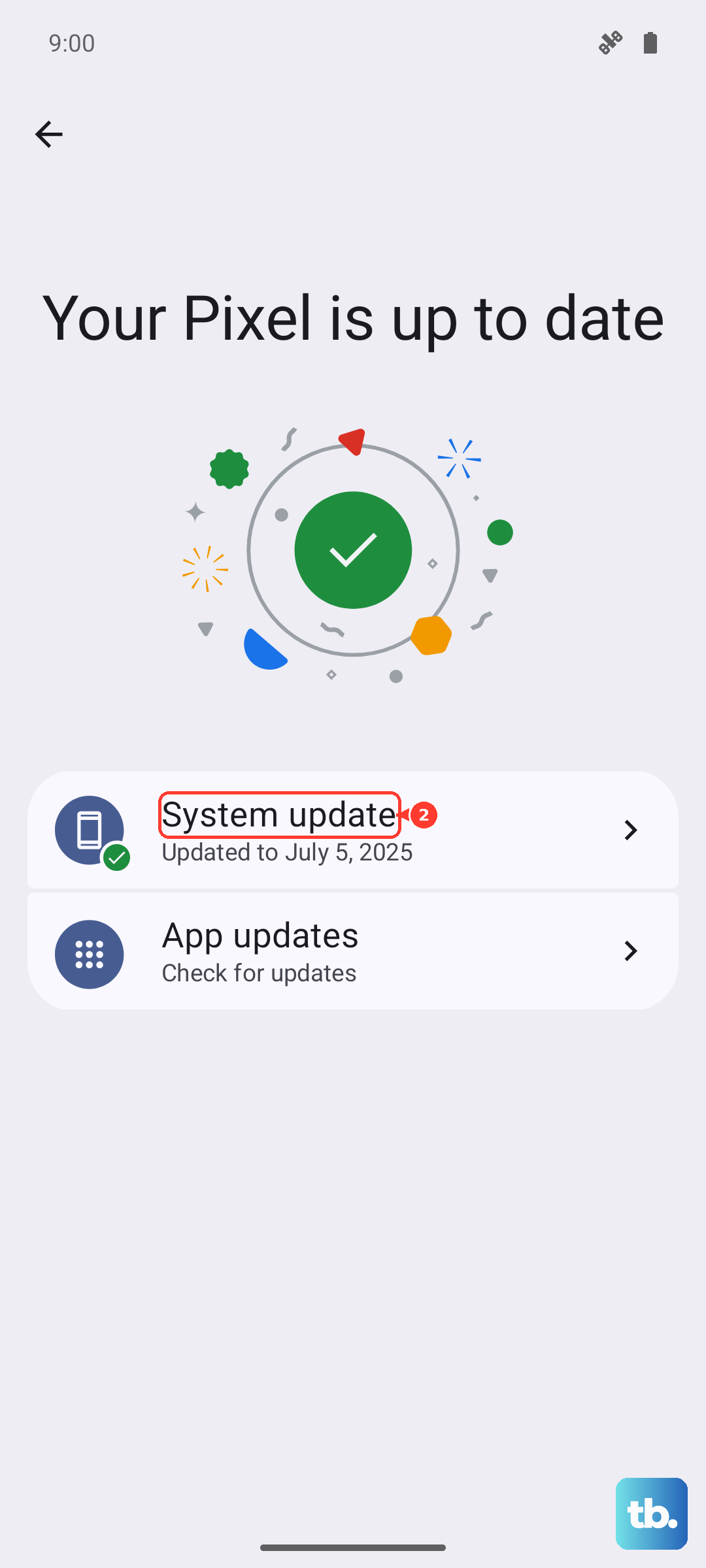
Connect to Wi-Fi and go to Settings > System > System update. Tap "Check for updates". If one is available, download and install it. Use the 33W charger that came in the box to keep your phone powered up during the process.
Reset All Settings as a Final Step
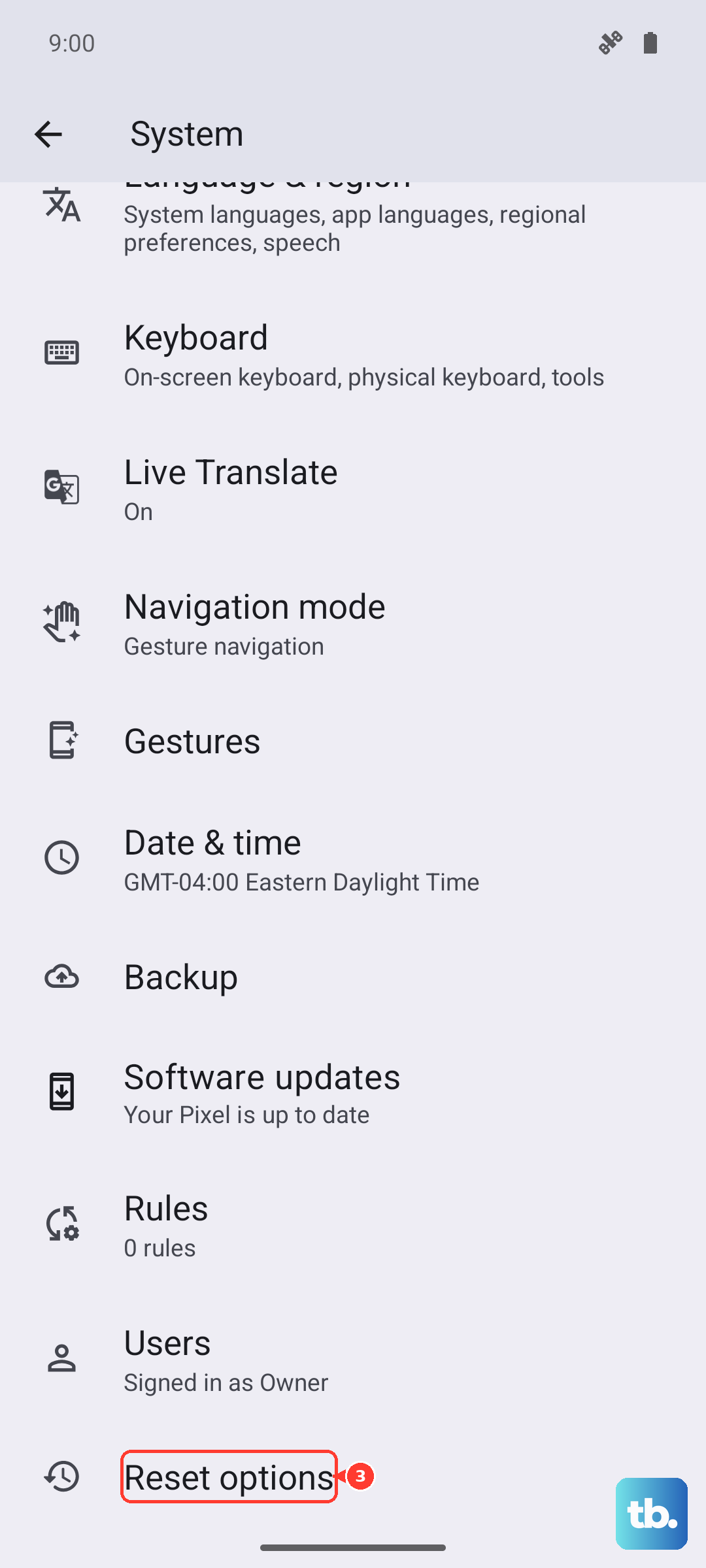
If you're still having issues and you've ruled out hardware problems like a blocked speaker, resetting your settings can help. This will revert all your sound, network, and display settings back to factory defaults, but it won't touch your photos, messages, or apps.
Go to Settings > System > Reset options. Tap on "Reset all settings" and confirm. Your phone will reboot. Afterward, you'll need to reconfigure things like your ringtone and Wi-Fi passwords, but it often clears up persistent software conflicts.