
Slow internet on your Tecno Spark 30 Pro can feel especially limiting when you're trying to stream or browse. The Helio G100 processor is a budget chip, so it doesn't have the same headroom as more expensive phones. A few tweaks to your settings can often make a noticeable difference in how quickly pages load and videos buffer.
I'd start with the simplest fixes first, as they often clear up temporary glitches that bog down your connection.
Restart Your Phone and Toggle Airplane Mode
It sounds basic, but a restart clears out temporary system caches and resets all radio connections. For a force restart on the Spark 30 Pro, press and hold the Power button and Volume Down button together for about 10 seconds until you see the Tecno logo.
If a full restart seems like too much, just turn on Airplane Mode for 30 seconds from the quick settings panel. This completely shuts off the cellular and WiFi radios, and turning it off forces them to reconnect fresh, which can resolve a weak or stuck signal.
Check Your Mobile Network Mode
Your phone might be clinging to a slower network type like 3G. You can manually set it to prefer 4G/LTE for faster data. Go to Settings > Mobile network > Preferred network type.
Select "4G/3G/2G (auto)" or a similar option that prioritizes 4G. This tells your phone to use the fastest available network in your area. If you're in a spot with poor 4G coverage, you can switch it back later.
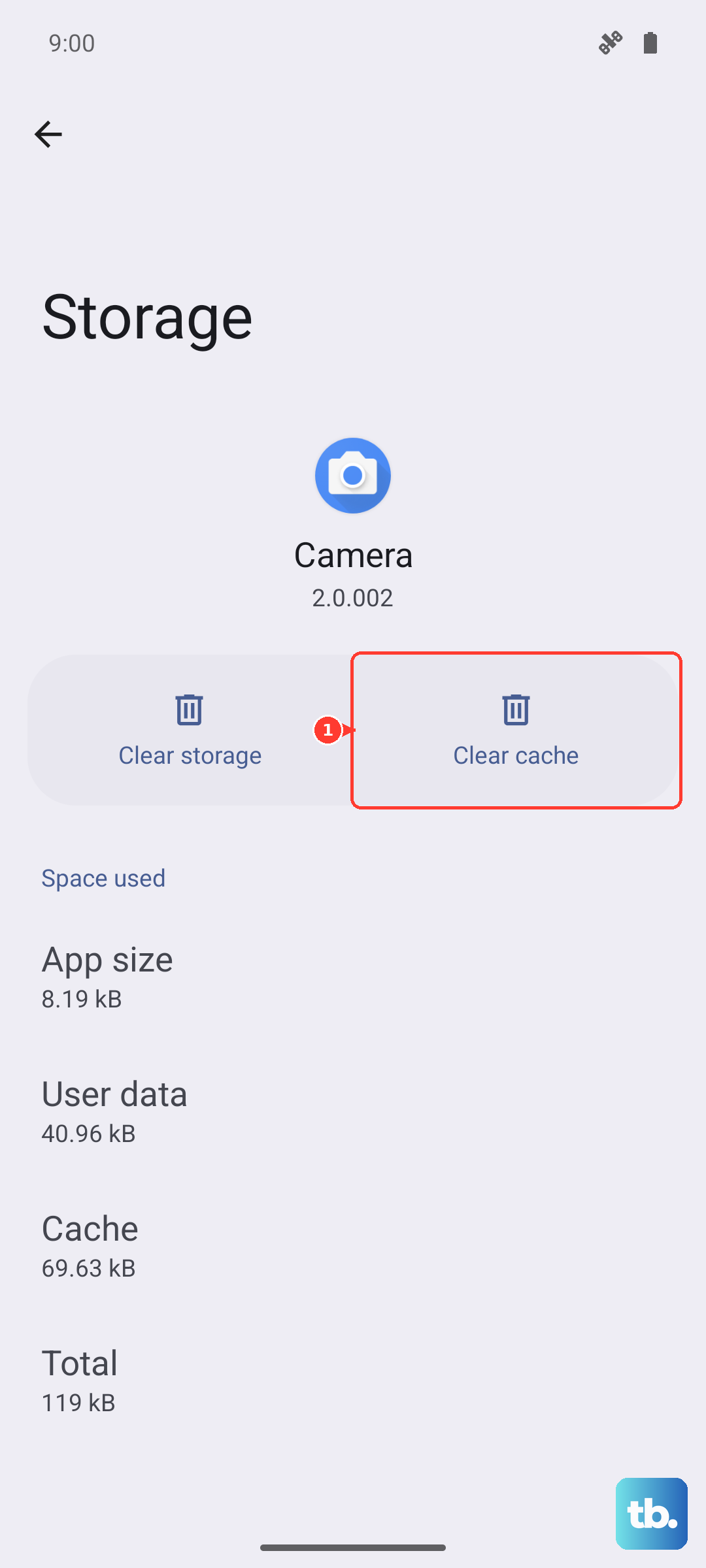
Clear Your Browser's Cache and Data
Over months of use, your browser stores thousands of temporary files. This cache can become corrupted or overloaded, slowing down page loading. Clearing it gives the browser a clean slate.
If you use Chrome, open the app and tap the three dots in the top right. Go to History > Clear browsing data. Select "Cached images and files" and "Cookies and site data," then tap "Clear data." For other browsers, look for a "Clear cache" option in their settings menu.
Enable Data Saver in HiOS
HiOS includes a Data Saver feature that restricts background data for all apps. This not only saves your mobile data allowance but can also improve speed for the app you're actively using by freeing up bandwidth. You can find it in Settings > Mobile network > Data Saver.
Turn it on. You can also tap "Unrestricted data" to allow specific apps, like your messaging service, to bypass the restriction so you still get notifications.
Manage Background Data for Individual Apps
Some apps, especially social media and email clients, constantly sync in the background. This uses data and processing power that could slow down your current task. You can restrict them individually.
Go to Settings > Apps, select a data-hungry app, and tap "Mobile data & Wi-Fi." Here, you can toggle off "Background data." The app will only use data when you have it open on your screen.
Remove or Disable Unnecessary Bloatware
The Spark 30 Pro comes with pre-installed apps you may not use. These can sometimes run background processes. While you often can't fully uninstall them without advanced methods, you can usually disable them.
Go to Settings > Apps, find an app like a pre-loaded game or utility, and tap "Disable." This stops it from running or updating. Freeing up RAM and storage this way can contribute to overall system snappiness, which helps everything run smoother, including internet tasks.
Forget and Reconnect to Your WiFi Network
If your home WiFi is slow, your phone might have a corrupted connection profile. Go to Settings > Wi-Fi and tap the gear icon next to your network name. Select "Forget network."
Then, find the network again in the list, re-enter the password, and reconnect. This establishes a fresh connection and can often resolve speed issues caused by an old, glitchy configuration.
Check for System and App Updates
Software updates frequently include connectivity improvements and bug fixes. Go to Settings > System > System updates to check for a newer version of HiOS or Android security patches.
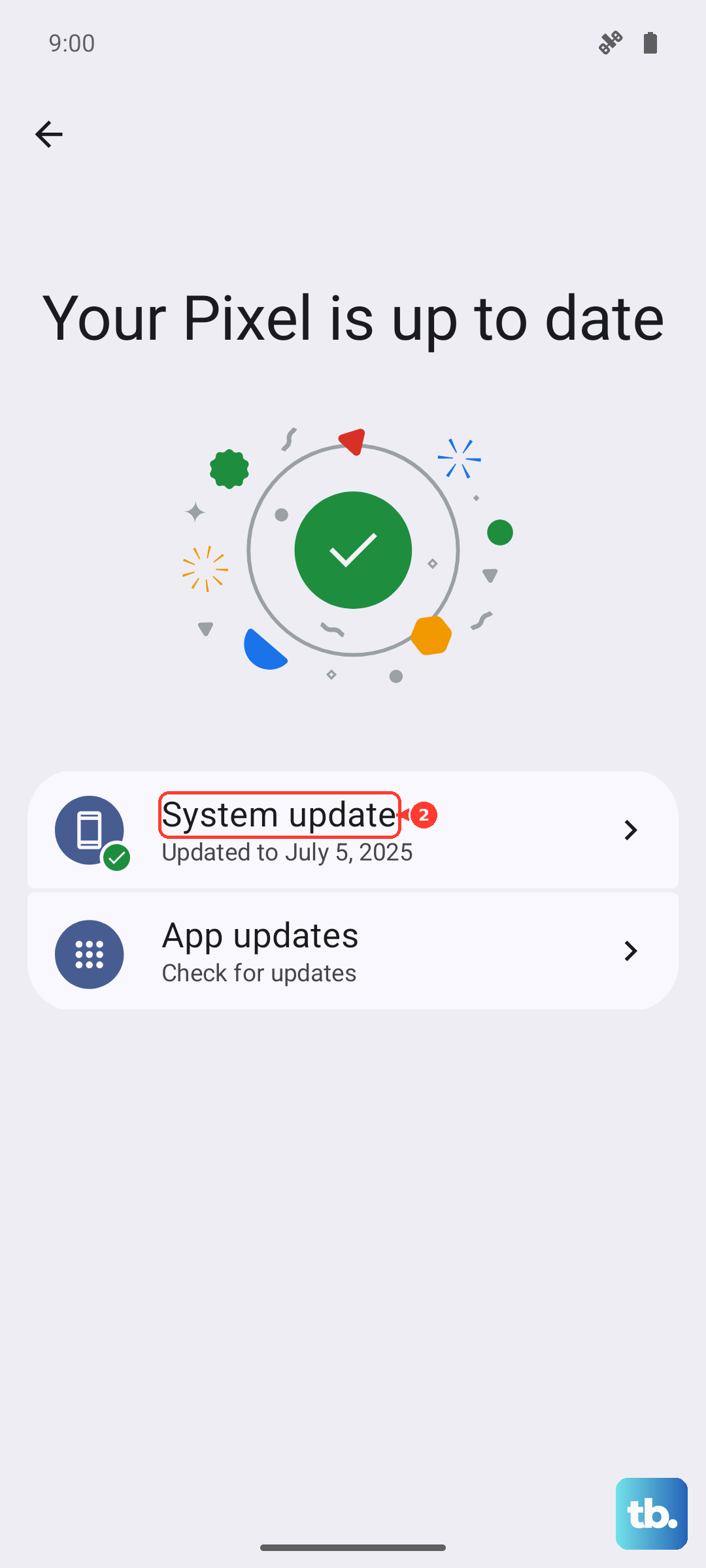
Also, head to the Google Play Store, tap your profile icon, and go to "Manage apps & device." Under "Updates available," install updates for your key apps, especially your browser. Developers often optimize for performance.
Reset Your Network Settings
This is a more thorough step if problems persist. It will erase all saved WiFi passwords, Bluetooth pairings, and mobile network preferences, returning them to factory defaults. Go to Settings > System > Reset options.
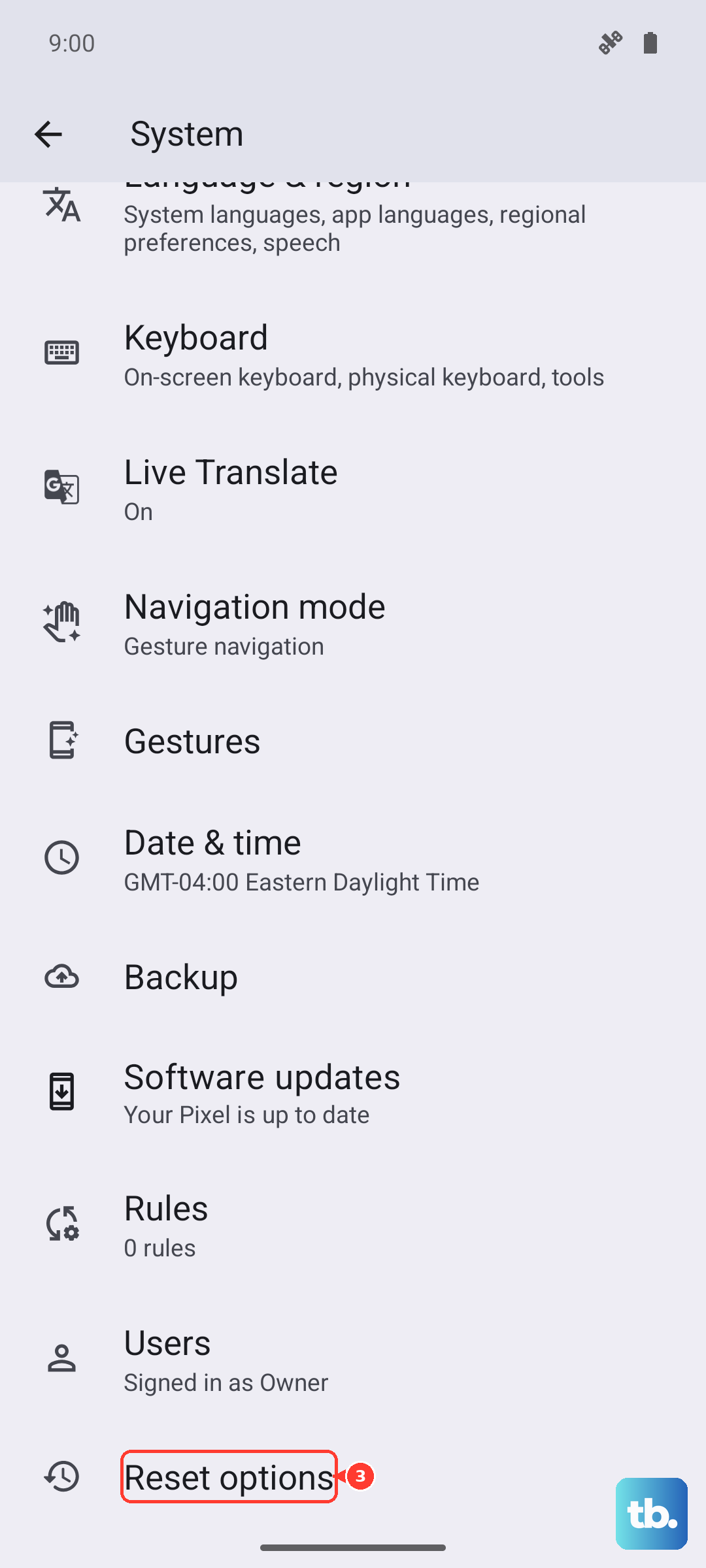
Tap "Reset Wi-Fi, mobile & Bluetooth." Confirm the action. After the phone reboots, you'll need to re-enter your WiFi passwords and re-pair Bluetooth devices, but it can clear deep-seated network configuration errors.
Try a Different DNS Server
Your phone uses a DNS server to translate website addresses into numerical IP addresses. Your carrier's default DNS can sometimes be slow. Switching to a faster public DNS like Google's or Cloudflare's can speed up the initial connection to websites.
For WiFi, go to Settings > Wi-Fi, tap the gear icon next to your network, and select "Advanced." Change IP settings from "DHCP" to "Static" (don't worry, this is just for this change). Scroll down and in the DNS fields, enter `1.1.1.1` and `1.0.0.1` for Cloudflare, or `8.8.8.8` and `8.8.4.4` for Google. Save the settings.