Missing notifications on your Tecno Spark 30 Pro can mean you're missing important messages, alerts, and updates without even knowing it. It's a common headache, but the good news is there are several straightforward things you can check and fix yourself. I'd start with the quick checks at the top of this list.
Check Do Not Disturb and Silent Mode
First, make sure your phone isn't set to silence everything. Swipe down from the top of your screen twice to open the full Quick Settings panel. Look for the "Do Not Disturb" icon (a circle with a line through it) and the "Silent" mode icon. If either is highlighted, tap it to turn it off.
You should also check the scheduled settings. Go to Settings > Sound & vibration > Do Not Disturb. Make sure any schedules are turned off and that exceptions are set correctly for calls and messages.
Restart Your Spark 30 Pro
A simple restart clears out temporary glitches in the system and apps that could be blocking notifications. Just press and hold the power button, then tap "Restart" on the screen.
If the touchscreen isn't responding, you can force a restart. Press and hold the Power button and the Volume Down button together for about 10 seconds until you feel a vibration and see the Tecno logo.
Review App-Specific Notification Settings
Android and HiOS give you fine control over each app's alerts. Open Settings > Apps, then select the app that's not notifying you (like WhatsApp, Gmail, or your SMS app). Tap Notifications.
Here, make sure "Allow notifications" is switched on. Then, check each category of notification (like "Messages" or "Incoming messages") to ensure they are enabled and set to make a sound or pop up on your screen.
Disable Battery Optimization for Key Apps
To save battery, Android can restrict what apps do in the background. Sometimes it's too aggressive. For apps where you need reliable notifications, you should turn off this optimization.
Go to Settings > Apps, select the app, then tap Battery. Look for an option called "Background restriction" or "Battery optimization." Change it to "Don't optimize" or "No restriction."
Check Background Data and Mobile Data Settings
If you're only missing notifications on mobile data, the app might be restricted. Go to Settings > Mobile network > Data usage. Find the app in the list and tap it. Make sure "Background data" is allowed and that "Unrestricted data usage" is turned on.
Also, ensure mobile data itself is on. You can toggle it quickly from the Quick Settings panel you swipe down from the top.
Clear the App's Cache and Data
Corrupted temporary files can break an app's notification function. Clearing the cache is safe and won't delete your login info or personal data within the app.
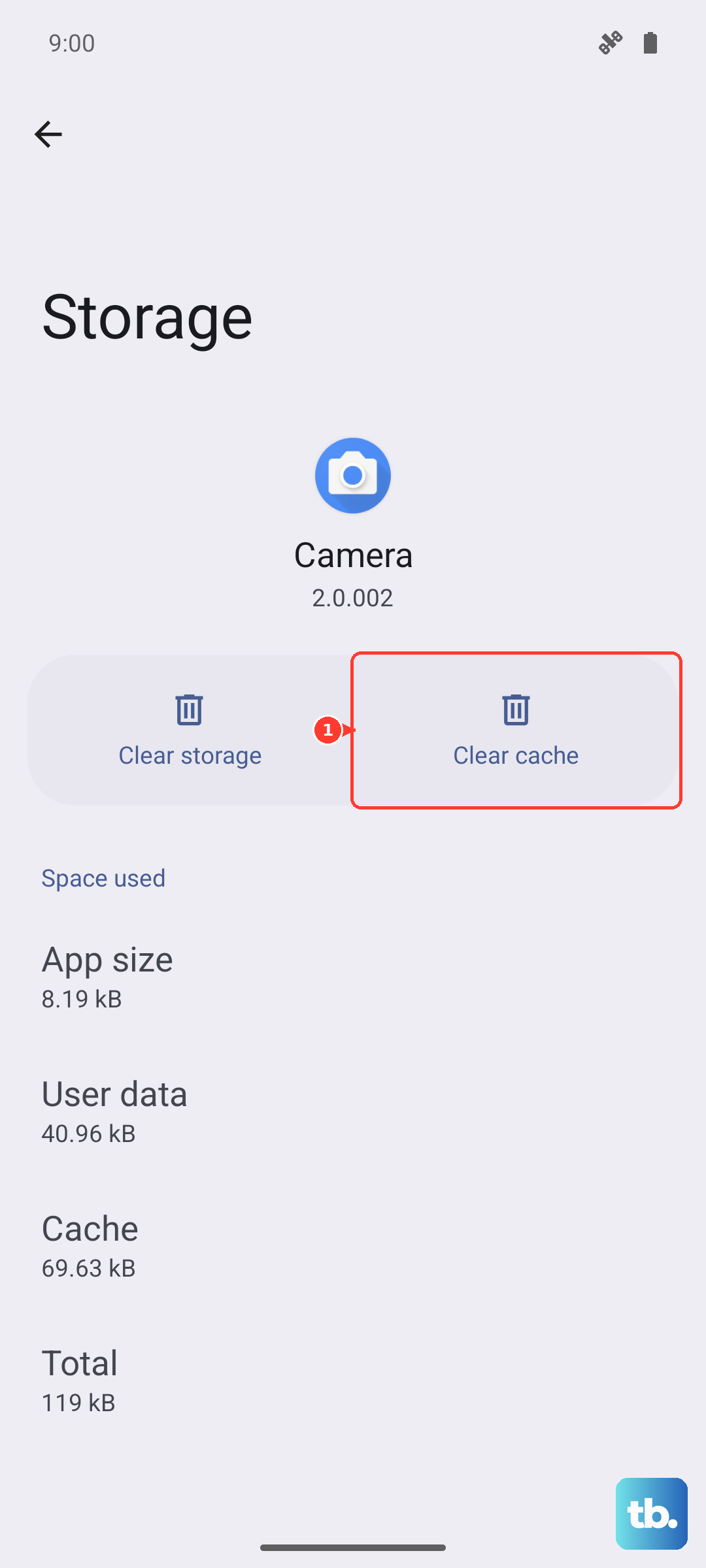
Go to Settings > Apps, select the problematic app, then tap Storage & cache. Tap "Clear cache." If that doesn't work, you can try "Clear storage" or "Clear data," but be warned this will reset the app and you'll need to log in again.
Update the Problem App
An outdated app version might have a bug that breaks notifications. Open the Google Play Store, tap your profile icon, and go to Manage apps & device > Updates available. See if the app in question is listed and update it.
You can also search for the app directly in the Play Store to see if an update button appears.
Update Your Phone's Software
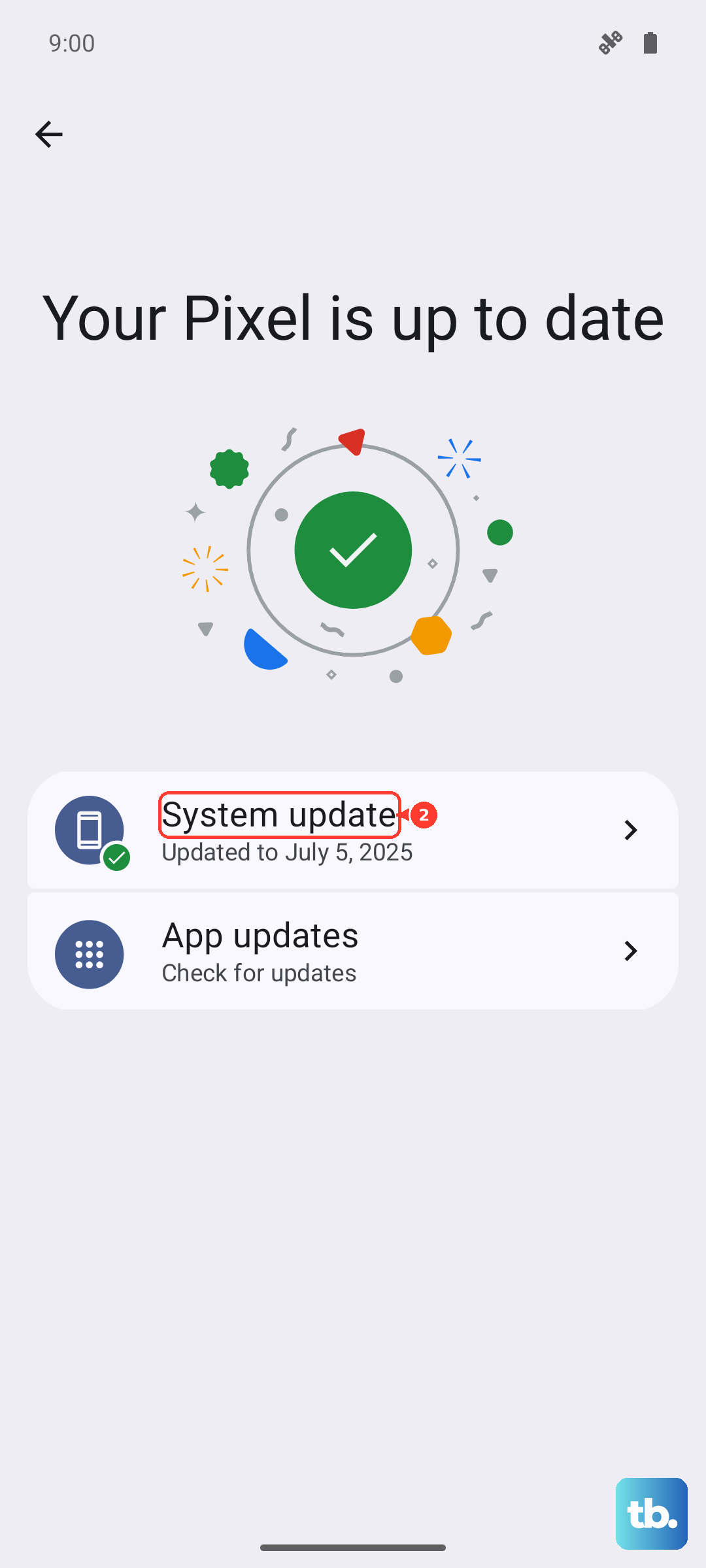
Tecno releases updates that fix system-wide bugs, including notification problems. Connect to Wi-Fi, then go to Settings > System > System update. Tap "Check for updates." If one is available, download and install it. Your phone will restart.
Reset App Preferences
This resets all your permissions, background data restrictions, and notification defaults for every app, but it doesn't delete any app data. It's a good middle-ground step before a factory reset.
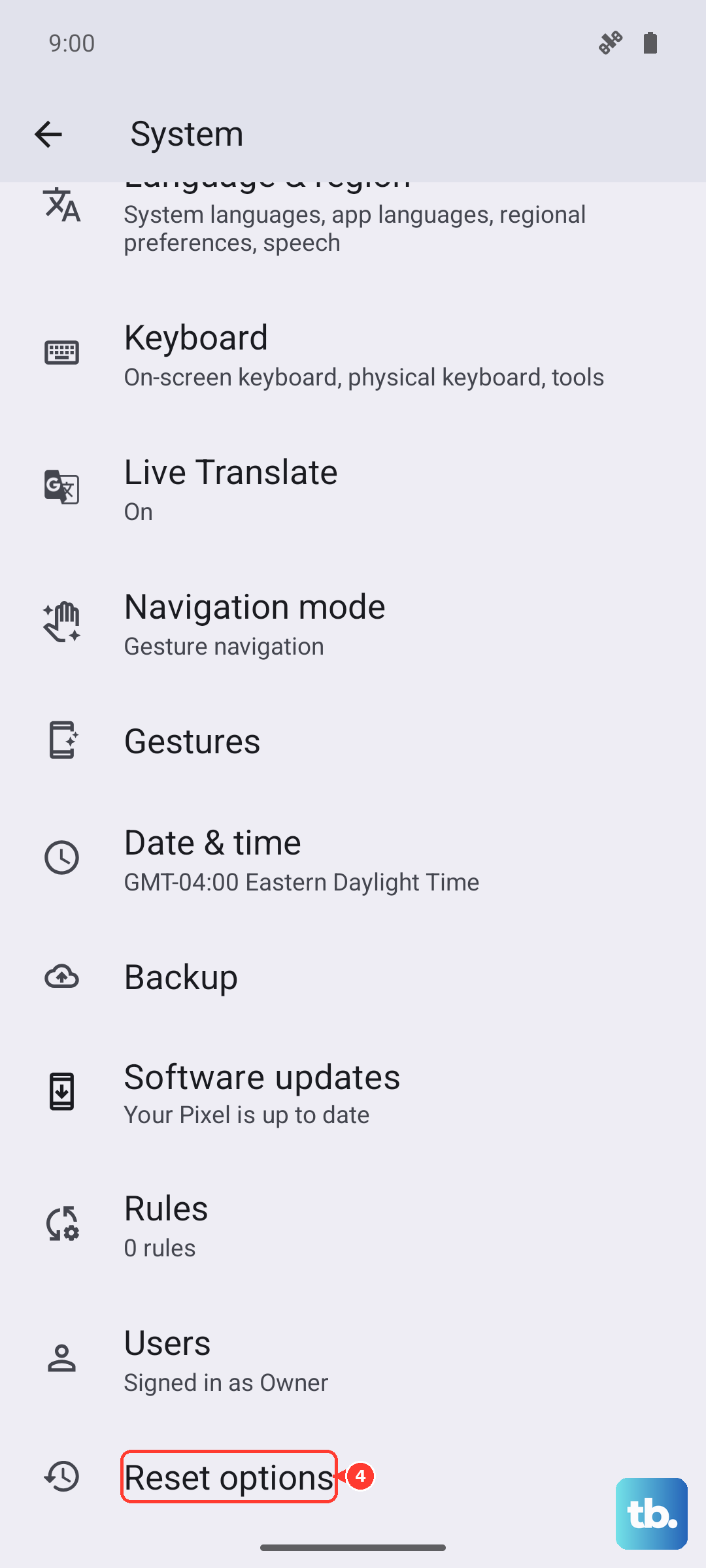
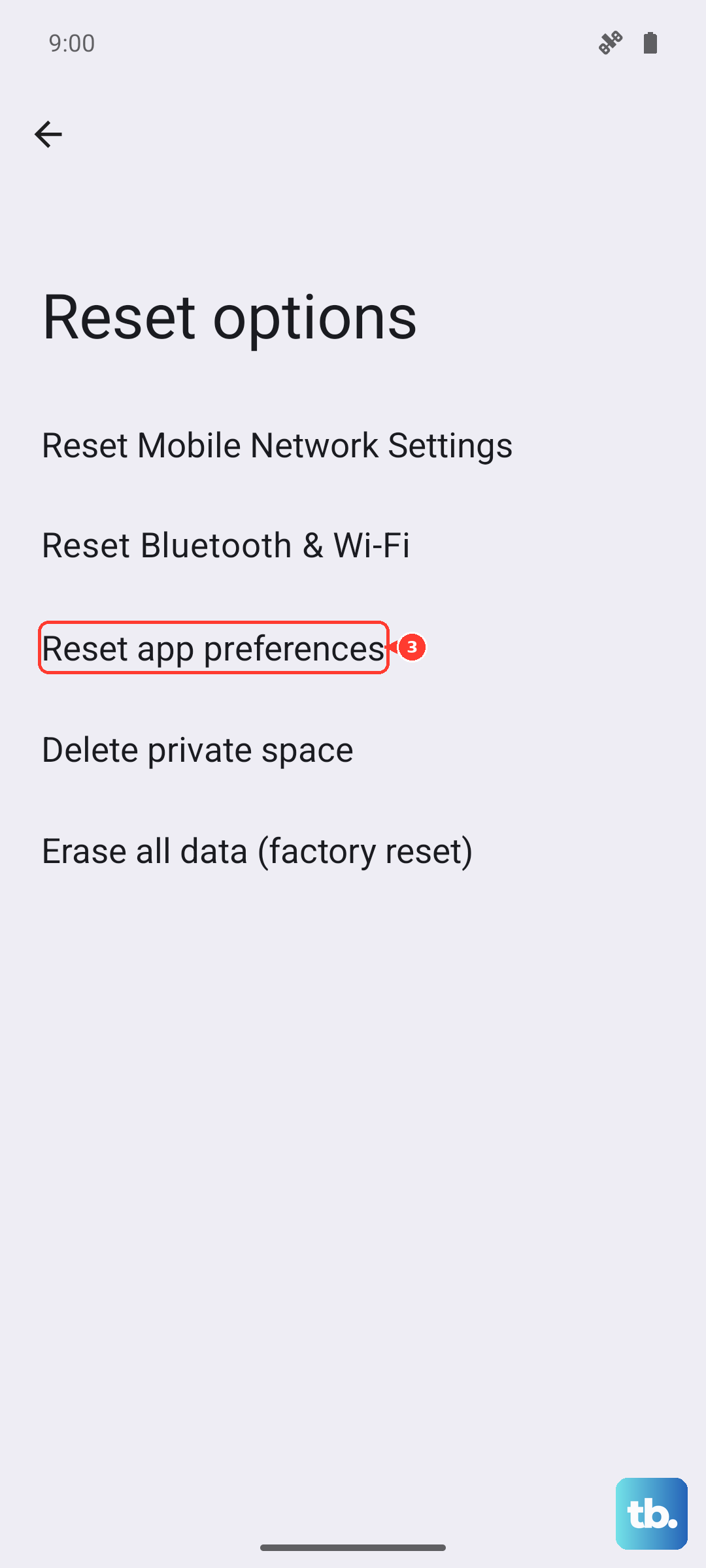
Go to Settings > System > Reset options. Tap "Reset app preferences" and confirm. You'll then need to re-allow notifications for your apps as they request permission again.
Check for Conflicting Apps or HiOS Features
HiOS sometimes includes features that manage or clean background processes. Look for any pre-installed "Phone Manager," "Security," or "Power Saving" apps. Open them and check their settings to ensure they aren't automatically killing the apps you need notifications from.
Also, if you've installed any third-party battery savers, cleaners, or "RAM boosters," try disabling or uninstalling them to see if notifications return.
Factory Reset (Last Resort)
If nothing else works, a factory reset will wipe all software issues clean. This will erase all your data, so you must back up everything important first. Use Google's backup in Settings > System > Backup, and manually save photos and files.
Once backed up, go to Settings > System > Reset options > Erase all data (factory reset). Follow the prompts. After the reset, set up your phone as new and test notifications before restoring your full backup, as the backup could restore the problem.