
Missing calls on your Tecno Spark 30 Pro can be a real headache, especially when you see the missed call notification but never heard a sound. The good news is this is usually a simple setting that got changed or a minor software hiccup. Let's run through the most effective fixes to get your phone ringing loud and clear again.
Check Your Physical Sound Switch and Volume
First, look at the right side of your phone. There's a physical switch that mutes all sounds, including your ringtone. If the switch is pushed down towards the screen, your phone is silenced. Slide it up to turn sound back on.
Next, with the phone unlocked, press the volume up button on the side a few times. This controls your media volume by default, but a quick settings panel should pop up on screen. Tap the three-dot menu on that panel and make sure the "Ring" volume slider is turned all the way up.
You can also adjust this directly in your settings. Go to Settings > Sound & vibration and drag the "Ringtone volume" slider to the maximum. While you're there, tap on "Ringtone" and play one to confirm your speaker is working.
Review Do Not Disturb and App Notifications
Your phone's Do Not Disturb mode is a common culprit. Swipe down from the top of your screen to open the Quick Settings panel and look for a crescent moon icon. If it's highlighted, tap it to turn Do Not Disturb off.
You should also check for any scheduled DND times. Go to Settings > Sound & vibration > Do Not Disturb. Make sure the main toggle at the top is off, and review any schedules listed below that might be activating automatically.
Sometimes, the issue is with the Phone app itself. Go to Settings > Apps > Manage apps and find "Phone" in the list. Tap on it, then go to Notifications. Ensure that "Incoming calls" notifications are enabled and set to make a sound.
Disconnect Bluetooth and Check Call Settings
If your Spark 30 Pro is connected to a Bluetooth headset, speaker, or your car, calls will often ring through that device instead of the phone's speaker. Swipe down your notification panel and tap the Bluetooth icon to turn it off, or go to Settings > Connected devices and toggle Bluetooth off.
It's worth checking a couple of other call-related settings. Open your Phone app, tap the three-dot menu in the top right, and go to Settings. Look for options like "Call forwarding" to ensure calls aren't being sent to another number, and check "Blocked numbers" to make sure the caller isn't accidentally blocked.
Change Your Ringtone and Check for Software Glitches
The current ringtone file might have become corrupted. Try switching to a different one. Go to Settings > Sound & vibration > Phone ringtone and pick a new tone. Hit "Apply" and then have a friend call you to test it.
A simple restart can clear out temporary software bugs that affect sound. Just hold the power button and tap "Restart". If the phone is completely unresponsive, you can force a restart by holding the Power button and Volume Down button together for about 10 seconds until you feel it vibrate and reboot.
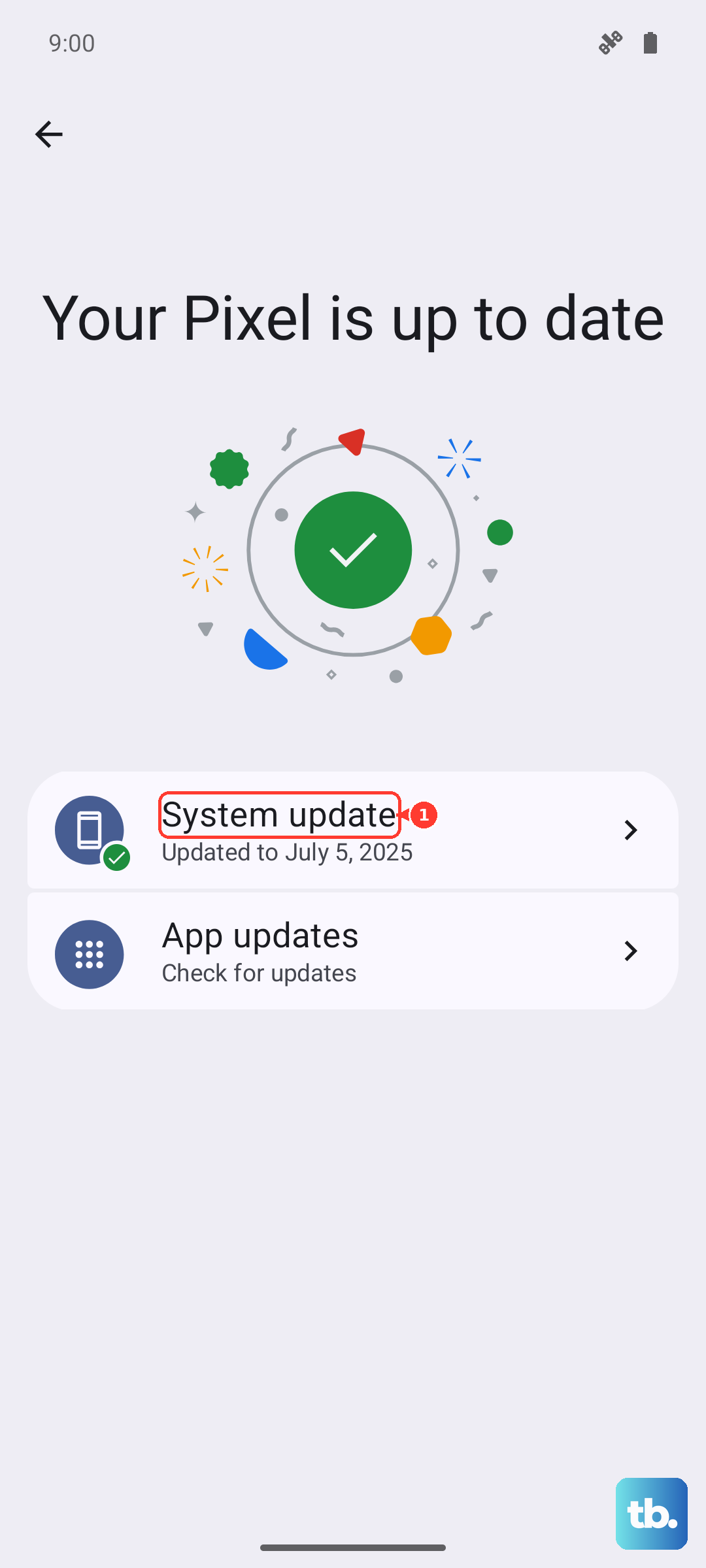
Since you're running HiOS 14 on Android 14, keeping the software updated is important for fixing known bugs. Connect to Wi-Fi, go to Settings > System > System update, and download any available updates. I've seen updates resolve sound issues on several Tecno models.
Reset App Preferences and Network Settings
If the problem seems isolated to calling apps like WhatsApp or Messenger, resetting app preferences can help without deleting your data. Go to Settings > Apps > Manage apps, tap the three-dot menu, and select "Reset app preferences". This will reset notification settings and permissions for all apps.
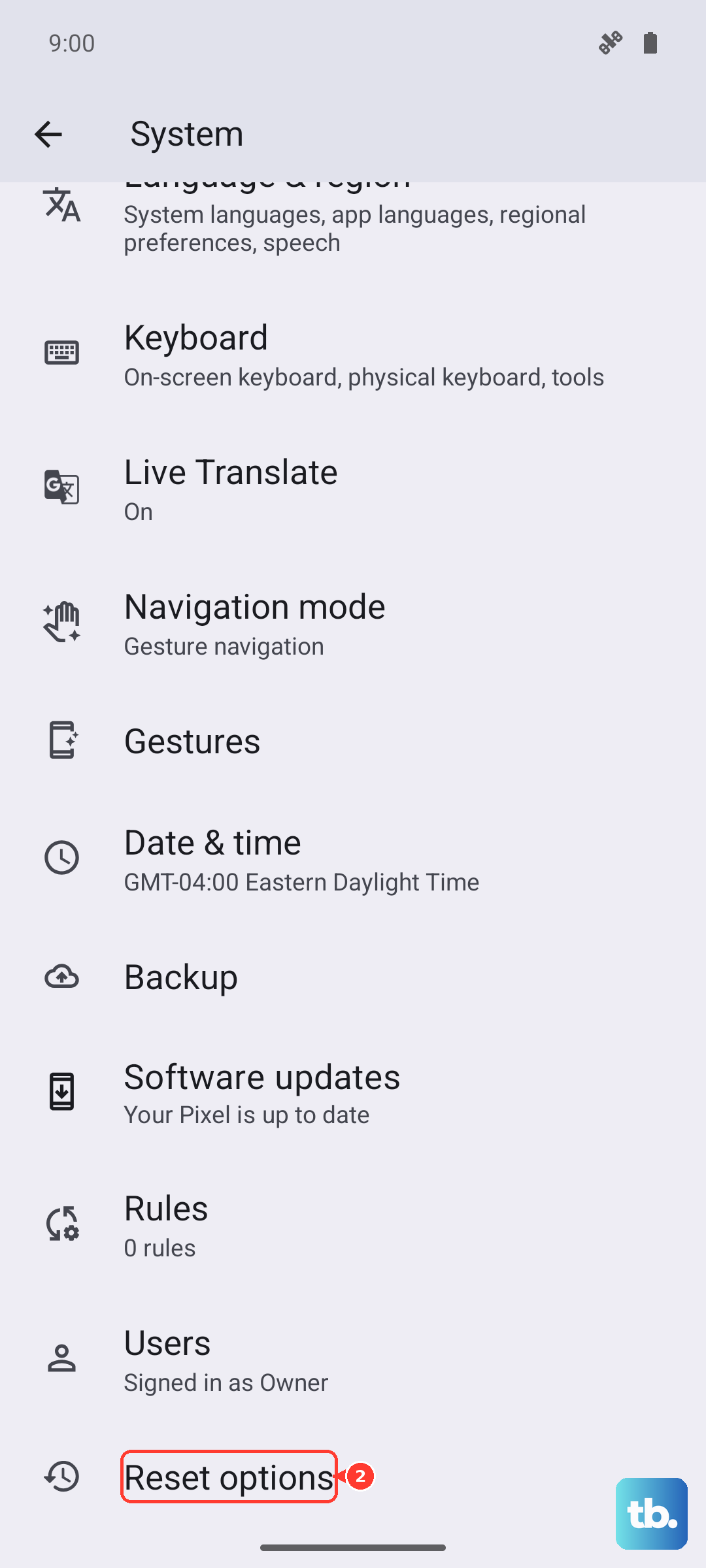
Network issues can sometimes interfere with call connectivity. Resetting network settings will clear your Wi-Fi passwords and Bluetooth pairings, but it can resolve deeper glitches. Go to Settings > System > Reset options and tap "Reset Wi-Fi, mobile & Bluetooth". Confirm and restart your phone.
Consider a Factory Reset
If you've tried everything else and the phone still won't ring, a factory reset is the final step. This will erase all your personal data, so make absolutely sure you've backed up your photos, contacts, and files first. You can use Google's backup or copy files to a computer.
To perform the reset, go to Settings > System > Reset options and select "Erase all data (factory reset)". Enter your PIN or password when prompted and confirm. After the phone reboots, set it up as new and test a call before restoring your backup to see if the issue is resolved.