
Is your Tecno Spark 30 Pro feeling sluggish, with apps taking forever to open or the screen freezing up? It's a common frustration, especially on a budget-friendly phone. The Helio G100 processor inside is decent for the price, but it can get bogged down easily.
Lagging usually comes from a few specific places on this phone. The pre-installed HiOS software can have background processes and ads running, storage fills up quickly, or too many apps are fighting for the limited RAM. Let's go through the fixes that work for the Spark 30 Pro.
Force Restart Your Phone
When the screen is frozen and nothing responds, a force restart is your first move. It clears the phone's temporary memory and stops any stuck process.
Press and hold the Power button and the Volume Down button together for about 10 seconds. Keep holding until you see the Tecno logo appear on the screen, then let go. This is different from a normal restart and often kicks a frozen phone back to life.
Close All Recent Apps
The Spark 30 Pro has 8GB of RAM, but having dozens of apps open in the background will slow it down. Swipe up from the bottom of the screen and hold in the middle to see your recent apps.
Swipe up on each app preview to close it, or look for a "Close All" button at the bottom of the screen. Get in the habit of doing this once a day to keep performance snappy.
Free Up Storage Space
If your internal storage is nearly full, the phone has no room to work efficiently. Go to Settings > Storage to see what's using space. On the Spark 30 Pro, I'd pay special attention to the "Other" category and downloaded files.
Clear app caches by going into Settings > Apps, selecting an app, and tapping "Storage & cache." Use the Files app by Google to find and delete duplicate photos, large video files, and old downloads you don't need anymore.
Remove or Disable Bloatware
This is a big one for Tecno phones. HiOS comes with apps you might not want, and they can run background services, show ads, and take up storage. You can't always uninstall them completely, but you can disable them.
Go to Settings > Apps, find an app you don't use (like a pre-installed game or utility), and tap on it. If the "Uninstall" button is grayed out, tap "Disable" instead. This stops it from running and hides it from your app drawer, freeing up precious RAM.
Update Your Phone Software
Tecno releases updates that often include performance improvements and bug fixes. Make sure you're running the latest version of HiOS and Android 14.
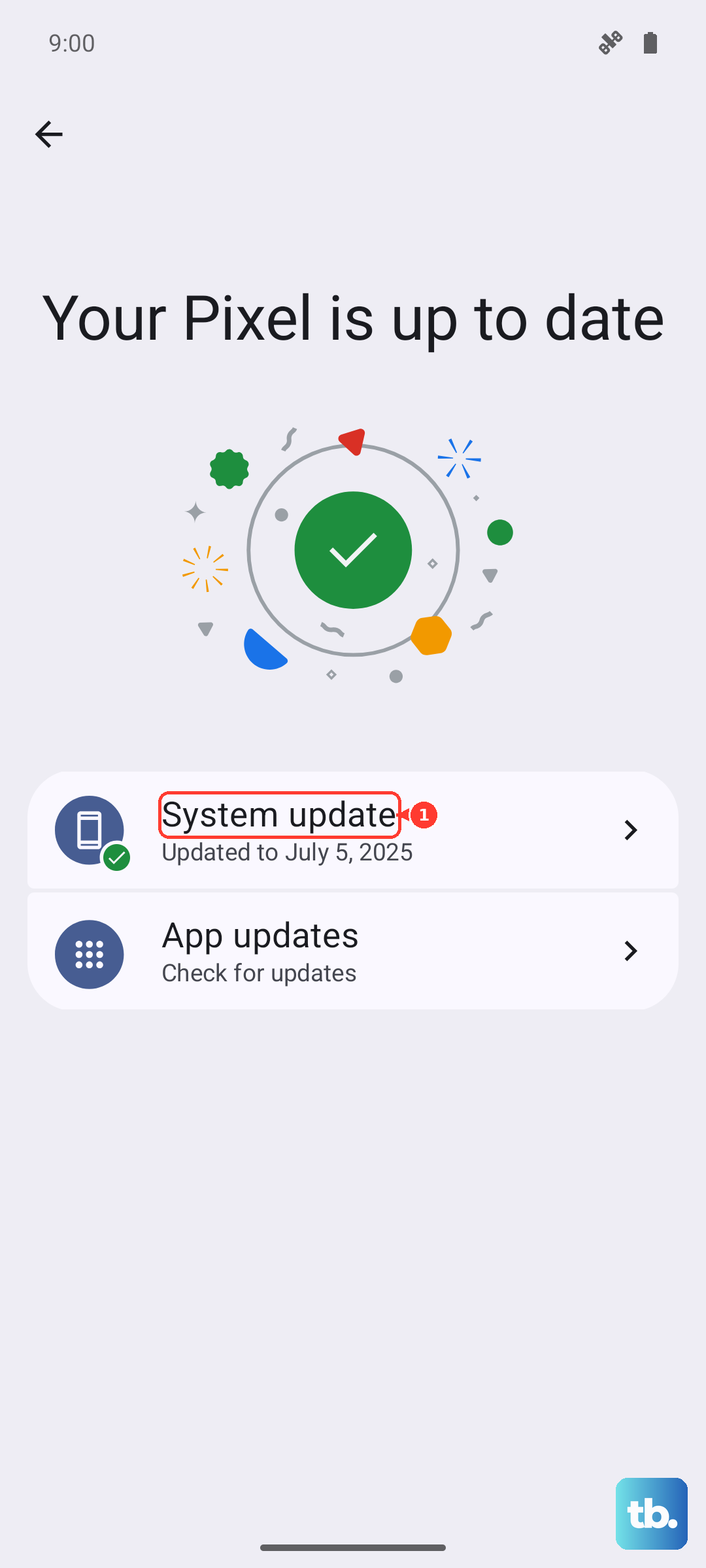
Go to Settings > System > System updates and tap "Check for updates." If an update is available, connect to Wi-Fi and plug in your 33W charger before installing it. A software update can resolve many lag issues introduced by older bugs.
Check for Rogue Apps
Sometimes, one misbehaving app is the culprit. Think about what you installed just before the lag started. Go to Settings > Battery > Battery usage to see which apps have been using the most power recently.
An app with unusually high background usage might be causing problems. Try uninstalling that app to see if performance improves. You can always reinstall it later from the Play Store.
Reduce Animations and Visual Effects
The fancy transition animations in HiOS look nice but can make the phone feel slower. You can speed up or remove them. First, you need to enable Developer Options.
Go to Settings > About phone and tap on "Software version" seven times. Now, go back to Settings and into "System." You'll see "Developer options." Inside, scroll down to "Drawing" and look for three settings: Window animation scale, Transition animation scale, and Animator duration scale.
Tap each one and change it from "1x" to ".5x" or even "Animation off." This makes menus and app transitions feel instantly faster.
Limit Background Activity
Some apps refresh content in the background constantly, which uses data, battery, and processor power. You can restrict this. Go to Settings > Apps and select a social media or news app.
Tap "Mobile data & Wi-Fi" and look for "Background data." You can turn this off for apps that don't need to update unless you're using them. Also, in Settings > Battery > Power saving modes, enabling a mode will often restrict background activity automatically.
Perform a Soft Reset (Reset All Settings)
If the lag seems tied to your settings or network configurations, this can help. It resets all your preferences, like Wi-Fi passwords, Bluetooth pairings, and display settings, back to default without touching your personal data or apps.
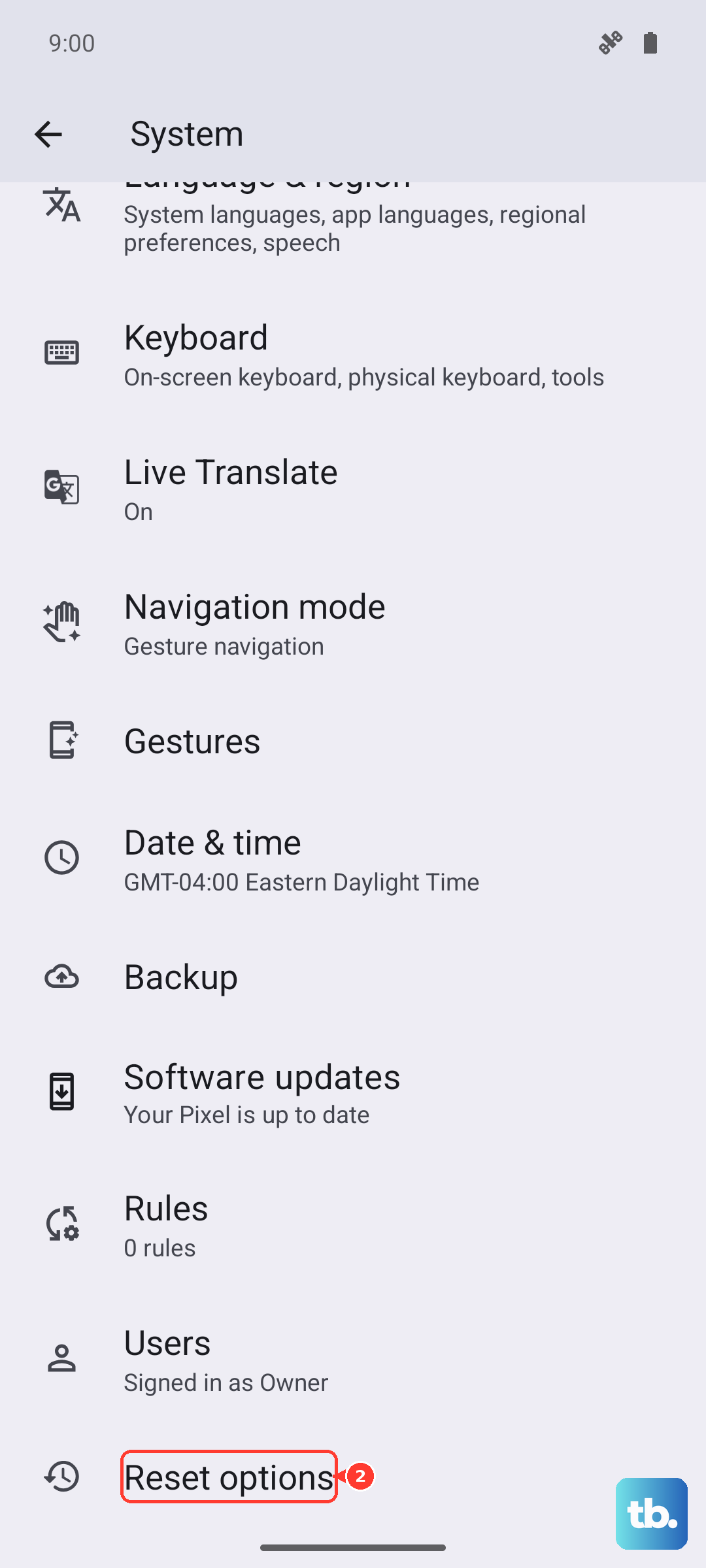
Go to Settings > System > Reset options. Tap on "Reset all settings" and confirm. You'll need to re-setup your connections and preferences, but it can clear out software glitches causing the slowdown.
Consider a Factory Reset
This is your last resort if nothing else works. It will erase everything on your phone and return it to its out-of-the-box state. Before you do this, it's absolutely critical to back up your photos, videos, contacts, and messages to Google Drive or an SD card.
Once backed up, go to Settings > System > Reset options > Erase all data (factory reset). Follow the prompts. After the phone restarts, set it up as new instead of restoring a full backup, as a corrupted backup file could restore the problem. Only reinstall the apps you truly need.